How to use Canva for social media
To use Canva for social media, sign in at canva.com, open Social media, pick a platform and format, and start from a template. Edit the images and text, then download it from Share. Save your brand kit, copy designs to reuse them, resize them for other platforms, and schedule posts in Content Planner.
Quick steps
- Sign in at canva.com, open Social media, pick a platform and choose a format such as a standard post.
- Search the templates and pick one without the crown icon if you are on the free plan.
- Swap images from Elements, change the text, then click Share and Download.
- Save your brand colors, logo and fonts under Brand so every design stays on brand.
- Make a copy of a finished design to reuse it, or use Resize to turn it into a story.
- Open Content Planner from More, connect your account and schedule the post.
Build a Consistent Brand with Canva
A free guide to creating campaign-ready assets in minutes, using Canva brand kits and building on-brand templates you can reuse across your marketing.
Canva can handle most of your social media work in one place: designing posts, keeping them on brand, resizing them for each platform and scheduling them. This guide follows the video’s example, a coffee shop that wants to promote a buy two, get one free special this weekend.
Create a social media post
Go to canva.com and sign in. You land on the dashboard. Canva has a free version and a paid version, and the steps below say which features need the paid one.
- Across the top of the dashboard, find the design types. You can search for exactly what you want, or open Social media.
- Pick the platform you want to post on. The video picks Instagram.
- Choose the format. Canva has sizes ready for ads, a standard post, a reel and a story. The video uses a standard post, Instagram Post (4:5).
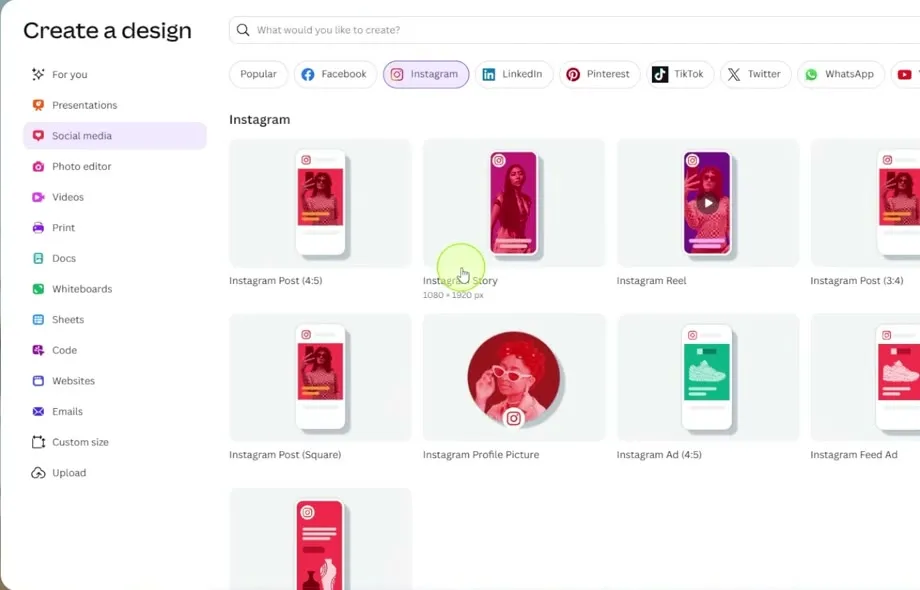
Canva opens a blank canvas. You can design from scratch or start from a template.
Find a free template
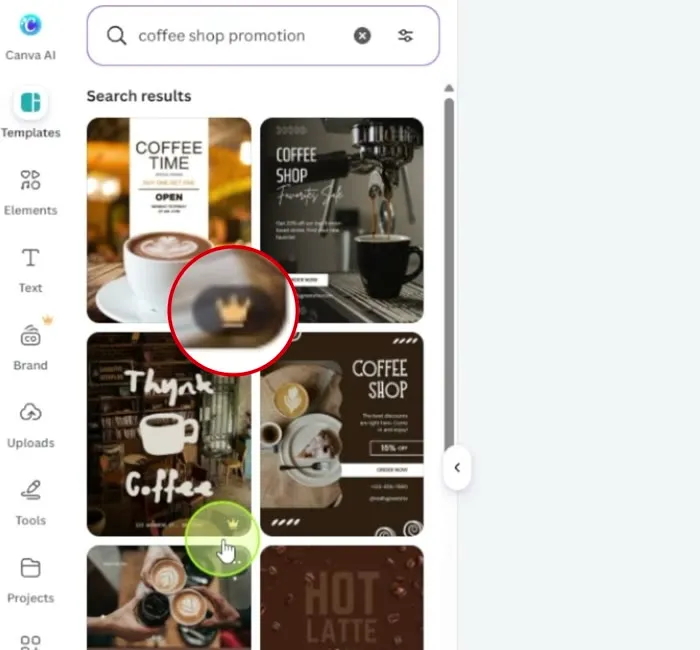
- In the Templates panel on the left, search for what you need. The video searches for coffee shop promotion.
- Look at the bottom right corner of each result. A small crown icon means it is a premium template, available on the paid accounts. No crown means the template is free to use.
- Click a template to add it to your canvas.
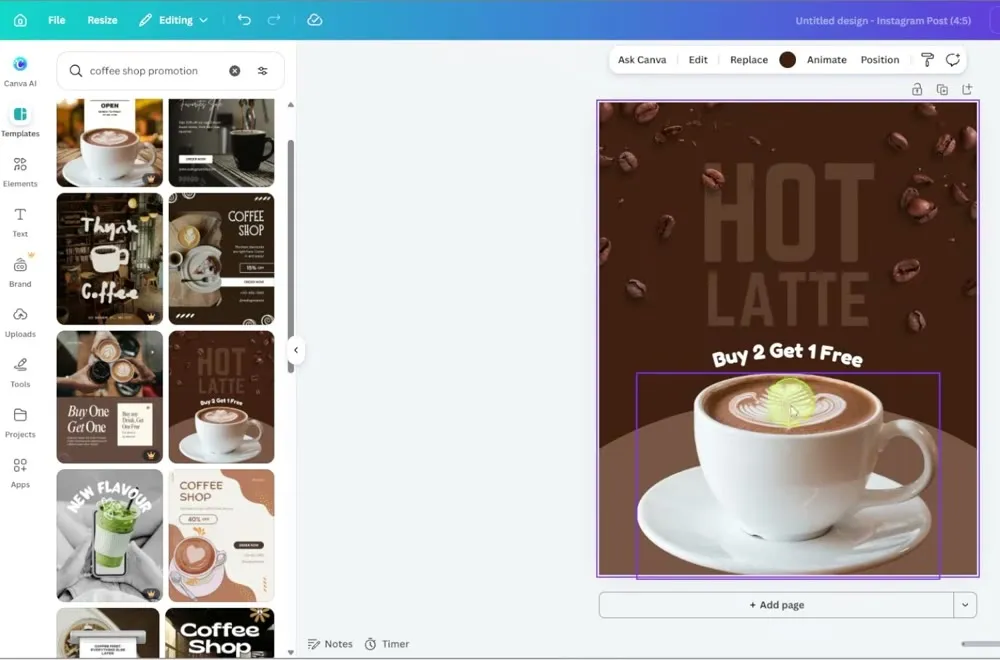
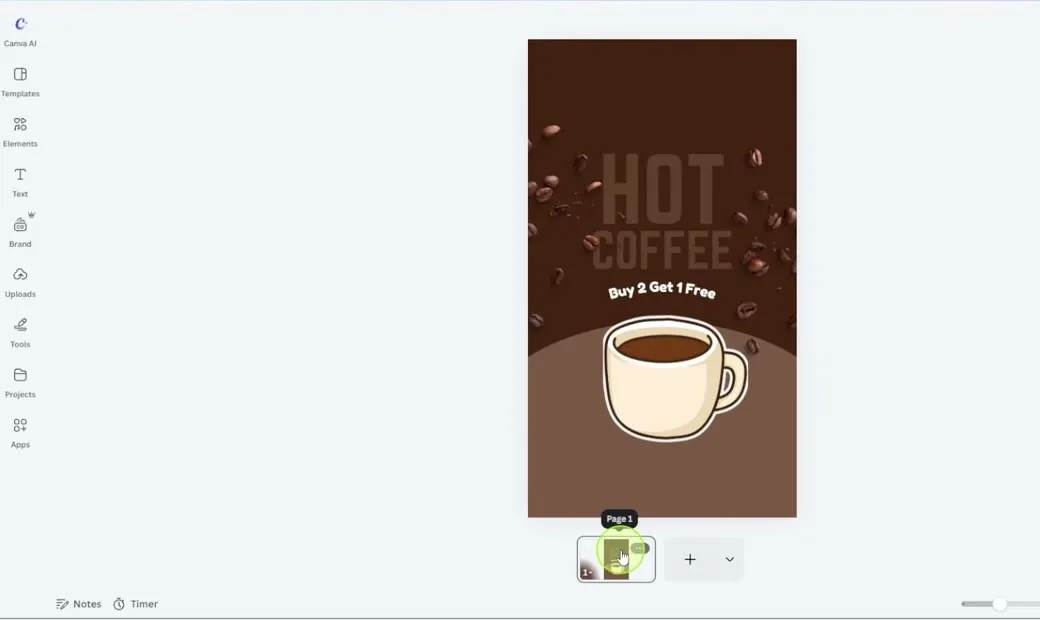
The template in the video gives a good starting point: “Hot latte, Buy 2 Get 1 Free” with a photo of a coffee.
Customize and download the post
You can change anything on the template.
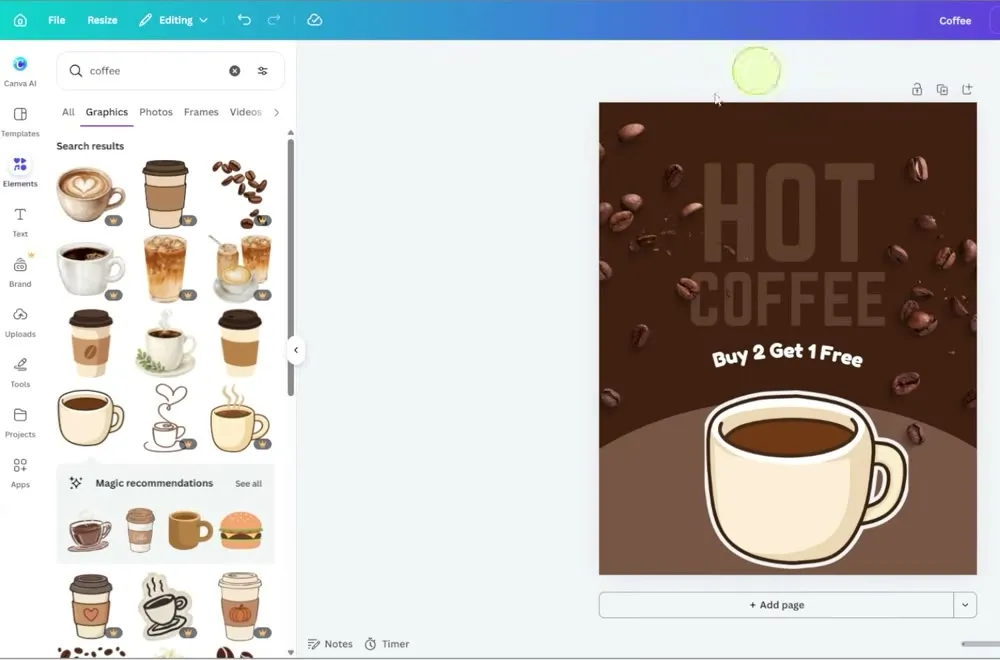
- To swap an image, open Elements and search. The video searches for coffee, picks a cartoon coffee cup and resizes it to fit.
- To change the words, click the text and type. The video changes “Hot latte” to Hot coffee, then resizes the text.
- Move or resize any other piece, such as the coffee beans, until it looks the way you want.
- Click Share at the top, then Download.
- Check the file type (Canva suggests PNG) and click Download.
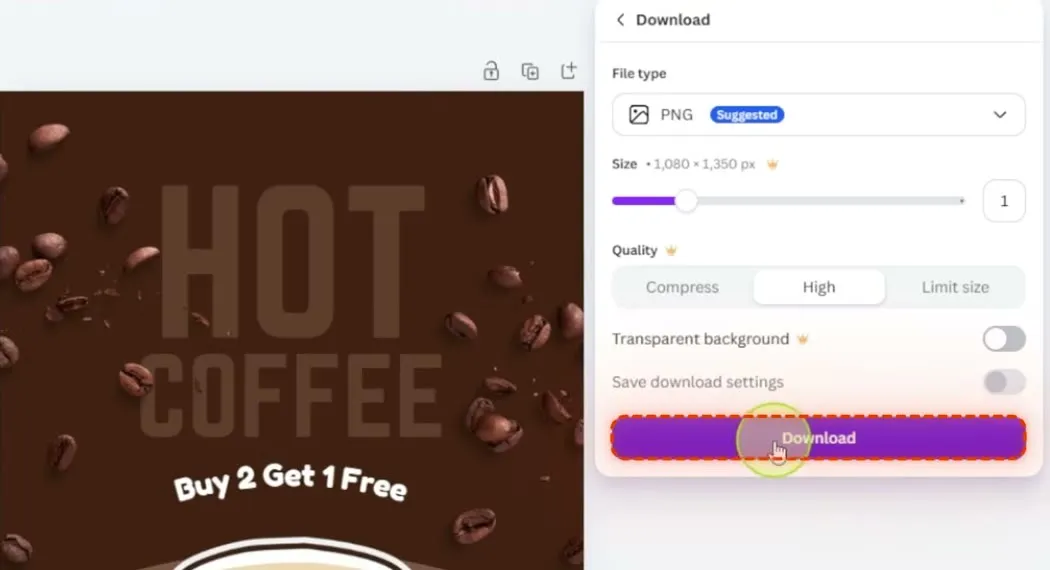
Your Instagram post is ready to upload.
Save your brand kit
The brand kit saves your business logos, colors and fonts so you can use them in all your designs. It is a premium feature, so you need to upgrade to use it. The video clicks Try for free to sign up for the paid account.
- In the side panel, click Brand.
- Add your brand colors and save them. The coffee shop uses a brown, an orange and a cream.
- Open Logos, click Upload, add your logo and click Save.
- Keep going with your fonts, brand voice, photos and other content.
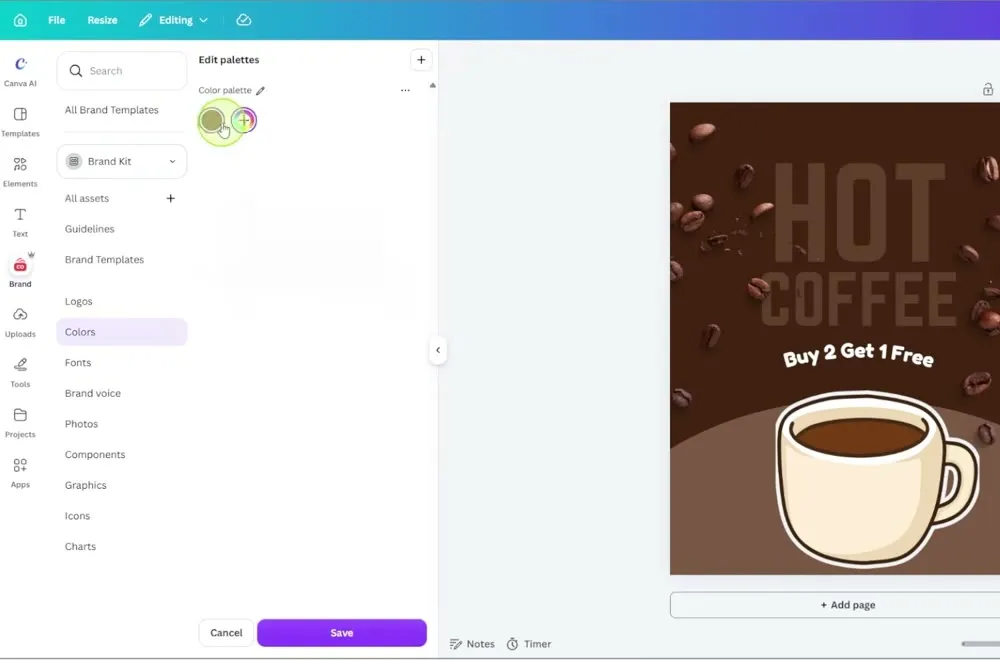
Everything you save here is there when you create other posts, so you don’t upload the same pieces every time, and everything stays on brand.
Reuse a design as a template
Instead of starting from scratch for every post, reuse a design you already made. Say you run a different promotion every weekend and want each one to look similar.
- Go back to the main page and find the design.
- Click the three dots on the design and choose Make a copy.
- Open the copy and make your changes. The original stays as it was.
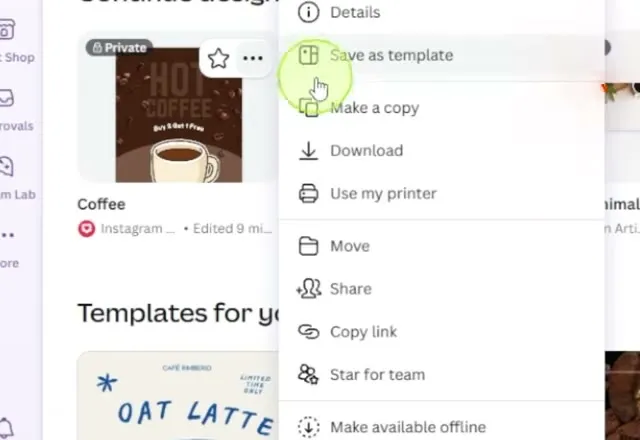
On a paid business account, there is an easier way:
- Click the three dots on the design and choose Save as template.
- Click Publish.
The template is now available to you and anyone else on your team, so everyone builds from it instead of copying files each time. This works for any post you repeat, such as a weekend promotion or an employee of the month post.
Resize a design for other platforms
Each platform works best with different dimensions. Instead of remaking a design for each one, let Canva resize it.
- Open the design. In the video, it is the Instagram post.
- Click Resize at the top.
- Search for the format you want, or pick it from the suggestions. The video picks Instagram Story.
- Click Copy and resize so the original does not change.
- Click Open Instagram story.
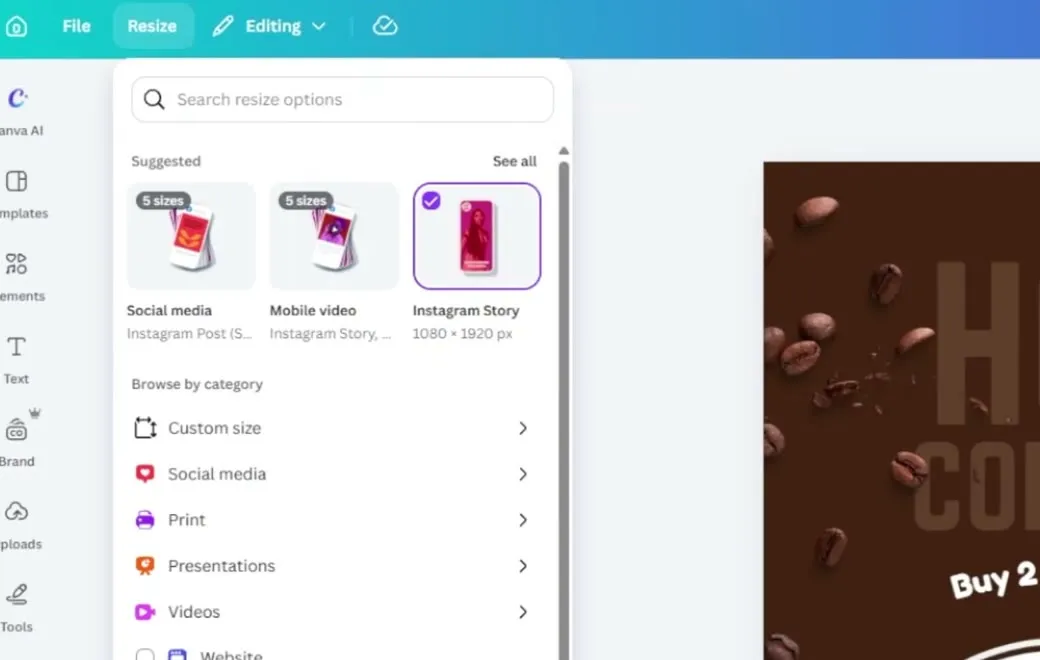
You now have the same design in the new size. Fill in any empty areas and adjust it as needed.
Schedule posts with Content Planner
You can schedule and post directly from Canva, without downloading the design and adding it to each platform yourself.
- On the main page, click More in the side panel.
- Click Content Planner. It shows a calendar of when your content will be posted.
- Click Schedule an Instagram Post and follow the steps to connect your Instagram account.
- Once it is connected, select your post, write your caption, change the date and click Schedule.
The video saves the post as a draft for now, then drags it on the calendar to the next day. When the video schedules the story, Canva shows a note that Instagram doesn’t support scheduling for Stories or Reels right now.
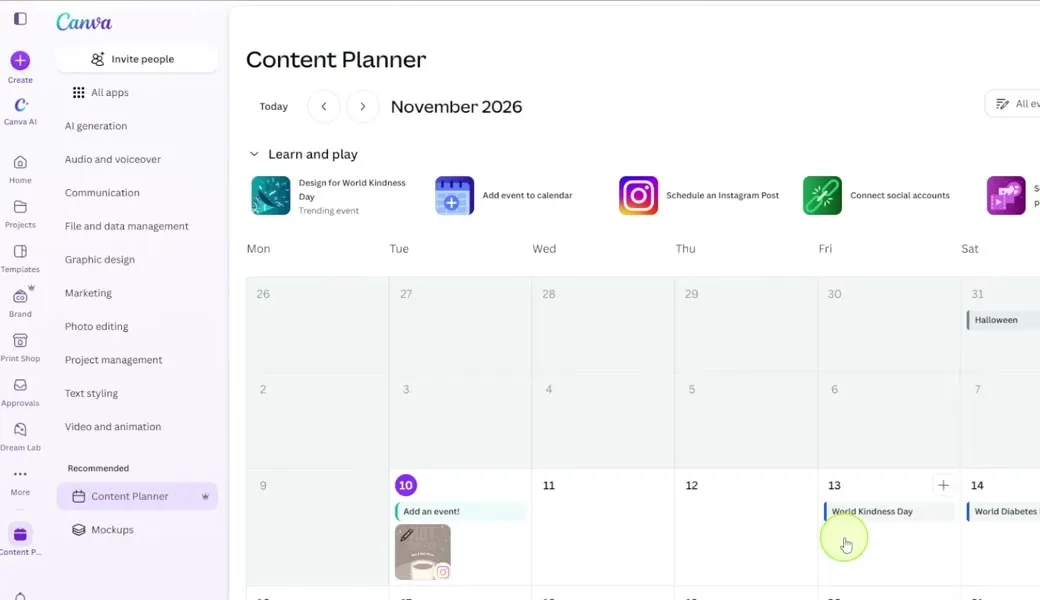
You can plan a whole week or month of content this way, on every platform you connect to Canva.
Common questions
Is Canva free for social media posts?
Canva has a free version and a paid version. Templates with a small crown icon in the bottom right corner are premium; templates without it are free to use. The brand kit and saving designs as team templates need a paid account.
How do I make an Instagram post in Canva?
On the Canva home page, open the Social media section, pick Instagram and choose a format, such as a standard post. Start from the blank canvas or search the templates, edit it, then click Share and Download.
What is the Canva brand kit?
The brand kit saves your business logos, colors and fonts, plus brand voice, photos and other content, so you can use them across all your designs without uploading them each time. It is a premium feature.
How do I resize a Canva design for another platform?
Open the design, click Resize at the top, and search for the new format, such as Instagram Story. Click Copy and resize to keep the original, then open the new version and adjust it if needed.
Can you schedule social media posts from Canva?
Yes. Open More on the home page, then Content Planner. Connect your Instagram or other accounts, select the post, write a caption, pick the date and schedule it. On screen, Canva notes that Instagram doesn't support scheduling for Stories or Reels right now.
Build a Consistent Brand with Canva
A free guide to creating campaign-ready assets in minutes, using Canva brand kits and building on-brand templates you can reuse across your marketing.
Build a Consistent Brand with Canva
A free guide to creating campaign-ready assets in minutes, using Canva brand kits and building on-brand templates you can reuse across your marketing.
Get the free guide