How to create a social media content calendar in Notion
In Notion, click New, create a page and name it Content Calendar. Type /calendar view to add a calendar. Hover over a day and click the plus sign to add a post, then add its caption, hashtags and images. Add a Platform multi-select property and a Status property to track where each post goes and how far along it is.
Quick steps
- Sign in to Notion, or create a free account at notion.com.
- Click New, create a new page and name it Content Calendar.
- Click below the title, type /calendar view and select it.
- Hover over a day, click the plus sign and add the post's title, caption, hashtags and images.
- Drag a post to another day if you want to move it.
- Add a Platform multi-select property and a Status property, then fill them in for each post.
Content System and Template
A free content system and template that brings your content strategy, calendar goals and analytics together in one place, with your audience and content pillars connected so you can plan content each week.
This guide shows you how to build a simple social media content calendar in Notion, for free. You will plan a week of posts for a local coffee shop that posts on Monday, Wednesday and Friday, and keep track of which platform each post goes on and what is already done.
Sign up for Notion
- Go to notion.com.
- Sign in if you already have an account, or click the button to get Notion for free and create an account with your email.
- Once you verify your sign-up, enter your name and click Continue.
The first time you use Notion, it asks a few questions about the kind of work you do to customize your experience. You can skip through them, and you will land on the main dashboard.
Create a new page
Click the New button at the top and create a new page.
Add a calendar view
- Name the page Content Calendar.
- Click in the empty space below the title. You can press space for AI mode or type a slash to start a command.
- Type
/calendar view. It pops up as you type. Click it.
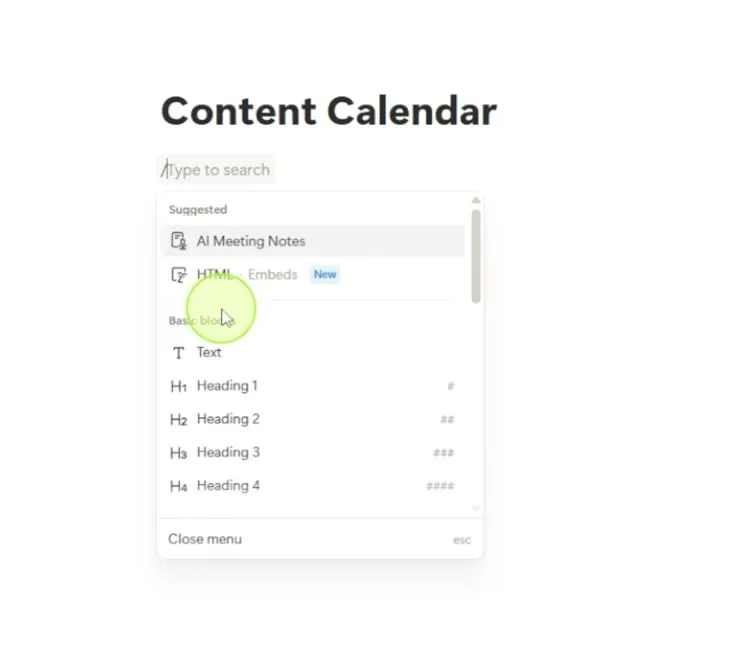
That gives you a calendar view, and you already have the start of your content calendar.
Add your posts
- Hover over the day you want to post on, such as Monday. A small plus sign appears.
- Click the plus sign. A new page opens, already set for that date.
- Give the post a title, such as Monday Morning Coffee Special.
- Below the title, add everything the post needs: the caption, the hashtags and any notes.
- To add a photo, type
/imageand upload it, or link to it in Google Drive if your images are there.
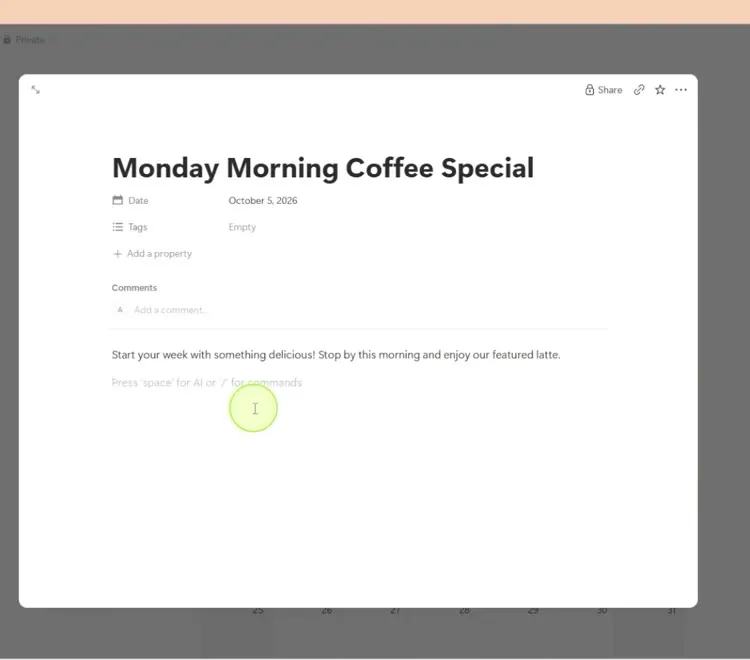
Everything in Notion is a page, so each post has its own page to hold the copy, the graphics and anything else you need. Click off the page and the post shows on Monday in your calendar. Do the same for Wednesday and Friday.
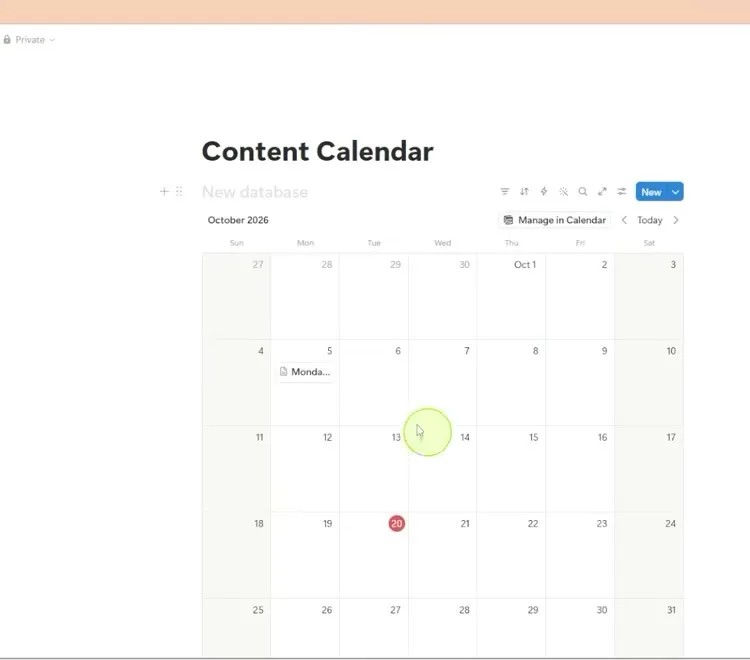
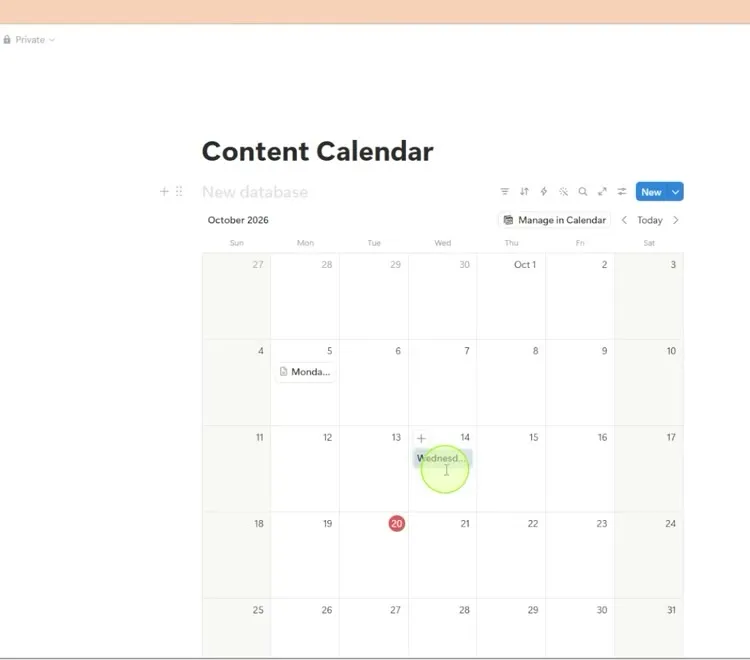
Move a post to another date
If a post should go out on a different day, click and drag it on the calendar. In the video, the Wednesday post is moved to the following Wednesday.
Track the platform
- Open your Monday post again.
- At the top, click Add property.
- Choose Multi-select and name it Platform.
- Add an option for each platform you post on, such as Instagram, Facebook and TikTok.
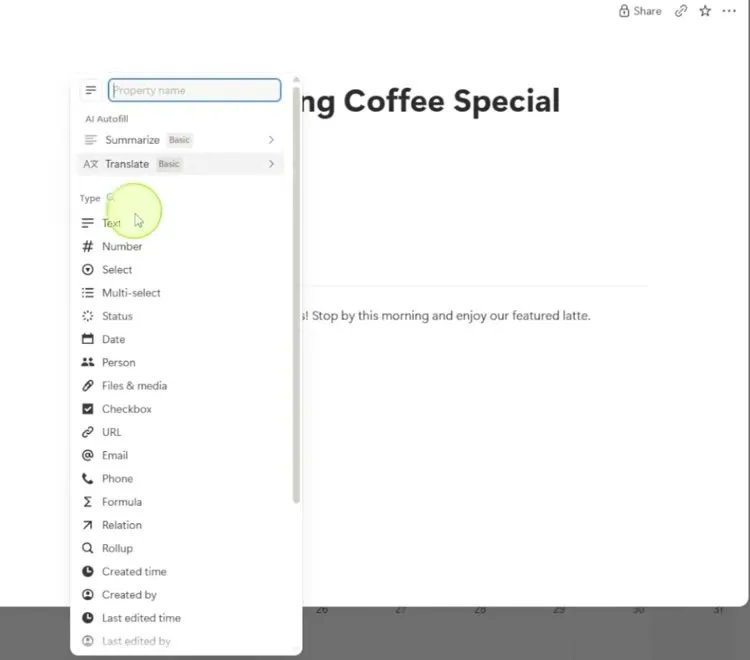
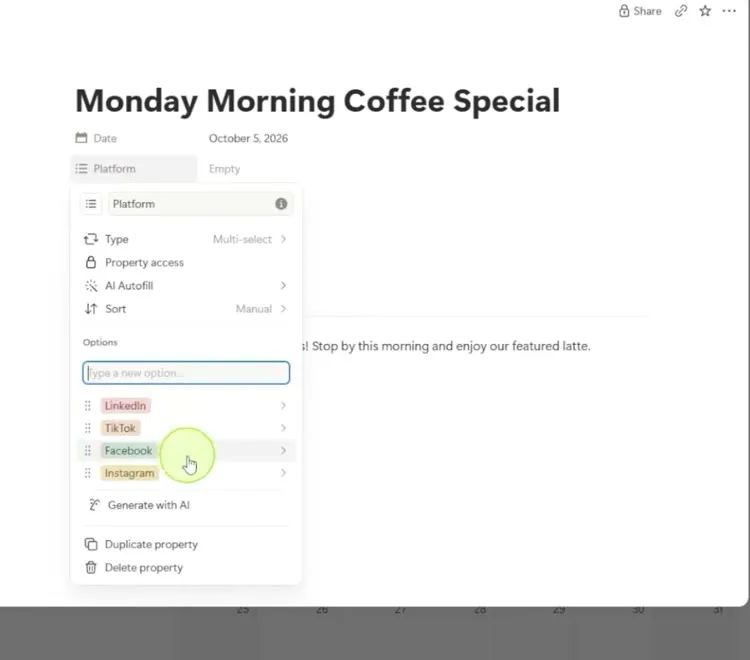
- Click off the menu, then click in the Platform field and pick where this post is going. In the video, the Monday post goes on TikTok and Facebook.
Every post now has the same platforms to choose from.
Track the status
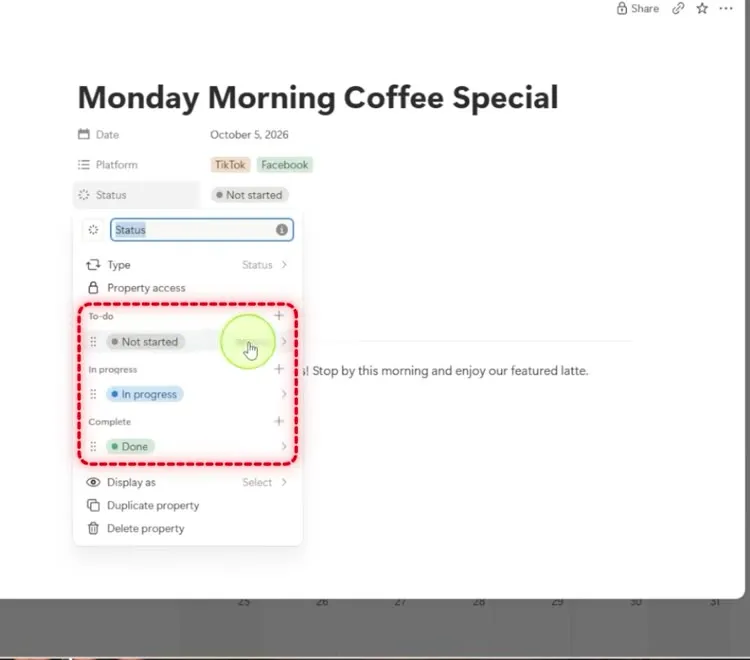
- Click Add property again and choose Status. Keep the name Status.
- It comes with Not started, In progress and Done. You can add your own stages, such as artwork, writing copy or needs approval.
- Set each post’s status. In the video, the Monday post is set to In progress.
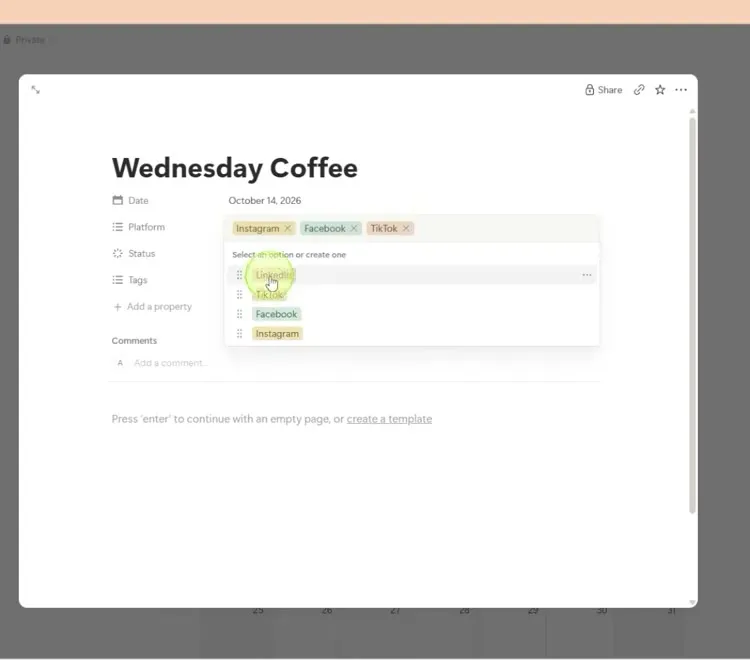
Open the Wednesday post and you will see the same Platform and Status fields. In the video, it goes on Instagram, Facebook and TikTok, and its status is Not started.
You can fill in your content for weeks or months in advance. From here, add your posts to the calendar and update each status as you go.
Common questions
How do I make a content calendar for social media?
In Notion, create a new page, name it Content Calendar and type /calendar view to add a calendar. Then click the plus sign on each day you want to post and add the post's caption, hashtags and images.
Can I make a social media content calendar for free?
Yes. The calendar in this guide is built on a free Notion account, and HubSpot also has a free content template you can use alongside it.
How do I track which platform each post goes on?
Open a post, click Add property, choose Multi-select and name it Platform. Add an option for each platform, such as Instagram, Facebook and TikTok, then pick the ones each post is going on.
How do I track whether a post is ready?
Add a Status property. It comes with Not started, In progress and Done, and you can add your own stages, such as artwork, writing copy or needs approval.
Can I move a post to a different day?
Yes. Click and drag the post on the calendar to the day you want, for example the following Wednesday.
Content System and Template
A free content system and template that brings your content strategy, calendar goals and analytics together in one place, with your audience and content pillars connected so you can plan content each week.
Content System and Template
A free content system and template that brings your content strategy, calendar goals and analytics together in one place, with your audience and content pillars connected so you can plan content each week.
Get the free template