How to create a carousel on Instagram
To create a carousel on Instagram, tap the plus sign, choose Post, then tap Select under the photo preview and pick the photos you want. Tap the arrow, choose portrait or square, drag the photos into order, edit them and add music if you like, then tap Next, write a caption and tap Share.
Quick steps
- Open Instagram, tap the plus sign in the top left corner and choose Post at the bottom.
- Tap Select under the photo preview, tap each photo you want, then tap the arrow next to New post.
- Tap the small icon at the bottom left of the photo and choose Portrait or Square.
- Tap and hold a photo and slide it to change the order.
- Tap a photo to add a filter, resize it or add text, then tap Done.
- Tap Audio to add music, then tap Next.
- Write a caption, tap the check mark, add tags or a location, and tap Share.
Instagram for Business Kit
A free kit for using Instagram to grow a business.
An Instagram carousel is one post that holds several photos. It works well when you have a sequence of photos that tell a story, or details you want to show. This guide builds one from four photos, a lamp, a shelf, a microphone and a coffee cup, and takes it all the way to a shared post with music.
Select multiple photos for one post
- Open Instagram and tap the plus sign in the top left corner.
- At the bottom, choose Post.
- Just below the photo preview, tap Select. This is the key step.
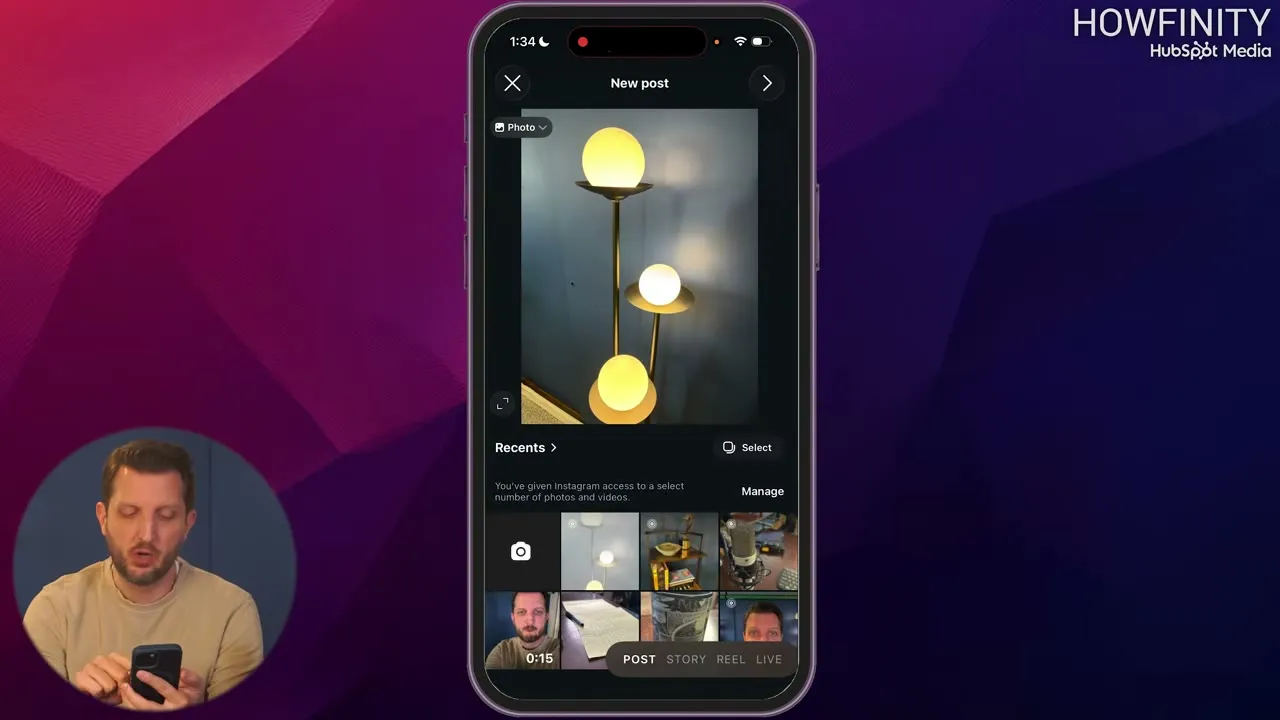
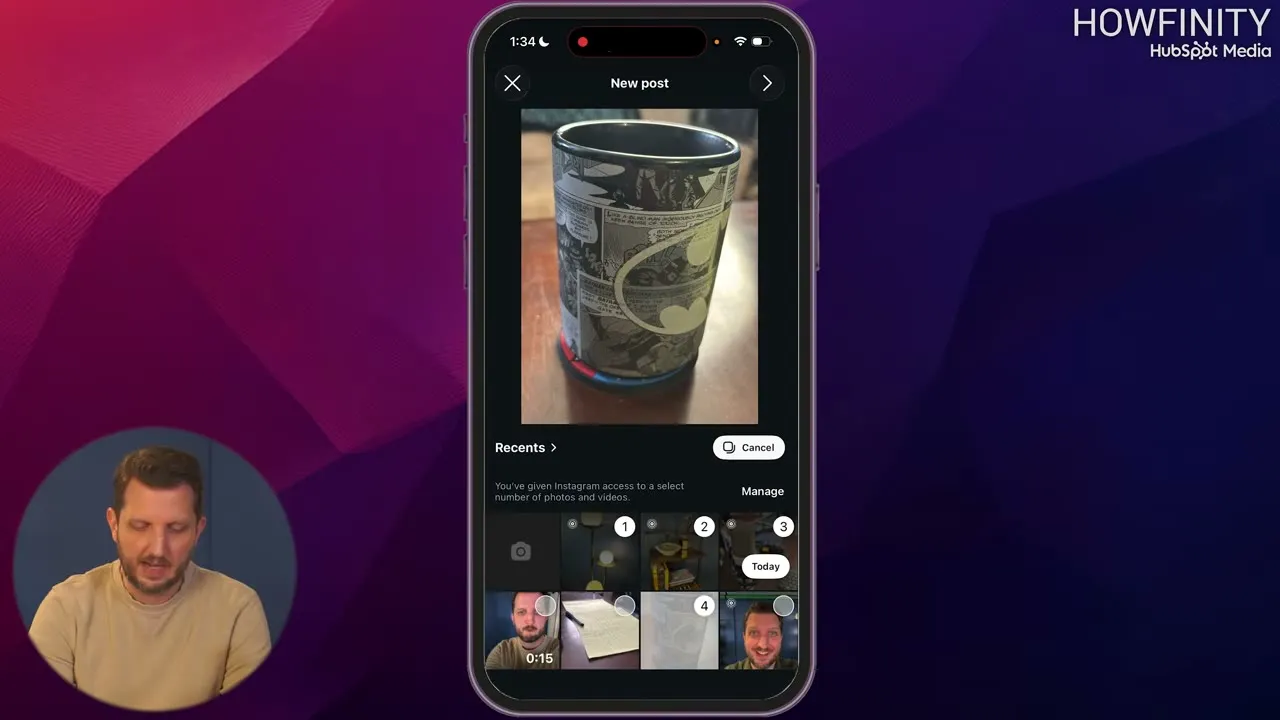
- Tap each photo you want. Every photo you tap gets a number.
- Tap the arrow next to New post.
Choose portrait or square
The next screen is where you edit the carousel. Start with the shape of the photos. You can keep them in the taller vertical format or make them square.
- Find the small icon at the bottom left corner of the photo.
- Tap it and choose Portrait or Square.
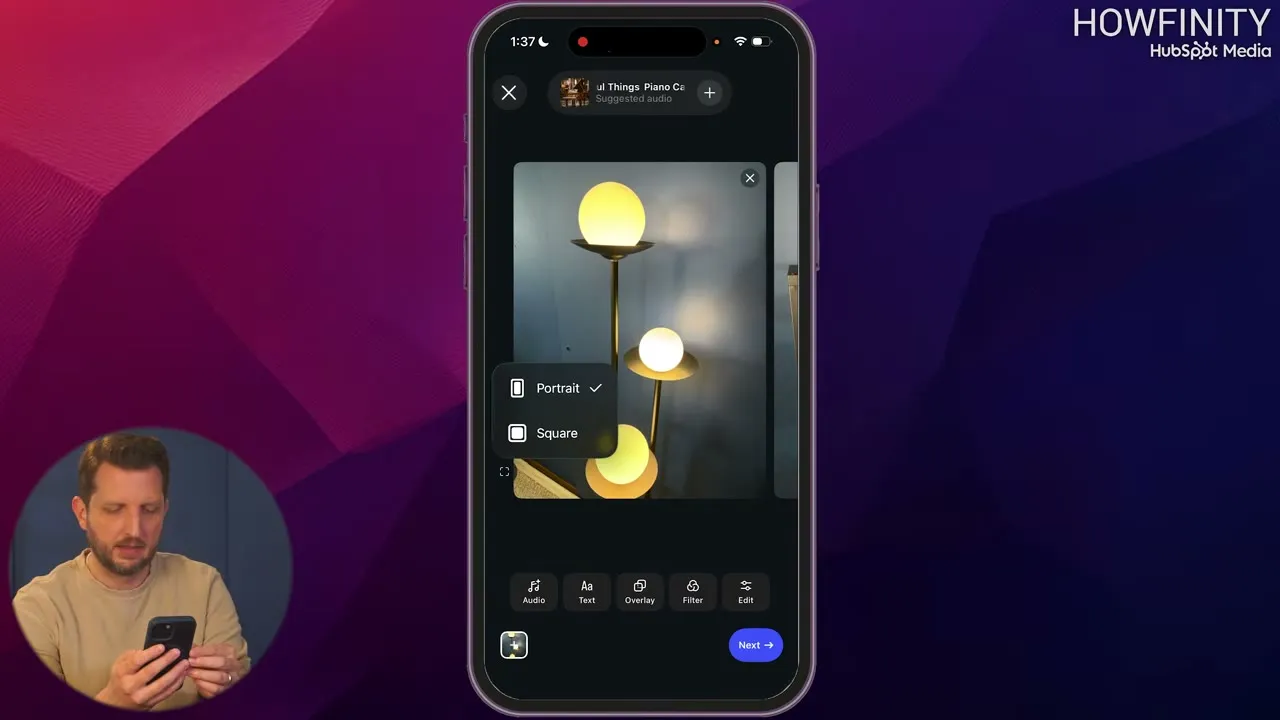
The choice applies to every photo in the carousel, which you can see as you scroll through them. The video uses square. That is a personal preference, so pick the one you like.
Change the order of the photos
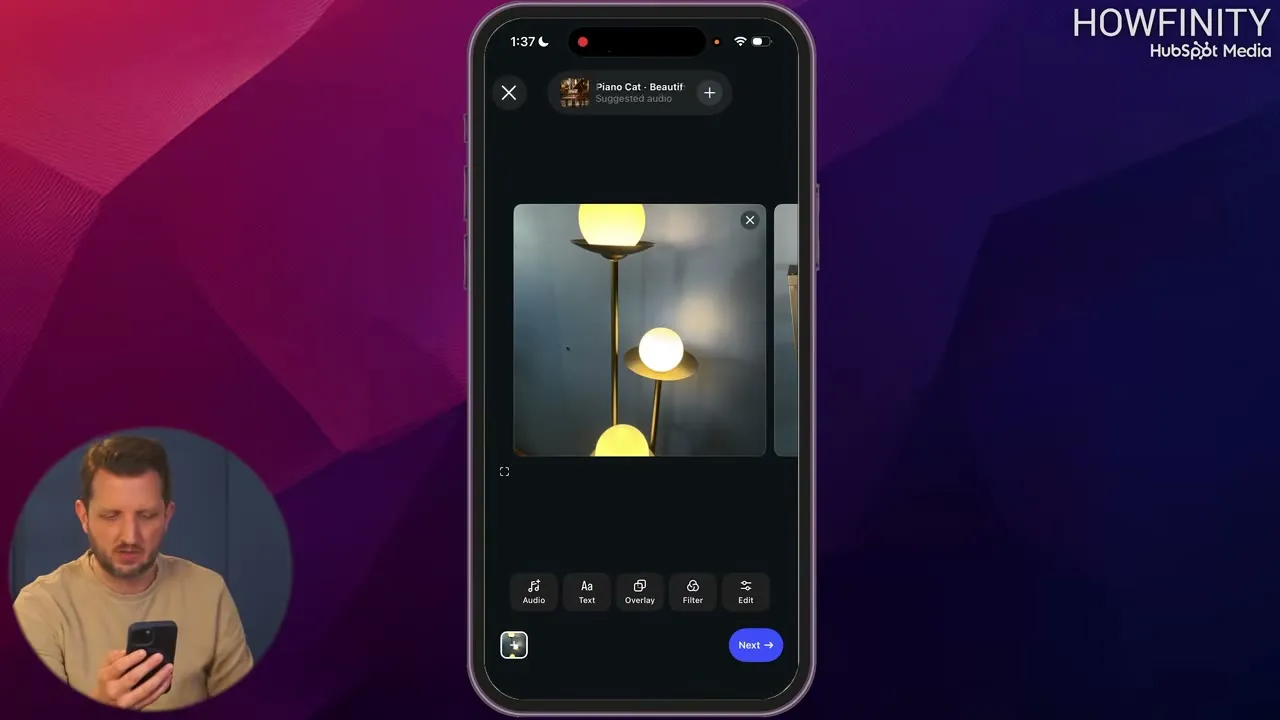
You don’t have to keep the order you picked the photos in. In the video the carousel starts with the lamp, and the shelf is moved to the front.
- Tap and hold the photo you want to move.
- Slide it over and drop it in its new place.
The shelf is now the first image people see, then the lamp, then the rest.
Edit a single photo
Tap a photo to open it on its own. You get four controls under it: Text, Overlay, Filter and Edit.
To add a filter:
- Tap Filter.
- Scroll through the filters and tap one. The video goes with Graphite, a black and white filter, for the coffee cup.
- Tap Done.
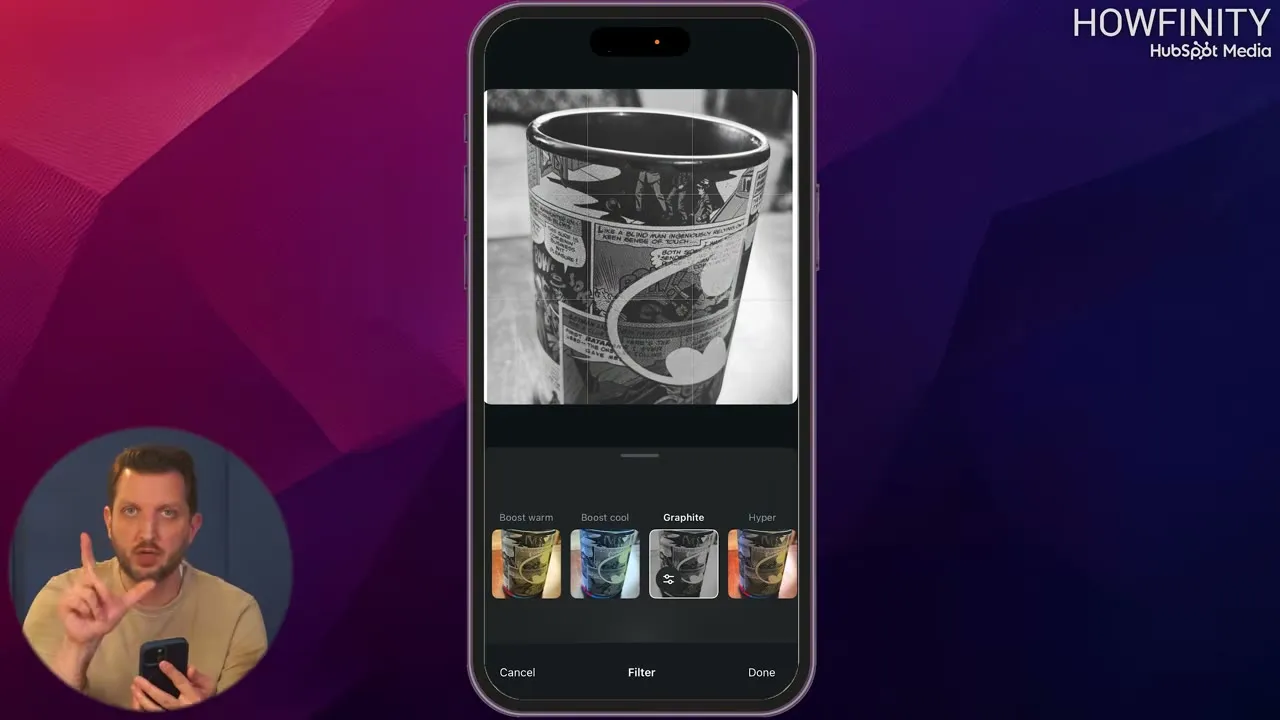
You can also pinch the photo to resize it, or slide it around until it lines up the way you want.
To add text:
- Tap Text and type your words. The video adds “Coffee”.
- Change the font if you want, then tap Done.
- Slide the text with your finger to move it where you want it.
- Tap Done to go back to the carousel.
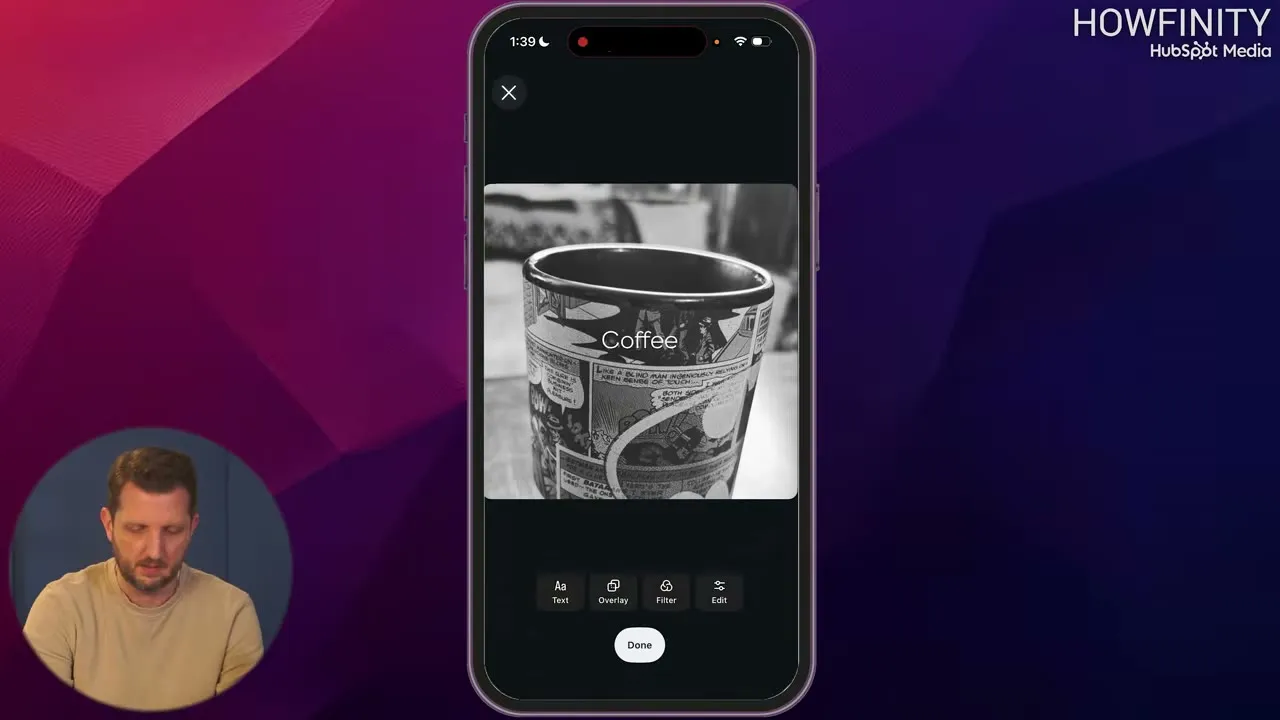
You can go through each photo and edit it this way. The controls at the bottom of the main editing screen do the same jobs for the whole carousel, so you can put text, a filter or an overlay over all of it at once.
Add music
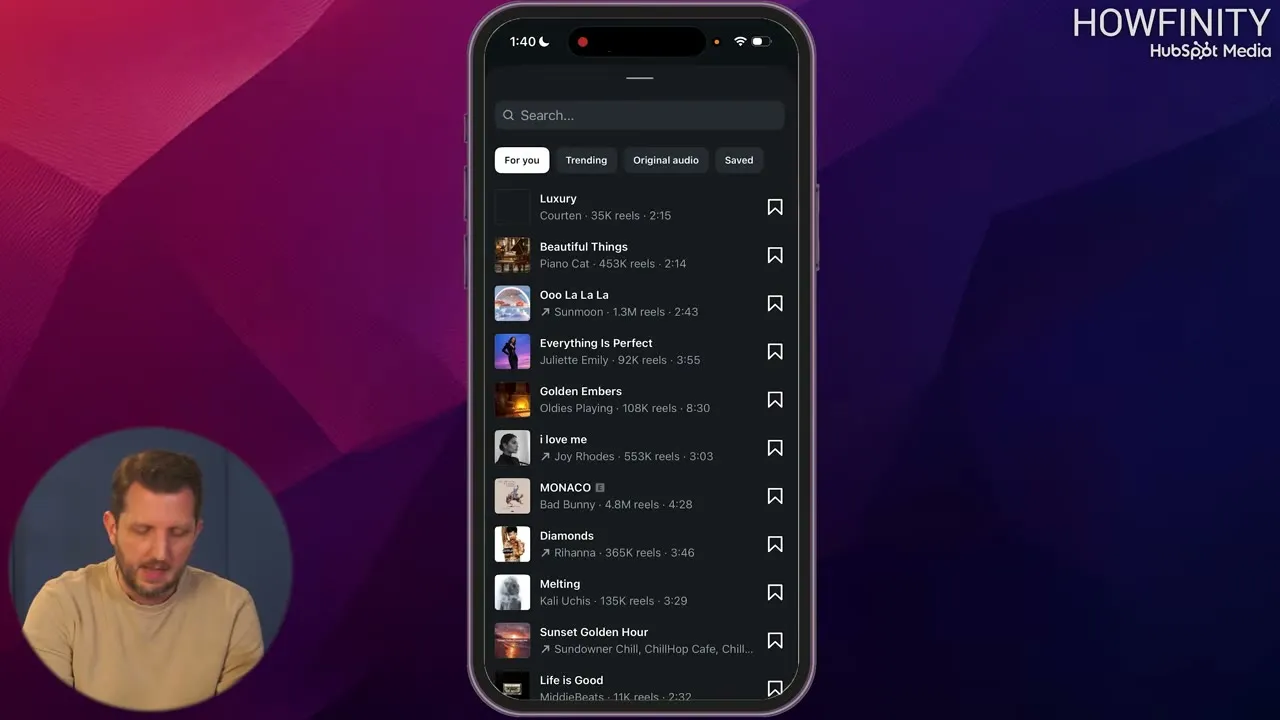
A carousel can play music while people look through it.
- On the editing screen, tap Audio.
- Scroll through the songs under For you, or switch to Trending.
- Tap a song to use it.
Write a caption and share
- Tap Next.
- Write your caption, then tap the check mark in the top right corner.
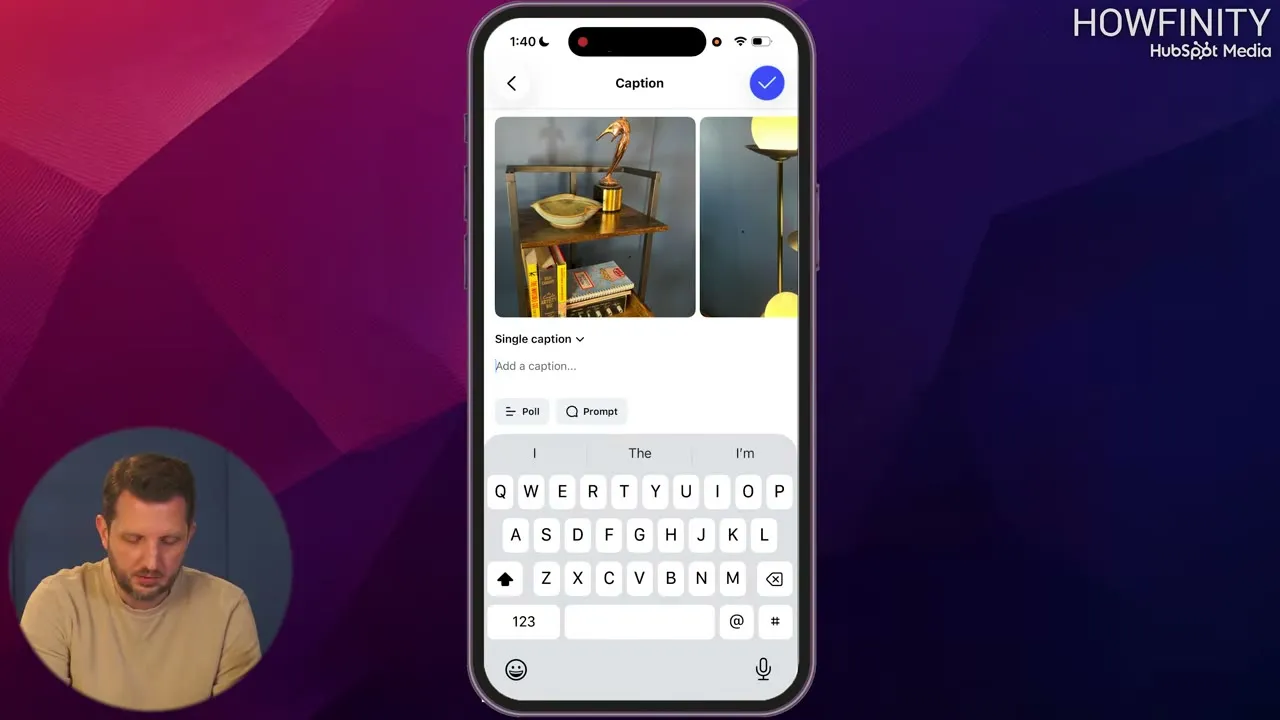
- Use Tag people and Add location if you want them. These are the same options you get on a normal post.
- Tap Share.
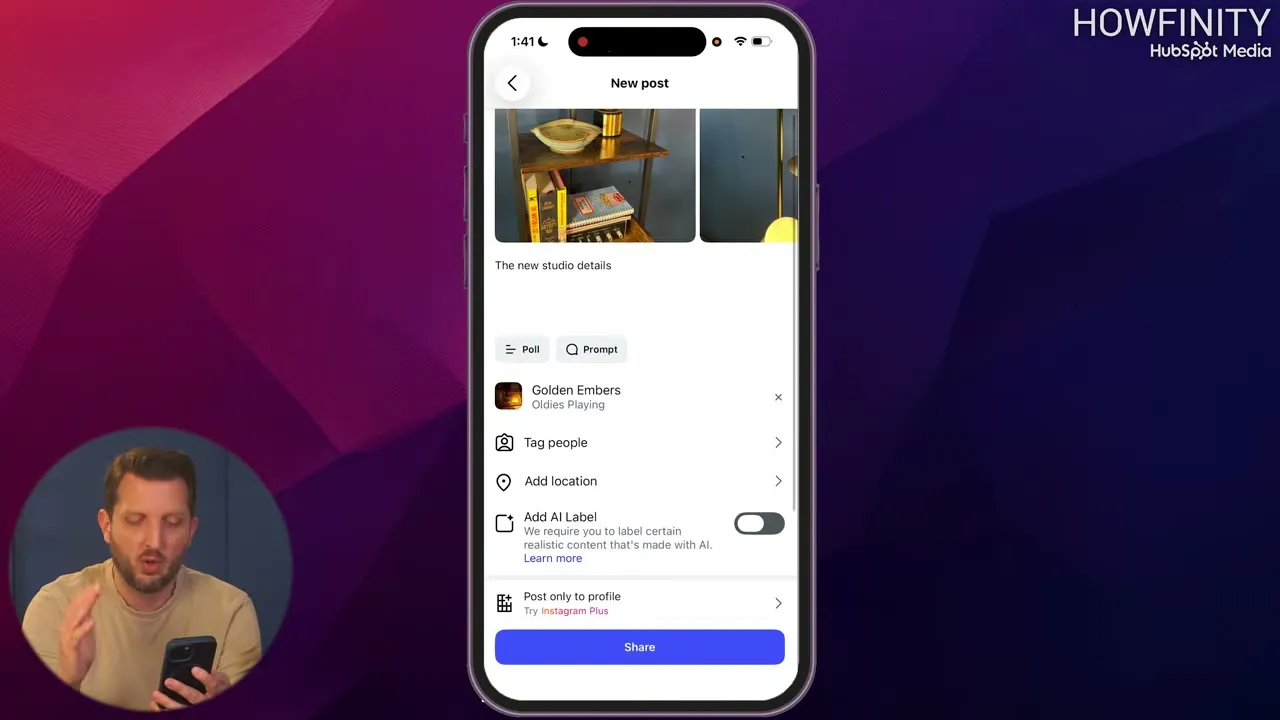
Instagram takes a moment to process the post and put it together.
How the carousel looks once posted
The post shows your first photo, and people scroll through the rest. If you added music, there is a small audio icon in the bottom right corner of the post. Tap it to hear the audio.
Common questions
What is an Instagram carousel?
A carousel is a single Instagram post that holds multiple photos. People scroll through the photos inside that one post.
How do you add multiple photos to one Instagram post?
Start a new post, then tap Select just below the photo preview. After that you can tap several photos, and each one gets a number.
Can you change the order of the photos in a carousel?
Yes. On the editing screen, before you share the post, tap and hold a photo, slide it over and drop it where you want it.
Should a carousel be square or portrait?
You can use either. Tap the small icon at the bottom left of the photo and choose Portrait or Square. The video uses square, which is a personal preference.
Can you add music to an Instagram carousel?
Yes. Tap Audio on the editing screen and pick a song from the For you or Trending lists. The music plays as people look through the carousel, and the post shows an audio icon in the bottom right corner.
Can you edit each photo in a carousel separately?
Yes. Tap a photo to open it, then add a filter, pinch to resize it or add text. The controls at the bottom of the main editing screen apply text, filters or overlays to the whole carousel.
Instagram for Business Kit
A free kit for using Instagram to grow a business.
Instagram for Business Kit
A free kit for using Instagram to grow a business.
Get the free kit