How to create a professional LinkedIn profile
To create a professional LinkedIn profile, upload a current, clean headshot, then design a banner in Canva with your name, title and email and set it as your cover image. Rewrite your headline as a short pitch with keywords, write an About section aimed at your target audience, and complete every profile section.
Quick steps
- Click your profile picture, choose "Update photo" and upload a current, professional headshot.
- In Canva, search the templates for "linkedin banner" and customize one with your name, title and email.
- On LinkedIn, click the pencil on your cover, choose "Edit cover image" and upload the banner.
- Open "Edit intro" and rewrite your headline as a short pitch that includes keywords.
- Update your current position, industry, education, location and contact info, then save.
- Write an About section that speaks to your target audience, in your own words.
- Fill in experience, education, skills and recommendations so no section is left empty.
LinkedIn Profile Playbook
A free playbook covering your headline and summary, content strategy and networking on LinkedIn.
Your LinkedIn profile is a professional presentation to businesses and colleagues. This guide works down one real profile from top to bottom: a new profile photo, a banner built in Canva, a headline and About section drafted with ChatGPT, and the sections most people leave empty.
Choose a professional profile photo
Your photo should be current, have a clean, professional look, and match your brand, your aesthetic or your personality if you are looking to be hired.
-
On your profile, click your profile picture. LinkedIn opens the Profile photo window with the photo you have now.
-
Click Update photo and choose a photo from your computer.
-
In Edit photo, use Zoom and Straighten on the Crop tab if the framing needs work.
-
Click Save photo.
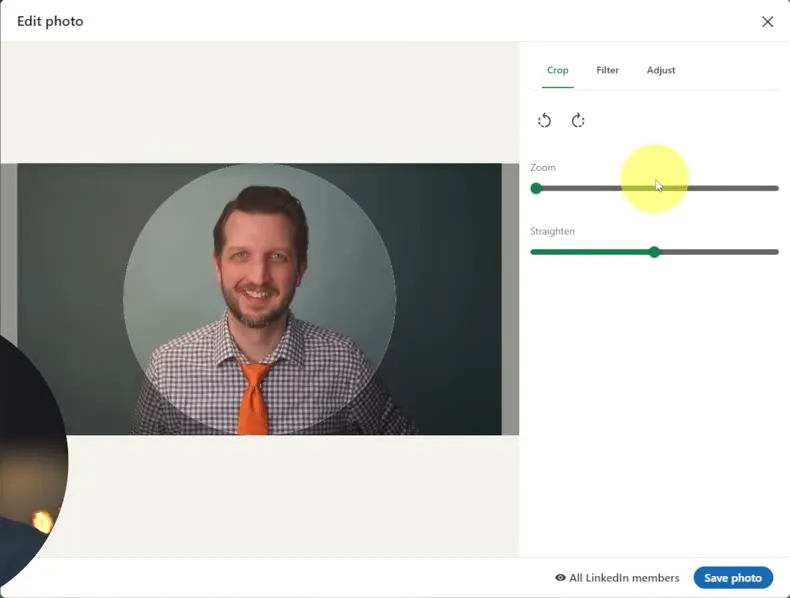
The photo chosen in the video is a dressed-up headshot with a tie, looking directly at the camera, with a smile and some good color. The idea is to come across as professional, presentable and approachable.
What to avoid:
- A selfie
- A photo with other people
- A shot where you are out and about with a busy background
This isn’t Facebook, where the photo is you and your friends. Anything that adds noise or confusion works against you.
The Filter tab has filters you can apply. The video suggests staying away from them, because they give the photo a more artistic look. They are an option if that is what you present, for example if you are an artist or a photographer.
Decide what your cover photo should show
The cover photo is prime real estate. It shows, in a visual way, who you are, what you do and your personality. Some options from the video:
- A photo of you doing the thing you do
- A showcase of your work, such as your paintings if you are a painter
- A picture of your business, if you are an employer
- A picture of a finished product of the service you provide
The person on your page should see right away who you are and what you are about.
Design a LinkedIn banner in Canva
An easy way to make the cover is in Canva. You can do this on the free account, or sign up for the Pro account and get more features.
- From the Canva home screen, click Templates at the top.
- Search for
linkedin banner. - To narrow the results, open Category and choose LinkedIn Background Photo. Then open Style and pick one. The video uses minimalist.
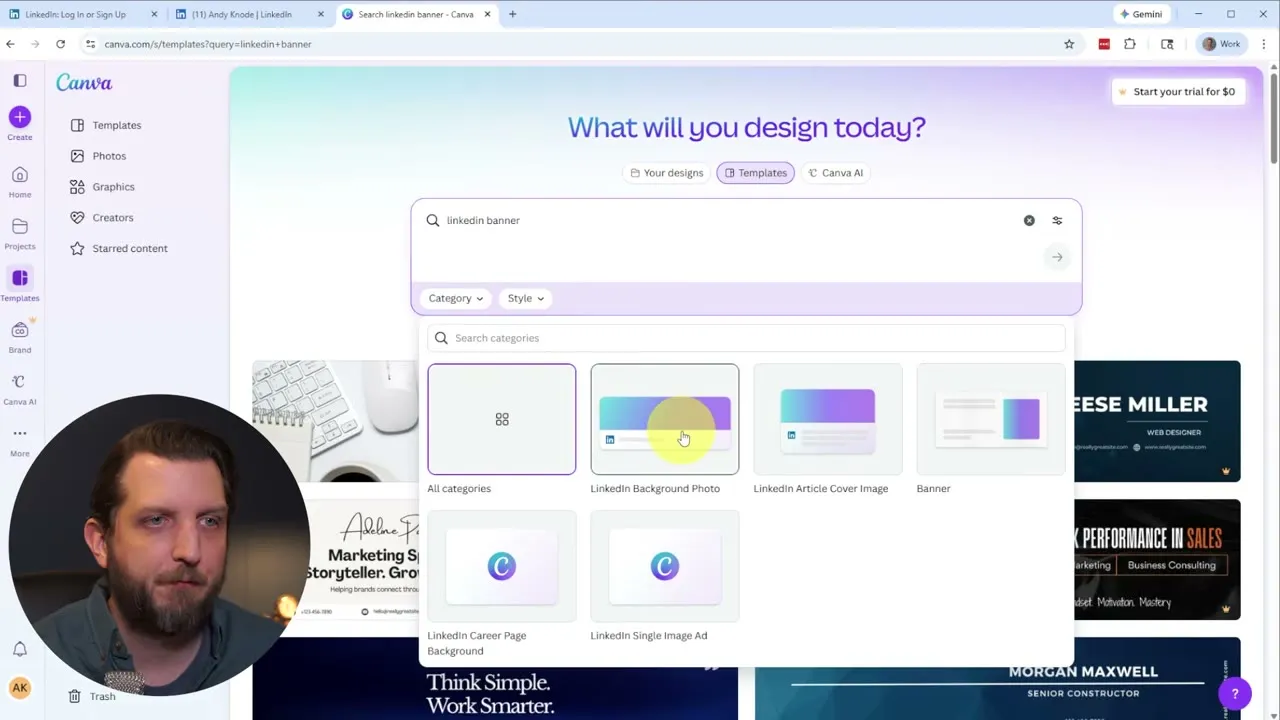
- Scroll through and pick the template that matches your aesthetic best. You can always swap it out later.
- Choose to customize the template.
- Change the text. In the video, the template’s name is replaced with the presenter’s own, the title becomes “Producer | Director”, and the placeholder email is replaced with a real one. The photo and font are left as they are, and the name is moved up a little so its letters don’t overlap the title.
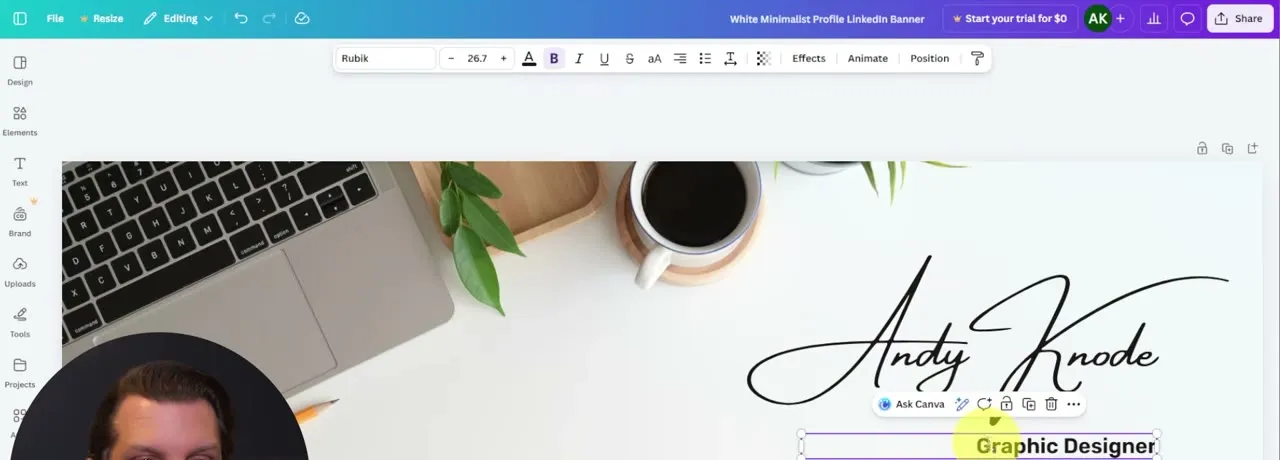 7. Click Share, then Download.
The same rules as the profile picture apply: clean, professional and concise, with just the information that’s needed. Your name, your title and your email are all good to have. Think of it like a business card.
Upload the banner to LinkedIn
- Back on your LinkedIn profile, click the pencil icon in the corner of the cover.
- Choose Edit cover image.
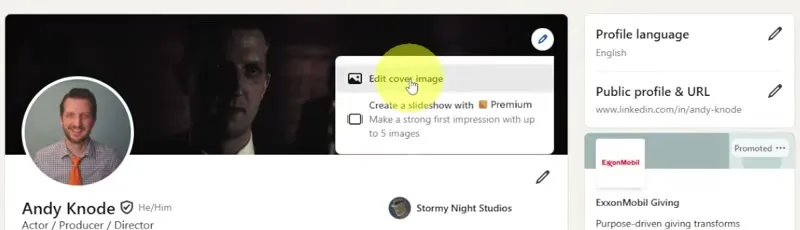 3. Click Change photo and open the banner you downloaded.
4. Slide the image around if you need to, so it fits the frame.
5. Click Apply.
Rewrite your name and headline
- Click the pencil below the cover to open Edit intro.
- Check your first name and last name. You can add an additional name or nickname here too.
- Rewrite the Headline.
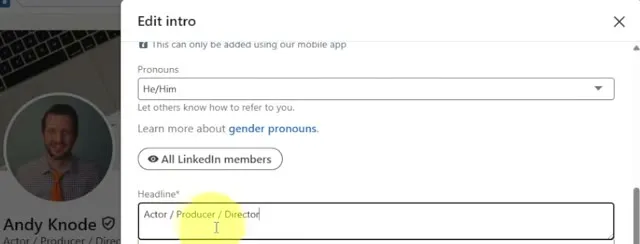
Before the change, the headline in the video was a list of job titles, “Actor / Producer / Director”. A better version is an elevator pitch: a phrase or statement of who you are, what you do, why you do it and who you do it for. It is also the place for keywords that people might search for when they are looking for someone to connect with or hire.
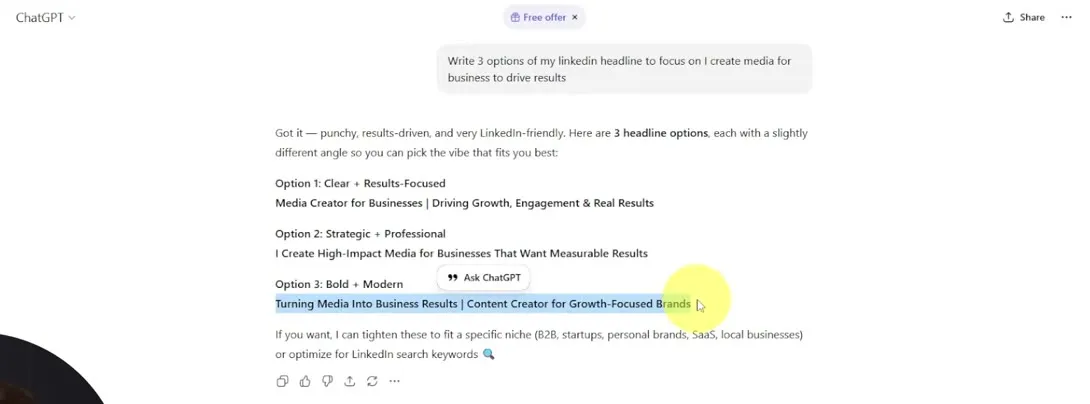
If you are unsure what to write, ask ChatGPT for ideas. This is the prompt typed in the video:
Write 3 options of my linkedin headline to focus on I create media for business to drive resultsChatGPT came back with three options. The video picks the third, “Turning Media Into Business Results | Content Creator for Growth-Focused Brands”, copies it and pastes it into the Headline box.
Update your current position and the rest of your intro
Still in Edit intro:
- Under Current position, pick your position, or click Add new position to create one. Enter the title, select the company, add as much information as you need, and click Save.
- Finish the rest of the section as needed: the industry you are in, your education, your location, and contact info and websites if you want to include them.
- Click Save.
Now people can learn more about you at a glance from the top of your profile.
Write your About section
Scroll down to About and open it for editing. This is where you expand on what your target audience may want to know.
- Include who you are, what you do and how you do it.
- Speak directly to your target audience.
- Avoid buzzwords, cliche phrases and vague corporate lingo.
- Be specific about why what you do is special and different from everybody else.
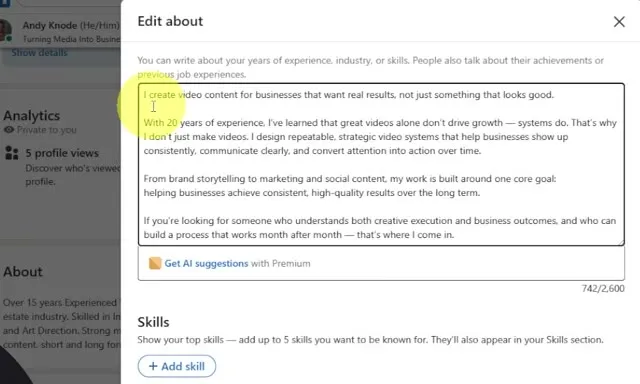
To get started, the video goes back to ChatGPT with a couple of bullet points and a general idea of what the summary should say, then copies the result and pastes it into Edit about.
Treat that draft as a springboard. The video recommends going through it and rewriting it in your own language, with your own flavor and style, so it isn’t just a generic AI output.
Under the text box there is a Skills area where you can add skills you want to be known for. Click Save when you are done.
Fill in experience, education, skills and recommendations
- Experience. Make sure it is up to date. It doesn’t have to be only work experience. It can be organizations you volunteered for, or projects you started and completed.
- Education and Skills. Update them and add more.
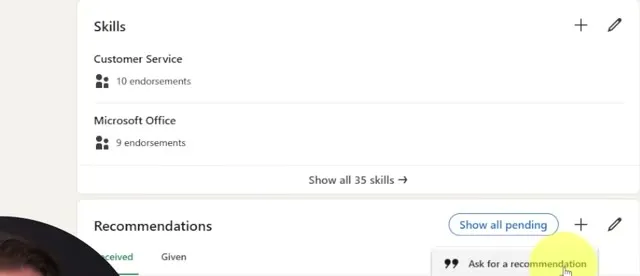
- Recommendations. You can send and receive recommendations. Click the plus in that section to ask people you have worked with, or colleagues, to write a quick reference for you.
Complete every section and stay active
Focus on completing all of the profile sections. A lot of people leave them empty, and that shows you didn’t take the time. The video also says a profile with a 100% completion rate gets a boost, because LinkedIn is more apt to push it out to others.
As with any social platform, you get out as much as you put in. Get on LinkedIn on a regular basis and interact with other people: comment, like and share. Add new things you have done, tell people what you are working on, and show pictures and videos.
Common questions
What kind of photo should I use for my LinkedIn profile?
Use a current photo with a clean, professional look that matches your brand or personality. In the video, the new photo is a dressed-up headshot, looking directly at the camera with a smile. Avoid selfies, photos with other people and busy backgrounds.
What should I put on my LinkedIn banner?
Use it to show who you are and what you do. It can be a photo of you doing your job, a showcase of your work, a picture of your business or a finished product. The video builds one in Canva with a name, a title and an email, and compares it to a business card.
Can I make a LinkedIn banner for free?
Yes. The video says you can design it in Canva on the free account, or sign up for the Pro account to get more features. Search the templates for "linkedin banner" and pick the LinkedIn Background Photo category.
What should my LinkedIn headline say?
Instead of a list of job titles, treat it as an elevator pitch, a phrase that says who you are, what you do, why you do it and who you do it for. Include keywords people might search for so they can find you.
Can I use ChatGPT to write my LinkedIn headline and About section?
Yes, as a starting point. The video asks ChatGPT for three headline options and for a summary built from a few bullet points. It recommends rewriting the About text in your own language so it isn't a generic AI output.
Does a complete LinkedIn profile get seen more?
The video says it does. Empty sections make it look like you didn't take the time, and a profile with a 100% completion rate is one LinkedIn is more apt to push out to others.
LinkedIn Profile Playbook
A free playbook covering your headline and summary, content strategy and networking on LinkedIn.
LinkedIn Profile Playbook
A free playbook covering your headline and summary, content strategy and networking on LinkedIn.
Get the free playbook