How to make a poster in Canva
To make a poster in Canva, sign in at canva.com, open Templates and search for the kind of poster you need. Pick a template, click Customize this template, then change the text, fonts, colors and photo and upload your logo. Download it from Share, or order prints with Print with Canva.
Quick steps
- Sign in at canva.com, open Templates and search for the poster you need, such as "coffee festival poster".
- Pick a template without the crown icon if you are on the free plan, then click Customize this template.
- Double-click any text to change it, and use the toolbar to change the font and color.
- Swap the photo by dragging a new one from Elements onto the old one.
- Upload your logo from Uploads, drag it onto the poster and resize it.
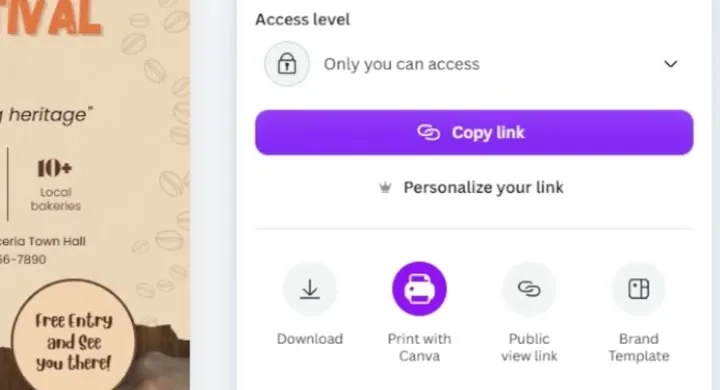
- Click Share, then Download to save it, or Print with Canva to order printed posters.
Build a Consistent Brand with Canva
A free guide to creating campaign-ready assets in minutes, using Canva brand kits and building on-brand templates you can reuse across your marketing.
Canva lets you make a professional-looking poster even if you have no design experience, because you start from a ready-made template and only change what you need. This guide follows the video’s example, a poster for a coffee festival run by a local coffee company.
Find a poster template
Go to canva.com and sign up for an account. There is a free version and a paid version, and this guide says where a feature depends on which one you have. Once you sign in, you land on the home page.
Canva’s biggest advantage is its thousands of ready-made templates.
- Click Templates.
- Under Explore templates, click Poster to see poster templates you can start from. Everything in them can be changed.
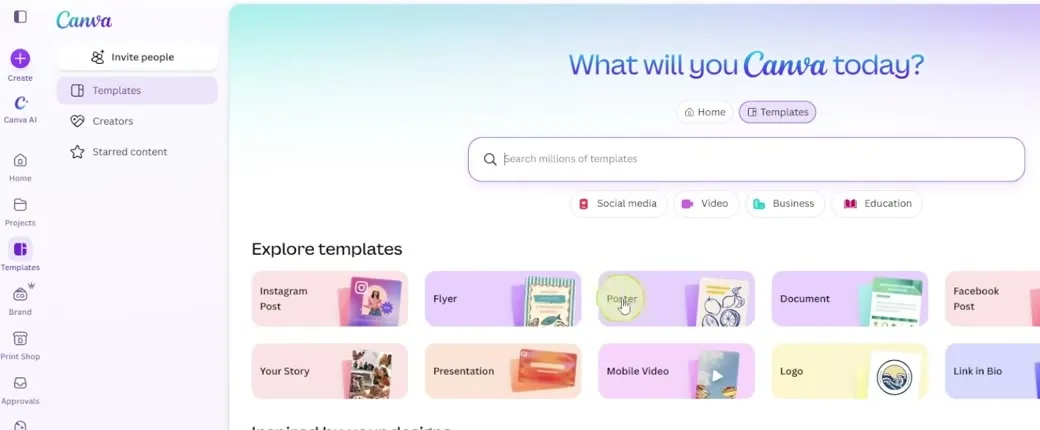
To get closer to what you need, search for it. The video searches for coffee festival poster, and Canva still shows lots of options.
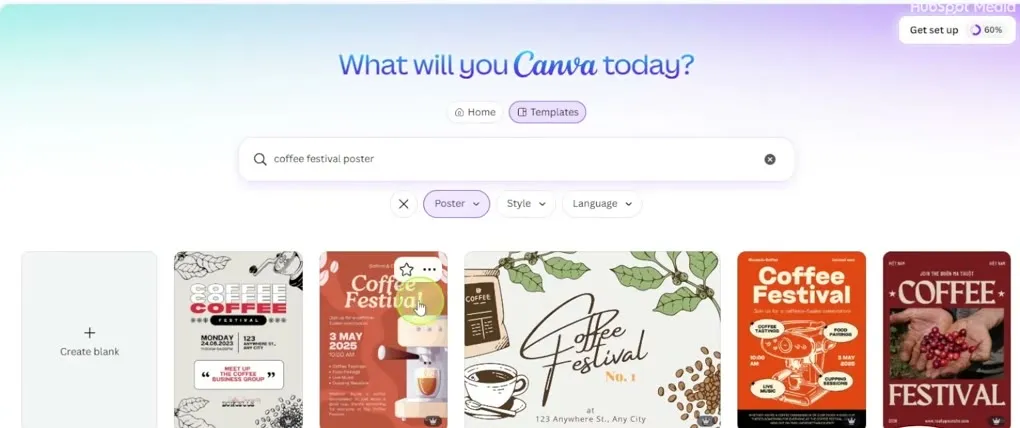
Spot free and paid templates
Look at the bottom right corner of each template. Some have a small crown icon and some don’t.
- No crown: the template is part of the free account, and every element in it is free to use.
- Crown: you need the paid account, or something in the design requires payment.
On a paid account the crown shows up gray. If you haven’t signed up for the paid account, it may show up yellow.
Preview sizes and print options
Click a template to see it in more detail. The video picks a coffee festival poster near the top of the results.
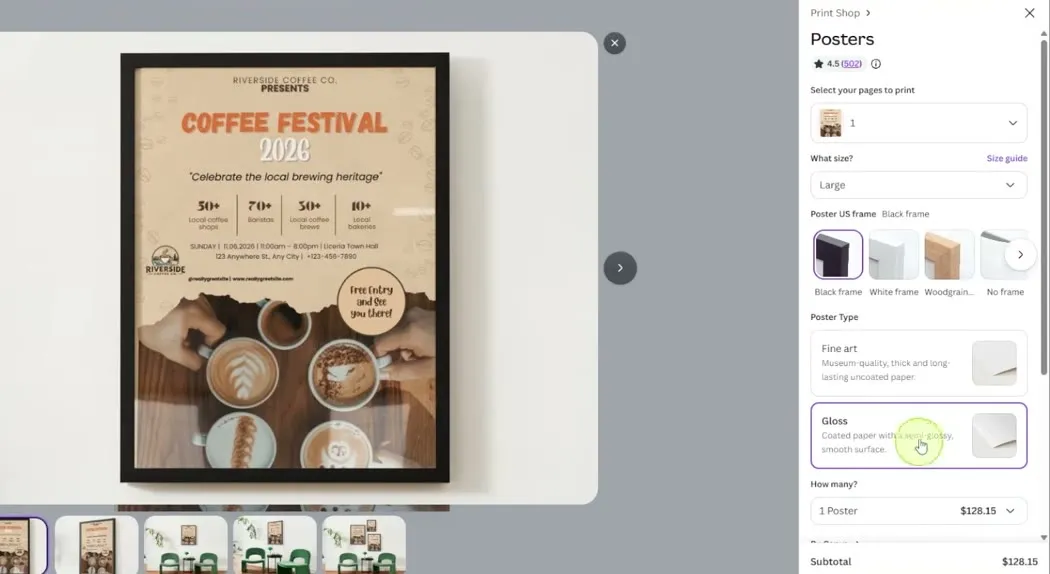
The preview includes mockups of the poster on a wall, so you can see how it looks at different sizes. On the right, under Print with Canva, you can already choose:
- What size, such as Medium, Large or Extra large
- A frame: Black frame, White frame, Woodgrain or No frame
- The Poster Type: Fine art, Gloss or Mounted
- How many posters
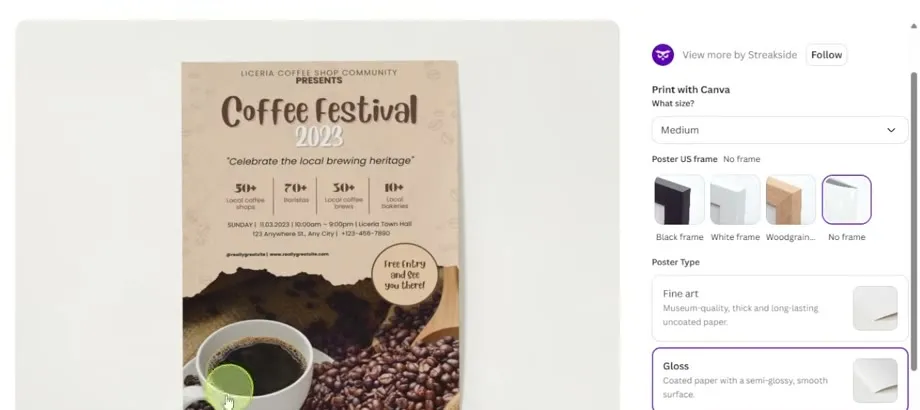
You can also make these choices later. When you’re ready to design, click Customize this template.
Change the text
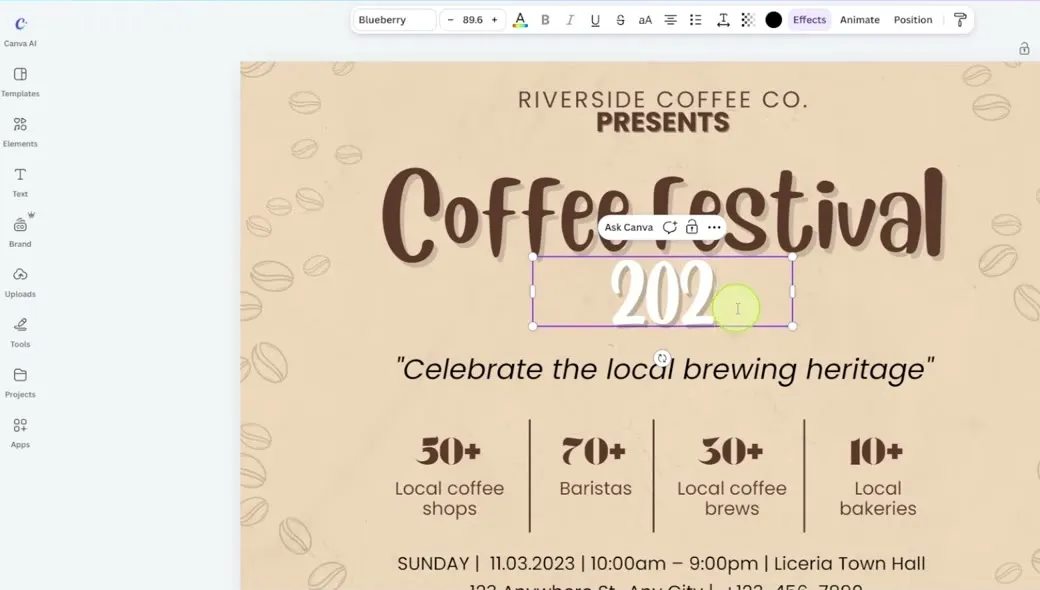
As you hover over the poster, Canva highlights each part you can change. Use the zoom slider at the bottom of the screen to zoom in and see the details more closely.
- Double-click a piece of text to edit it.
- Type your own wording. The video changes the top line to Riverside Coffee Co. Presents and the year to 2026.
- Go through the rest of the details the same way: the date, the times and the address.
Change the font and color
To give a heading a different look while keeping the words:
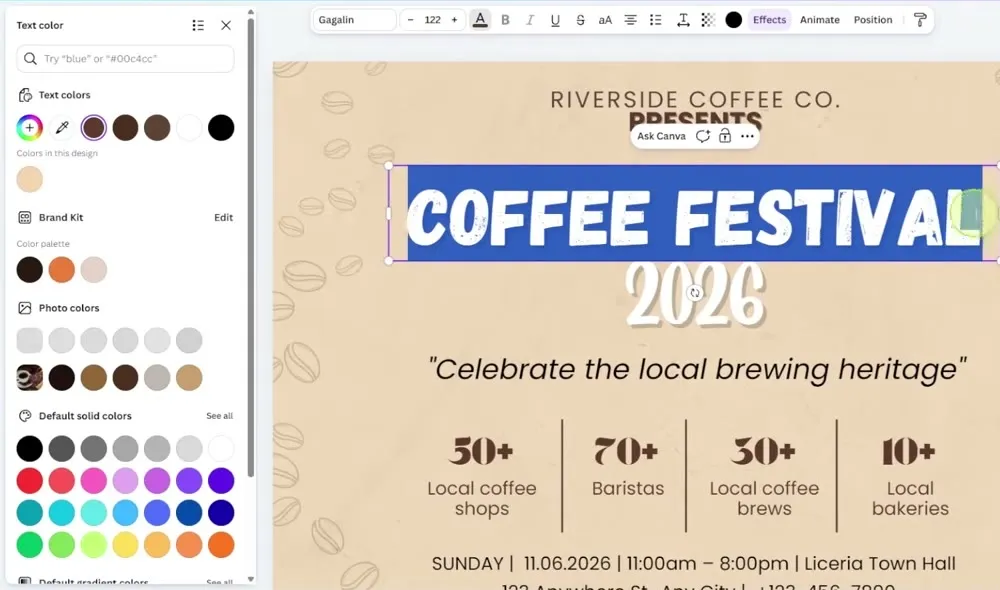
- Highlight the text.
- Click the font name in the toolbar and pick a new font. The video picks a more straightforward font for the title.
- With the text still highlighted, click the text color button and choose a color. The video makes the title orange so it stands out more.
Replace the photo
The template’s photo shows coffee, but for a festival the video wants people drinking coffee.
- Click Elements on the left.
- Search for people drinking coffee and open the Photos tab.
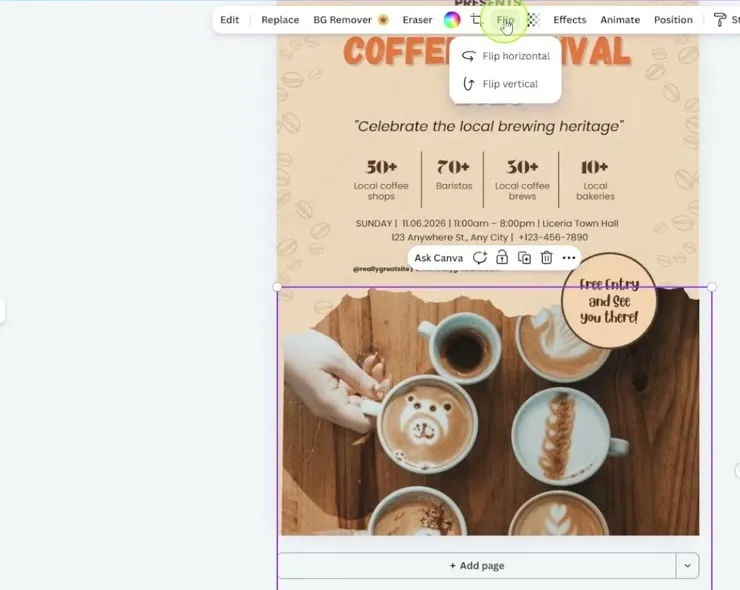
- Drag the photo you like onto the poster’s existing photo. As you hover over that box, Canva swaps the image in but keeps the template’s cutout shape.
- To turn the photo around, select it and click Flip.
Add your logo and line things up
You can add your own elements too, such as your logo.
- Click Uploads on the left, then Upload files.
- Choose your logo file and click Open.
- Drag the logo onto the poster, then resize it and move it into place.
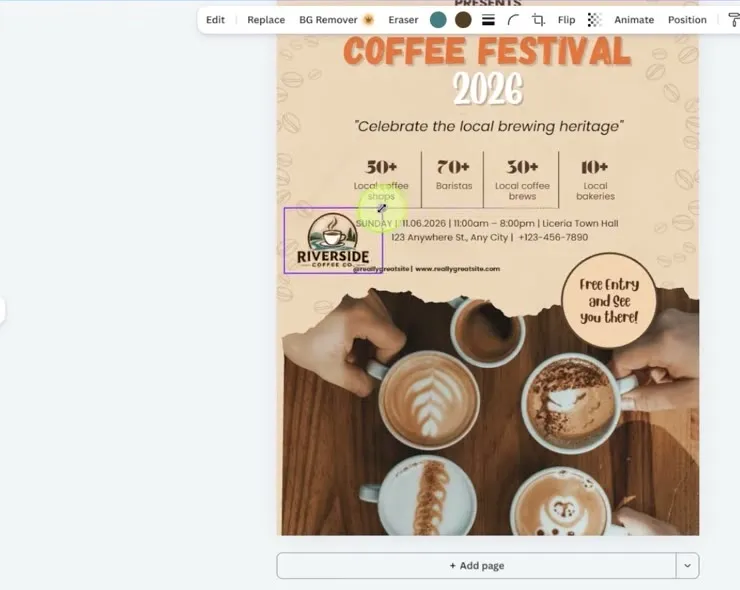
As you move things around, Canva shows guidelines. Drag an element toward the middle and a guideline tells you when it is centered.
The video’s tip for the most professional result: trust the template. Pick the one that already looks best for what you want, keep its colors and layout, and change only the information, text and images to make it your own.
Download your poster
When the poster looks the way you want, zoom out to check it. Then:
- Click Share at the top right.
- Click Download.
The poster is now on your computer, ready to print or use however you like.
Order prints from Canva
To have Canva print it for you:
- Click Share, then Print with Canva.
- Choose the size, frame and poster type. The video picks a black frame with a fine art finish.
- Choose how many posters you want.
- Enter your details to have them shipped to you.
Canva prints them at professional quality and ships them to your address.
Common questions
Is it free to make a poster in Canva?
Canva has a free version and a paid version. Templates without a small crown icon in the bottom right corner are free, along with everything in them. A crown means you need the paid account, or that something in the design requires payment.
How do I find a poster template in Canva?
Go to Templates and choose Poster, or search for exactly what you need, such as "coffee festival poster". Every template is customizable.
How do I change the text on a Canva poster?
Double-click the text and type over it. To change its look, highlight the text and pick a new font or text color from the toolbar at the top.
How do I add my logo to a Canva poster?
Open Uploads, click Upload files, choose your logo file and click Open. Then drag the logo onto the poster and resize it.
Can I print my poster with Canva?
Yes. Click Share, then Print with Canva. Choose the size, a frame or no frame, the paper type and how many posters you want, then enter your details to have them printed and shipped to you.
Build a Consistent Brand with Canva
A free guide to creating campaign-ready assets in minutes, using Canva brand kits and building on-brand templates you can reuse across your marketing.
Build a Consistent Brand with Canva
A free guide to creating campaign-ready assets in minutes, using Canva brand kits and building on-brand templates you can reuse across your marketing.
Get the free guide