How to use Claude projects
To use Claude projects, open Projects in the sidebar, press New project, then give it a name and a goal. Add instructions that apply to every chat in the project, upload files as context, and start your chats inside it. Each new chat follows the instructions and can read the files without you uploading them again.
Quick steps
- Open Claude, click "Projects" in the sidebar and press "New project".
- Name the project, describe what you are trying to achieve, and press "Create project".
- Press the plus sign next to "Instructions" and write how Claude should answer in this project.
- Press the plus sign next to "Context" and upload the files Claude should know about.
- Start your chats from the project page, so each one follows the instructions and can read the files.
- Come back and change the instructions or add files whenever the project needs it.
Claude at Work
A free guide to using Claude at work, with copy-and-paste prompts for projects, skills and everyday tasks.
A Claude project is a dedicated workspace for one goal. It keeps every chat about that goal in one place, with its own instructions and its own files. This guide builds one project, a YouTube content planner, and uses it to get video ideas and a four-week content calendar without uploading a file or repeating an instruction in the chat.
Where to find projects
Projects are on the Claude website and in the Claude app. Projects is in the panel on the left.
There is a second way in. When you start a new chat, press the plus sign in the chat box and choose Add to project to put that chat into a project you already created.
Create a project
Think of a project as a dedicated folder inside your Claude account. Everything about one topic lives in it, and each time you come back you start a new chat inside that project. A project can also have its own instructions, so it behaves differently from the rest of your account.
- Click Projects in the sidebar.
- Press New project.
- Under What are you working on?, type a name. The example is “YouTube Content Planner”.
- Under What are you trying to achieve?, describe the project and your goals for it.
- Press Create project.
The description used in the video:
Create and organize tutorial content for a YouTube channel focused on AI and productivity tools.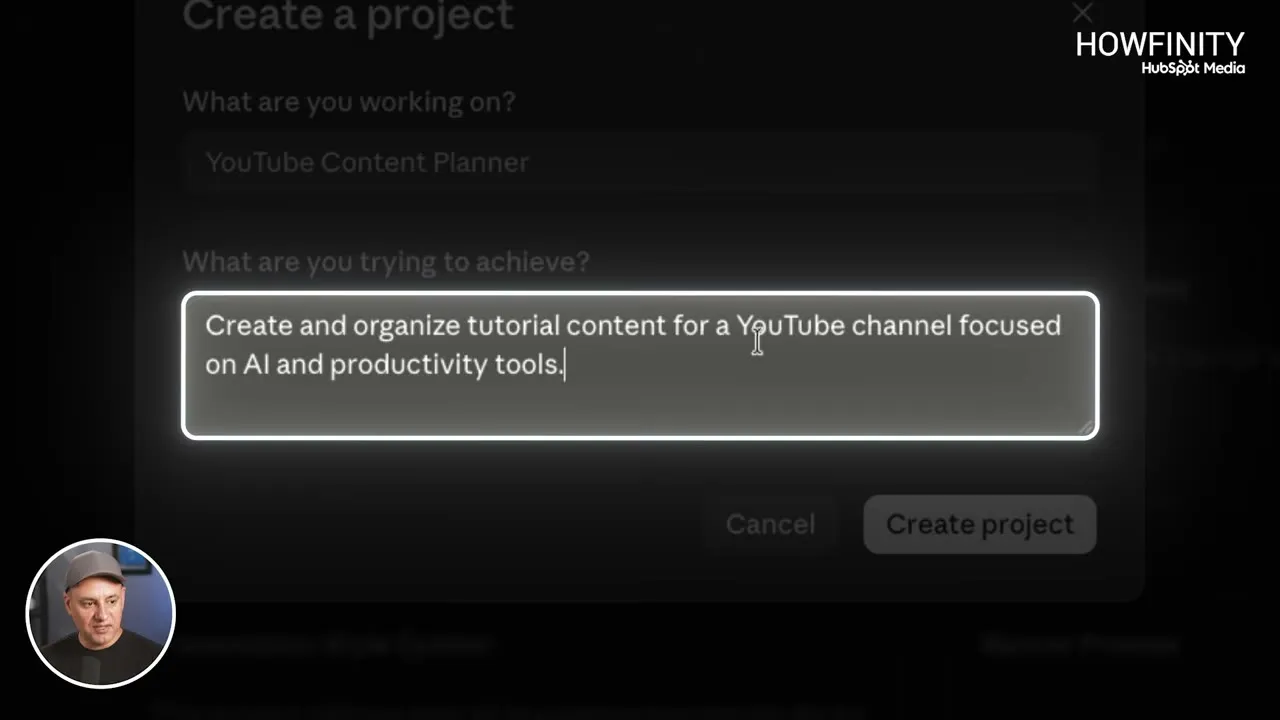
From now on, anything to do with this topic starts from the project page and not from a plain new chat. A plain chat gets lost. In the project, conversations from different days and weeks stay together.
Add project instructions
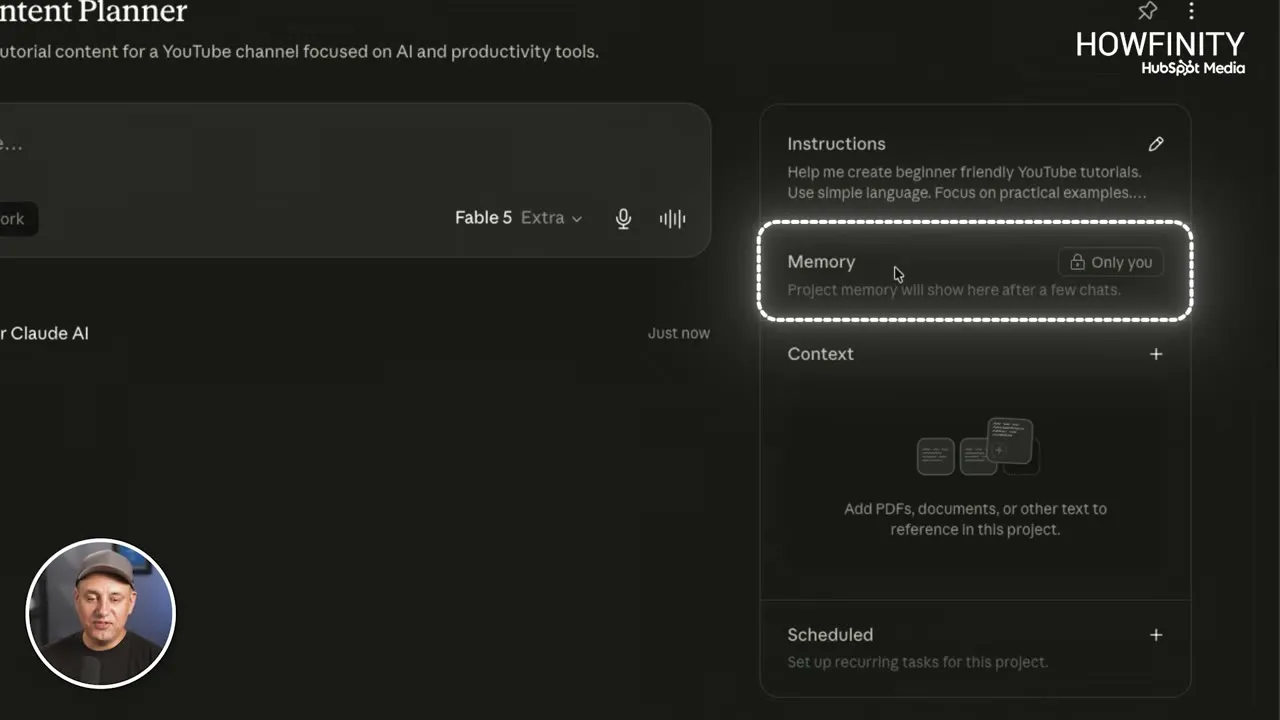
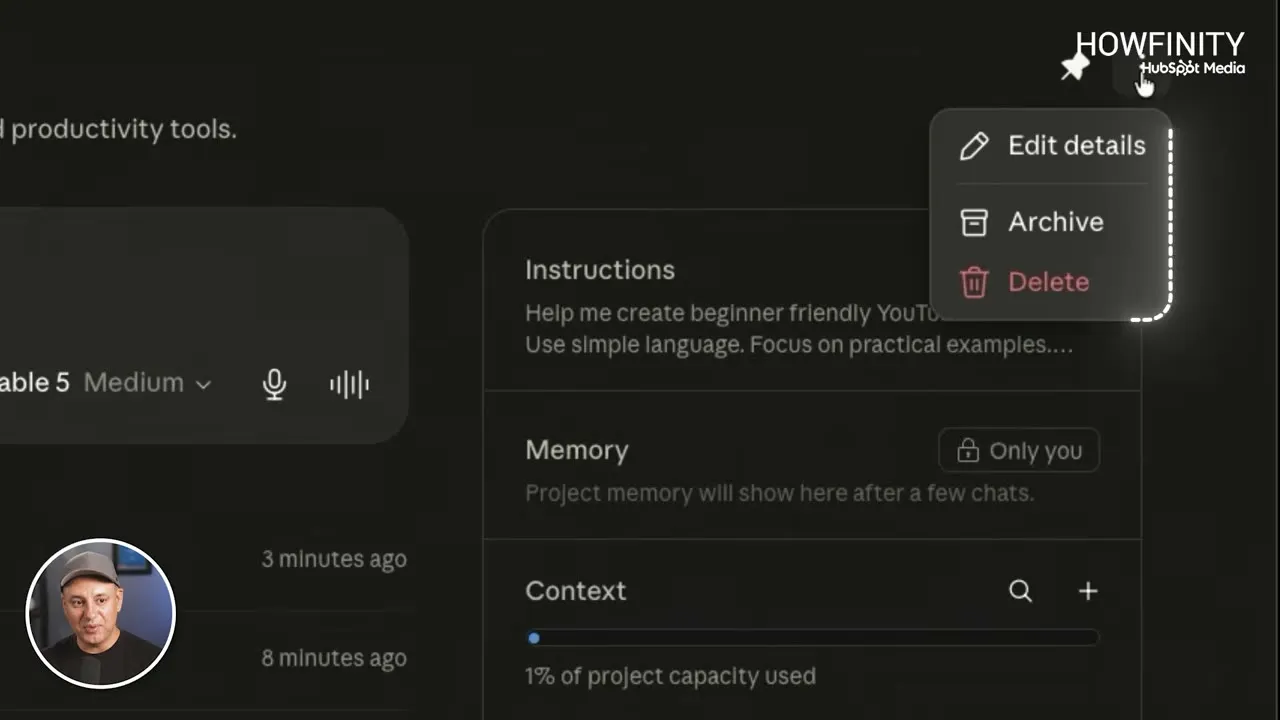
The panel on the right of the project page has four sections: Instructions, Memory, Context and Scheduled. Start with instructions. Each project can have its own set.
- Press the plus sign next to Instructions.
- In the Set project instructions box, write what you want help with and how Claude should write.
- Press Save instructions.
The instructions used here:
Help me create beginner friendly YouTube tutorials. Use simple language. Focus on practical examples. Avoid technical jargon. Keep explanations step by step and easy to follow.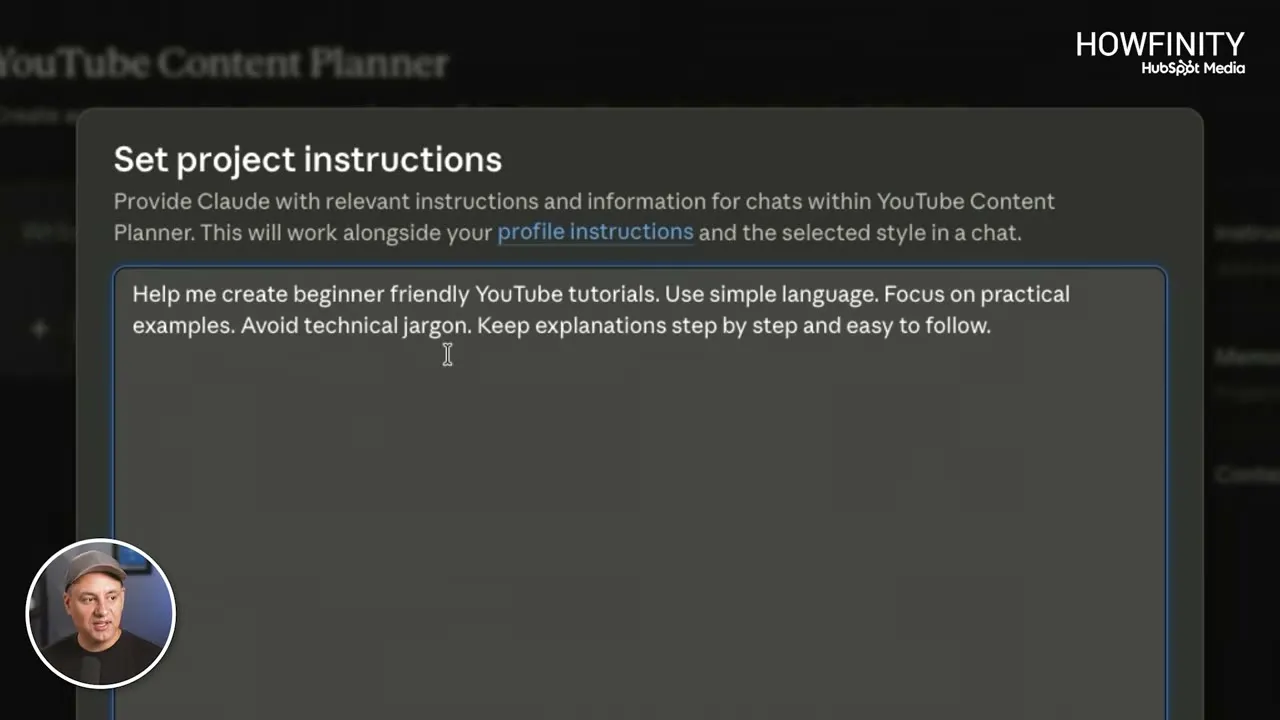
These instructions don’t interfere with the rest of your Claude account or with your other projects. They only apply to chats inside this one project.
Now ask something from the project page:
Give me five video ideas about Claude AI.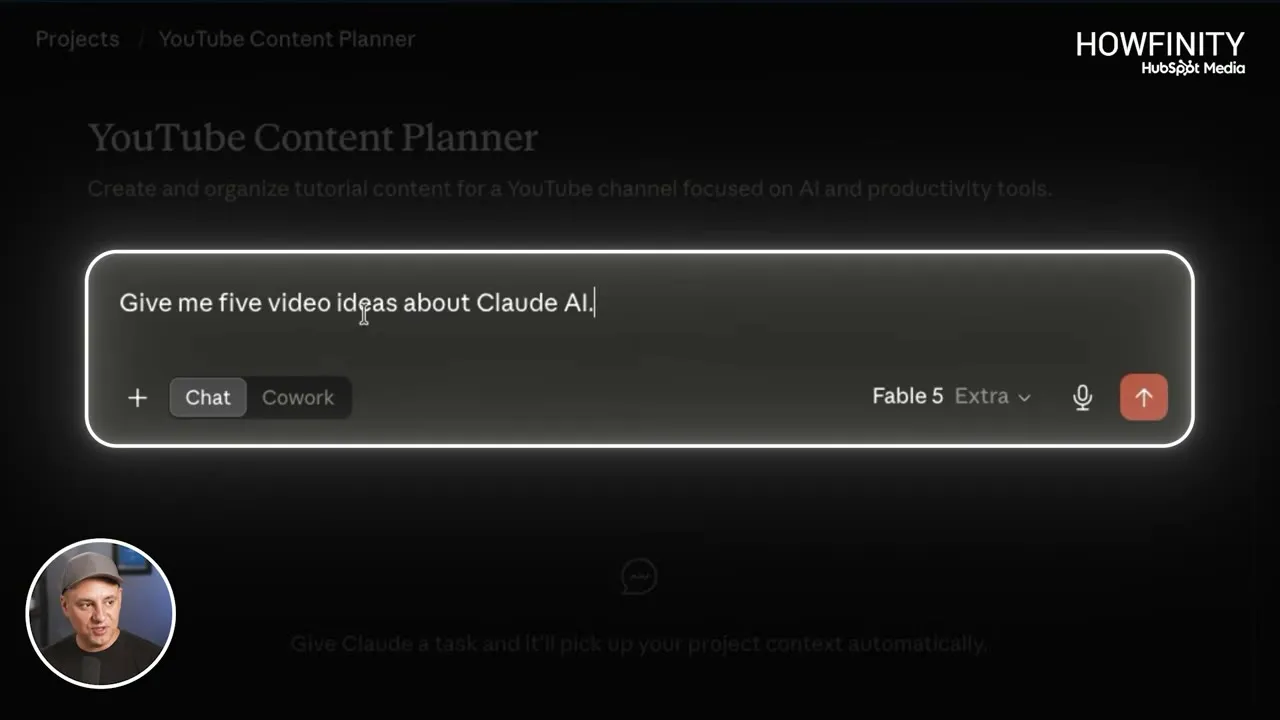
Claude reads the instructions before it answers. In the video the five ideas came back in simple language with no technical jargon, as the instructions asked. You can keep improving the instructions over time, and every new chat in the project will follow them.
Project memory
Under Instructions is Memory. It fills in over time. At the start it reads “Project memory will show here after a few chats.”
A project has its own memory, separate from the memory of your whole Claude account. It is useful, but it is nothing you have to set up or worry about when you begin.
Add files as context
Context is where you give the project what it should know about you and your work, beyond what fits in the instructions.
- Press the plus sign next to Context.
- Choose Upload from device and pick your files. The menu also has Add text content, GitHub and Drive.
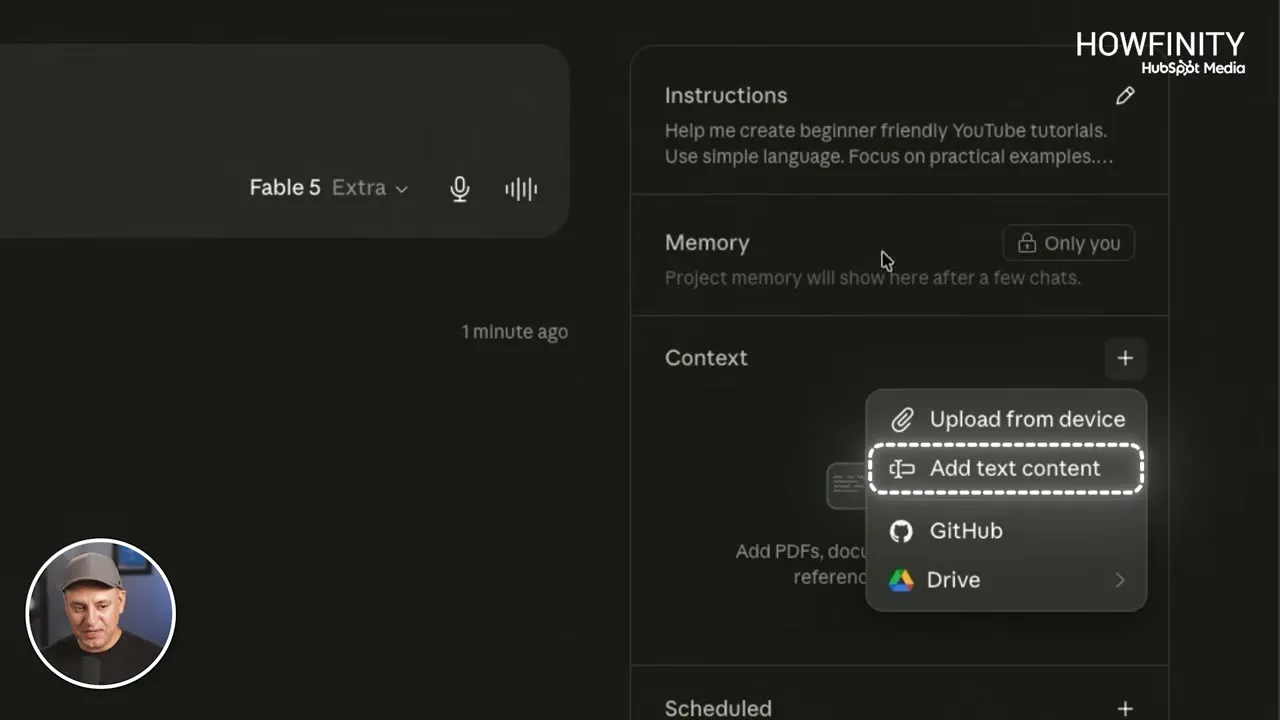
The video uploads three files:
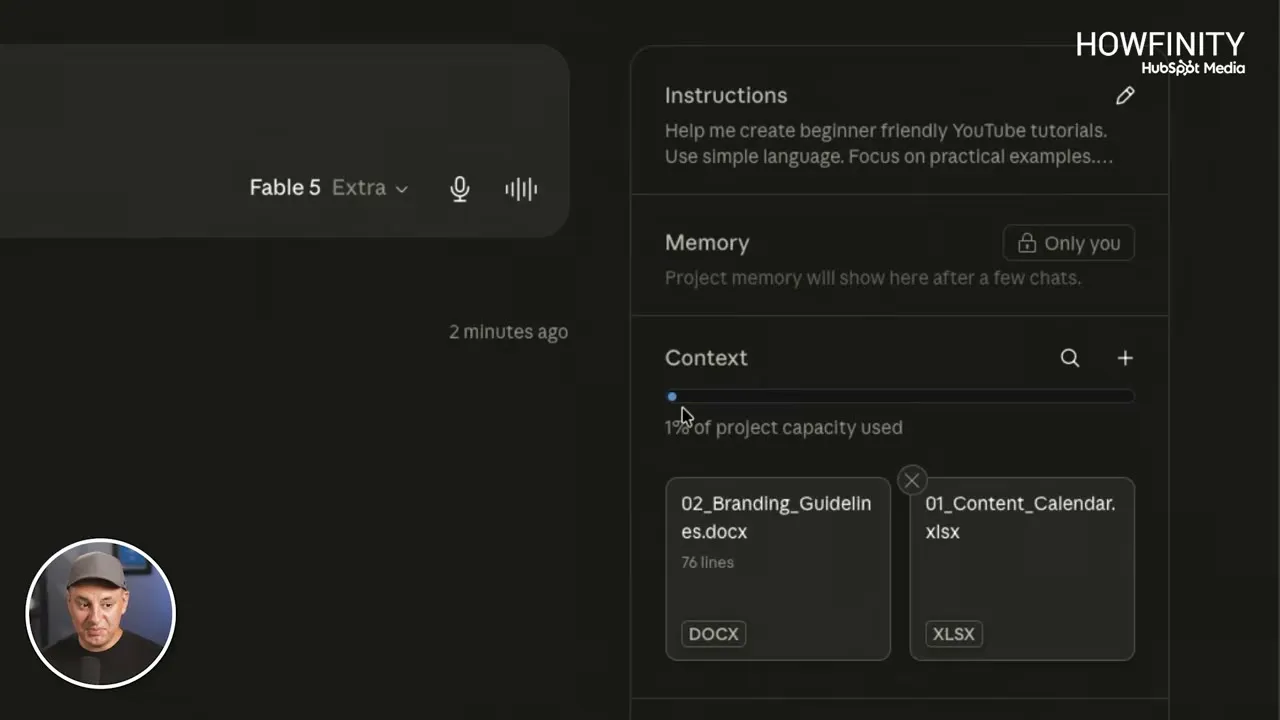
- A content calendar, an Excel sheet of video ideas.
- A Word document about the channel, covering its mission, its audience, its voice and how videos are structured.
- A PDF of research notes about the audience.
After the first two files, the Context section reads 1% of project capacity used. A project has a limit on how much it can hold, so keep an eye on that number, but there is room for far more than two files. A project that is kept specific is unlikely to reach the limit.
The last section, Scheduled, lets you set up recurring tasks for the project. The video points it out and does not use it.
Ask a question that uses your files
With instructions and context in place, a short prompt is enough:
Based on the files in this project, give me five content ideas for next month.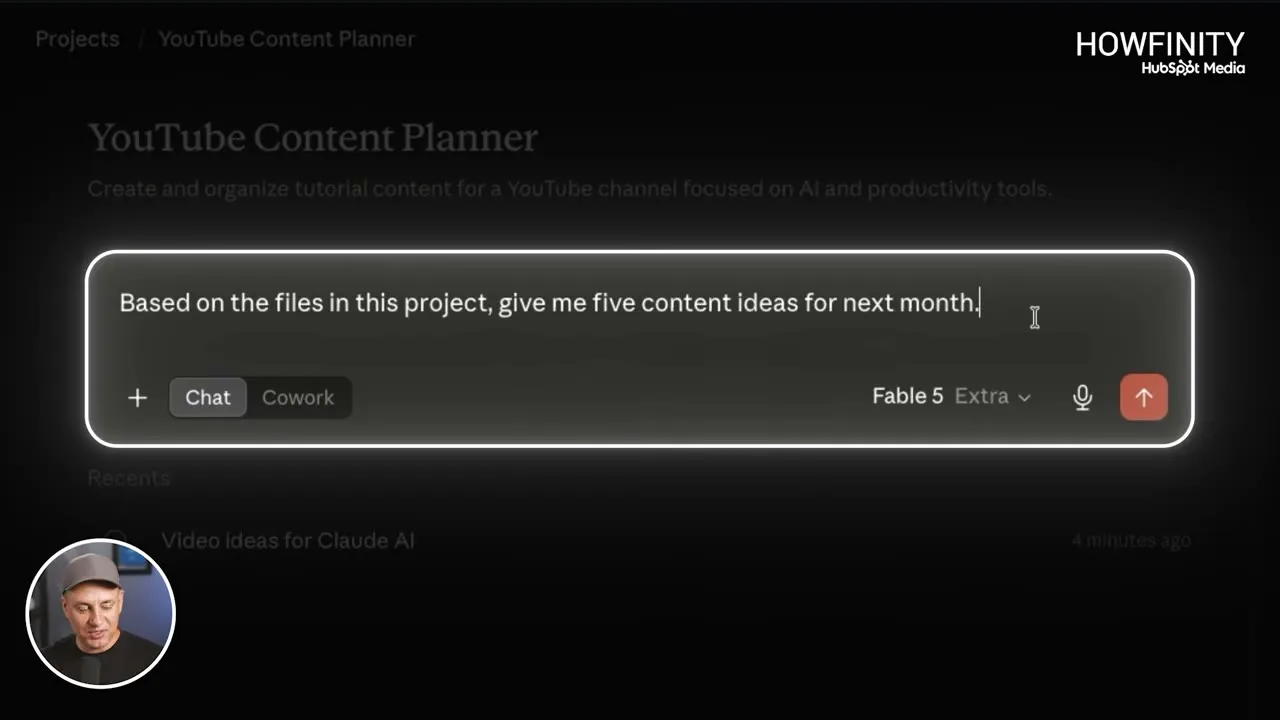
Without a project, you would have to find the files, upload them, work out the prompt and type your instructions into the chat every time. Inside the project all of that is already set. You don’t add the files again and you don’t repeat the instructions.
Keep chats organized and build a content calendar
Every chat you start in the project is listed on the project page. You don’t have to search your whole Claude account to find the conversation about your content ideas. Open the project and click the chat.
You can also move a chat to a different project. That helps if one project starts to cover too many things. Projects work best when they stay specific.
Because the project already has everything it needs, you can ask it to create something bigger:
Review all uploaded files and create a content plan for the next four weeks, with topics, titles, posting schedule, and anything else I may need.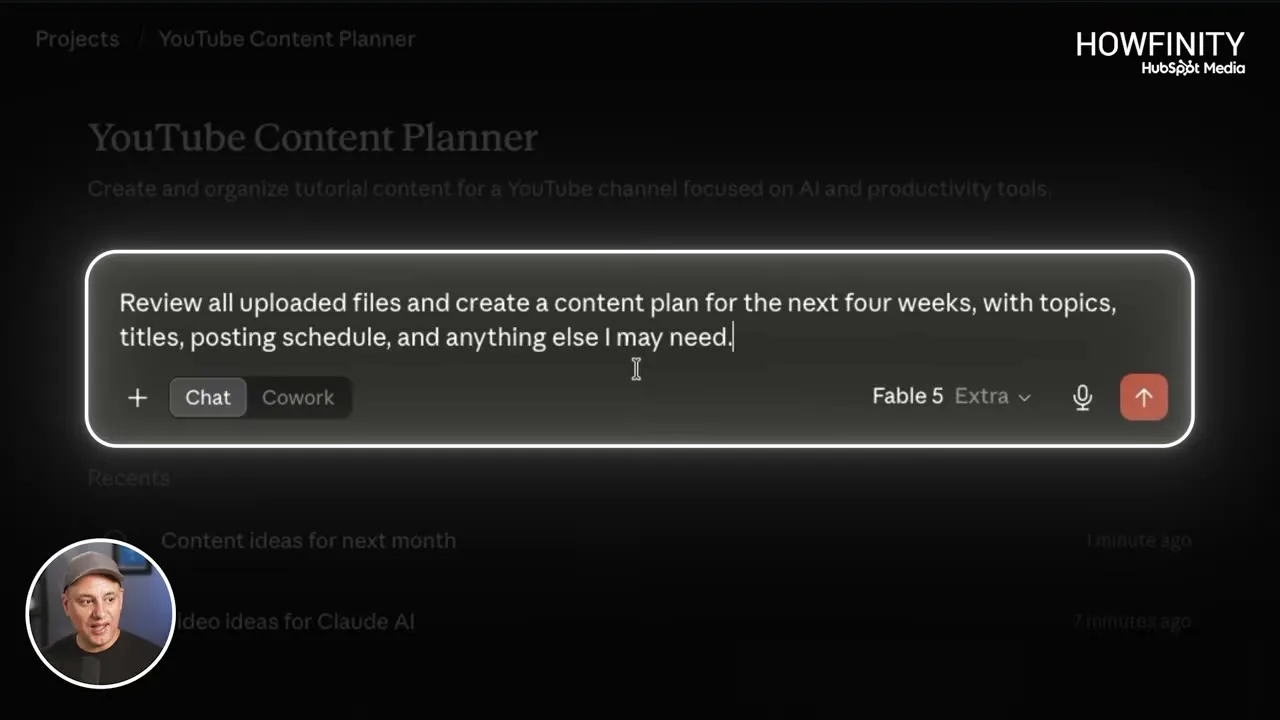
Claude built the plan from the files in the project. It laid the plan out as text in the chat and as an Excel file you can download.
Update instructions and files later
A project is not permanent. You don’t set it up once and leave it. Anything in it can change.
To change the instructions, open Instructions again, add to what is there and press Save instructions. In the video the writing was not coming out at the reading level wanted, so this line was added under the first set:
Write at an eighth grade reading level and avoid complex explanations.Every new chat in the project then uses the updated instructions.
Context works the same way. Press the plus sign next to Context and add another file. The video adds a competitor research PDF for the next month’s planning. Every new chat automatically has access to the files in the project.
You don’t have to add your earlier chats as context. The project can refer to its chats on its own. That is what the memory section is for.
You also don’t always have to upload. You can give Claude access to your Google Drive and pull files in from there.
Pin, edit, archive or delete a project
Press the pin icon at the top of the project page to pin the project. It then shows in the pinned section, where it is easy to get back to.
The three-dot menu next to the pin has Edit details, Archive and Delete.
Projects also work with Claude Cowork and with Claude skills. Skills are sets of instructions at the account level, and they work inside projects too.
Common questions
What are Claude projects?
A project is a dedicated workspace in your Claude account for one specific goal. It works like a folder that keeps every chat about that topic together, and it can have its own instructions, files and memory.
How do I create a project in Claude?
Click "Projects" in the sidebar on the Claude website or in the Claude app, then press "New project". Give it a name, describe what you are trying to achieve, and press "Create project".
Do project instructions change how the rest of my Claude account works?
No. Project instructions only apply to chats inside that one project. They don't interfere with your other projects or with the rest of your Claude account.
What files can I add to a Claude project?
The video adds an Excel sheet, a Word document and two PDFs. The plus sign next to "Context" lets you upload from your device, add text content, or bring files in from GitHub or Google Drive.
How many files can a Claude project hold?
The Context section shows how much of the project's capacity is used. In the video two files used 1%, so there is room for many more. A project kept to one specific topic is unlikely to run out.
Can I change a project after I create it?
Yes. You can edit the instructions, add more files, edit the project details, pin the project, archive it or delete it at any time. Every new chat uses the updated instructions and files.
Claude at Work
A free guide to using Claude at work, with copy-and-paste prompts for projects, skills and everyday tasks.
Claude at Work
A free guide to using Claude at work, with copy-and-paste prompts for projects, skills and everyday tasks.
Get the free guide