How to use Claude artifacts to build apps, documents and dashboards
To create a Claude artifact, start a new chat and describe what you want built, such as a planner, a dashboard or a calculator. Claude opens it in a separate window next to the chat. Ask for changes in the same chat, then choose Publish artifact to get a link anyone can open.
Quick steps
- Open Claude on the website or in the app and start a new chat.
- Describe what you want built, and use the word "artifact" so you don't get a plain chat answer.
- Look over the result in the window that opens next to the chat, and expand it to full screen.
- Ask for changes in the same chat. Claude makes a new version and the earlier one stays in the chat.
- To use your own numbers, upload a spreadsheet and ask Claude to turn it into a dashboard.
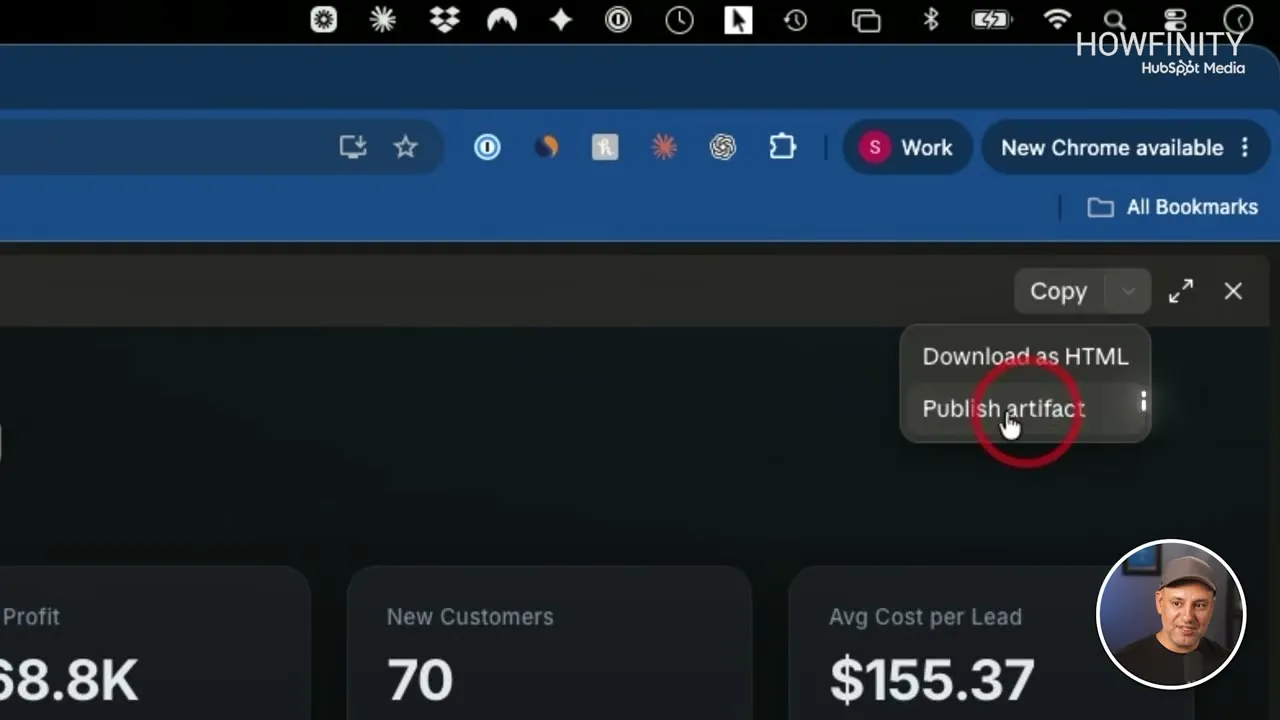
- Open the arrow next to Copy, choose "Publish artifact", then "Publish & copy link" to share it.
Claude at Work
A free guide to using Claude at work, with copy-and-paste prompts for projects, skills and everyday tasks.
Artifacts are the part of Claude that builds things instead of answering in the chat. This guide builds three of them from short prompts, a five-day Orlando vacation planner, a small business dashboard and a debt payoff calculator, then shows how to change one, feed it your own spreadsheet and share it with a link.
What artifacts are and where to find them
With artifacts you can build and create things without writing any code. You don’t have to be technical. The video lists what they can be:
- Apps and websites that live on the web
- Documents that are easy to edit and share
- Games and tools of all kinds
- Creative projects
- Quizzes and surveys
Artifacts work on the Claude website and in the Claude app. Artifacts in the sidebar shows any you created in the past. You can also start one from there by picking a category or choosing Start from scratch.
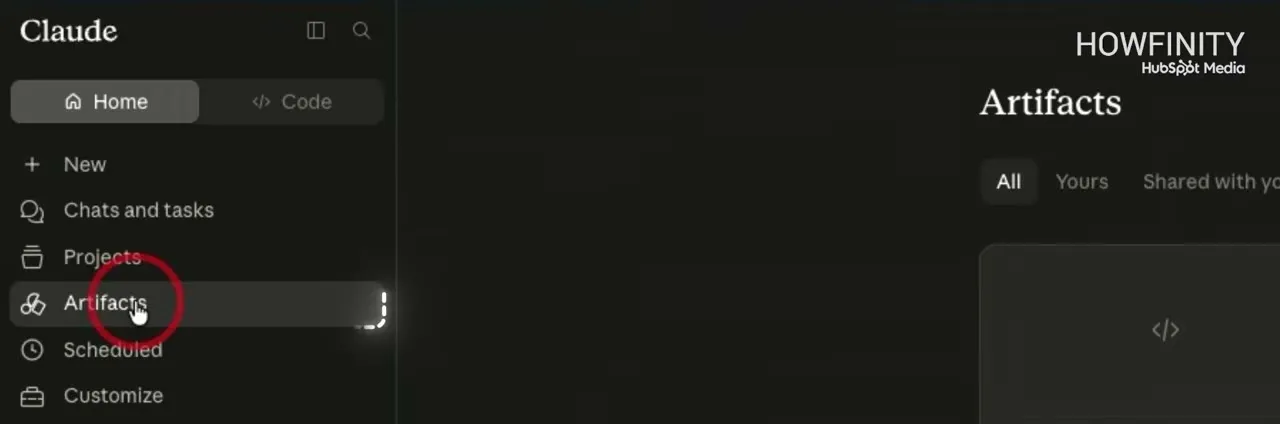
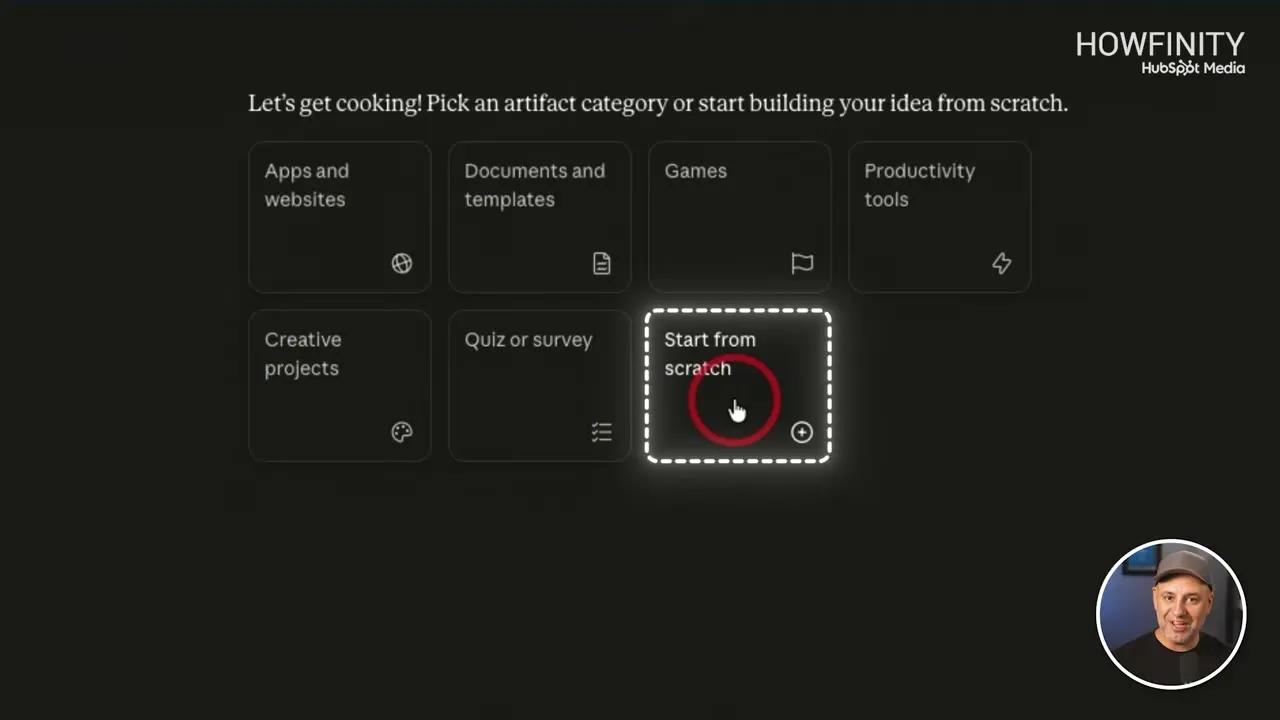
The other way, and the one used for every example here, is to open a new chat and ask Claude to build something. It will usually choose to make an artifact on its own.
Build a vacation planner
- Open claude.ai or the Claude app and start a new chat.
- Type what you want built and what it should include.
- Send it.
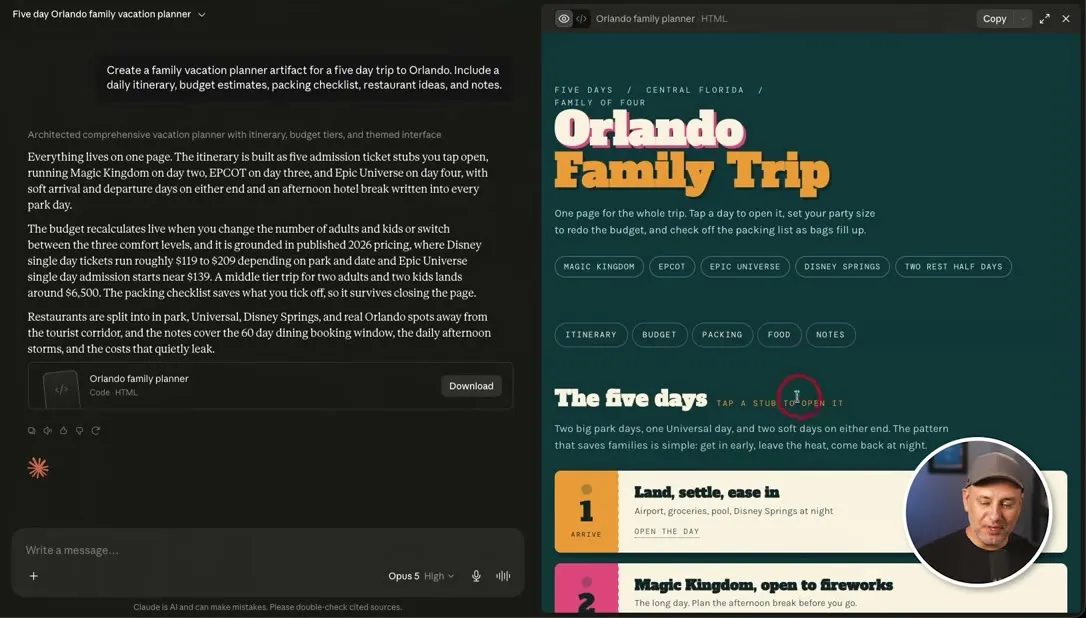
Create a family vacation planner artifact for a five day trip to Orlando. Include a daily itinerary, budget estimates, packing checklist, restaurant ideas, and notes.If you leave out the word “artifact”, Claude will usually still create one. Putting it in the prompt makes sure you don’t get a chat response. Claude already has access to the web, so it can put this together on its own.
In a couple of minutes you get a different kind of output. You don’t get an answer in the chat like you typically do. A separate window opens next to the chat with everything the prompt asked for: the five days planned out, a cost estimate, a packing list, where to eat, and some extra notes. You can expand the window to view the planner full screen.
Change an artifact with a follow-up
The first version might not be everything you wanted. Maybe you forgot to include something in your prompt. Ask for the change in the same chat:
Create a version that's more family friendly with activities for young children.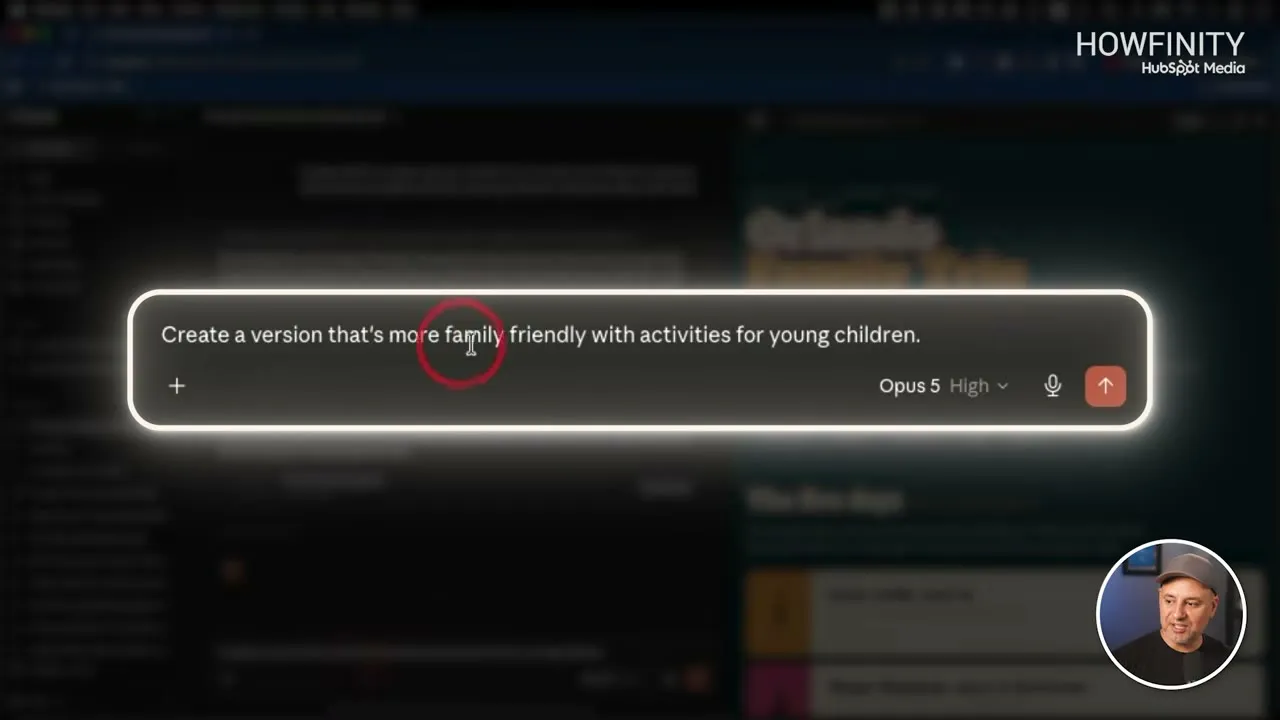
Claude revises the artifact inside the same chat. In the video the new version looked more kid-friendly, and even some of the colors changed, but it kept all the core things from the first prompt. The previous version is still there higher up in the chat if you want to go back to it.
Build a business dashboard from a prompt
You don’t have to go to the Artifacts tab for this either. Start a new chat with a basic prompt:
Create a small business dashboard for tracking monthly revenue, expenses, leads, customers, and profit.This prompt doesn’t use the word “artifact”, and Claude still knew to build one. If it answers you in the chat, ask it to turn that response into an artifact and you get it in the same kind of window.
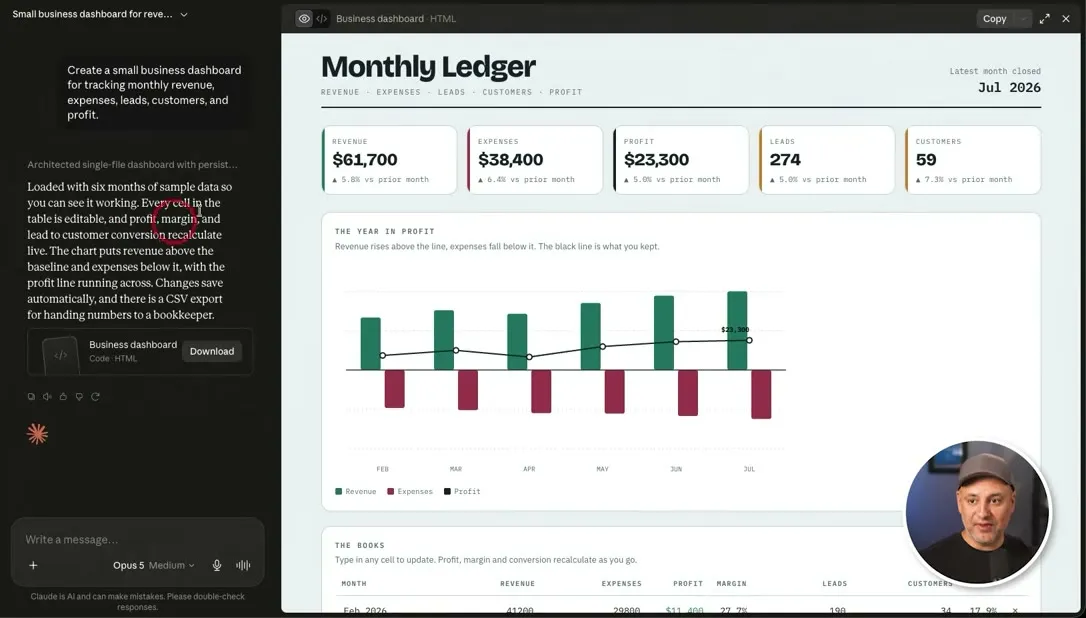
A dashboard made from a prompt alone is a template. Claude made up all the numbers in it. They are placeholders, and you would have to revise them to match your business.
Turn a spreadsheet into a dashboard
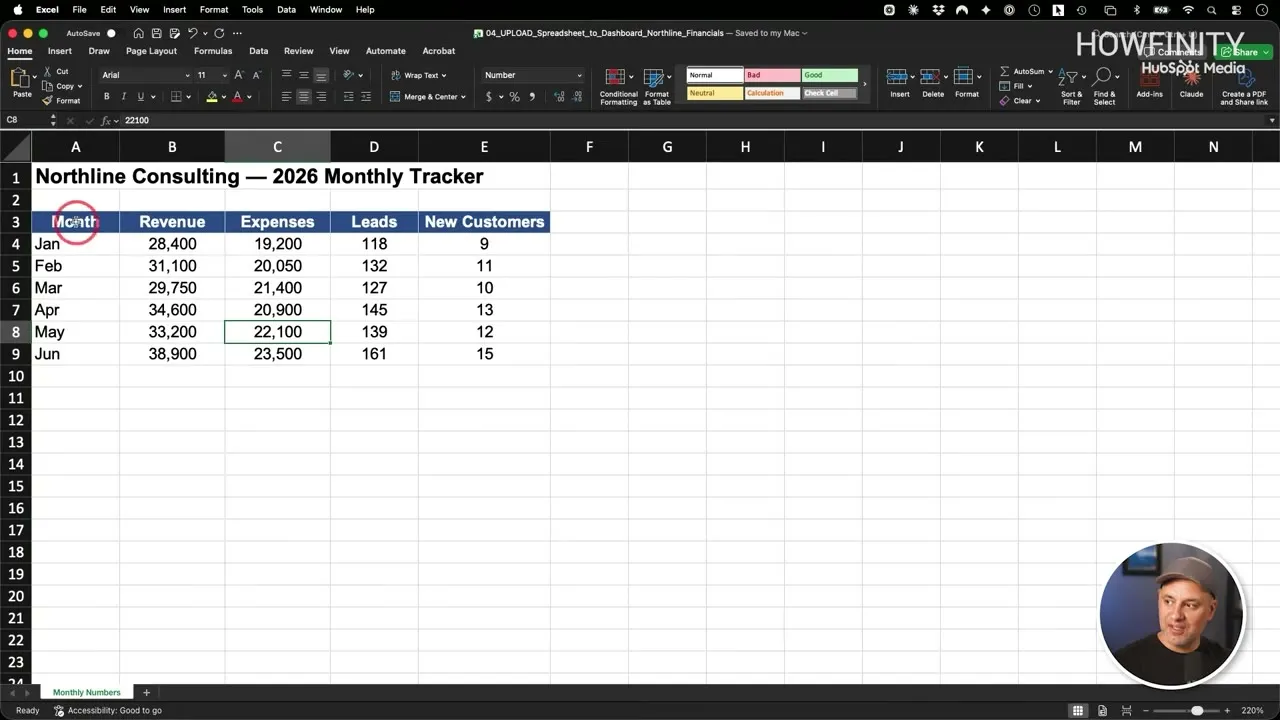
To get the right numbers from the start, give Claude the file that holds them. An Excel sheet or a CSV both work. The demo file is a monthly tracker with revenue, expenses, leads and new customers for each month. This is how a lot of businesses keep track of things, but spreadsheets like it can be messy to share with other people.
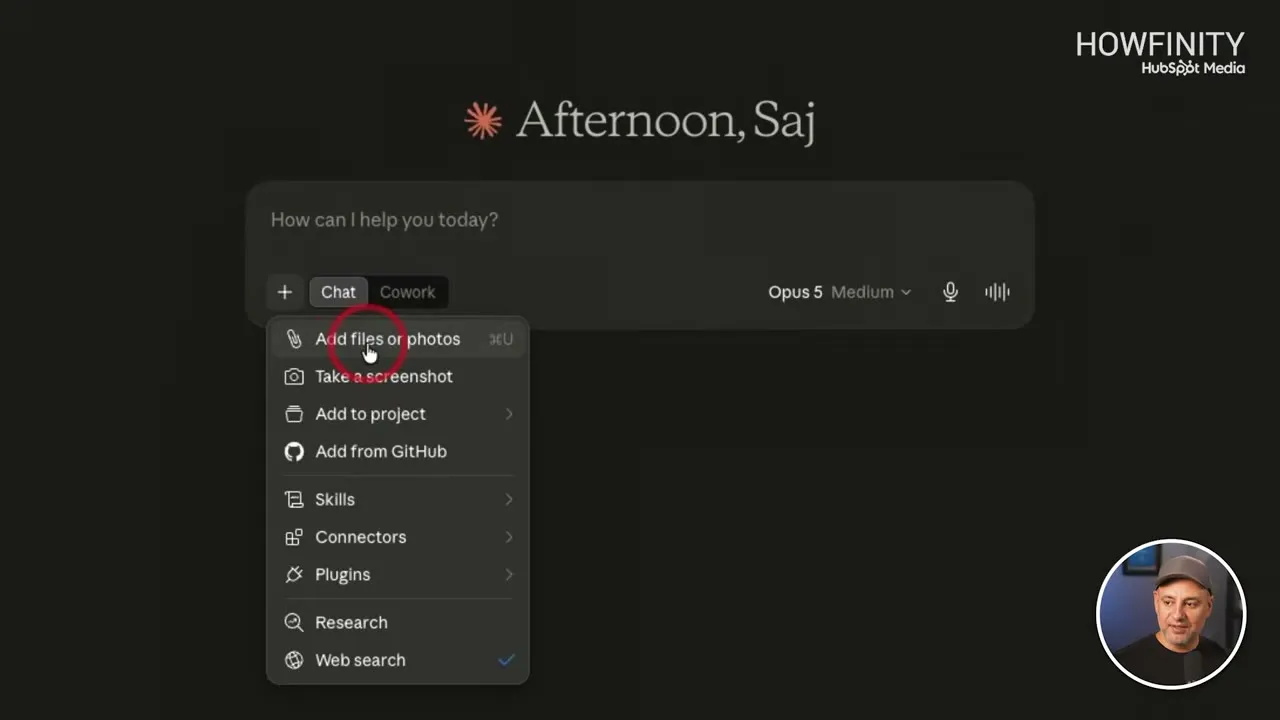
- Start a new chat and press the plus sign in the chat box.
- Choose Add files or photos and pick the spreadsheet.
- Type a short prompt and send it.
turn this into a dashboard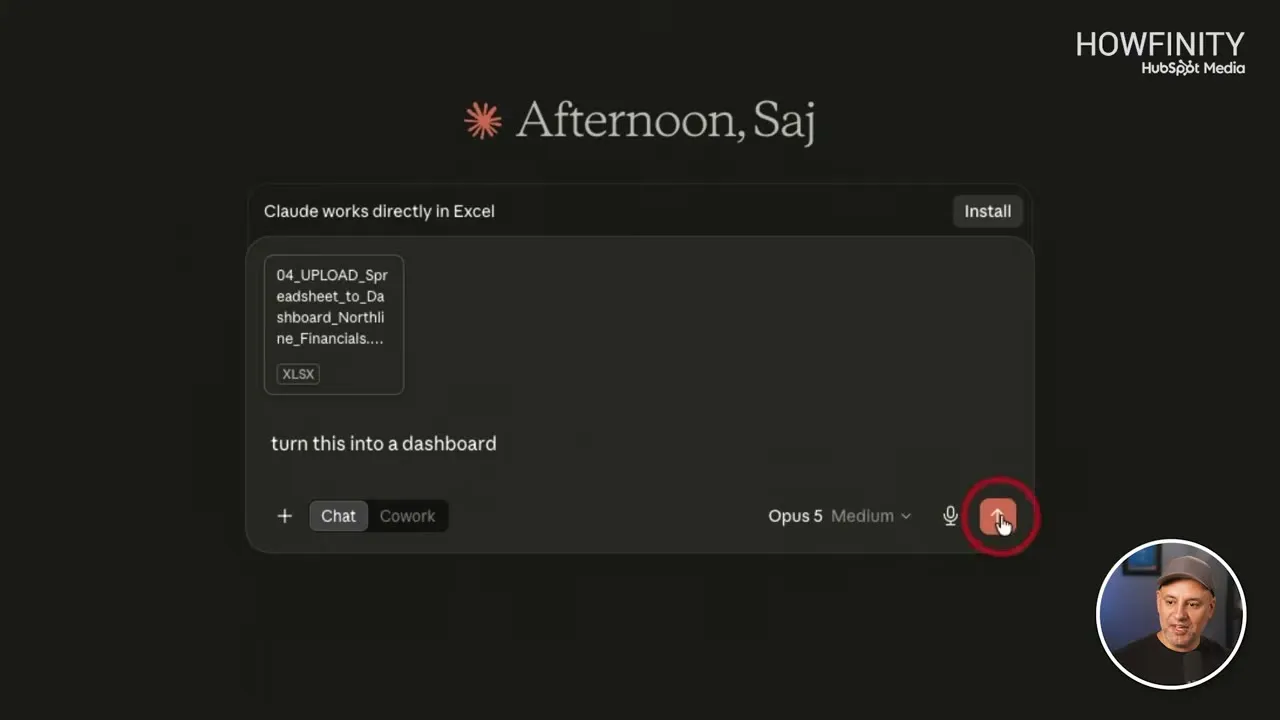
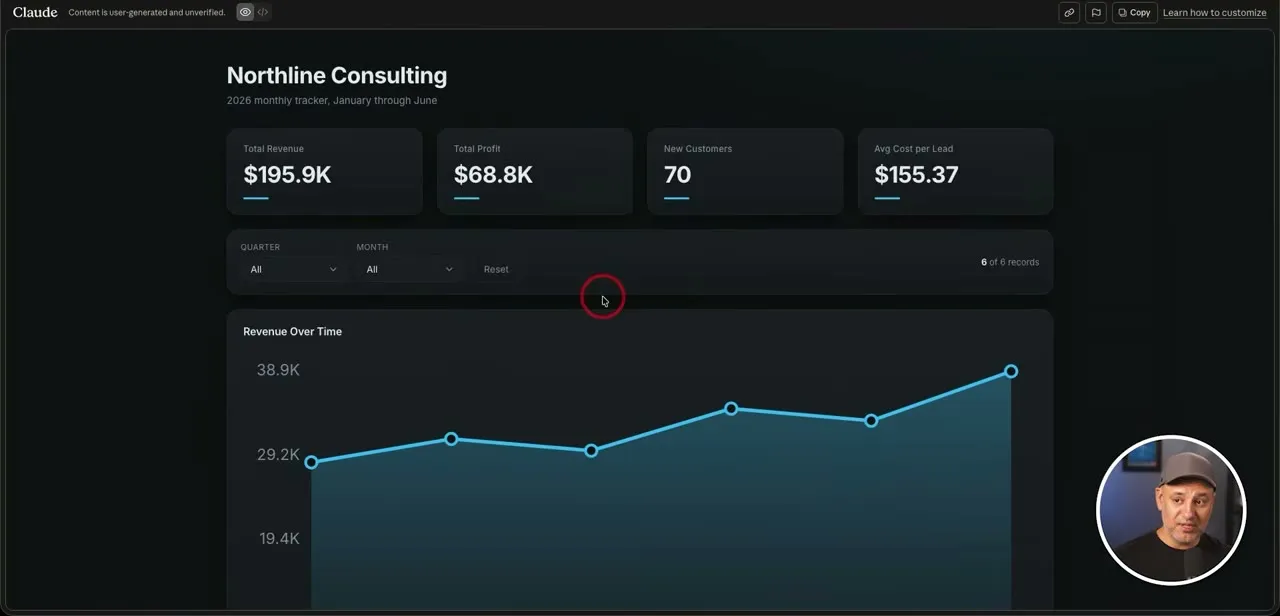
Claude builds a new dashboard, and this one has the right numbers. It also has filters for quarter and month, so you can look at one month or at everything together.
Publish and share an artifact
Artifacts are shareable, which is what makes a dashboard like this more useful to a team than the spreadsheet behind it.
At the top right of the artifact, open the arrow next to Copy and choose Publish artifact.
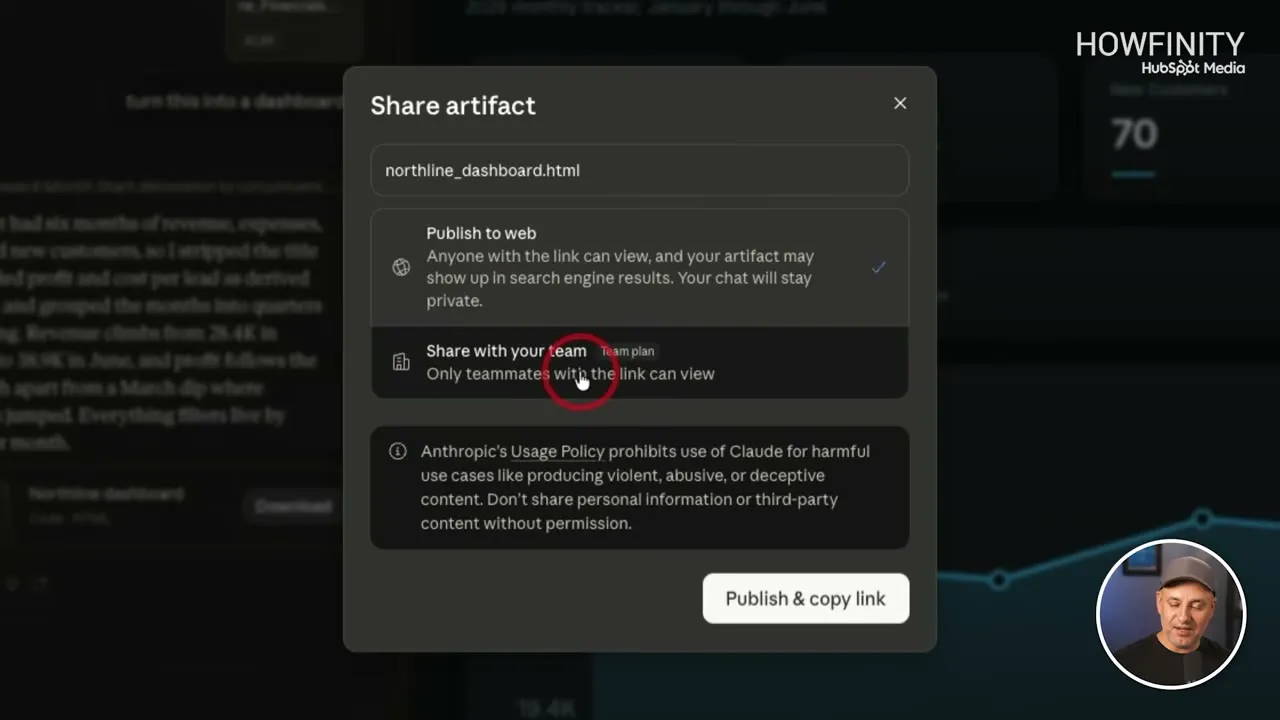
The Share artifact box asks who can see it:
- Publish to web. Anyone with the link can view the artifact. Your chat stays private.
- Share with your team. If you have a Team plan, only teammates with the link can view it.
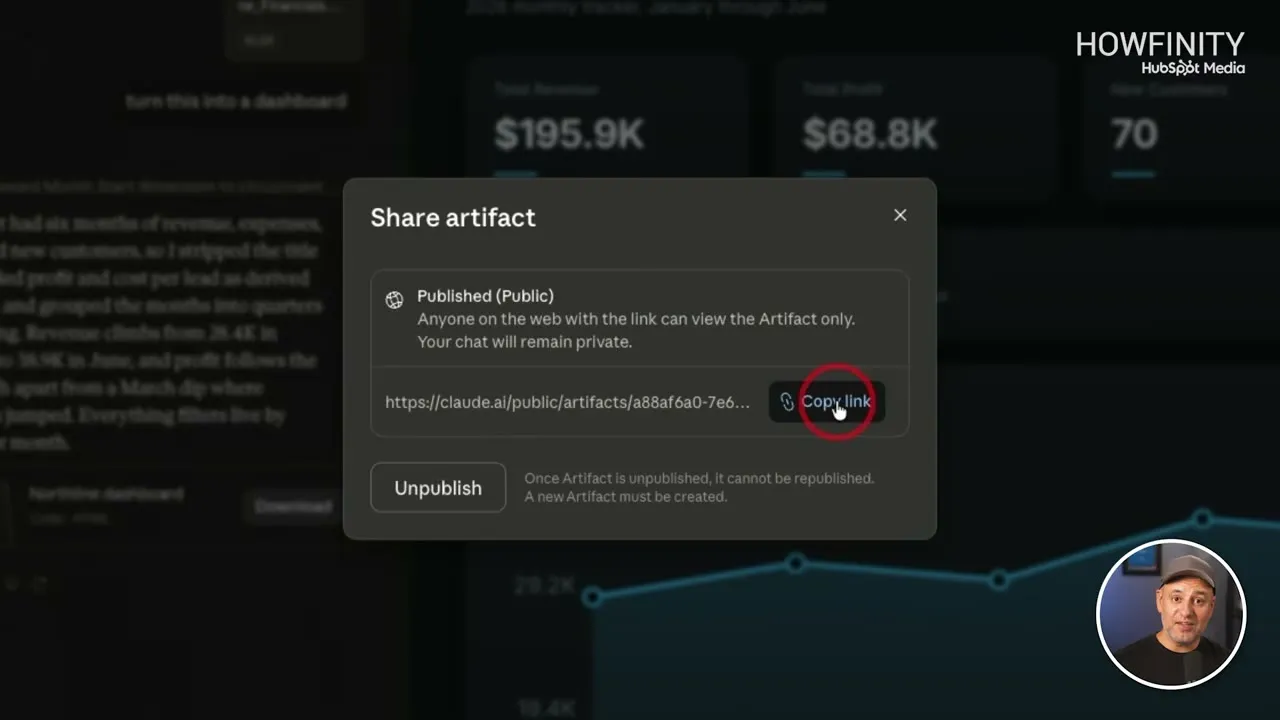
Click Publish & copy link. Claude generates the link, with a Copy link button next to it.
If you don’t want to keep it public, come back to this chat and click Unpublish. The box notes that an artifact can’t be republished once it is unpublished. You would have to create a new one.
Paste the link into a browser and you see the artifact on its own page, without the chat. It also looks good on a phone.
Build an interactive calculator
Artifacts can also be interactive tools:
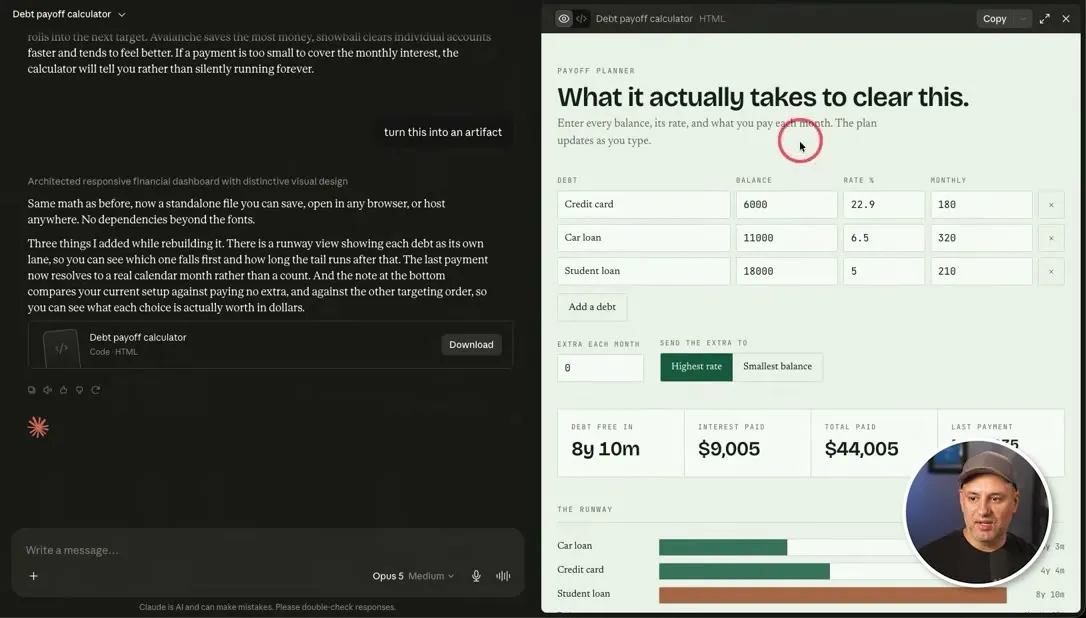
Create a debt payoff calculator where I can enter balances, interest rates, and monthly payments.This time Claude built the calculator inside the chat. It is fully usable there and everything is editable, but it is not easy to share. You could share the whole chat, but an artifact is far easier because it gives you a link anyone can go to. One more line fixes that:
turn this into an artifactNow the calculator opens as an artifact. Everything in it is interactive and updates as you change the numbers, and you can publish and share it the same way as the dashboard.
Come back to an artifact later
An artifact lives in the chat where you made it. Come back to that chat any time to use it, build on it or ask for changes.
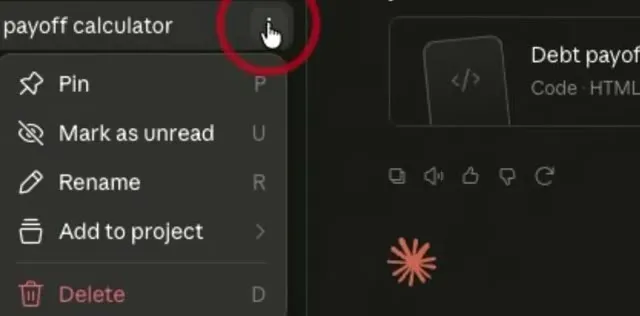
To keep the chat from getting lost in your recent chats, pin it. Open the three-dot menu next to the chat in the sidebar and choose Pin. It then always shows at the top.
Artifacts also work with Claude’s skills. With a skill you can tell Claude how artifacts should look, so a dashboard, a website or a presentation always looks consistent.
Common questions
What are Claude artifacts?
Artifacts are things Claude builds for you in a separate window instead of answering in the chat. They can be apps, websites, documents, games, tools, quizzes and surveys, and you can edit and share them.
Do I need to know how to code to create a Claude artifact?
No. You describe what you want in plain words and Claude builds it. You don't write any code and you don't have to be technical.
How do I create an artifact in Claude?
Start a new chat and ask Claude to build something. It usually chooses to make an artifact on its own, and adding the word "artifact" to your prompt makes sure. You can also open Artifacts in the sidebar and pick a category or start from scratch.
What if Claude answers in the chat instead of making an artifact?
Ask it to turn the response into an artifact. In the video a debt payoff calculator was first built inside the chat, and one short follow-up turned it into an artifact that could be published.
How do I share a Claude artifact?
Open the arrow next to Copy at the top of the artifact, choose "Publish artifact", then "Publish & copy link". Anyone with the link can view the artifact and your chat stays private. On a Team plan you can share it with your team only.
Can Claude turn an Excel spreadsheet into a dashboard?
Yes. Upload the Excel or CSV file in a new chat and ask Claude to turn it into a dashboard. The dashboard uses the real numbers from the file, and in the video it came with filters for quarter and month.
Claude at Work
A free guide to using Claude at work, with copy-and-paste prompts for projects, skills and everyday tasks.
Claude at Work
A free guide to using Claude at work, with copy-and-paste prompts for projects, skills and everyday tasks.
Get the free guide