How to analyze PDFs and long documents with Claude
To analyze a PDF with Claude, press the plus sign in a new chat, upload the file, and send a prompt that says who you are, why you are reading the document, and how you want the answer. Then keep asking follow-up questions in the same chat. Claude still has the whole document.
Quick steps
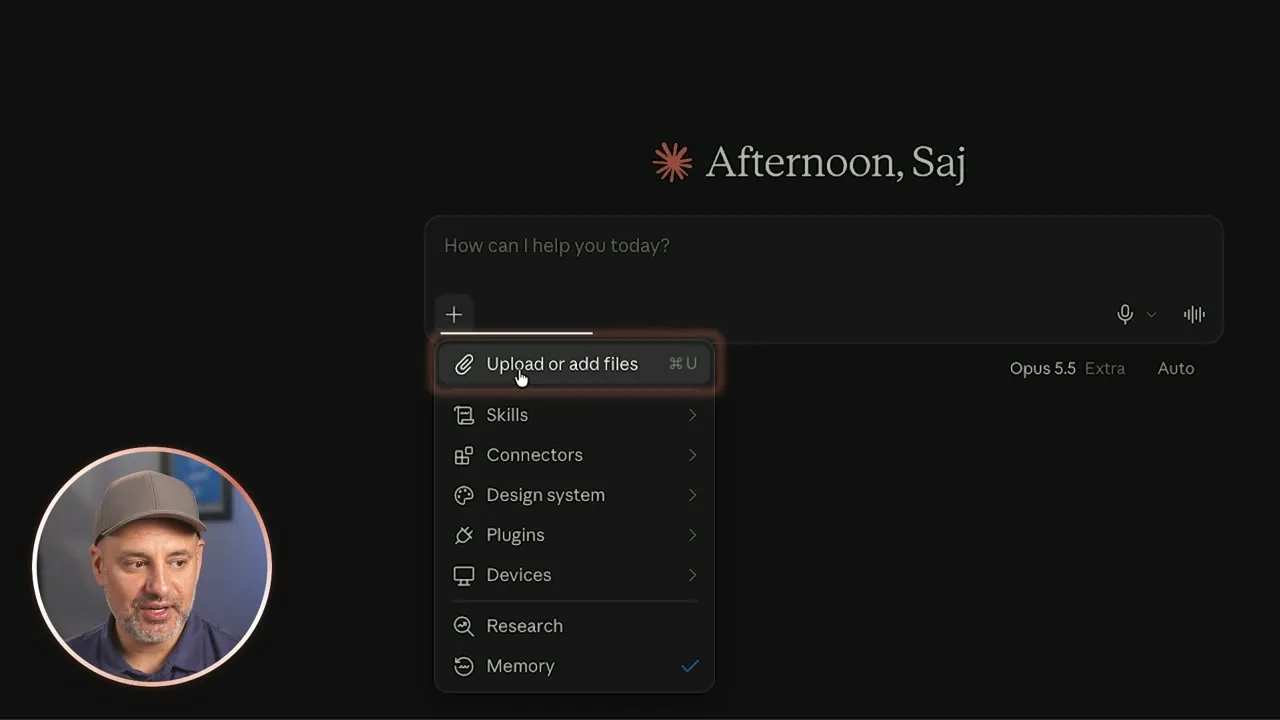
- Open Claude, press the plus sign and choose "Upload or add files" (or drag the PDF into the chat box).
- Write a prompt with three parts, who you are, why you are reading this, and how you want the answer.
- Ask follow-up questions in the same chat. You don't need to upload the file again.
- Ask Claude to pull out every action item, then turn the table into an Excel file.
- For a contract, ask for risks, unusual terms and missing information in plain English.
- Put documents you will come back to in a project so every new chat can read them.
Claude at Work
A free guide to using Claude at work, with copy-and-paste prompts for projects, skills and everyday tasks.
Most people upload a PDF to Claude, ask for a summary and stop there. The summary is only the start. In this guide one small business, an 18-person heating and cooling company, takes a 22-page quarterly report and a vendor contract through four jobs: a summary for a meeting, a task list in Excel, a contract check, and a project that keeps the files ready for next time.
Upload a PDF to Claude
- Open claude.ai or the Claude app and start a new chat.
- Press the plus sign in the chat box and choose Upload or add files. You can also drag the PDF straight into the box.
- Pick the file from your computer.
If your documents live in Google Drive, you can connect Drive and pull the file in from there without downloading it first.
If you send the file with no prompt, Claude will usually just summarize it. You get a much better answer by telling it what you need.
Summarize a long report with the who, why, how formula
A good document prompt has three parts:
- Who you are.
- Why you are reading this document.
- How you want the answer back.
Here is the prompt used on the 22-page report:
I own Westbrook Heating and Cooling, an 18 person HVAC company. My operations manager sent me this Q3 report, and I'm meeting with her Thursday to decide what to fix first. Summarize it in plain English, then give me the five things I should pay the most attention to, with one sentence on why each one matters.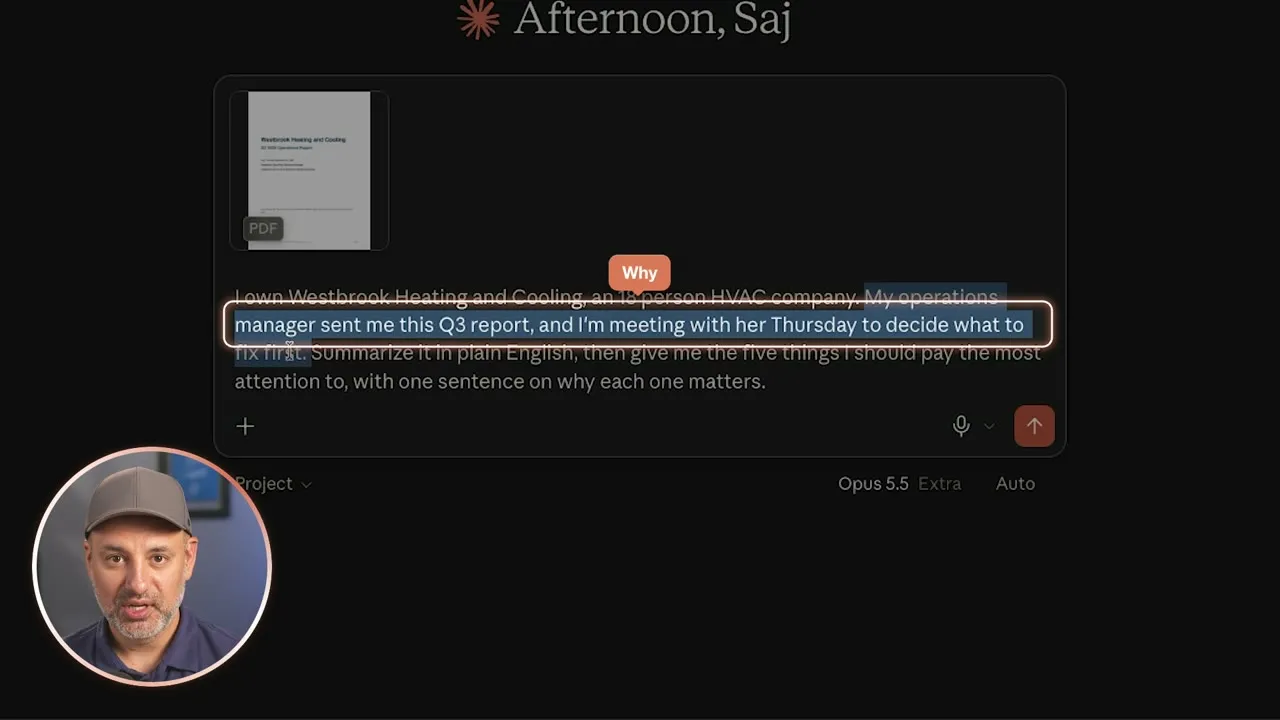
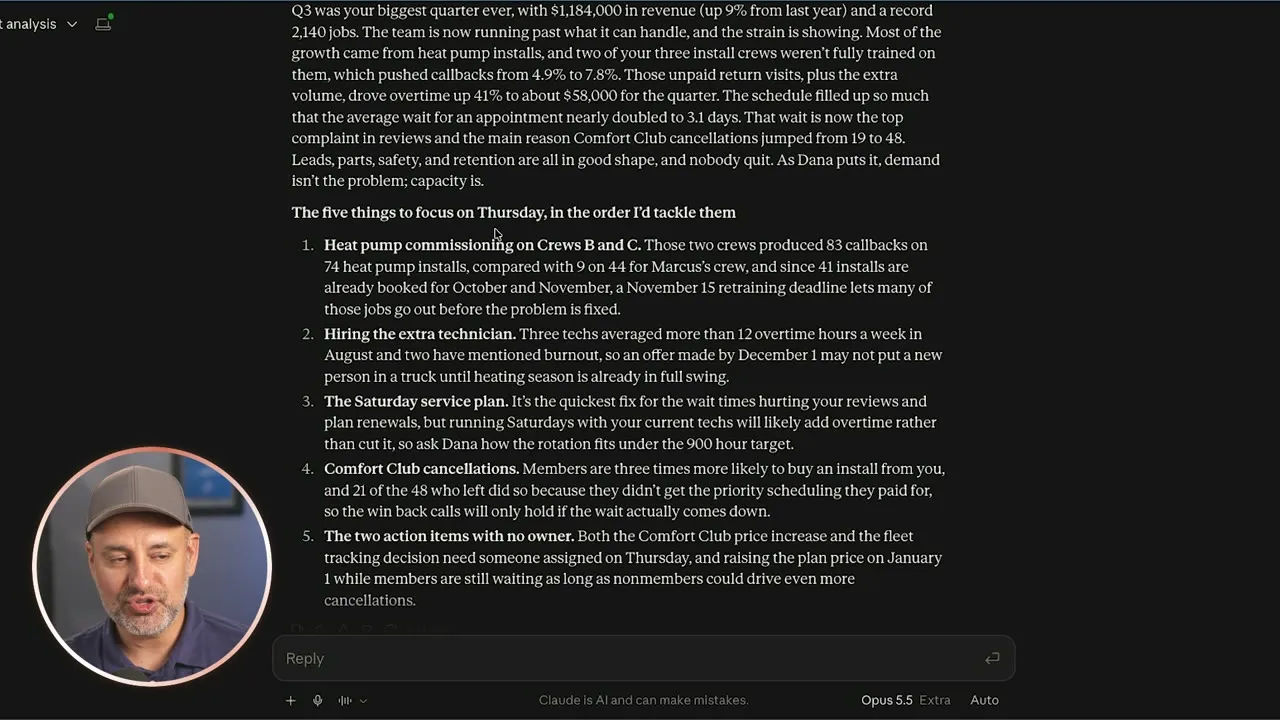
A few seconds later Claude returns a short version of the report and a numbered list of five things to focus on in the meeting.
Ask a follow-up when something isn’t clear
Claude still has the document and its own answer, so you can just ask:
Explain the callback rate part in simpler terms.Raise the effort for long or number-heavy documents
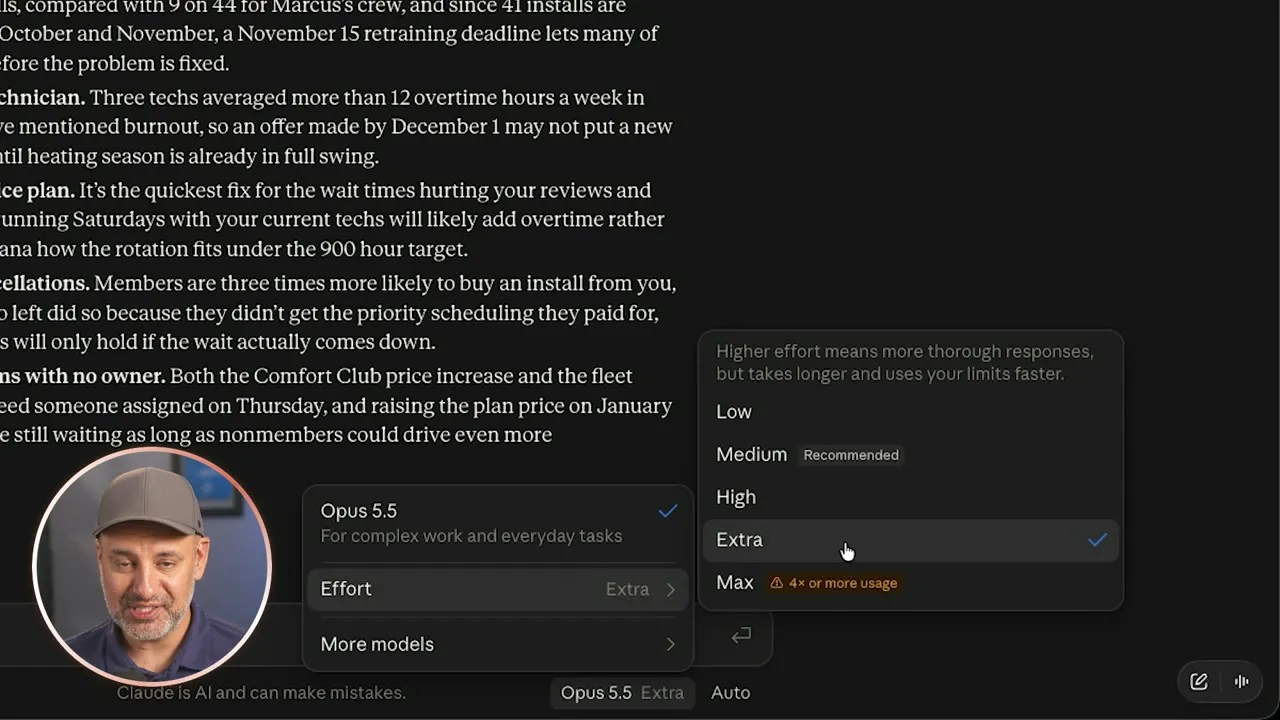
Depending on your account, the model menu has an Effort setting: Low, Medium, High, Extra and Max. It controls how much thinking Claude does before it answers. Medium is the recommended default. For longer documents or ones full of numbers, a higher setting gives better results but takes longer and uses your limits faster. Max uses them up very quickly.
Turn the action items into an Excel file
Claude can also create files from what it reads. First check one setting:
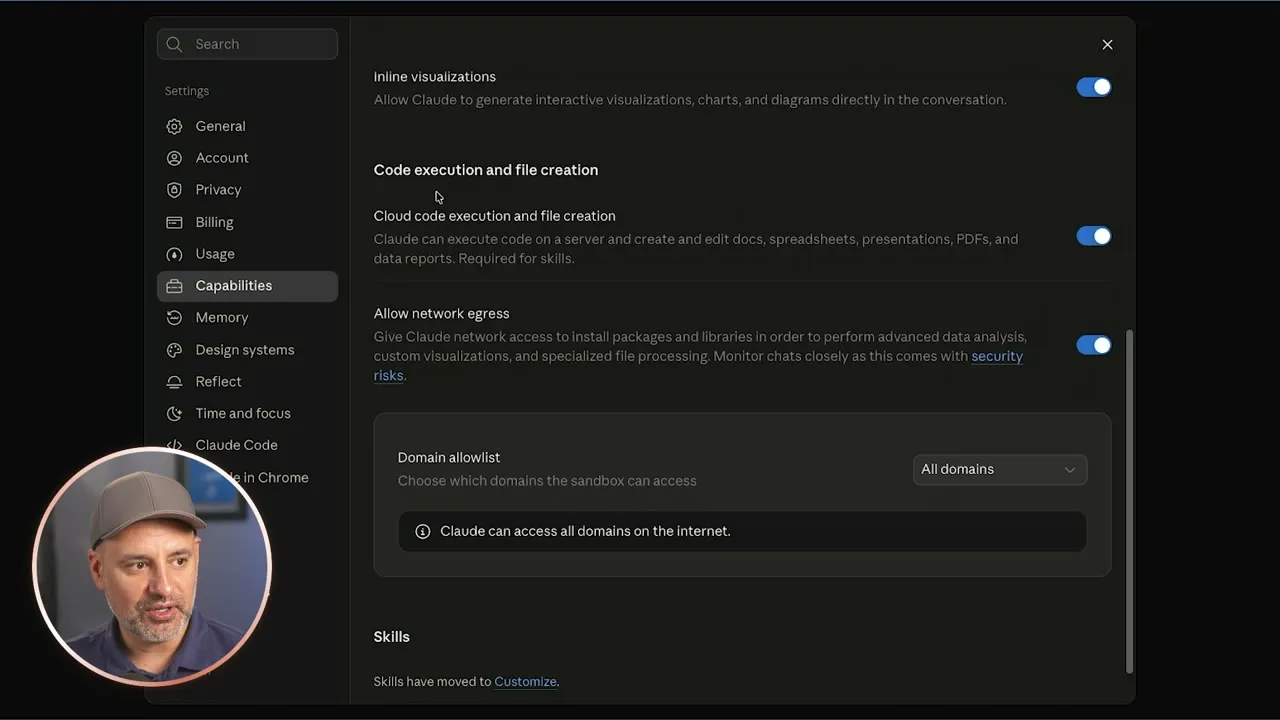
- Open Settings, then Capabilities.
- Make sure Code execution and file creation is switched on. Many accounts already have it on.
Then, in the same chat or a new one with the same PDF, ask for the to-dos buried in the report:
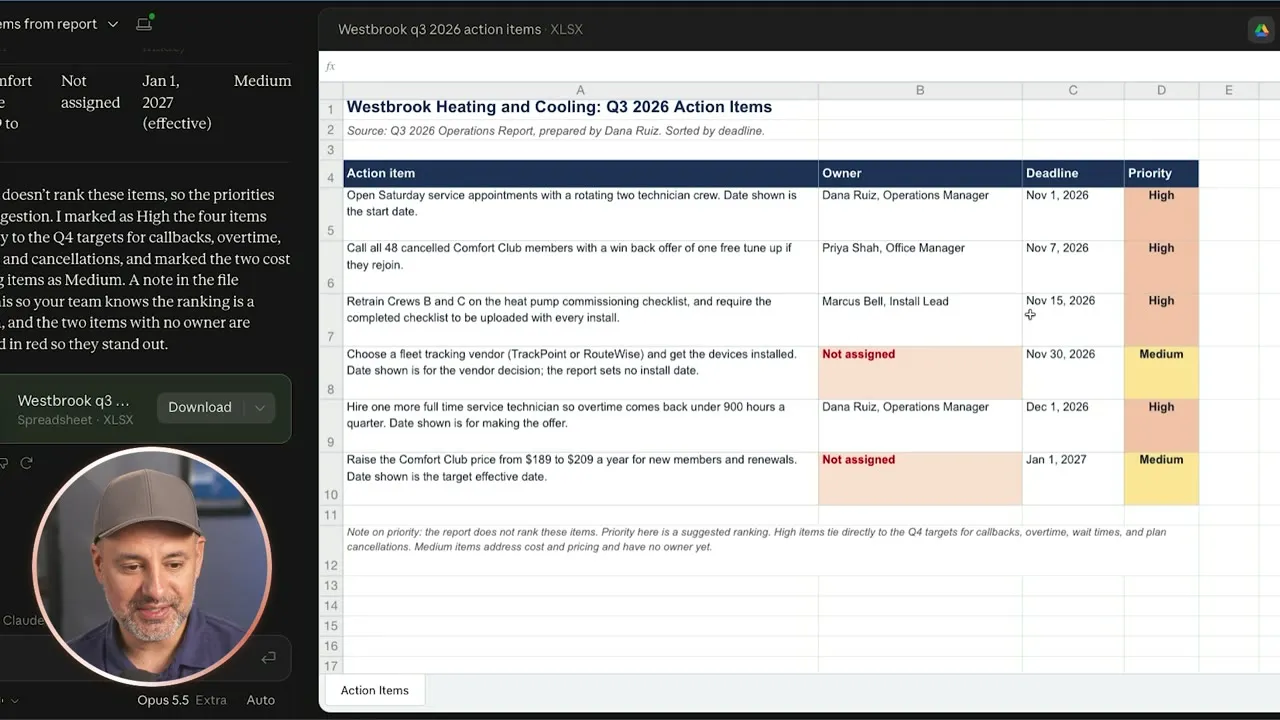
Go through this report and pull out every action item. For each one, tell me what needs to be done, who is responsible if the report says, and the deadline.Claude comes back with a table of action items, who owns each one and the deadline. In the video it found six, and flagged two that had no owner assigned.
Sometimes Claude offers a Create a spreadsheet button under its answer. If it does, click it. If not, ask in two steps:
Put those in a table with columns for action item, owner, deadline, and priority.Turn that table into an Excel file I could share with my team.The spreadsheet opens beside the chat so you can look at it, and there is a Download button to save it to your computer. You can ask Claude to revise it the same way you would ask for any other change.
Check a contract before you sign it
This works well for a simple agreement you would otherwise skim. Start a new chat, upload the contract and use the same who, why, how structure:
I own an HVAC company and I'm about to sign this fleet tracking agreement for our 12 service vans. Review it and list any risks, unusual terms, or missing information I should look into before I sign. Explain each one in plain English.Claude warns that it is not a lawyer, then lists the biggest risks, the terms that lean toward the vendor, and anything missing or unclear. For a long agreement that comes to about a page or two.
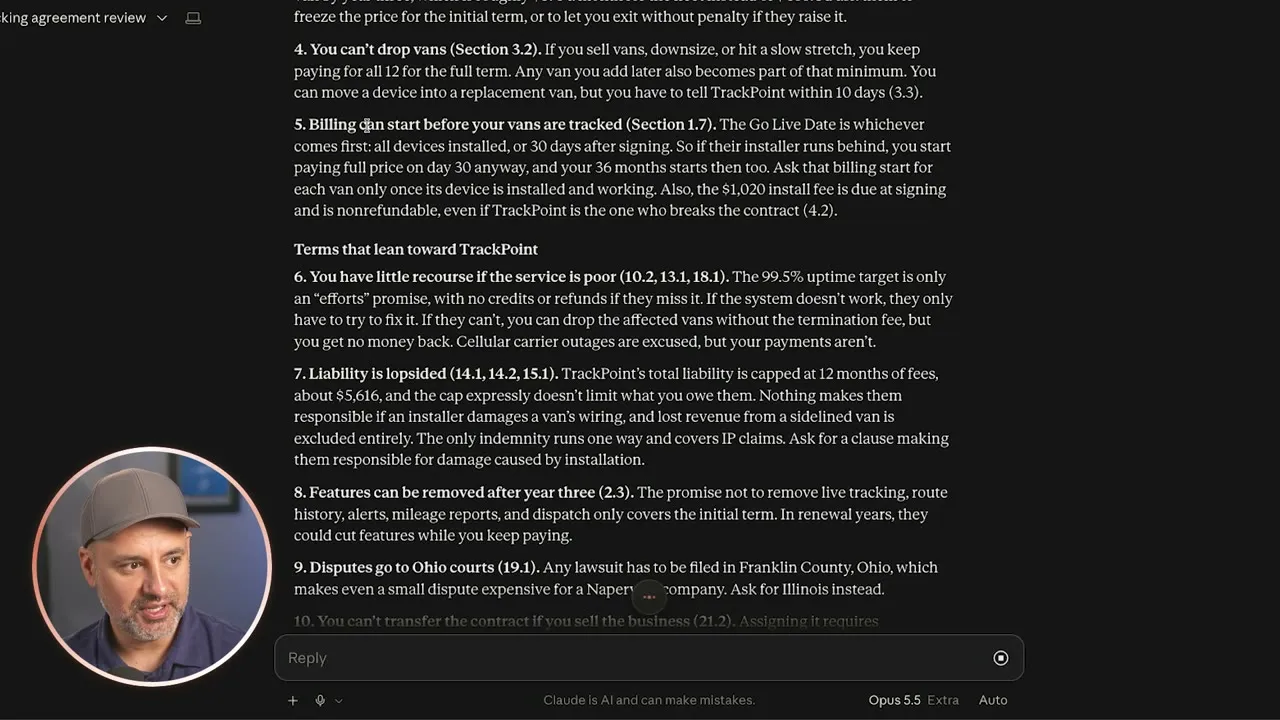
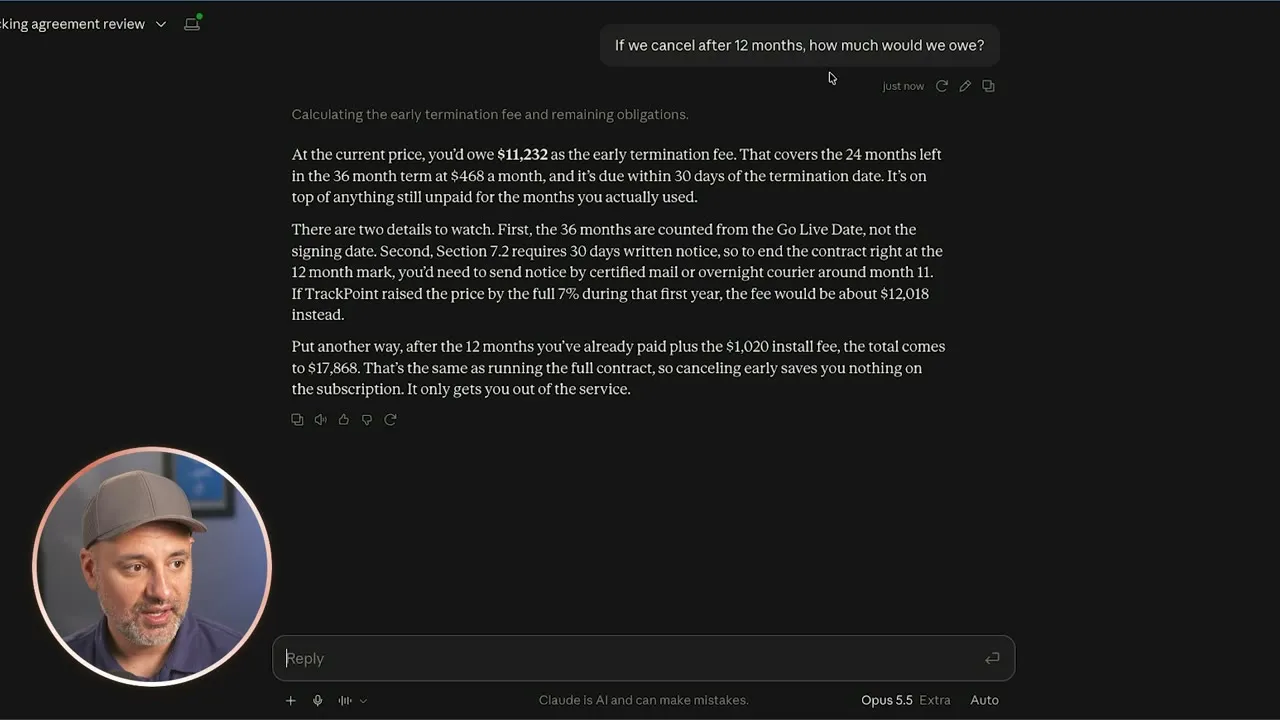
The first answer won’t cover everything, so ask about the things that would cost you money:
If we cancel after 12 months, how much would we owe?In the video this is where the real number showed up. Cancelling after a year would mean an early termination fee of $11,232: the 24 months left on a 36-month term, at $468 a month.
Keep long documents in a Claude project
When you are comparing documents, or you know you will come back to them, put them in a project. A project works like a folder in your Claude account. Files you add to it are available to every chat inside it.
- Open Projects in the sidebar and create a new project. Give it a name, such as “Fleet Tracking Decision”. The description is optional.
- On the project page, press Add and upload your files. You can add files or a whole folder from your computer, paste in text, or bring files in from Google Drive.
- Start a chat inside the project. There is nothing to upload.
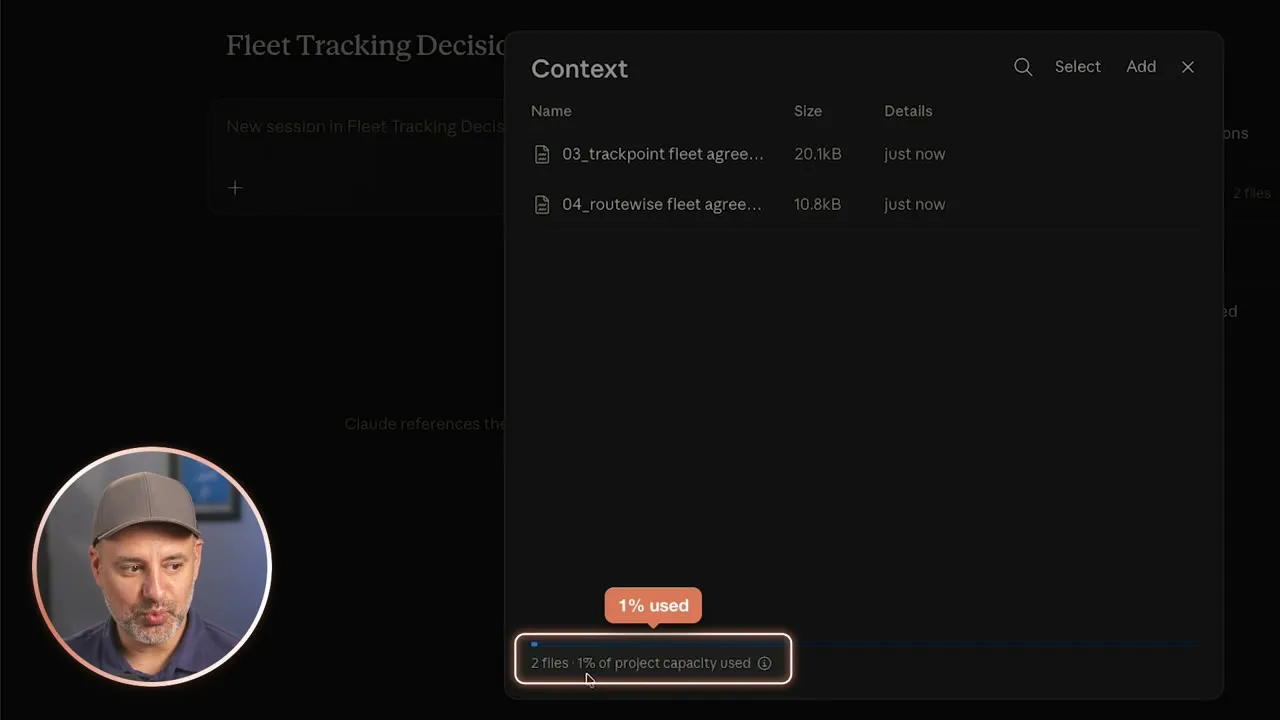
Two contracts used 1% of the project’s capacity, so there is room for many more documents, and you can add or remove files at any time.
Now a prompt can compare the documents directly:
I own Westbrook Heating and Cooling, an 18 person HVAC company with 12 service vans. I'm choosing a fleet tracking vendor. Answer in plain English and always say which section of the agreement an answer comes from. Compare these two fleet tracking agreements in a table with the monthly cost for 12 vans, the contract length, the cancellation notice, the early termination fee, and price increases.Asking Claude to name the section each answer comes from lets you check it against the real document.
A follow-up can act on what it found:
Draft a short email to RouteWise asking if they would match $39 per van if we sign for 12 months.Claude writes the email using the pricing from the agreements, with buttons to copy it or open it in your mail app.
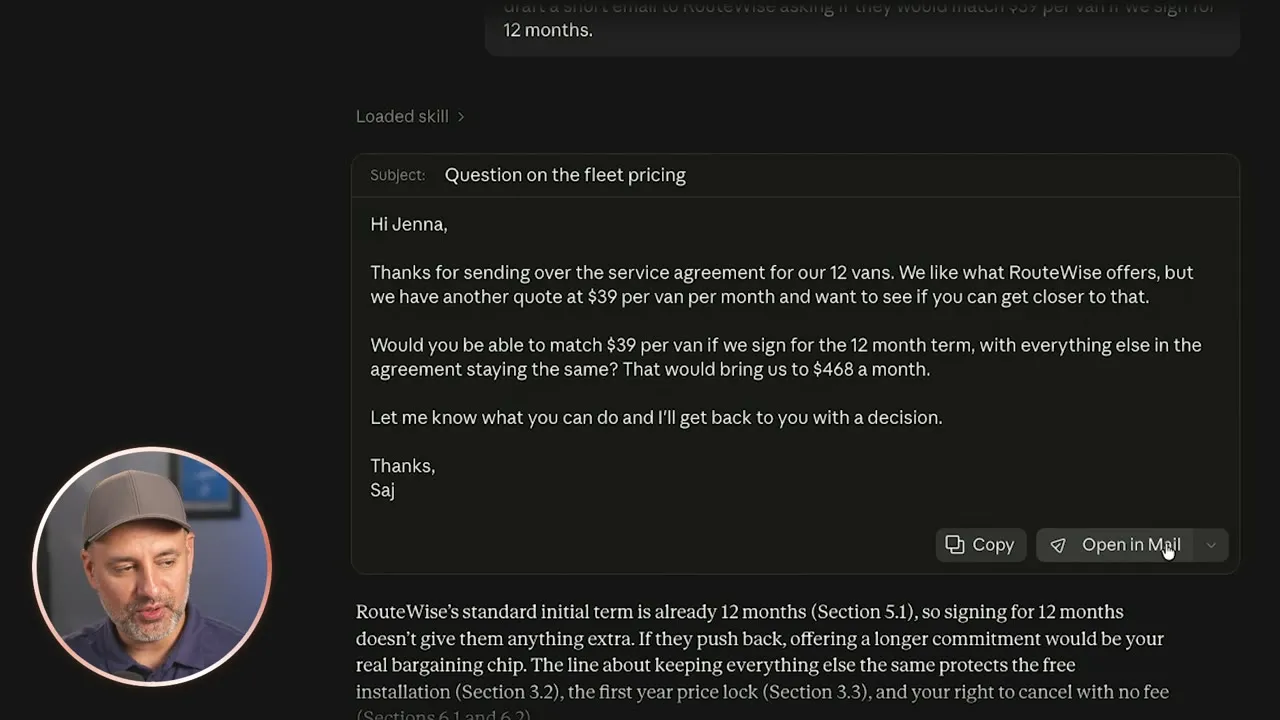
Any time you come back to the project, your earlier chats are there, and a new chat can read the same files.
Common questions
Can Claude read PDFs on the free plan?
Yes. Everything in this guide was shown as available on Claude's free plan. The free plan limits how often you can do it, so long documents and repeated questions use up your allowance faster.
Does Claude read the charts and images in a PDF, or only the text?
Claude can look at charts and images in a PDF as well as the text, which is useful for reports where the key numbers sit in a table or graph.
Can Claude turn a PDF into an Excel spreadsheet?
Yes. Ask Claude to put the information in a table, then ask it to turn that table into an Excel file. "Code execution and file creation" has to be switched on under Settings, then Capabilities. Claude gives you a file you can download.
Do I have to upload the same PDF every time I start a new chat?
Not if you use a project. Add the PDF to a Claude project once and every chat you start inside that project can read it.
Can Claude replace a lawyer for reviewing a contract?
No. Claude itself warns that it is not a lawyer. It is useful for a first read of a simple agreement, to spot risky terms and work out what a clause would cost you, so you know what to ask about before you sign.
Claude at Work
A free guide to using Claude at work, with copy-and-paste prompts for projects, skills and everyday tasks.
Claude at Work
A free guide to using Claude at work, with copy-and-paste prompts for projects, skills and everyday tasks.
Get the free guide