How to transcribe audio or video to text for free
To transcribe audio or video to text for free, open a blank Google Doc, go to Tools and choose Voice typing, and allow Google Docs to use your microphone. Click the microphone button, then play your video or audio recording. Google Docs types out what is said, and you can then fix any punctuation.
Quick steps
- Open a blank document in Google Docs.
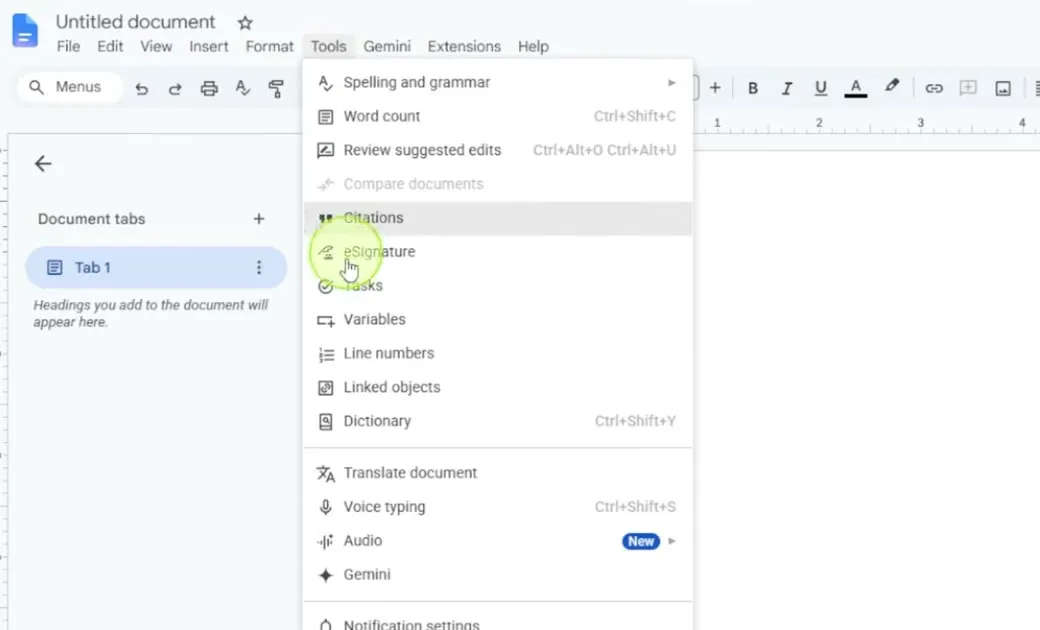
- Click Tools, then Voice typing.
- Click the microphone button and allow Google Docs to use your microphone.
- Open your video or audio file next to the document and press play.
- Let Google Docs type out what is said, then fix any punctuation.
- Copy the text to make closed captions, a blog post or whatever you need.
AI Content Creation Checklist
A free step-by-step checklist for using AI to come up with ideas, create content and scale your production, from generating visuals to personalizing content at scale.
Google Docs can turn a video or audio recording into text for free. You turn on voice typing, play the recording, and Google Docs types out what is said. The video uses it on one of its own earlier recordings.
Turn on voice typing
- Start with a blank document in Google Docs.
- Click Tools in the menu bar.
- Choose Voice typing.
Allow your microphone and test it
When you click the microphone button in the Voice typing box, your browser asks to let Google Docs use your microphone. Allow it.
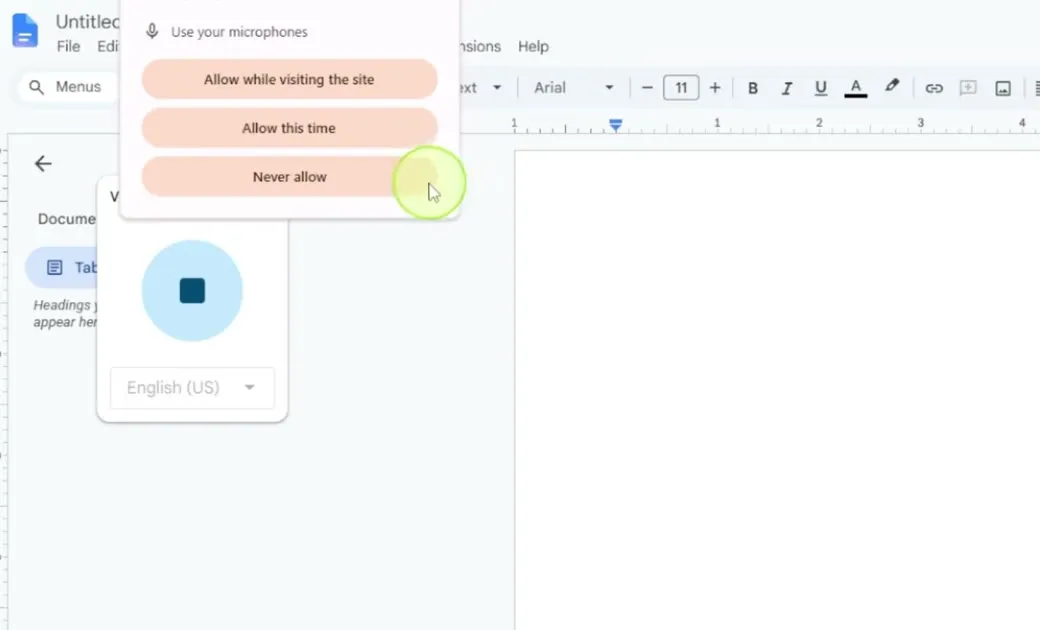
Now talk, and Google Docs types everything you say onto the page. Click the button again to stop. This is also an easy way to type into your computer by speaking.
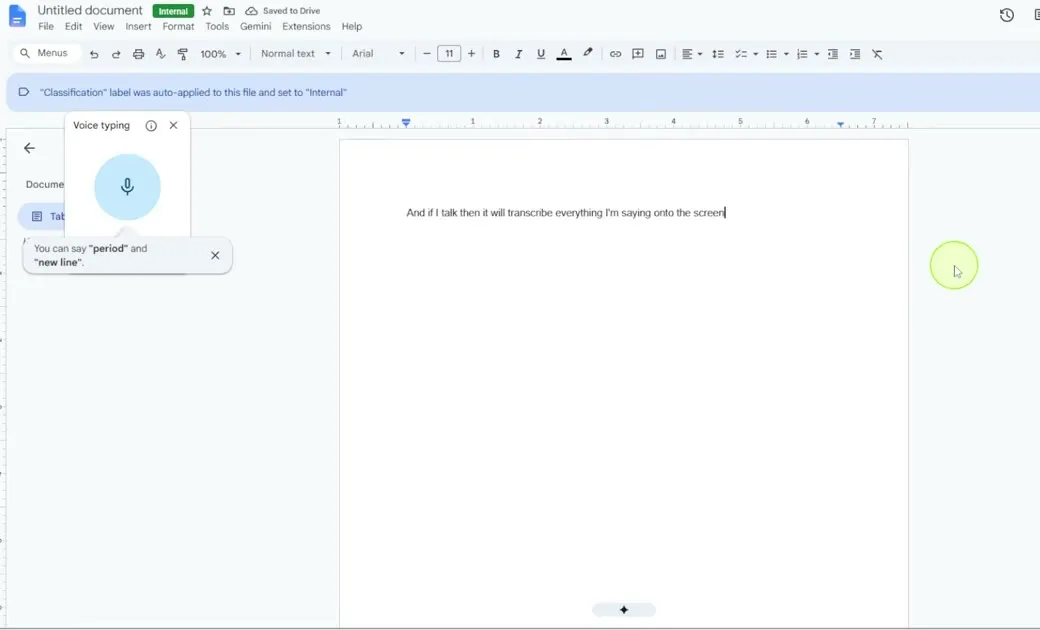
Play your video or audio recording
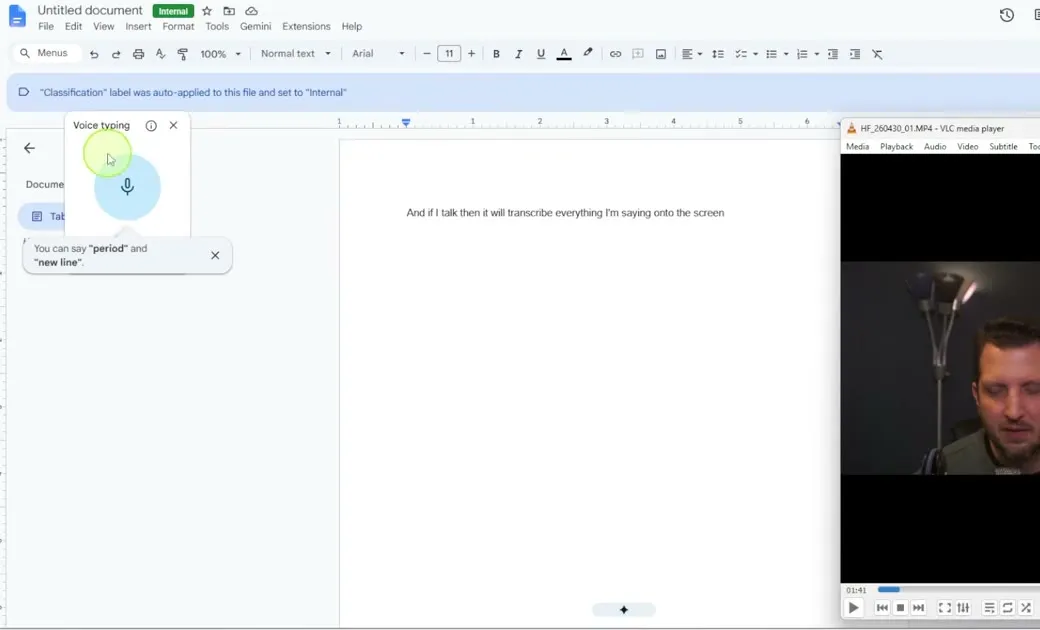
With voice typing on, open any video or audio file, whether it is a YouTube video or something you recorded.
- Move the video or audio player next to your document.
- Start the dictation by clicking the microphone button in Voice typing.
- Play the recording.
As the recording plays, Google Docs types out what is said.
Check and clean up the transcript
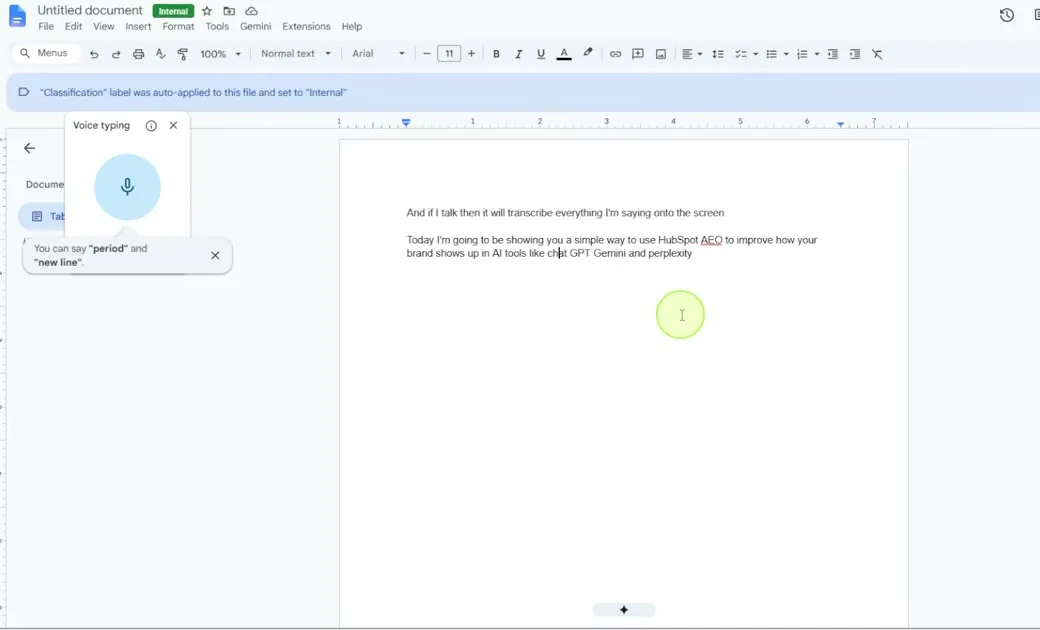
Read through the text when the recording ends. You may need to tweak a few things and add punctuation. The Voice typing box also reminds you that you can say “period” and “new line” when you dictate yourself.
By and large, it captures speech accurately. In the video’s test, the transcript had the right capitalization and initials without any edits.
Use the text for captions or a blog
Once the transcript is in Google Docs, copy it and use it however you need: make closed captions for a video, or write a blog post from it.
Common questions
Can I transcribe audio or video to text for free?
Yes. Voice typing in Google Docs is free. Turn it on, play your recording, and Google Docs types out what it hears.
Where is voice typing in Google Docs?
Open a document, click Tools in the menu bar and choose Voice typing. The menu also shows the shortcut, Ctrl+Shift+S.
How do I transcribe a YouTube video or recording in Google Docs?
Turn on voice typing, open the video or audio file next to your document, then play it and start the dictation. Google Docs types out the words as they are spoken.
How accurate is Google Docs voice typing?
By and large it captures speech accurately. In the video's test it got the capitalization and initials right with no edits, but you may need to tweak a few things and add punctuation.
What can I do with the transcript?
Once the text is in Google Docs, you can copy it to make closed captions, write a blog post from it, or use it however you need.
AI Content Creation Checklist
A free step-by-step checklist for using AI to come up with ideas, create content and scale your production, from generating visuals to personalizing content at scale.
AI Content Creation Checklist
A free step-by-step checklist for using AI to come up with ideas, create content and scale your production, from generating visuals to personalizing content at scale.
Get the free checklist