How to do keyword research for SEO with Google Keyword Planner
Open Google Keyword Planner from Tools, then Planning, in a Google Ads account. Choose Discover new keywords, enter a few broad terms for your business and click Get results. Compare average monthly searches and competition, select keywords with good volume and low competition, then copy them into a keyword research template with notes and priorities.
Quick steps
- In Google Ads, go to Tools, then Planning, then Keyword Planner.
- Click Discover new keywords and type a few broad terms that describe your business.
- Click Get results to see a list of keyword ideas with their data.
- Compare average monthly searches and competition, and select the keywords you want to target.
- Make a copy of the free keyword research template in your Google Drive.
- Copy the selected keywords from Keyword Planner and paste them into the template.
- Add notes and a priority for each keyword so you know which to work on first.
Free Keyword Research Template
A free template to track keywords, rankings, search volume and CPC in one place, with a best practice guide to finding high-value keywords.
Keyword research tells you what people are actually searching for, so you can choose the right keywords for your content. This guide uses Google Keyword Planner and a made-up landscaping business to find keywords, then keeps them organized in a free keyword research template.
Open Google Keyword Planner
Keyword Planner is part of Google Ads. If you already have a Google Ads account, it is under the tools. If you don’t, you need to sign up for one.
- In the side panel, click Tools.
- Click Planning, then click Keyword Planner.
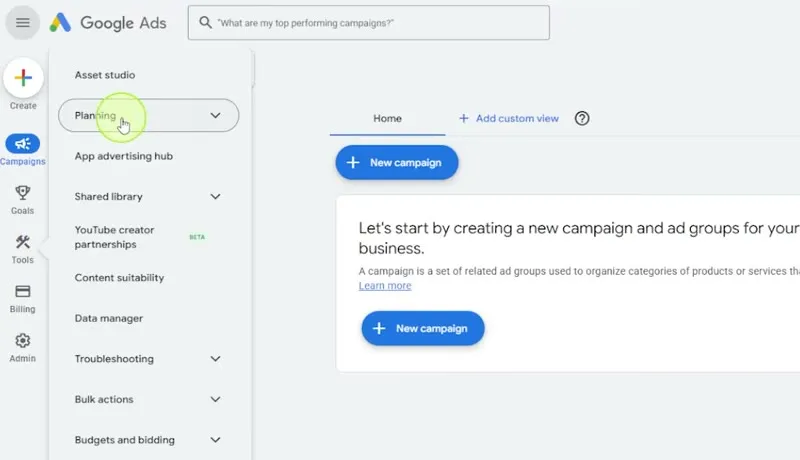
- Click Discover new keywords.
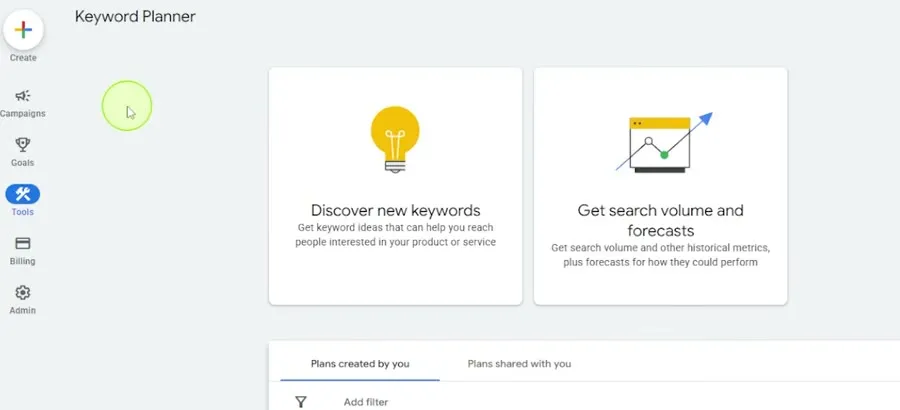
This opens a window where Google helps you find keywords based on the topics of your website.
Get a place to track your keywords
You will find a lot of keywords, so set up somewhere to keep track of them before you start. HubSpot’s free keyword research template lets you track keywords, rankings, search volume and CPC in one place. It also comes with a best practice guide on finding high-value keywords and spotting untapped opportunities. You will copy your keywords into it later in this guide.
Start with broad terms
You don’t have to know the perfect keyword to target. That is what Keyword Planner is for. Type in the things you know people search for when you want them to find your website.
- Under Start with keywords, type a few broad terms for your business. The video uses a landscaping business and enters terms such as landscaping and landscape design.
- Click Get results.
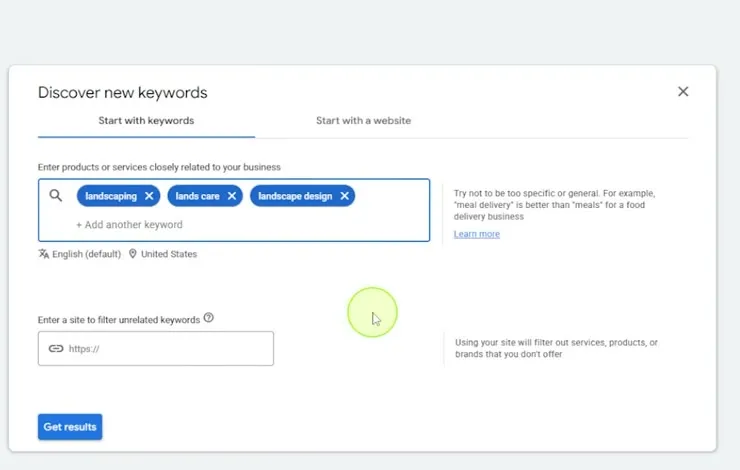
You can get more detailed, or more niche, as you go.
Read the results
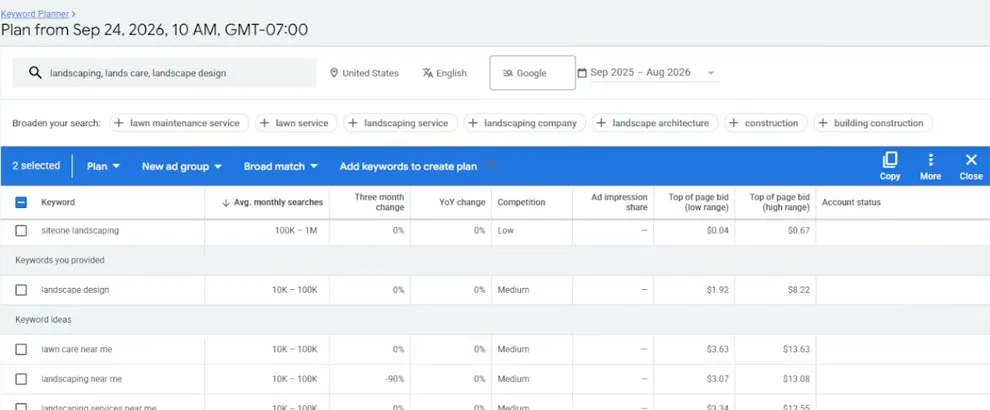
Keyword Planner returns a much longer list of keyword ideas, with data for each one: Avg. monthly searches, Three month change, YoY change, Competition and more.
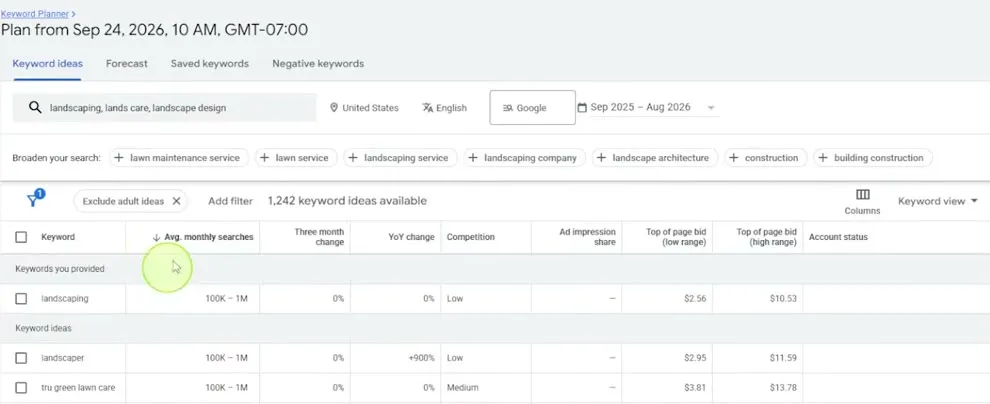
Focus on two columns:
- Avg. monthly searches: how many people search for the keyword each month.
- Competition: how hard it is to rank. If you are a new business, look for low competition. Medium starts to get harder to rank for.
You can expand the columns to see the full keywords. The list shows the keywords you provided, followed by keyword ideas.
Pick the keywords to target
Go through the list and look for keywords that apply to your business. In the video:
- landscaping services near me has 10K to 100K monthly searches but medium competition, so it is a little risky.
- landscape architect has low competition.
- landscape design near me still has 10K to 100K searches, so it is a good one to target.
Click the checkbox next to each keyword you want to target. These are keywords you could write a blog post around, make a video about, or use for other content, including social media posts that link back to it.
Copy the template to Google Drive
- Open the free keyword research template from the link on this page.
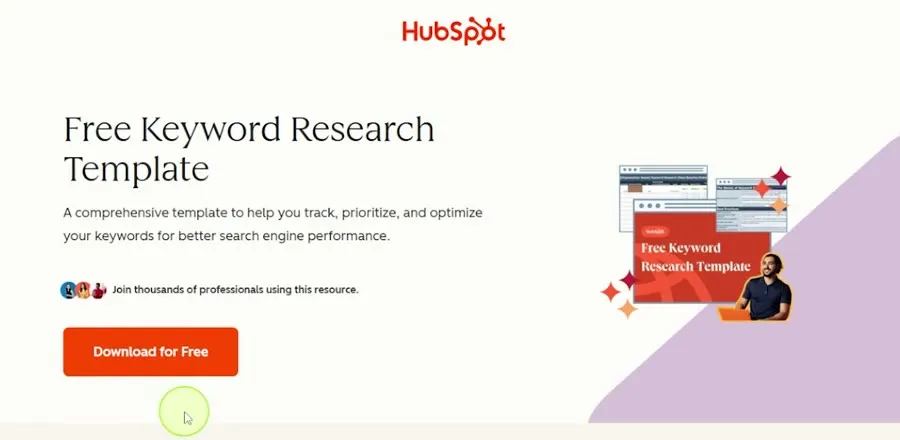
- Click Download for Free and answer the questions on the form.
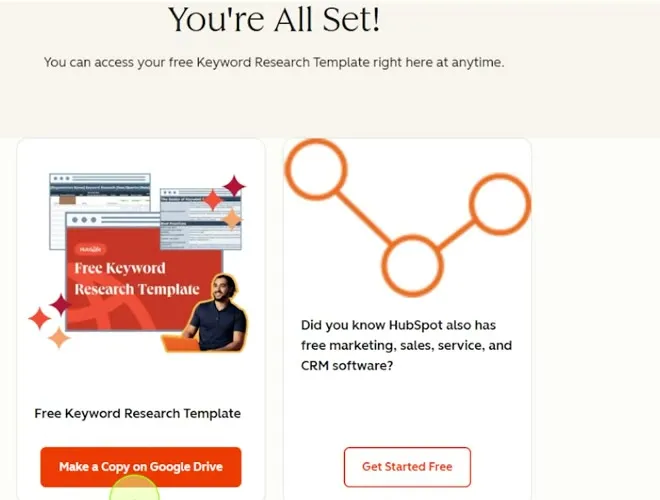
- On the next page, click Make a Copy on Google Drive. This creates the template in your Google Drive.
The template includes a guide on how to use it. Open the Keyword Research Template tab to start adding keywords.
Paste your keywords into the template
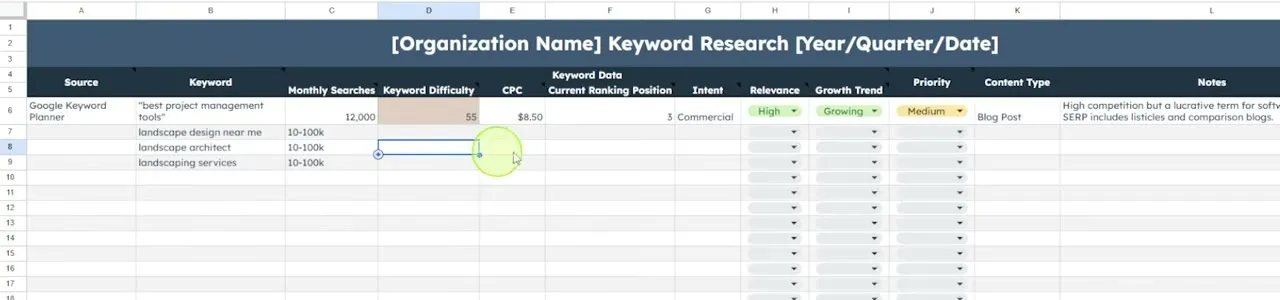
- Go back to Keyword Planner and click Copy to copy the keywords you selected.
- In the template, paste them into the rows below the example.
- Add the rest of the data as you need it.
Add notes and priorities
Use the Notes column to write down ideas as you look at each keyword. For example, a keyword might suit a video because you have footage from a recent job, or someone in your office knows the topic well enough to write a blog post about it.
Set a Priority of High, Medium or Low for each keyword, so you know which ones you want to target right now. You can organize the sheet by priority.
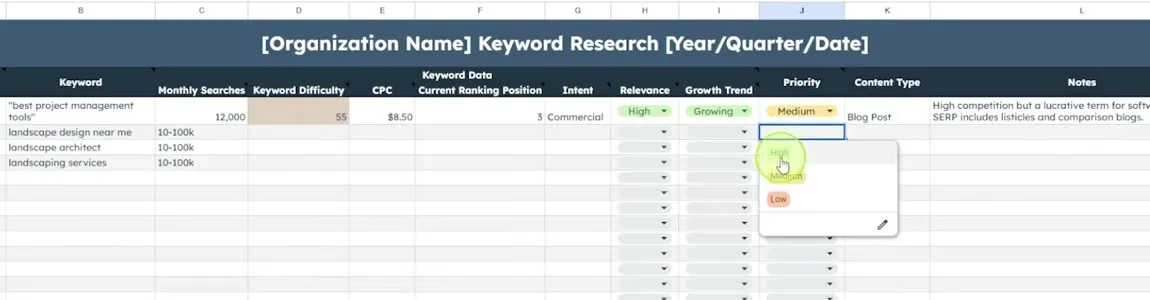
Spend a few minutes putting topics into Keyword Planner, bring the data over to your template, and write down notes even for keywords you don’t want to target yet. You can change a keyword’s priority later, so you always have a list of ideas to pull from.
Common questions
Do I need a Google Ads account to use Keyword Planner?
Yes. Keyword Planner is part of Google Ads. If you already have an account, it is under Tools. If you don't, you need to sign up for one.
Do I need to know the exact keyword before I start?
No. Type in broad terms off the top of your head, the things you want people to find your website for. Keyword Planner turns them into a much more detailed list, and you can get more specific as you go.
Which numbers matter most when choosing a keyword?
The two to focus on are average monthly searches and competition. Keyword Planner also shows three month change, year over year change and other columns.
Should a new business target high competition keywords?
For a new business, look for keywords with low competition. Medium competition starts to get harder to rank for.
What do I do with the keywords once I find them?
Use them as the topics for blog posts, videos and other content, including social media posts that link back to that content.
How do I keep track of all the keywords I find?
Copy them into a keyword research template, such as HubSpot's free one in Google Sheets. It has room for search volume, rankings, CPC, notes and a priority for each keyword.
Free Keyword Research Template
A free template to track keywords, rankings, search volume and CPC in one place, with a best practice guide to finding high-value keywords.
Free Keyword Research Template
A free template to track keywords, rankings, search volume and CPC in one place, with a best practice guide to finding high-value keywords.
Get the free template