How to find ideas for your blog with a free AI generator
Open HubSpot's free Blog Ideas Generator and describe what your blog post is about. Be specific about who it is for and what they want. Click Get started, sign in or create an account, then click Generate ideas. Pick one of the five titles and click Next: Generate your blog post to get a full draft you can edit.
Quick steps
- Open HubSpot's free Blog Ideas Generator.
- Under Describe your blog post, say what the post is about, including who it is for and what they want.
- Click Get started and sign in to your HubSpot account, or create one.
- Click Generate ideas to get five blog title ideas.
- Select the title you like, or click Edit prompt to add more direction.
- Click Next, Generate your blog post, then edit the draft to fit your business.
Blog Ideas Generator
HubSpot's free AI tool that turns a short description of your blog post into title ideas, then writes the full post for you.
If you are struggling to figure out what to write about on your next blog, HubSpot’s free Blog Ideas Generator can quickly come up with new ideas for you. This guide follows the video’s example: a landscaping company that writes regular blog posts and wants a topic its customers would actually read.
Open the Blog Ideas Generator
Open HubSpot’s Blog Ideas Generator from the link on this page. You’ll see one box, Describe your blog post, and a Get started button.
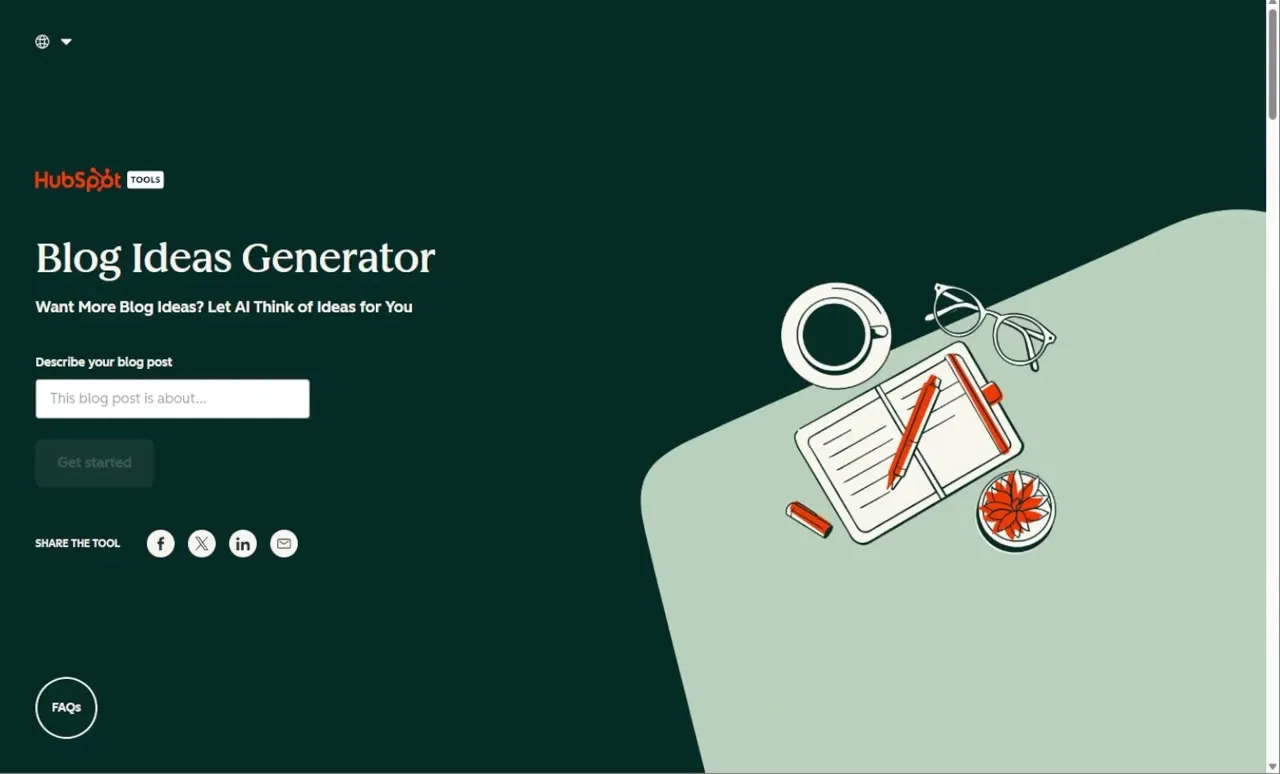
Describe your blog post
Type what your blog post is about into the box. You could enter just one word, such as “landscaping,” and it would give you some ideas around that. You’ll get more dialed-in ideas if you are more specific.
Write the topic you would want to read about as a customer. Here is the description used in the video:
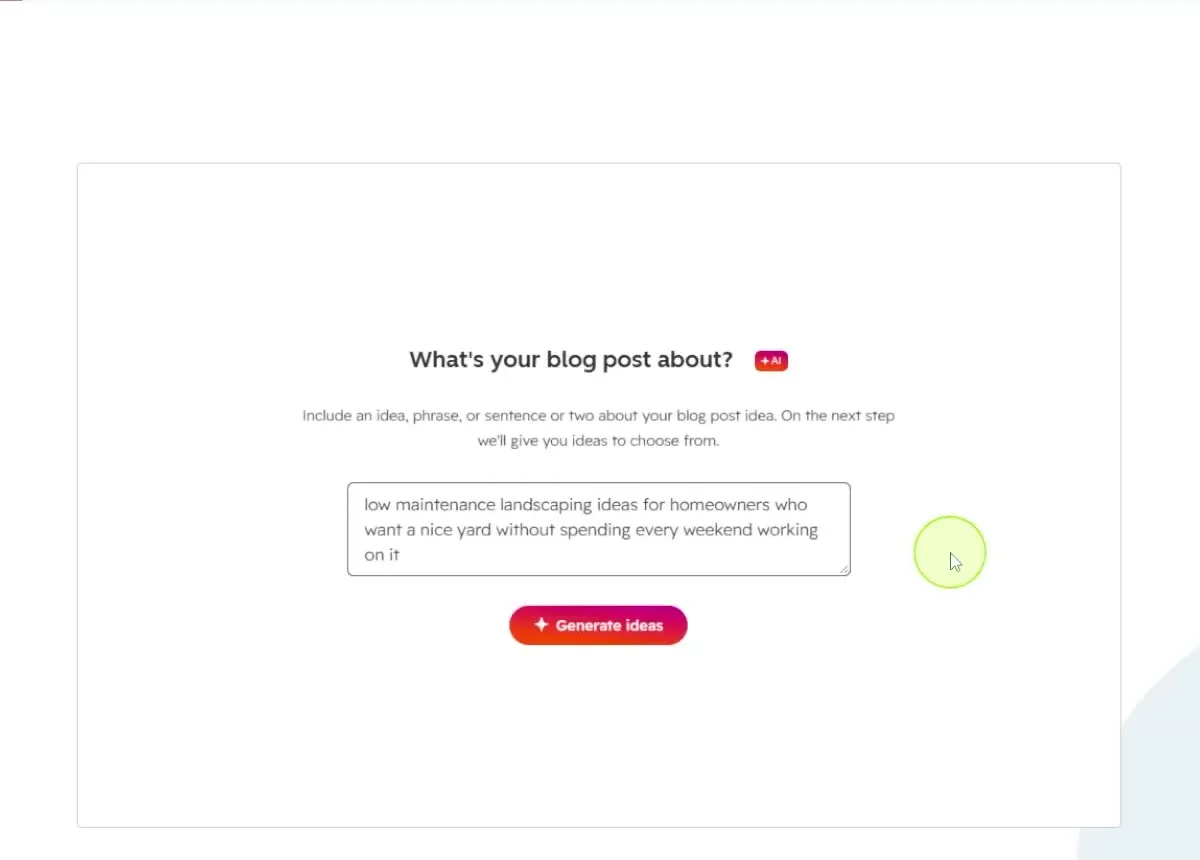
low maintenance landscaping ideas for homeowners who want a nice yard without spending every weekend working on it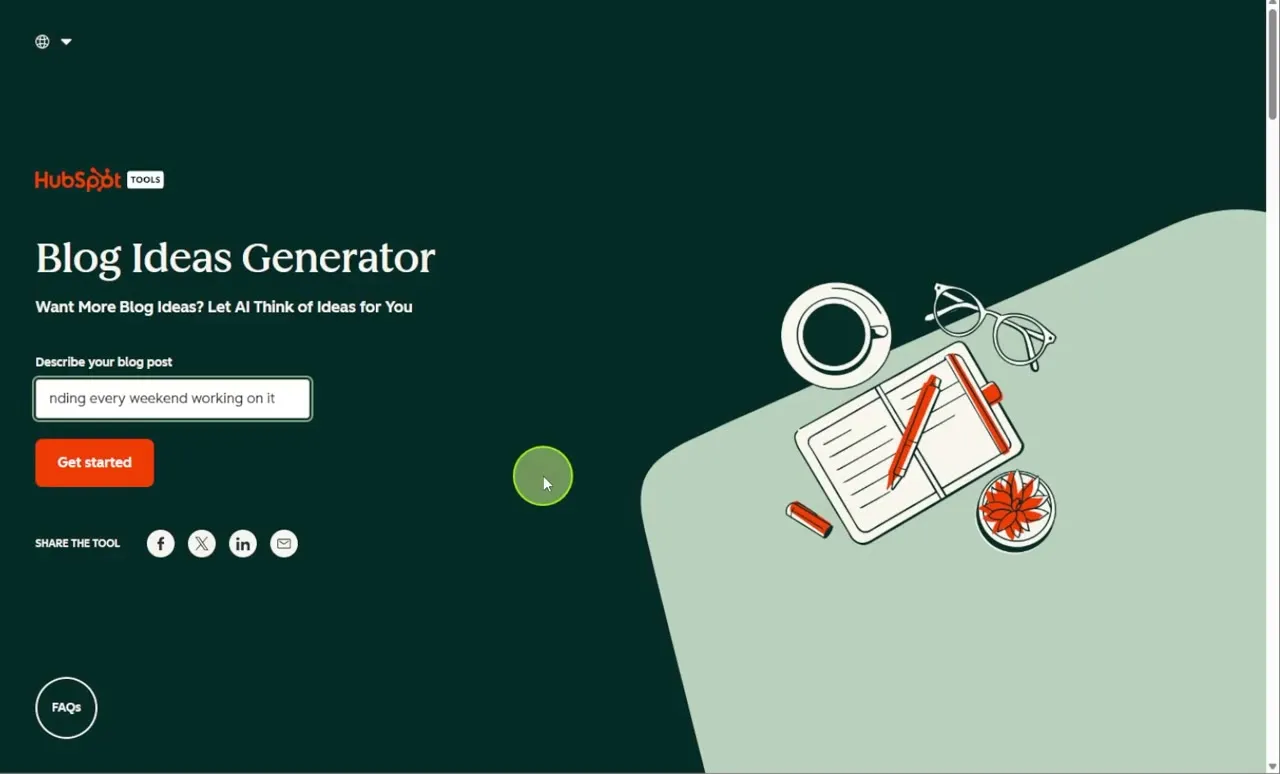
Sign in and generate ideas
- Click Get started.
- Sign in to your HubSpot account. If you don’t have one yet, it asks you to provide your information.
- On What’s your blog post about?, check your description and click Generate ideas.
Pick a title you like
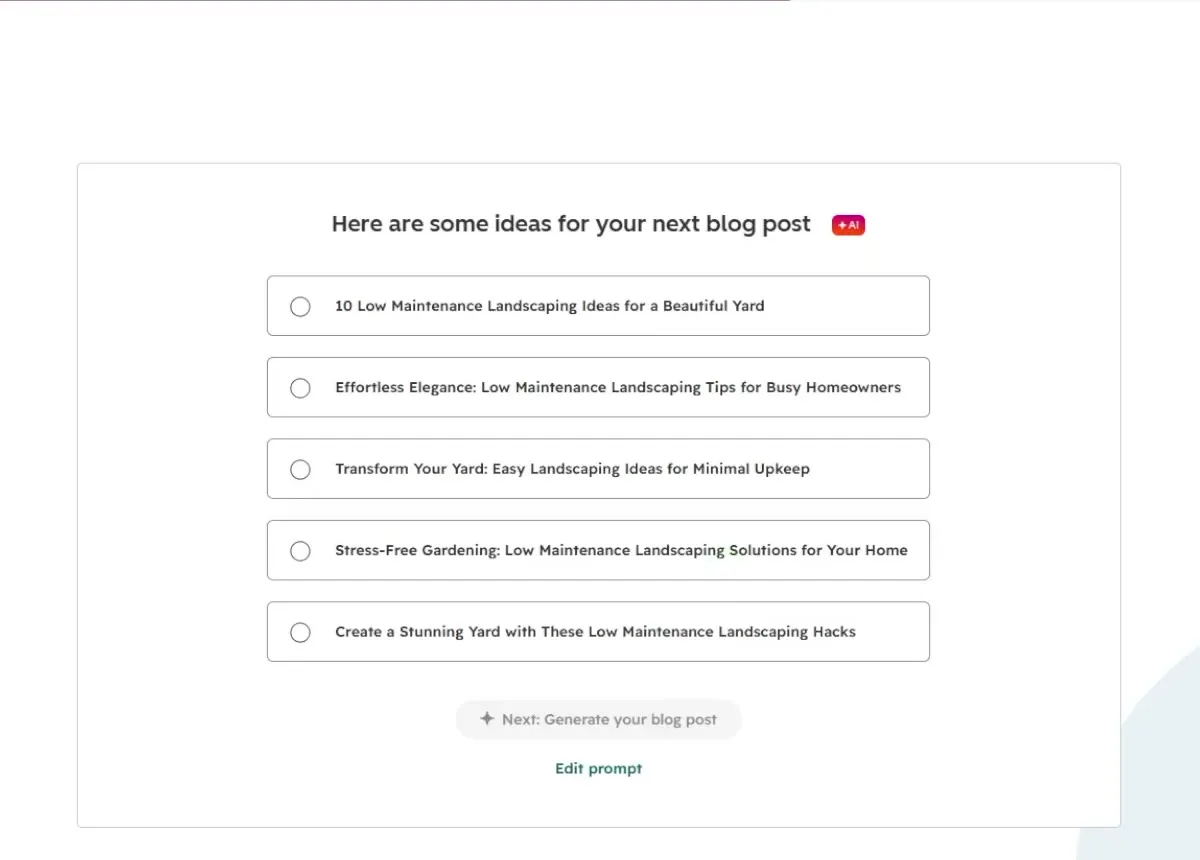
The tool gives you five titles you could build a blog post around. In the video, these were:
- 10 Low Maintenance Landscaping Ideas for a Beautiful Yard
- Effortless Elegance: Low Maintenance Landscaping Tips for Busy Homeowners
- Transform Your Yard: Easy Landscaping Ideas for Minimal Upkeep
- Stress-Free Gardening: Low Maintenance Landscaping Solutions for Your Home
- Create a Stunning Yard with These Low Maintenance Landscaping Hacks
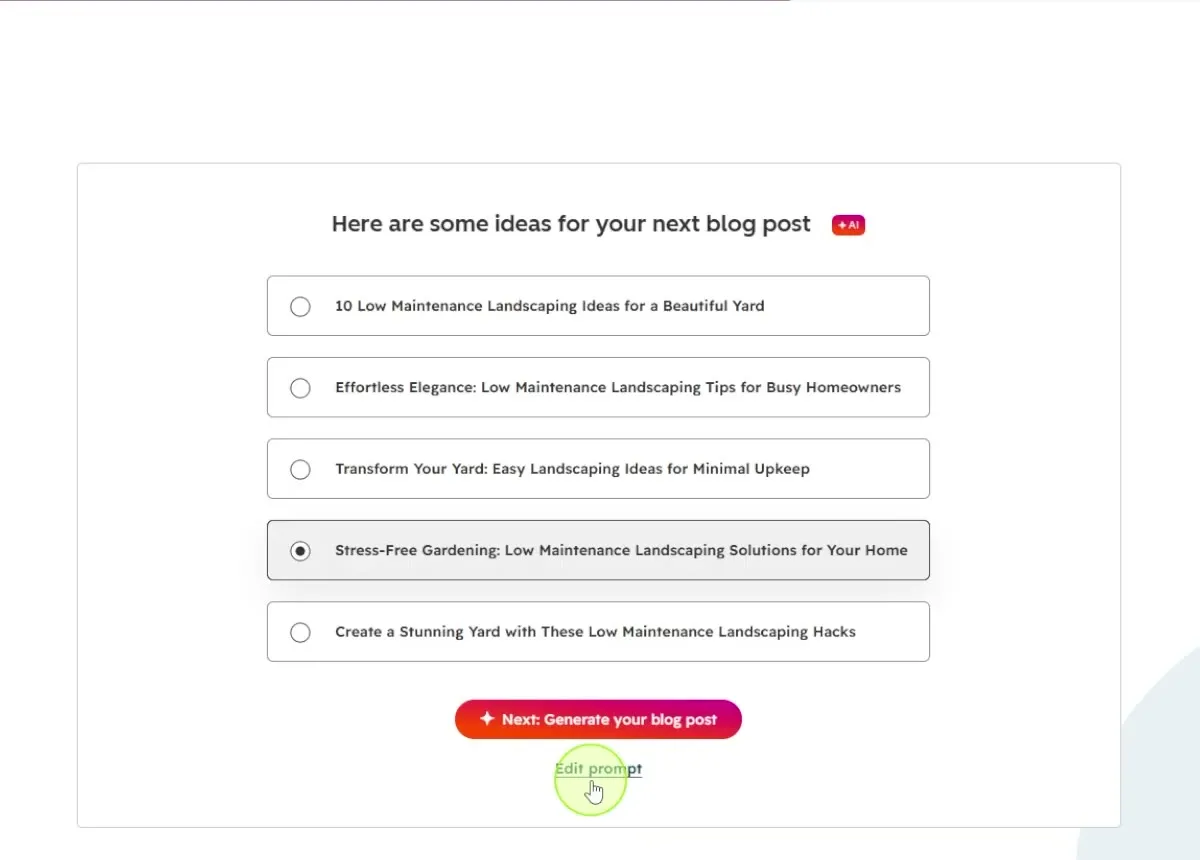
Select the one that sounds like what you want the article to be about. The video picks Stress-Free Gardening: Low Maintenance Landscaping Solutions for Your Home.
If you don’t see one you like, click Edit prompt and add more information, such as who the post is for or the problem you are trying to solve. That gives the tool a better idea of what you want.
Generate the full blog post
Click Next: Generate your blog post. The tool doesn’t just give you ideas. It writes the whole blog article for you, and it opens as a draft in the HubSpot blog editor, with sections such as “Selecting the Right Plants: Native Species and Drought-Resistant Options.”
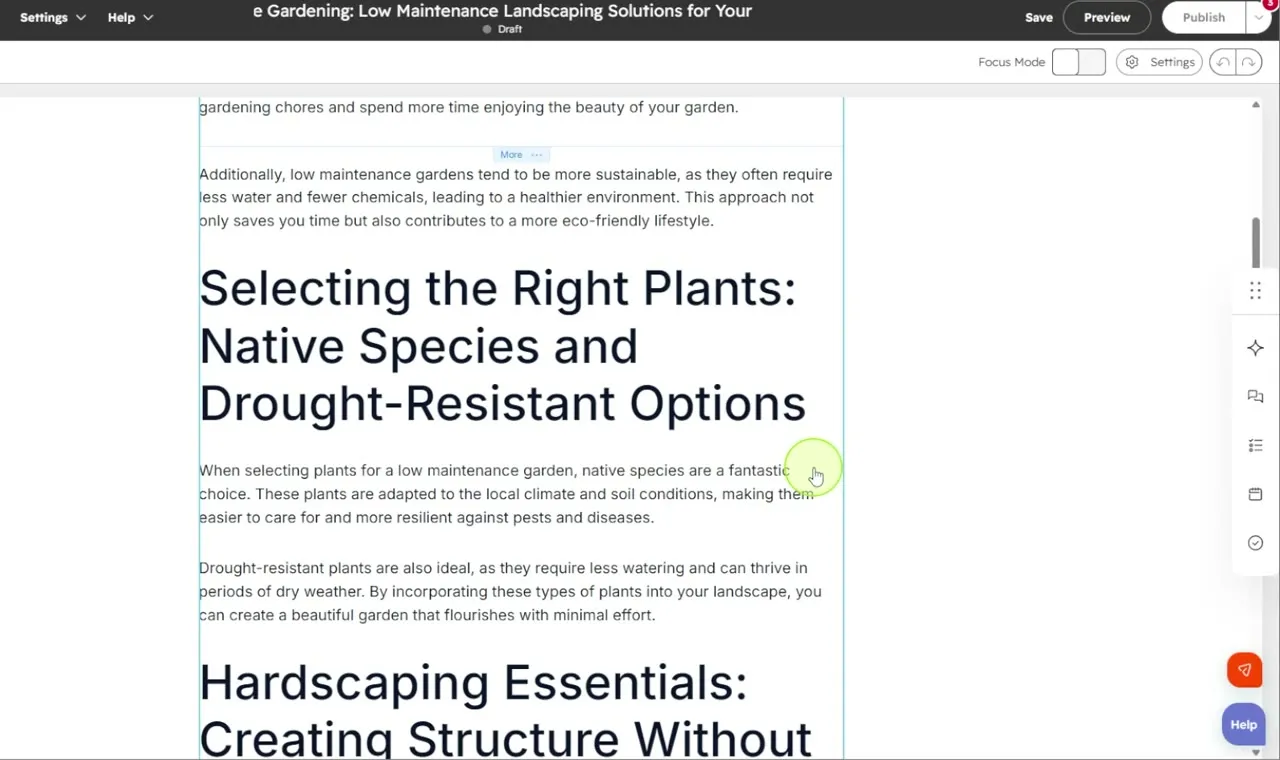
You are free to use the post as it is. You can also go through and edit it to tailor it to your approach, your business and your values.
Common questions
How do I come up with blog post ideas?
Describe what your blog is about in HubSpot's free Blog Ideas Generator and it gives you five title ideas to choose from. The more specific your description, the more dialed-in the ideas will be.
Is the HubSpot Blog Ideas Generator free?
Yes, it is a free tool. After you click Get started, it asks you to sign in to your HubSpot account, or to provide your information if you don't have one yet.
What should I type into a blog idea generator?
A specific topic works better than one word. In the video, instead of just "landscaping," the description was low maintenance landscaping ideas for homeowners who want a nice yard without spending every weekend working on it, which is a topic a customer would want to read about.
What if I don't like any of the blog ideas?
Click Edit prompt and add more information, such as who the post is for or the problem you are trying to solve. That gives the tool more direction for new ideas.
Can it write the whole blog post?
Yes. Once you pick a title and click Next, Generate your blog post, it writes the full article. You can use it as is, or edit it to fit your approach, your business and your values.
Blog Ideas Generator
HubSpot's free AI tool that turns a short description of your blog post into title ideas, then writes the full post for you.
Blog Ideas Generator
HubSpot's free AI tool that turns a short description of your blog post into title ideas, then writes the full post for you.
Try it free