How to use Google Workspace for your business
To use Google Workspace for your business, go to workspace.google.com and click Get started. Enter your business name, team size and contact info, connect a domain you own or get a new one, and create your admin account. Then start the 14-day trial, add users and groups in the Admin console, and create shared drives in Google Drive.
Quick steps
- Go to workspace.google.com and click Get started.
- Enter your business name, number of employees, region and contact info.
- Choose your existing domain or get a new custom domain, then enter your business information.
- Create your admin username and password, compare the plans and start the 14-day trial.
- In the Admin console, click Add user to give each employee an email address at your domain.
- Under Groups, create a group email like marketing@ and add members.
- In Google Drive, open Shared drives, click New and add members to the drive.
The Only Gemini Tips That Matter
A free guide with one tested Gemini tip for each Google Workspace tool, from a former Google employee.
Google Workspace gives your business its own email addresses, group inboxes and shared file storage, all managed from one Admin console. This guide follows the video’s example, a small coffee shop called Riverside Coffee, from sign-up to a team with business email and a shared drive for marketing.
Go to Google Workspace
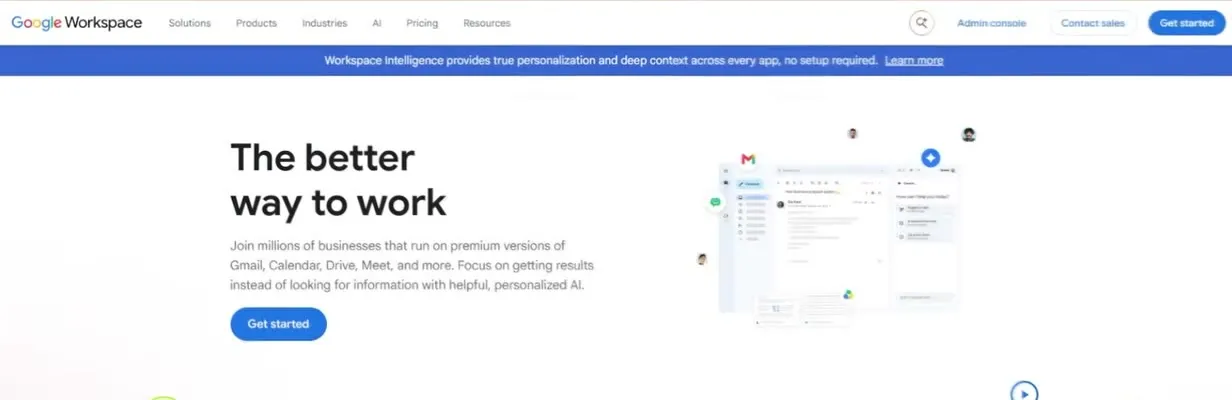
- Go to workspace.google.com.
- Click Get started in the top right corner.
Enter your business details
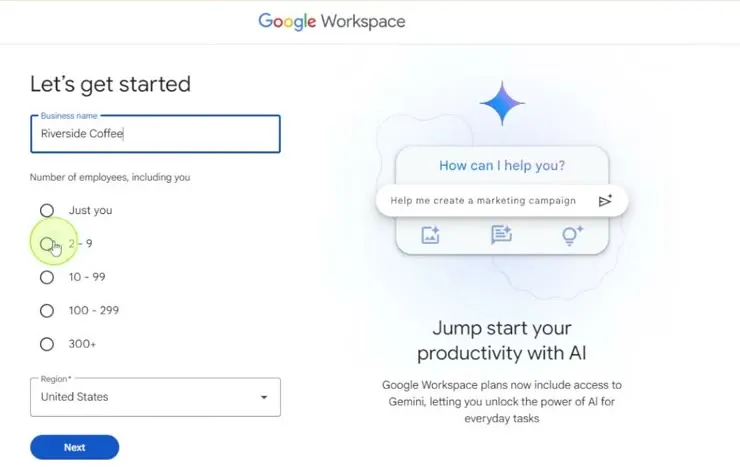
- Type your Business name. The video uses Riverside Coffee.
- Choose the Number of employees, including you. The video picks 2 - 9.
- Check your Region and click Next.
- Enter your contact information so Google can reach you, and click Next.
Use your own domain or get a new one
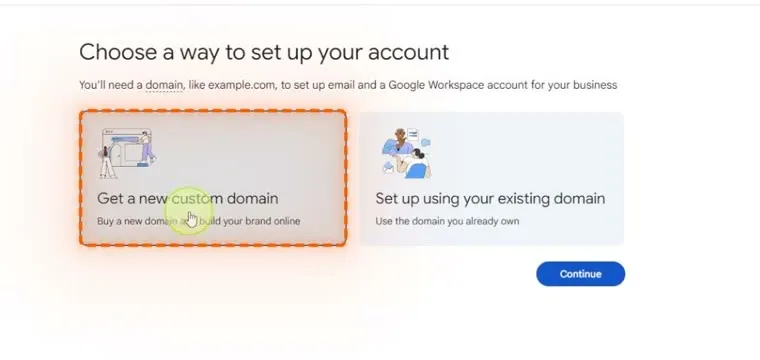
Your business email addresses use your domain, so you need one to set up Google Workspace.
- Pick Get a new custom domain to buy one, or Set up using your existing domain to use a domain you already own. The video uses an existing domain.
- Click Continue.
- Select the domain you want and click Next.
Set up your admin account
- Enter your business information.
- Set up your primary user. This can be your own name, or you can do what the video does and make it admin.
- Add a password. This is the account you sign in with to make changes to your Google Workspace.
- Click Agree and continue.
Pick a plan and start the free trial
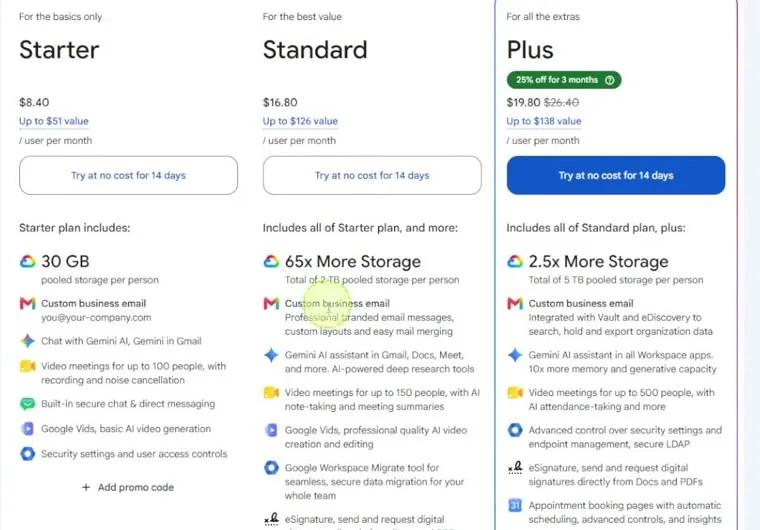
Scroll down to compare the plans. They differ in things like how much storage you get, so choose based on what you need it for.
You can try a plan at no cost for 14 days. Click Try at no cost for 14 days, enter your payment information and verify your account. When that’s done, you land in the Admin console dashboard.
Add users with business email
Each user you add gets their own email address that ends in your domain.
- On the Admin console dashboard, find the Users box and click Add user.
- Enter the person’s first and last name and the email address you want them to have. You can also add a secondary email address.
- Click Add new user.
- Google generates a password for the new account. Copy it and give it to your employee, or send the details to their current email address so they can finish setting up the account, change their password and get into their email.
Create a group email address
A group is an email address that goes to several people, such as a marketing or accounting address.
-
In the Admin console, click Groups on the side, then Create group.
-
Add the group name and the email address you want it to have, for example marketing@ your domain. Click Next.
-
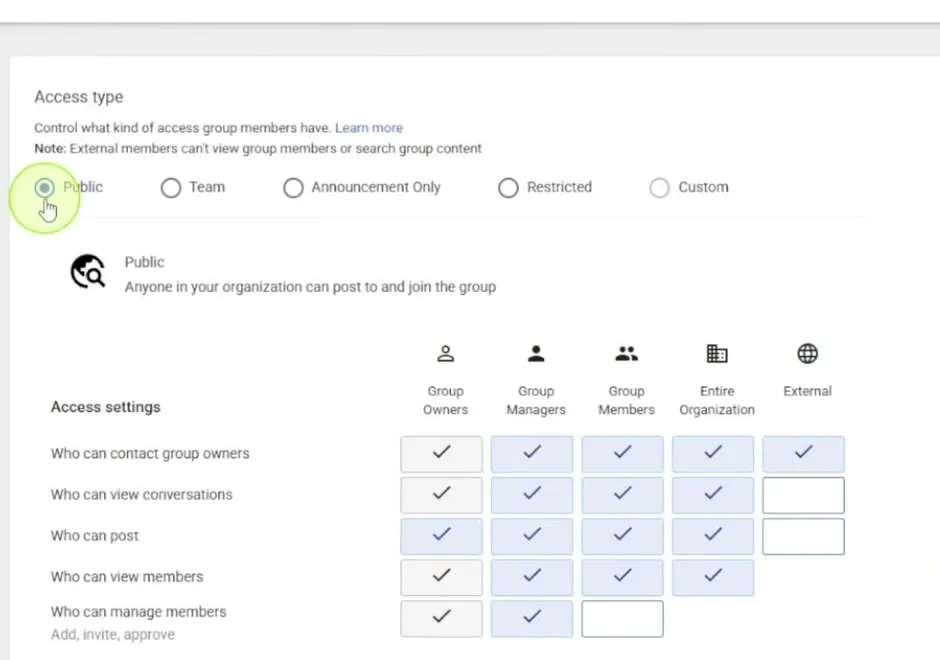
Choose the access type:
- Public if everybody should be able to email it.
- Team if it’s only for your team to communicate internally.
- Announcement Only if you send emails from it but nobody can reply.
You can customize the settings further from there. The video picks Public.
-
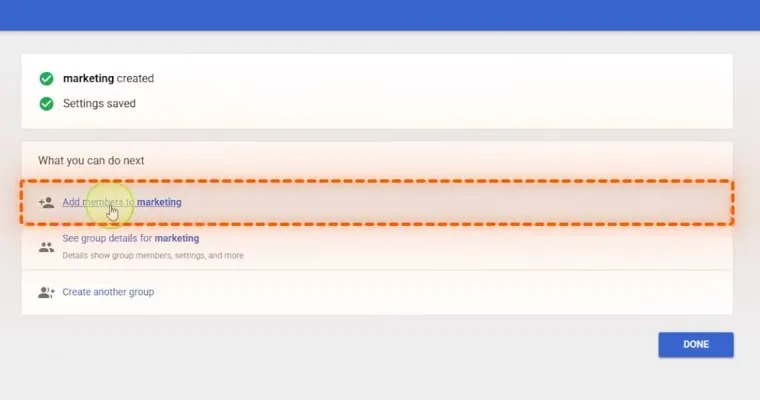
Click Create group.
-
Click Add members to marketing and add everyone on your team who needs that email. Click Done.
Create a shared drive
Google Drive is the other big tool in Google Workspace. A shared drive works like its own Google Drive that you can add as many users to as you like. Everyone in it can use its files, but it stays separate from the rest of your drives.
-
Open the Google apps menu in the top right corner and go to Drive.
-
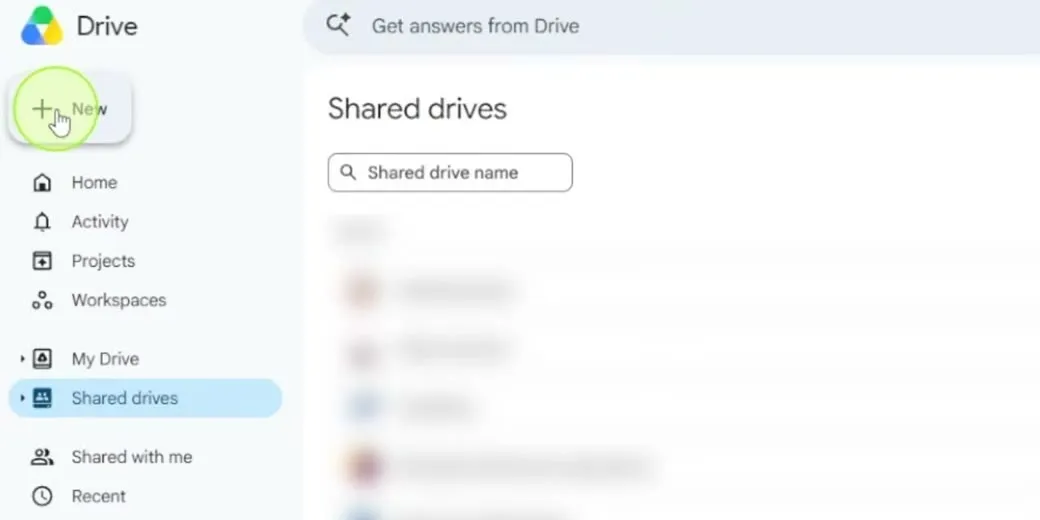
Click Shared drives on the left to see the list of shared drives you have.
-
Click New at the top.
-
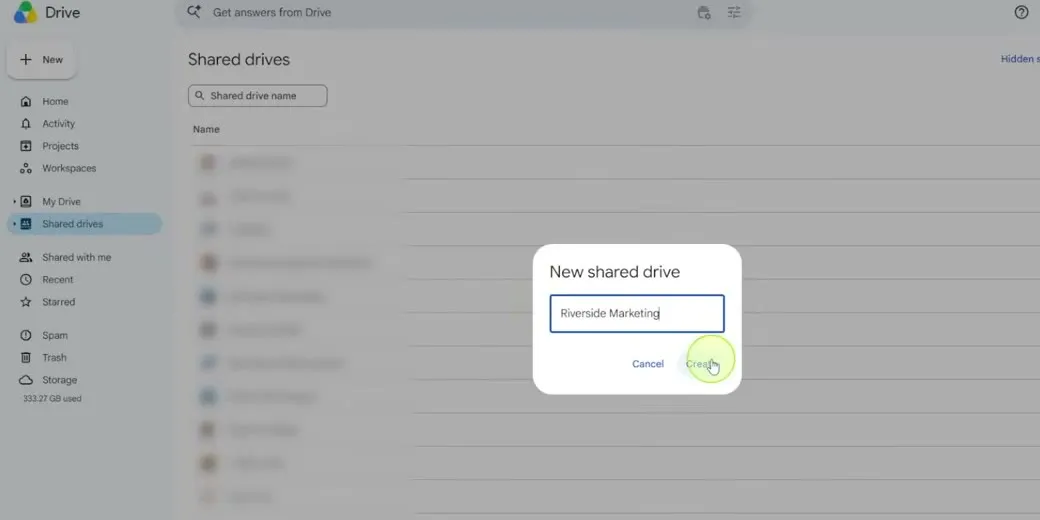
Name the drive and click Create. The video calls it Riverside Marketing.
-
Add the files your marketing group needs. Use Manage members to add people directly to the drive so they can get to everything in it.
When you’re done, go back to the Admin console. Your Google Workspace is set up, your team is added and everything is managed in one place.
Common questions
Is there a free trial of Google Workspace?
Yes. After you compare the plans, you can try one at no cost for 14 days. You still enter payment information and verify your account before you reach the Admin console.
Do I need my own domain to use Google Workspace?
You need a domain for your business email. During sign-up you can set Google Workspace up with a domain you already have, or get a new custom domain.
How do I give my employees a business email address?
In the Admin console, click Add user, enter their first and last name and the email address you want them to have. Google generates a password you can copy and give them, or you can email setup details to their current address so they can finish the account and change the password.
How do I make one email address that goes to several people?
Create a group. In the Admin console, click Groups, then Create group, name it and choose its email address, such as marketing@ your domain. Then add each team member who should get those emails.
What is the difference between a public, team and announcement-only group?
Public is for an email anyone can send to. Team is for internal communication within your organization. Announcement only lets you send emails from the group, but nobody can reply to it.
What is a shared drive in Google Workspace?
A shared drive works like its own Google Drive that you can add as many users to as you like. Everyone added can use the files in it, and it stays separate from the rest of your drives.
The Only Gemini Tips That Matter
A free guide with one tested Gemini tip for each Google Workspace tool, from a former Google employee.
The Only Gemini Tips That Matter
A free guide with one tested Gemini tip for each Google Workspace tool, from a former Google employee.
Get the free guide