How to send your first email marketing campaign with HubSpot
To send your first email marketing campaign, sign in to a free HubSpot account and add your contacts. Subscribe each one to marketing information, set them as marketing contacts and group them in a segment. Then build an email from a template, pick the segment as the recipient, add your footer address and send.
Quick steps
- Sign in at HubSpot.com, or click Get started free to create an account.
- Go to CRM, then Contacts, and add your contacts one at a time or import a list.
- Subscribe each contact to marketing information and set them as a marketing contact.
- Add your contacts to a static segment.
- Go to Marketing, then Email, pick a template and edit the logo and text.
- Set the subject line and preview text, then choose your segment under Send to.
- Add your footer address, click Review and send, then send the email.
Email Marketing Growth Playbook
A free playbook on list growth and engagement, based on data from more than 600 email marketers.
Email marketing starts with three things: people to send to, an email, and a way to see what happened after you hit send. This guide does all three with HubSpot’s free tools, using a made-up business called Brightside Creative and a sample contact named Bob Smith.
Sign in to HubSpot
Go to HubSpot.com. Sign in to your existing account, or click Get started free to create one.
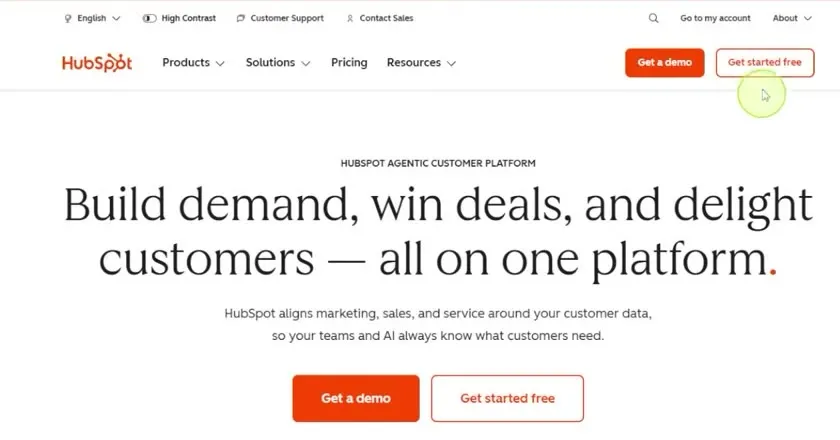
Everything here uses the free tools. A paid account has more features and more options.
Add your contacts
Before you can send a campaign, you need people to send it to.
- In the side panel, open the CRM section and click Contacts. This lists all your contacts. If you are new, it may be empty.
- In the top right corner, click Add contacts.
- Pick one of the two options. Create new adds one person at a time. Import brings in an existing list, such as a spreadsheet or contacts from another CRM tool you used before.
- For Create new, enter the email address, first name and last name, then click Create.
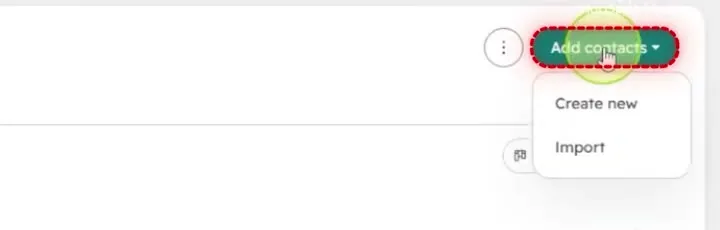
HubSpot then opens a page with all the information about that contact. You can update the record there as you go.
Subscribe a contact to marketing emails
A contact you add by hand needs to be subscribed before you email them.
- On the contact’s page, scroll down to the middle section with enrollments and Communication subscriptions.
- Click View subscriptions.
- Subscribe them to marketing information, and select that they are interested.
- Save it. The contact now shows as subscribed.
This step records that the person wants to receive your marketing emails. The contact in the video is an example, not a real person.
Set them as a marketing contact
- Go back to your contact list and select the contact you just added.
- Click More.
- Under Marketing contacts, choose Set as marketing contact.
- Click Set.
That authorizes this person to be sent marketing information. Repeat these steps for each new contact, or add them as you go.
Group contacts in a segment
Segments keep your contacts organized once you have a lot of them.
- Select the contact, or several contacts.
- Click More, then Add to static segment.
- Search for a segment you already made, or create a new one. The video names the new segment Brightside Creative.
- Click Create segment.
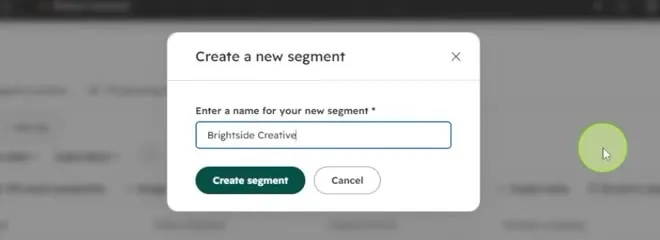
You can create multiple segments, such as existing customers, new customers, or people from a specific event you want to follow up with. It is a good habit to start from the beginning.
Create the email from a template
- In the side panel, go to Marketing, then Email.
- Pick a template. View all templates shows many more, sorted by the type of email you want to send. The video keeps it simple and uses the Simple template.
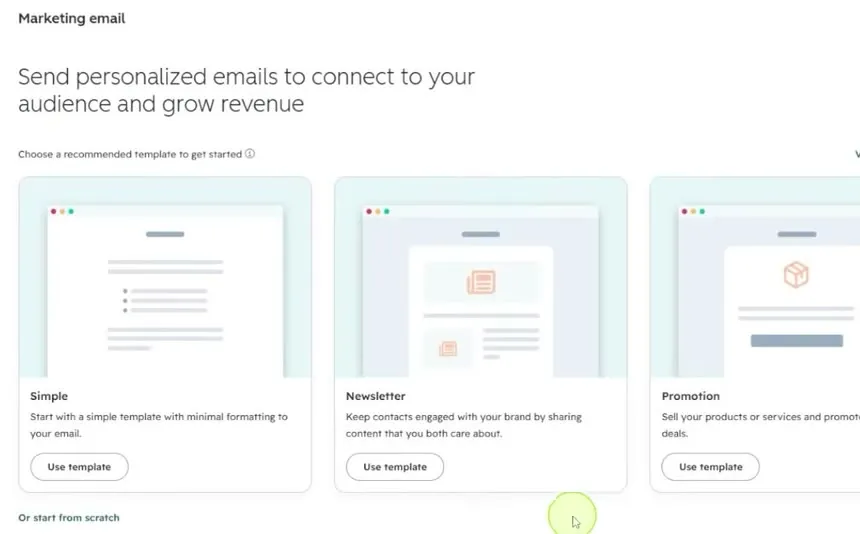
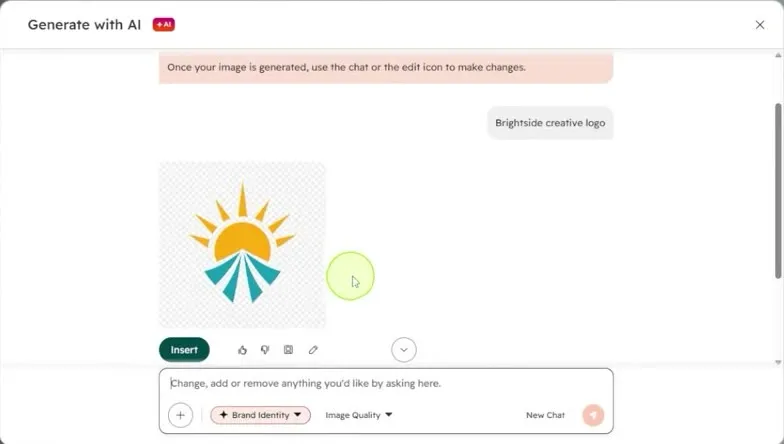
- Double-click the company logo to replace it. You can upload an image or generate one with AI. In the video, Generate with AI creates a logo, and Insert adds it to the email.
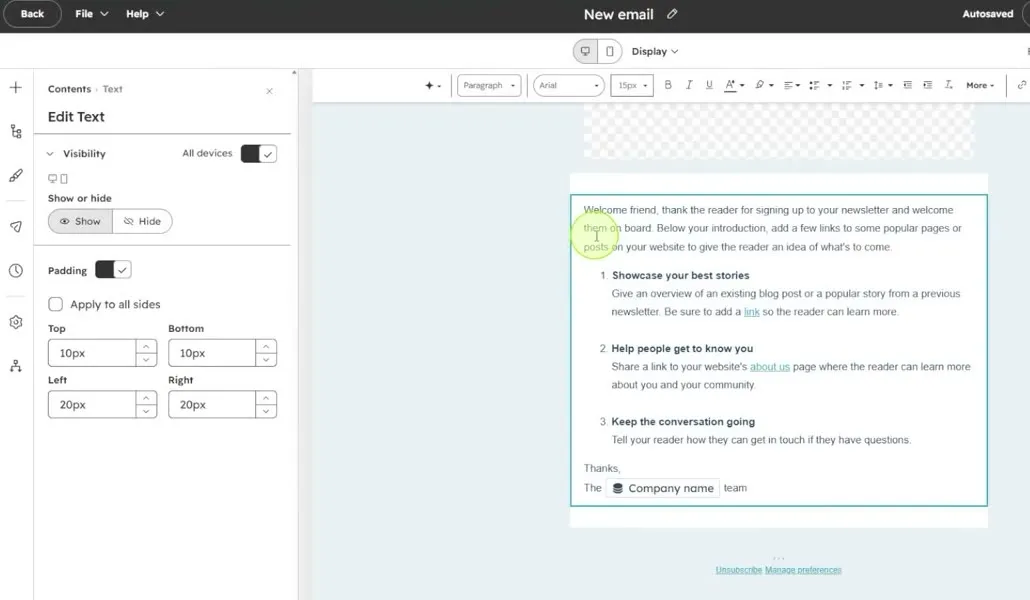
- Click the body of the email and change the text. Write your article, a welcome to your email list, or whatever you want to send.
Set the subject line and recipients
- At the top of the email, change the subject line, the preview text and the email address it is sent from.
- Click Send to, and add the segment you created.
- Add yourself as a recipient too, so you know the email went through. The video shows two recipients at this point: the segment and the sender.
Add your footer address and send
- Click Review and send.
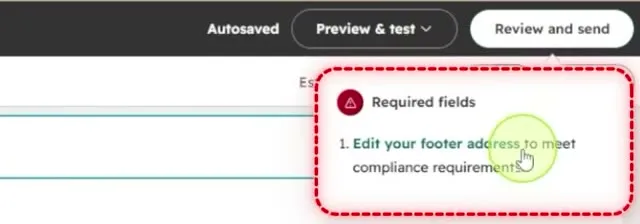
- HubSpot lists one required field: Edit your footer address to meet compliance requirements. Click it and enter your information for the footer.
- Click Review and send again.
- Click Send, then confirm that you want to send the email now.
Check the results
After the email is sent, its page shows performance information as people open it.
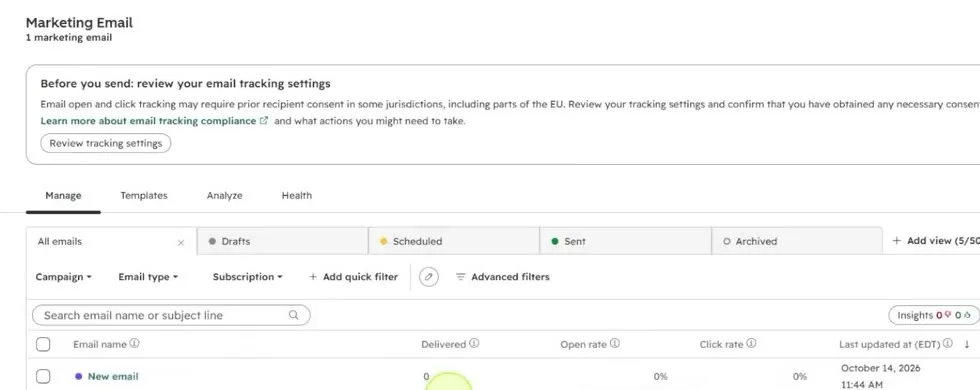
Go back to the list of all your emails to see each one with its delivered count, open rate and click-through rate. Once you have sent several emails, this is where you compare how each one performed.
Common questions
Is HubSpot email marketing free?
Everything in this guide uses HubSpot's free tools. A paid account has more features and more options.
How do I add contacts to HubSpot?
Go to CRM, then Contacts, and click Add contacts. Create new adds one person at a time with an email address, first name and last name. Import brings in an existing list, such as a spreadsheet or contacts from another CRM tool.
Why do I need to set someone as a marketing contact?
It authorizes that person to be sent marketing information. In the video, a contact added by hand is also subscribed to marketing information before the email goes out.
What is a segment in HubSpot?
A segment is a group of contacts you can send an email to. You can create several, for example existing customers, new customers or people from a specific event.
Why does HubSpot ask for a footer address before sending?
The email needs a footer address to meet compliance requirements. HubSpot lists it as a required field when you click Review and send, and you can fill it in from there.
How do I see how my email performed?
Open the email after sending to see its performance as people open it. The list of all your emails also shows delivered, open rate and click-through rate for each one.
Email Marketing Growth Playbook
A free playbook on list growth and engagement, based on data from more than 600 email marketers.
Email Marketing Growth Playbook
A free playbook on list growth and engagement, based on data from more than 600 email marketers.
Get the free playbook