How to create a business email with Google
To create a business email with Google, sign up for Google Workspace at workspace.google.com, choose a plan, and enter a domain you already own or buy one during sign-up. Create your username and password, verify the domain by adding a code at your domain host, then add Google's MX record there to activate Gmail.
Quick steps
- Go to workspace.google.com, pick a plan and click "Get started".
- Enter your business name, how many employees you have and your contact info.
- Choose "Set up using your existing domain" or "Get a new custom domain", then enter the domain.
- Create your username and password, then start the 14-day free trial and add a payment method.
- Verify the domain by adding Google's verification code in your domain host's DNS settings.
- Activate Gmail by adding Google's MX record at your domain host, then confirm.
- Sign in to the Admin console to manage users and add alternate emails.
A business email is your name at your business’s domain, like bob@bobsplumbing.com. This guide sets one up from start to finish with Google Workspace, using a domain that was already registered at Squarespace: picking a plan, verifying the domain, turning on Gmail and signing in to the Admin console.
The plan names, prices and sign-up screens here are the ones shown at the time of the video, October 2025.
Go to Google Workspace
- Open your browser and go to workspace.google.com. The video also mentions a link in its description that takes you straight there.
- Scroll down the homepage to the list of plans.
Pick a plan
A Google Workspace account gives you more than email. It comes with the rest of Google’s tools, such as Google Drive and Google Meet. Most of the differences between the plans are the amount of Google Drive storage, the tools in Google Meet and the AI tools that are built in.
At the time of the video, October 2025, the pricing page showed four plans:
- Starter at $7 per user per month, with a 1-year commitment
- Standard at $14 per user per month, with a 1-year commitment
- Plus at $22 per user per month, with a 1-year commitment
- Enterprise, with “Contact sales for pricing”
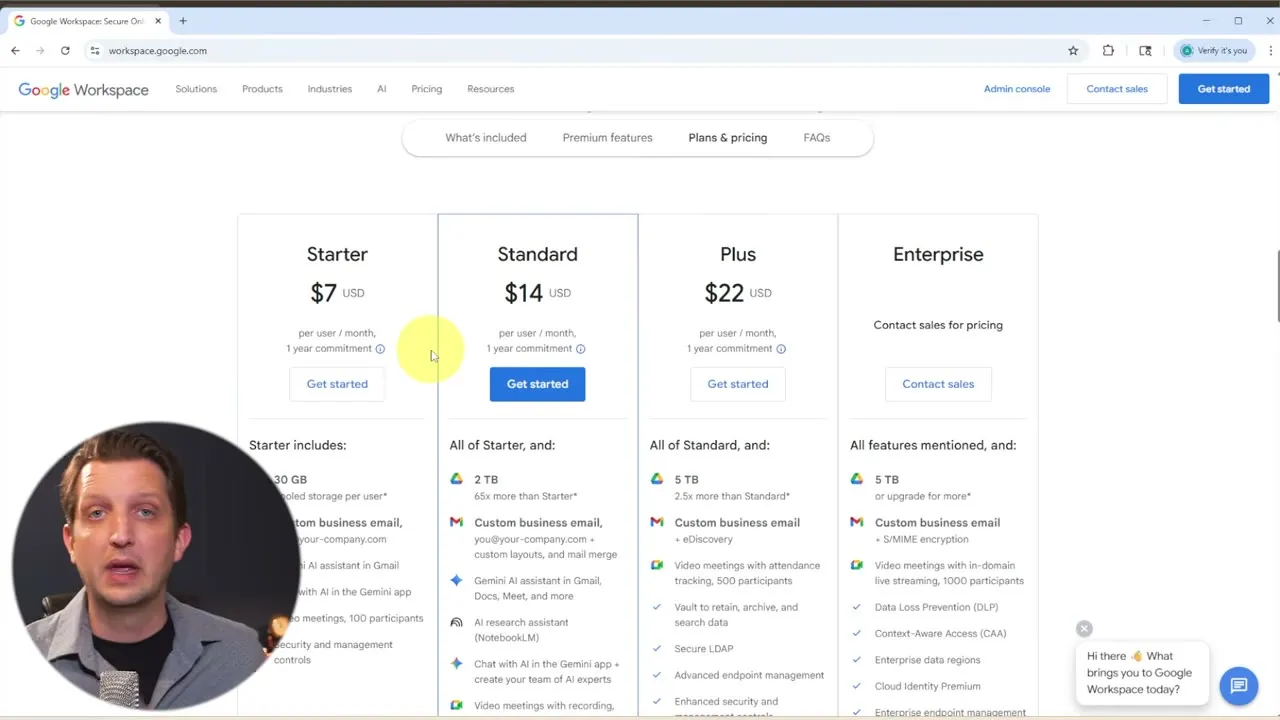
The price is per user. If it is just you, you pay that amount each month. If you have two or three employees and you are giving each one an email address, multiply it by the number of people.
If all you want is a Google email at your own domain, the Starter plan works fine. Look at the higher plans if you want the other Workspace features.
Start the sign-up
- Click Get started under the plan you want. The video uses Starter.
- Type your Business name and choose the number of employees, including you. This is how Google sets up your mailboxes. Click Next.
- Enter your contact info: first name, last name and your current email address. Click Next.
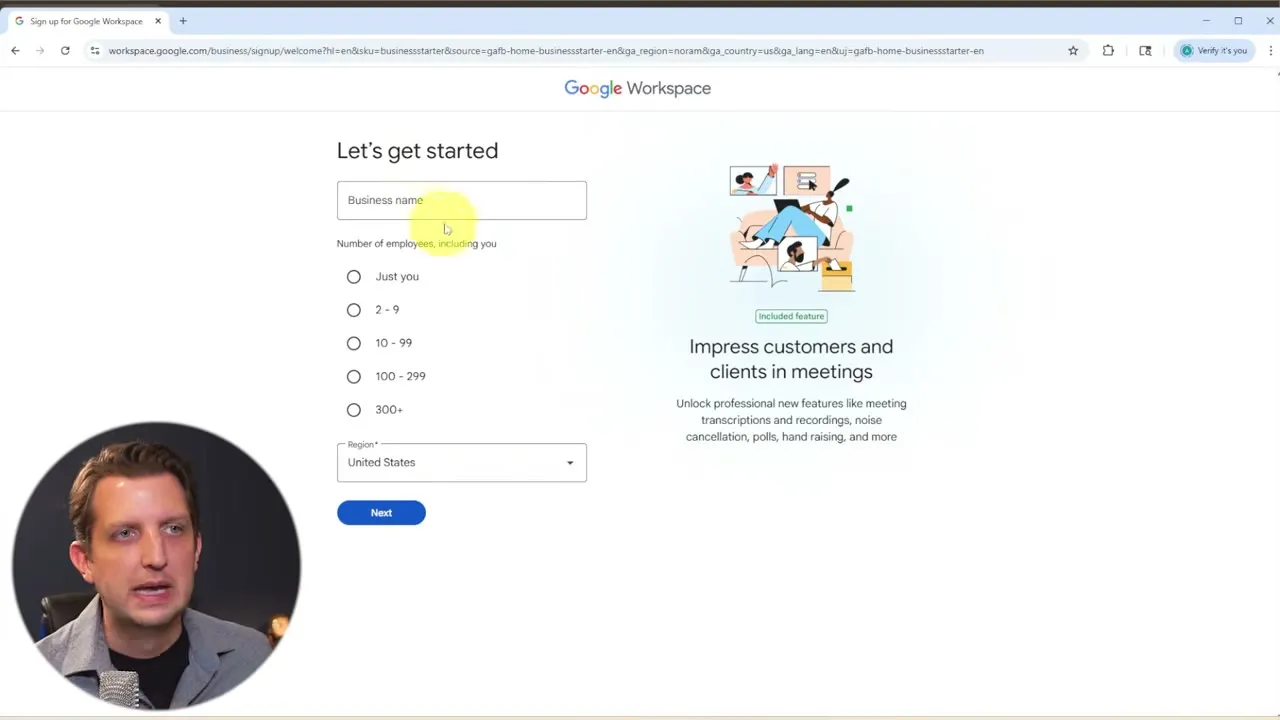
Choose a new domain or one you already own
The next screen gives you two ways to set up the account:
- Get a new custom domain. Use this if you are just starting out and don’t have a website or a domain yet. Buying the domain through Google is an additional price.
- Set up using your existing domain. Use this if you already bought your domain through another service.
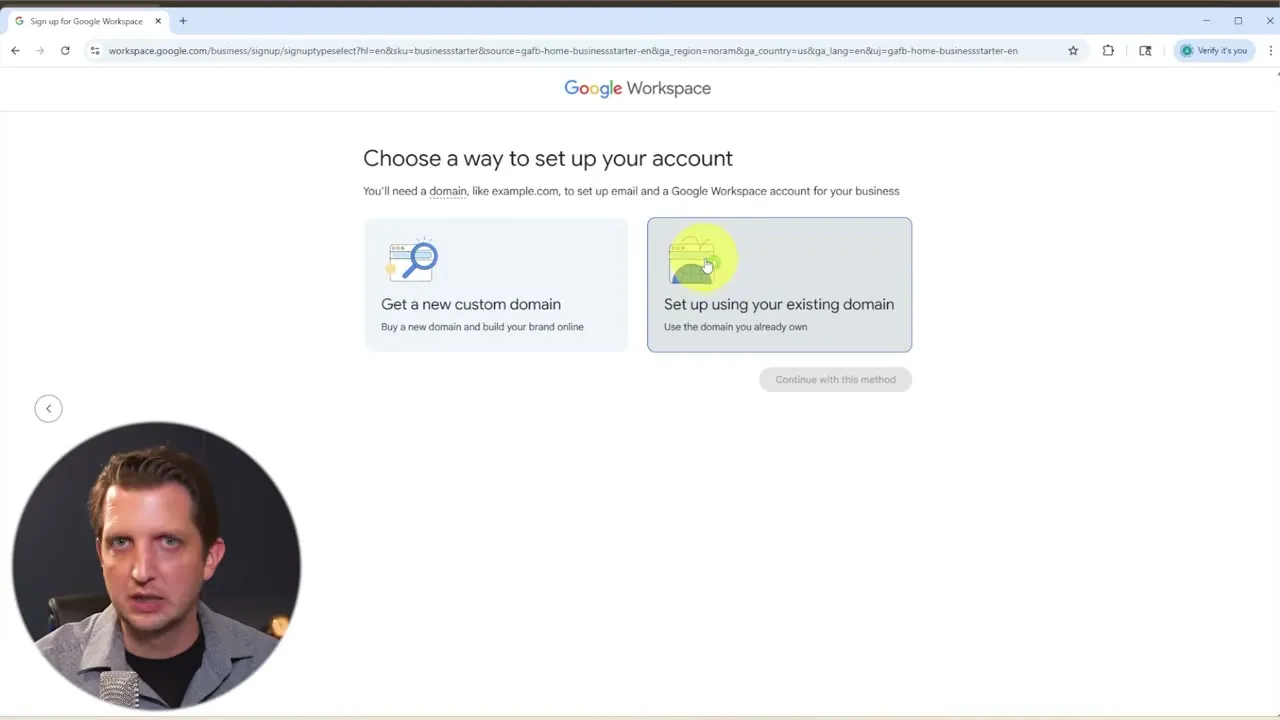
The video uses a domain that is already owned:
- Select Set up using your existing domain and click Continue with this method.
- Type your domain name and click Next. If you are getting a new domain, this is where you enter the name you want.
- Google asks you to confirm that this is the domain you want to use. Click Next.
From here on, every email address you set up in Workspace ends in that domain.
Create your username and start the free trial
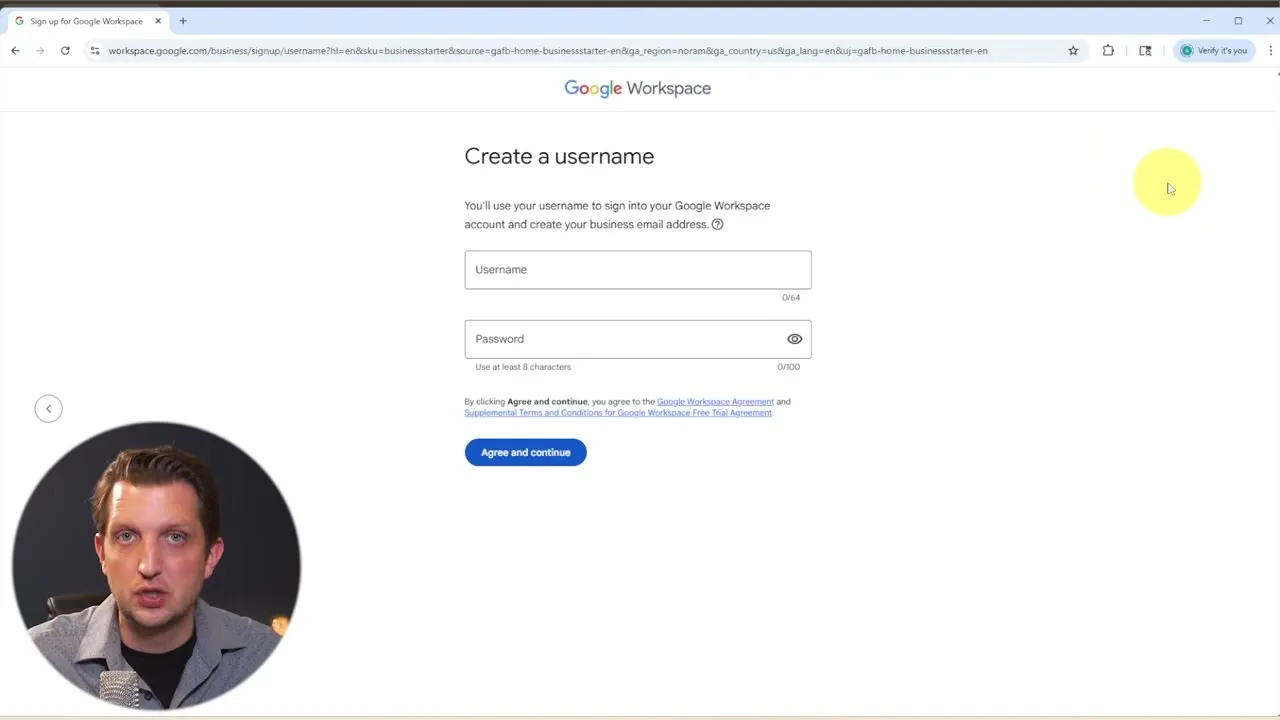
- On Create a username, type the username you will sign in with. Your domain shows next to it, so you can see what your email address will look like. The video uses a first name. It could also be admin, info or whatever you want.
- Add a password.
- Look through the terms of service and click Agree and continue.
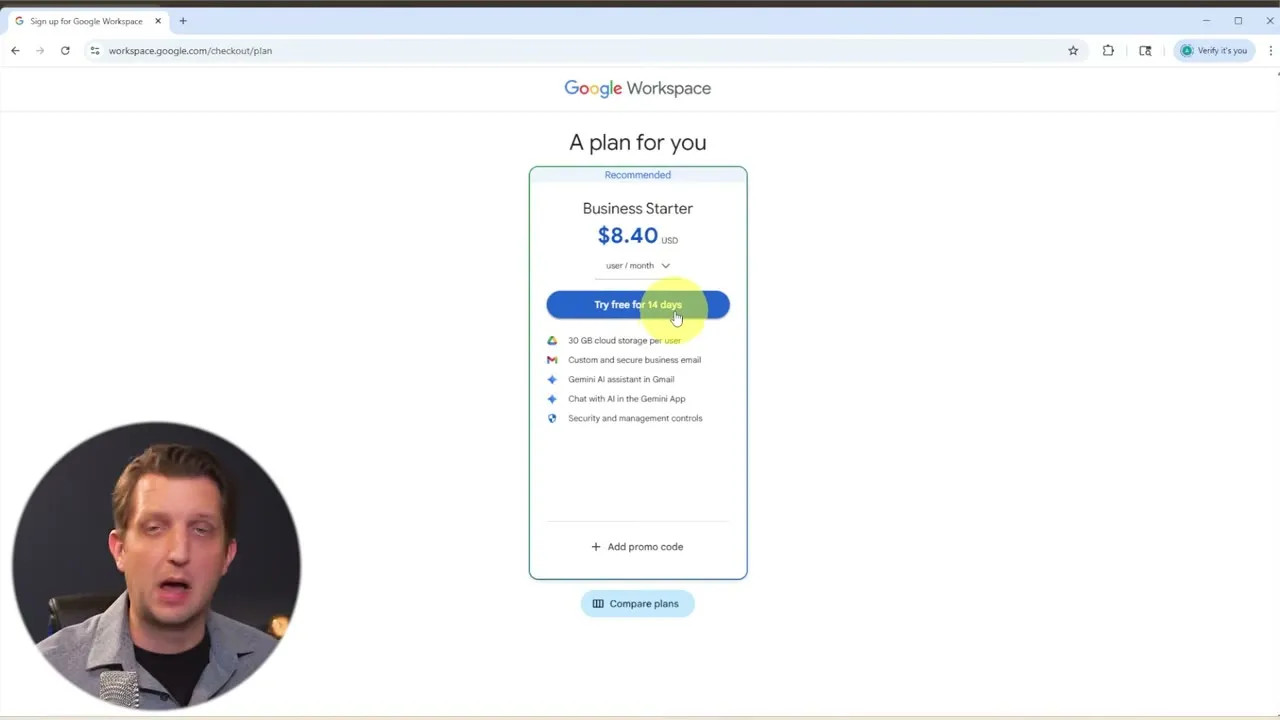
- On A plan for you, Google shows the plan it recommends. In the video that was Business Starter at $8.40 per user per month. Yours may be different depending on how you answered the earlier questions.
- Click Try free for 14 days to try it before you make any payments.
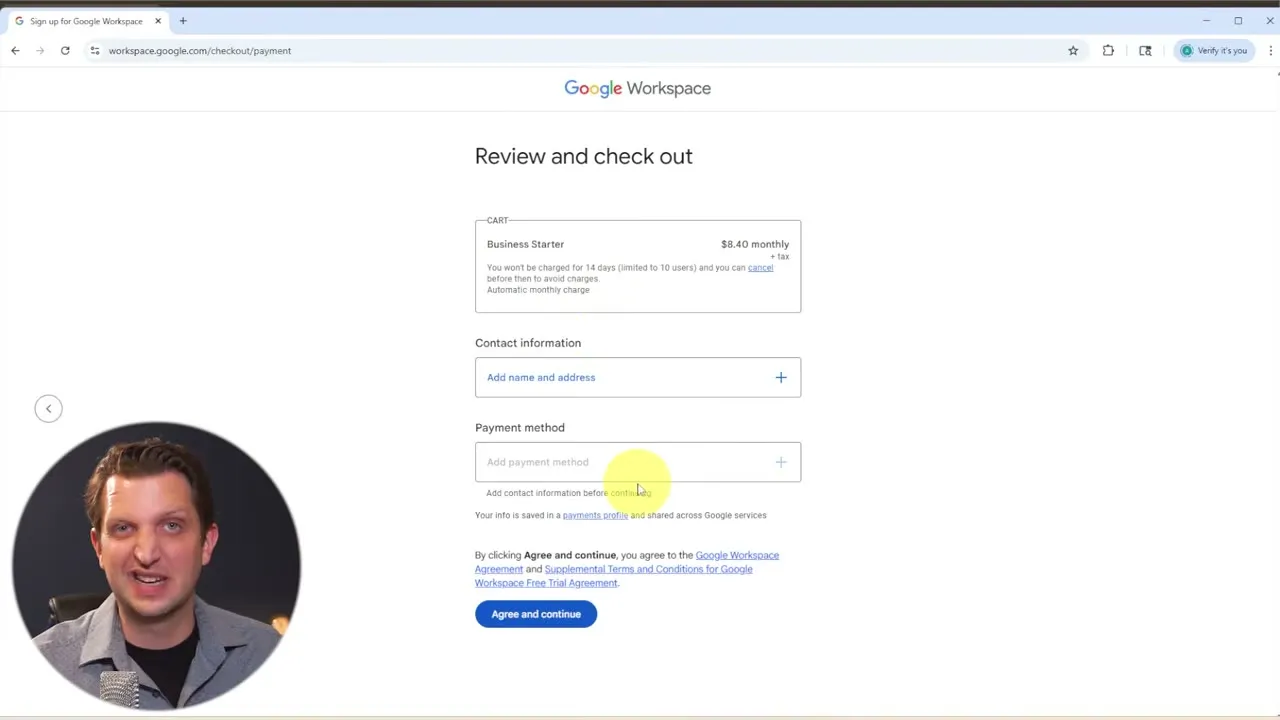
- On Review and check out, add your contact information and a payment method. Google asks for a payment method to get started, so it can charge you once the 14-day trial is up.
Add team members
Next, Google offers to add users. If you have team members or coworkers who need their own address at your domain, add them here:
- Enter their first name, last name and a username at your company’s domain.
- Enter their current email address. Google Workspace emails them instructions to set up their account and password.
Each user you add is an additional charge per month. If it is just you, click Skip for now. You can add users later in the Admin console.
Verify your domain
If you did not buy the domain through Google, Google has to verify that you own it before you can use it. This is the part that looks intimidating, but Google Workspace walks you through it.
- On Let’s set up your domain, click Get started.
- Under Select your domain host, choose where you bought your domain, such as Squarespace, GoDaddy, Shopify or WordPress. Click Continue.
- The Add verification code page gives you a TXT record to add at your domain host, with a CNAME record as an alternative.
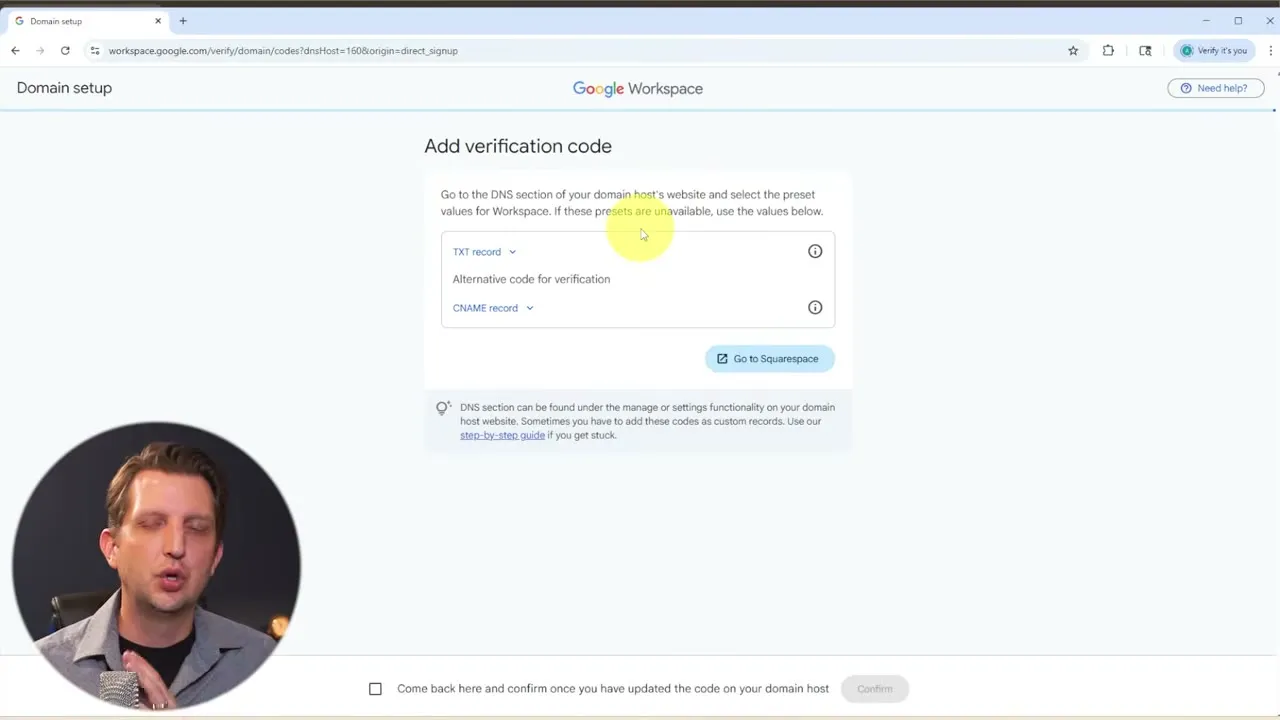
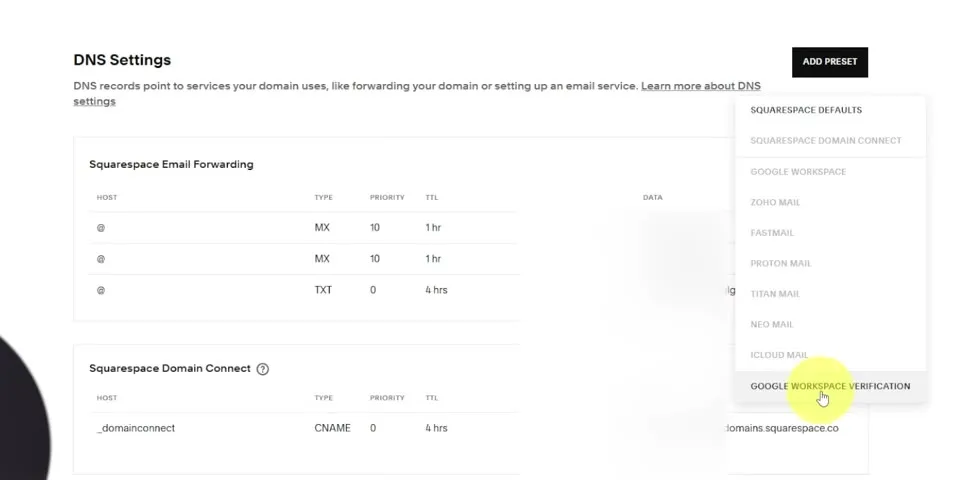
- Sign in to your domain host and open its DNS settings. In Squarespace, that is DNS, then DNS Settings. This step will look a little different depending on where your domain is hosted.
- In Squarespace you don’t have to type the record yourself. Click Add preset and choose Google Workspace Verification.
 6. Go back to the Google tab, open the TXT record and copy the Data value.
7. Paste it into the Verification code box in Squarespace and click Add. Squarespace confirms that the Google Workspace verification was added.
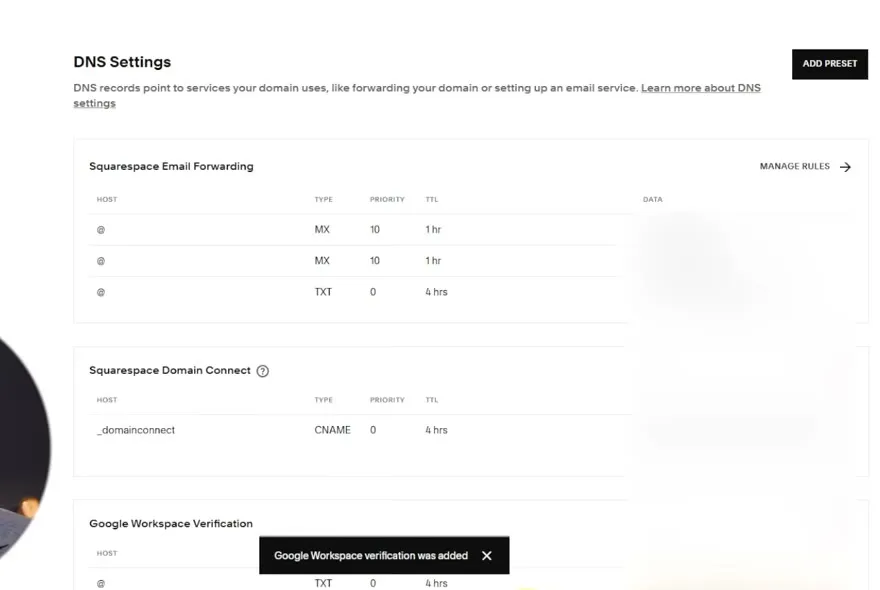 8. Back on Google’s page, tick Come back here and confirm once you have updated the code on your domain host and click Confirm.
It takes a few seconds, then the page says Your domain is verified! That step gives Google Workspace permission from your domain host to use the domain for your email.

Activate Gmail with an MX record
Now you tell your domain to send its mail to Gmail. You repeat the same kind of step with a new record.
- Click Activate Gmail, then Continue.
- Google lists the user you set up for yourself. Click Proceed with activation.
- The Add Gmail activation code page shows the MX record to add: Host set to default value, Priority 1, Data SMTP.GOOGLE.COM, and TTL set to default or lowest value.
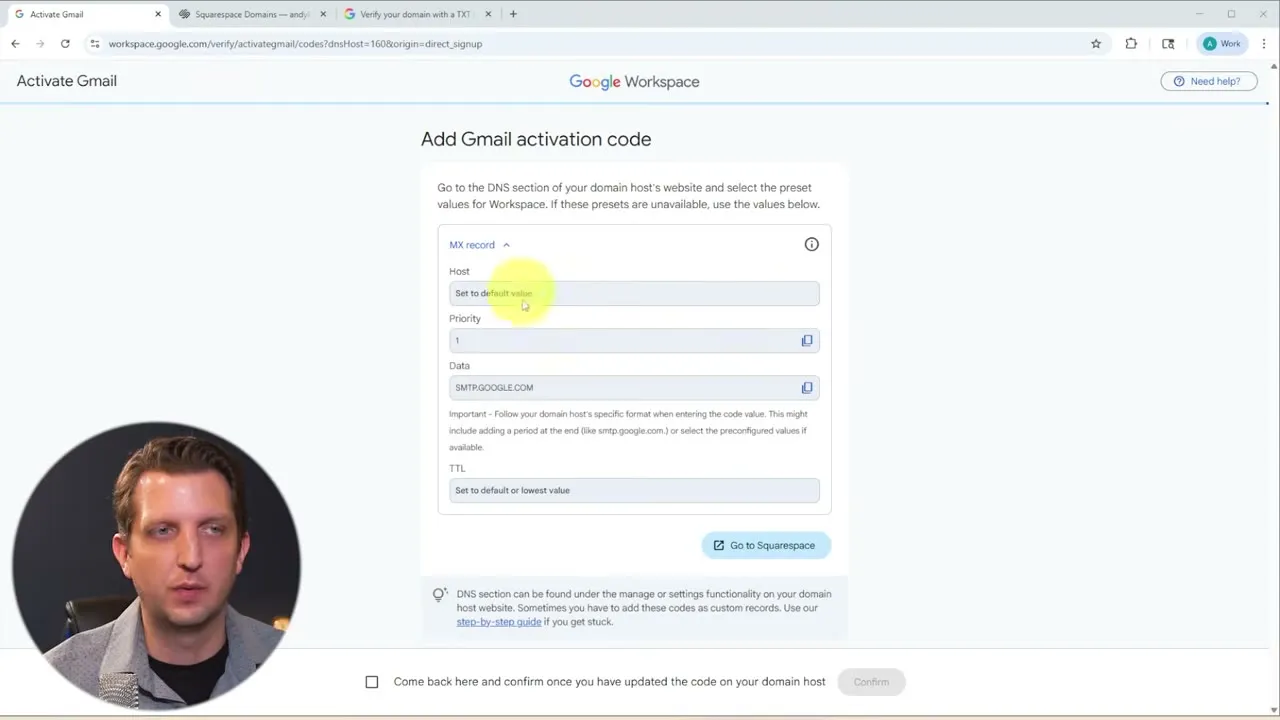
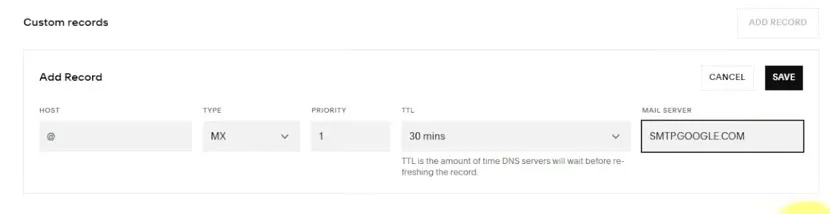
- Go back to your domain host. In the video there was no Squarespace preset for this one, so the record is added by hand. Scroll down to Custom records and click Add record.
- Fill in the record:
- Type: MX
- Host: @ (Google says to leave it at the default, but Squarespace needs something in the box)
- Priority: 1
- TTL: the lowest value, which is 30 mins in Squarespace
- Mail server: the Data value from Google, SMTP.GOOGLE.COM
- Click Save.
 7. Back on Google’s page, tick the box and click Confirm.
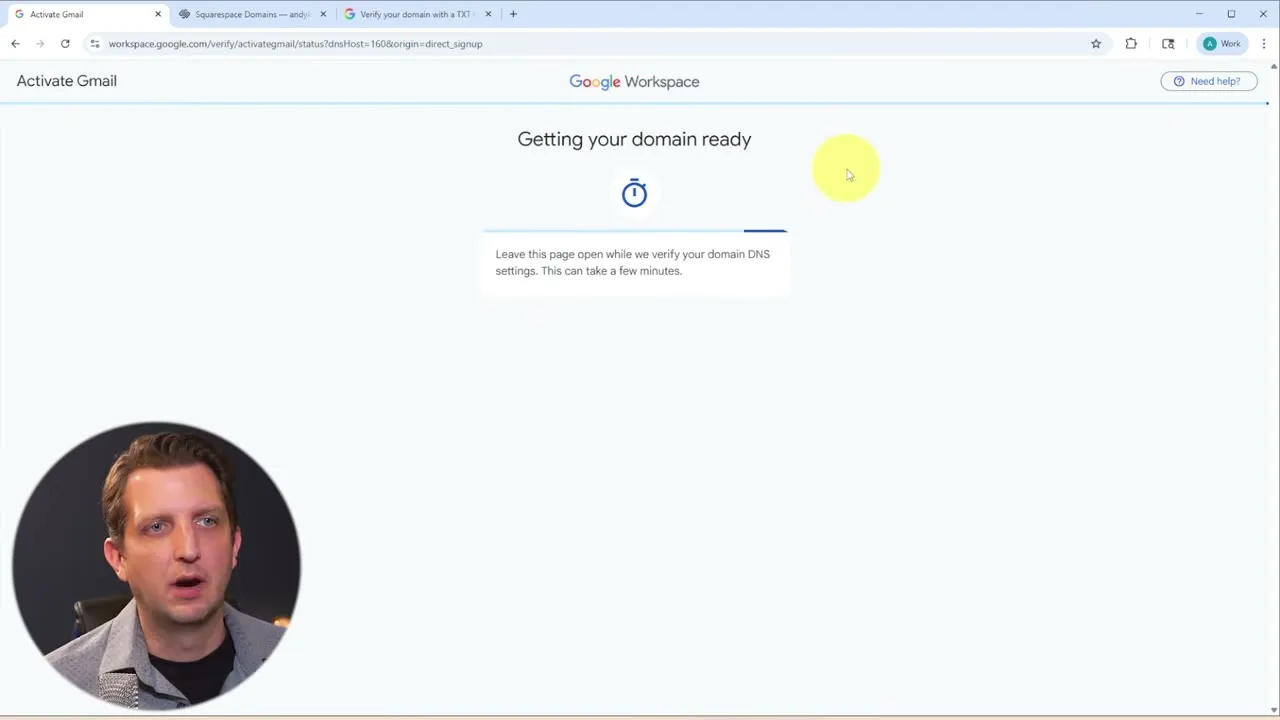
Google shows Getting your domain ready while it checks your DNS settings. The page says this can take a few minutes. If it doesn’t go through right away, it could take up to 48 hours, so check back later.
Sign in to the Admin console
- Open a new tab and go to the Google Workspace Admin console. In the video it opens at admin.google.com.
- Choose the account you just set up, enter the password you created and click Next.
- Accept the Welcome to your new account notice.
You are now in your Workspace. If Gmail is still waiting to activate, the home page says so, and it refreshes once the change goes through.
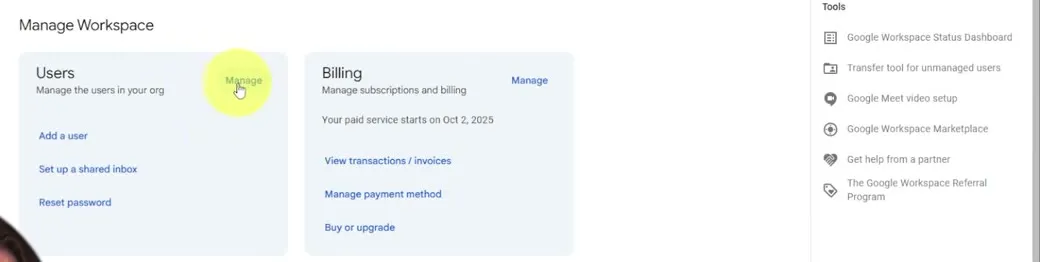
Under Users, click Manage to see everyone on the account. This is also where you add users later. Each new user is an additional charge per month.
Add more addresses with alternate emails
If it is just you but you want more than one address, such as sales@ or admin@ your company name, you don’t need another user.
- In the Admin console, open Users and click your user. This works for any of your users.
- Click Add alternate emails.
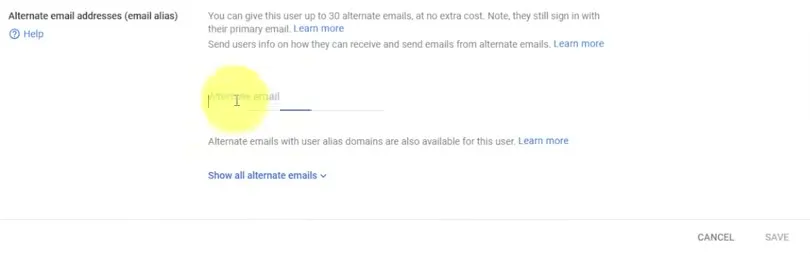 3. Type the new name in front of your domain, for example info, and click Save.
Anyone who emails that address now reaches your primary inbox, and you can keep your addresses separate. The screen in the video says each user can have up to 30 alternate emails at no extra cost, and that they still sign in with their primary email.
Common questions
Is a Google business email free?
Not in the video. Google Workspace is paid per user, per month. There is a 14-day free trial, and sign-up asks for a payment method so it can charge you when the trial ends. At the time of the video, October 2025, the pricing page listed Starter at $7 per user per month with a 1-year commitment, and the checkout page showed Business Starter at $8.40 per user per month.
Do I need a domain to create a business email with Google?
Yes. During sign-up you either buy a new domain through Google, which costs extra, or use a domain you already own from another service. If you already own it, you verify it by adding a code at your domain host.
Which Google Workspace plan do I need if I only want email?
The video says the Starter plan works fine if you only want a Google email at your domain. The higher plans differ mostly in Google Drive storage, the Google Meet tools and the AI tools built in.
How long does it take for the new email to start working?
Domain verification took a few seconds in the video. After you add the MX record, Google's page says checking your DNS settings can take a few minutes, and the video says it could take up to 48 hours, so check back later if it doesn't go through right away.
Can I have more than one email address without paying for another user?
Yes. In the Admin console, open a user and add alternate emails, such as info@ or sales@ your domain. Mail sent to those addresses lands in that user's primary inbox. The Admin console screen in the video says each user can have up to 30 alternate emails at no extra cost.
How do I add email addresses for my employees?
You can add them during sign-up or later under Users in the Admin console. Google Workspace emails each person instructions to set up their account and password. Each user you add is an additional charge per month.