How to use ChatGPT Tasks to schedule reminders
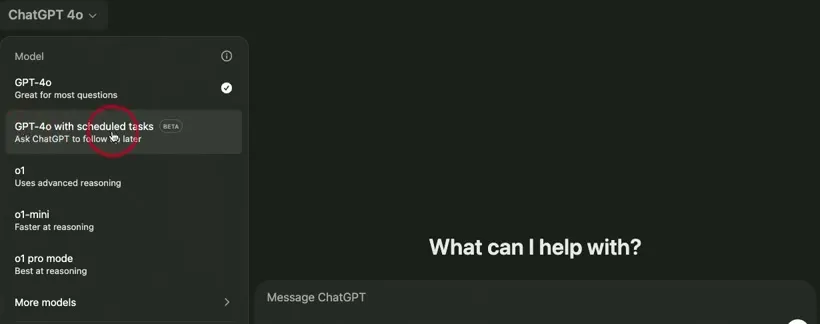
To use ChatGPT Tasks, open the model menu at the top of ChatGPT and choose GPT-4o with scheduled tasks. Then type what you want and when, such as "send me the news every day at 8 am". ChatGPT creates the task and reminds you with a desktop notification, in the mobile app or by email.
Quick steps
- Open the model menu at the top of ChatGPT and choose "GPT-4o with scheduled tasks".
- Type what you want and when, for example "send me the news every day at 8 am".
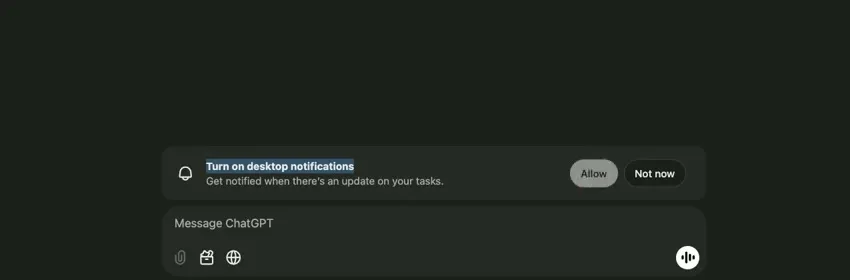
- Press "Allow" to turn on desktop notifications. Without them, ChatGPT reminds you by email.
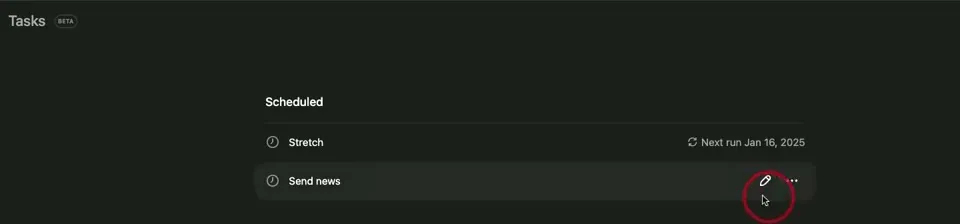
- Press your profile picture and open Tasks to see every task you have set up.
- Press the pencil next to a task to change its name, instructions, schedule or time, then press "Save".
ChatGPT Tasks lets you schedule a task in a normal chat, and ChatGPT sends you a reminder when it is due. In this guide you set up a daily news update at 8 a.m. and a reminder to stretch every 4 hours, then change the news task so it only covers AI news.
The video was recorded in January 2025, when Tasks was in beta and rolling out to the Plus, Pro and Teams plans. OpenAI said it planned to expand it once it became generally available.
Turn on scheduled tasks
- Open your ChatGPT account.
- Press the model drop-down at the top of the chat.
- Choose GPT-4o with scheduled tasks. It carries a Beta label.
Create your first task
Type what you want ChatGPT to do and when:
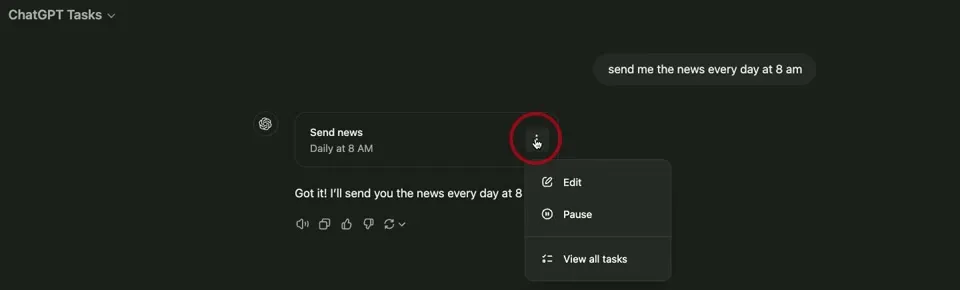
send me the news every day at 8 amChatGPT creates a task card called “Send news, Daily at 8 AM” and replies that it will send you the news every day at 8 a.m.
Press the three dots on the task card to Edit it, Pause it so it stops notifying you, or View all tasks.
A task can also be a plain reminder or a to-do:
remind me to stretch every 4 hours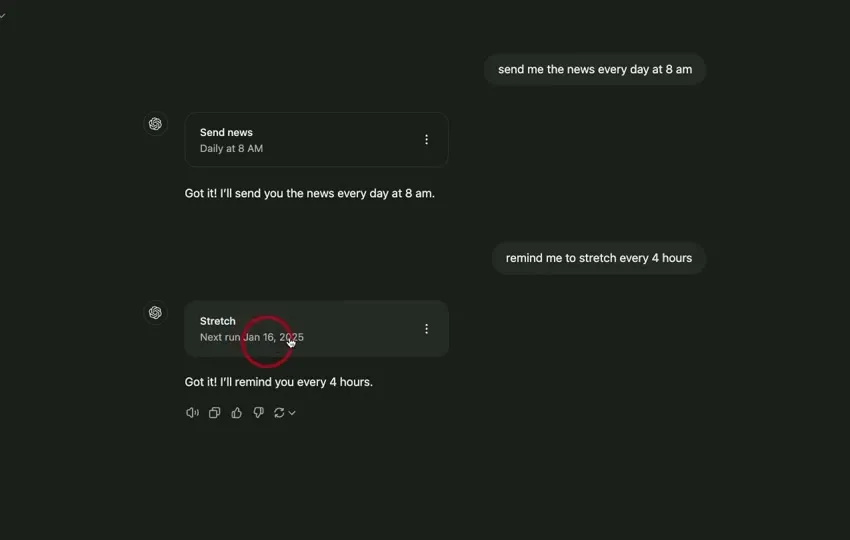
Choose how you get notified
ChatGPT can notify you in a few ways.
On your computer. After you create a task, a bar appears above the message box that says Turn on desktop notifications. Press Allow. If your browser shows that notifications are blocked, allow them for the site there as well. You then get a pop-up from ChatGPT right on your computer.
On your phone. The ChatGPT mobile app has Tasks too.
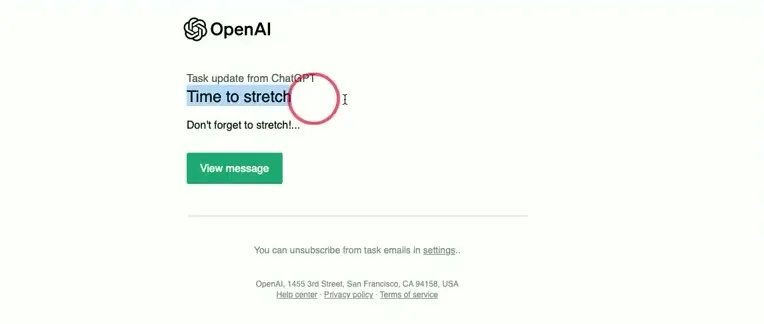
By email. Without push notifications, ChatGPT reminds you by email. The email shows the task’s message and a View message button.
See all your tasks
Press your profile picture and open Tasks. Every task you have set up is listed there. The page shows whether a task is daily or a one-time reminder, and you can edit each one from the list.
Edit a task
Press the pencil next to a task to open the edit page. Here you can change:
- Name. What the task is called in your list.
- Instructions. What ChatGPT does each time. In the video the news task is changed to:
Send me the news each day but focus on ai news only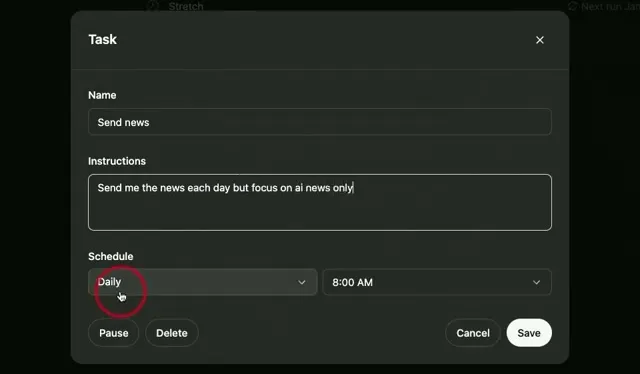
- Schedule. Choose Doesn’t repeat, Daily, Weekly, Monthly, Annually or Custom. Custom lets you pick specific dates.
- Time. When the email or push notification is sent.
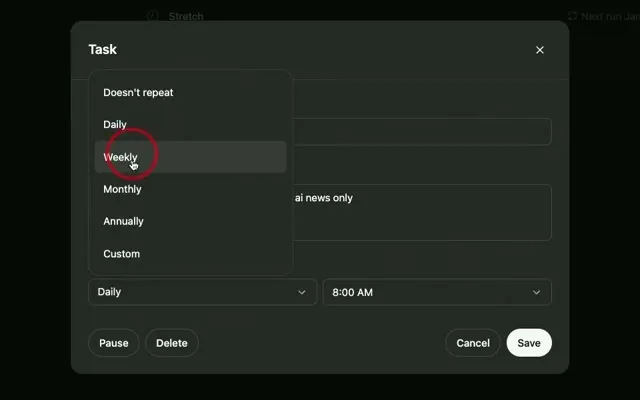
With Custom selected, the window lists the upcoming dates and has an Open chat button, so you can ask ChatGPT to update the schedule for you.
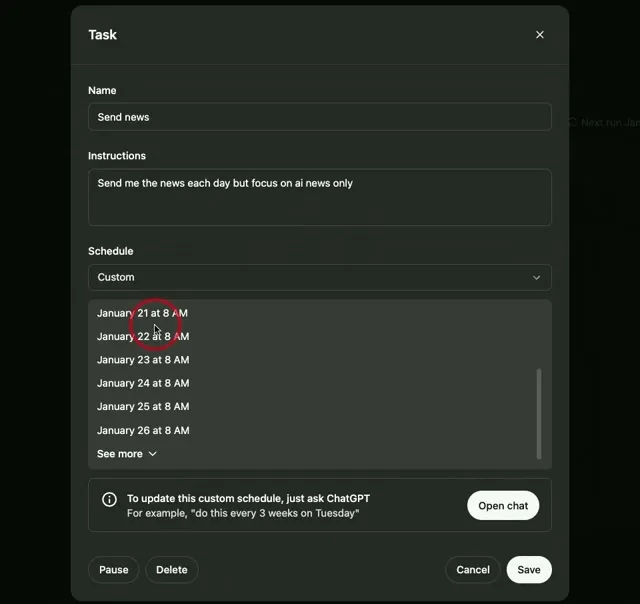
The same window has Pause and Delete buttons. Press Save when you are done.
Is it worth using?
At first glance Tasks is simple: a to-do list with a reminder function, and you may already have an app that does this. It is also a first step toward ChatGPT taking actions for you, so it could be expanded to do a lot more. It is most useful for tasks where ChatGPT searches the web for you and sends a daily update, like the news example above.
Common questions
Who can use ChatGPT Tasks?
When the video was recorded in January 2025, Tasks was in beta and rolling out to the Plus, Pro and Teams plans. OpenAI said it planned to expand access once the feature became generally available.
How does ChatGPT remind you about a task?
You can allow desktop notifications in your browser, which gives you a pop-up on your computer. The ChatGPT mobile app has Tasks too. Without push notifications, ChatGPT sends the reminder by email.
Where do I find all my ChatGPT tasks?
Press your profile picture and open Tasks. The page lists every task you have set up and shows whether it is daily or a one-time reminder.
How often can a ChatGPT task repeat?
The schedule menu has Doesn't repeat, Daily, Weekly, Monthly, Annually and Custom. Custom lets you pick specific dates. You can also change the time of day.
Can I change or stop a task after I create it?
Yes. Each task has Edit and Pause options. Pause stops it from notifying you, and Edit lets you change the name, the instructions, the schedule and the time.