How to use the new ChatGPT 6
To use ChatGPT 6, open chatgpt.com and start a chat. It is the default model on every account, including the free one. Set the thinking effort slider to Medium for everyday work and High for harder problems, write prompts as context, task and details, and keep ongoing work in a project with its own instructions and files.
Quick steps
- Start a new chat and ask ChatGPT to build a simple tool, such as a quote calculator. It builds it right in the chat.
- Open the menu in the prompt box and set the thinking effort slider. Use Medium for most things and High when there is math.
- Open Personalization and make sure Enable memory is switched on.
- Write prompts in three parts, the context, the task and the details.
- Open Plugins and connect the apps you use, such as Gmail and Google Drive.
- Create a project, add your files as sources and give it instructions.
- On a Business, Pro or Enterprise plan, keep files and pages in ChatGPT Space.
ChatGPT at Work Bundle
A free bundle of guides and prompts for using ChatGPT in your daily work.
ChatGPT now runs on ChatGPT 6 on every account, including the free one, and it can answer with something you can use instead of a wall of text. This guide uses an office cleaning company as the example. It builds a quote calculator in the chat, picks the right thinking effort, sets up memory, plugins and a project, and ends with the new ChatGPT Space.
Build a quote calculator right in the chat
ChatGPT has something called ChatGPT Sites that builds full websites and apps. A lot of the time you just want something simple, done in the chat. That is what the new Intelligent UI does, and it works with ChatGPT 6.
- Start a new chat.
- Describe the tool you want and what it should include.
Build me a quote calculator for my office cleaning company. Let me enter the square footage and how many nights a week, with an option to add restrooms. Charge 2 cents per square foot per visit, add $25 a visit for restrooms, use 4 weeks in a month, and show the monthly total.ChatGPT builds an interactive pricing calculator in the chat. You can type in a different square footage, change the nights per week and include restroom cleaning.
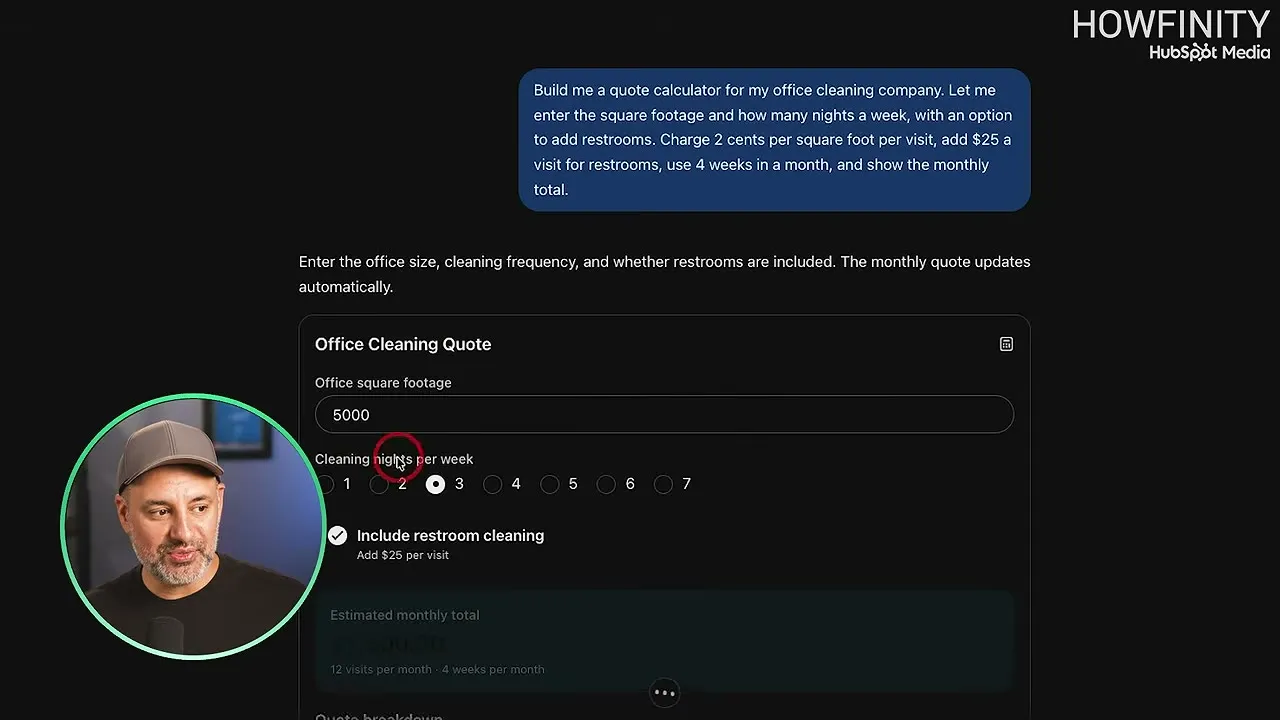
In the video, 5,000 square feet cleaned three nights a week with restrooms comes to $1,500 a month. A Copy Quote button at the bottom copies the quote the calculator generates.
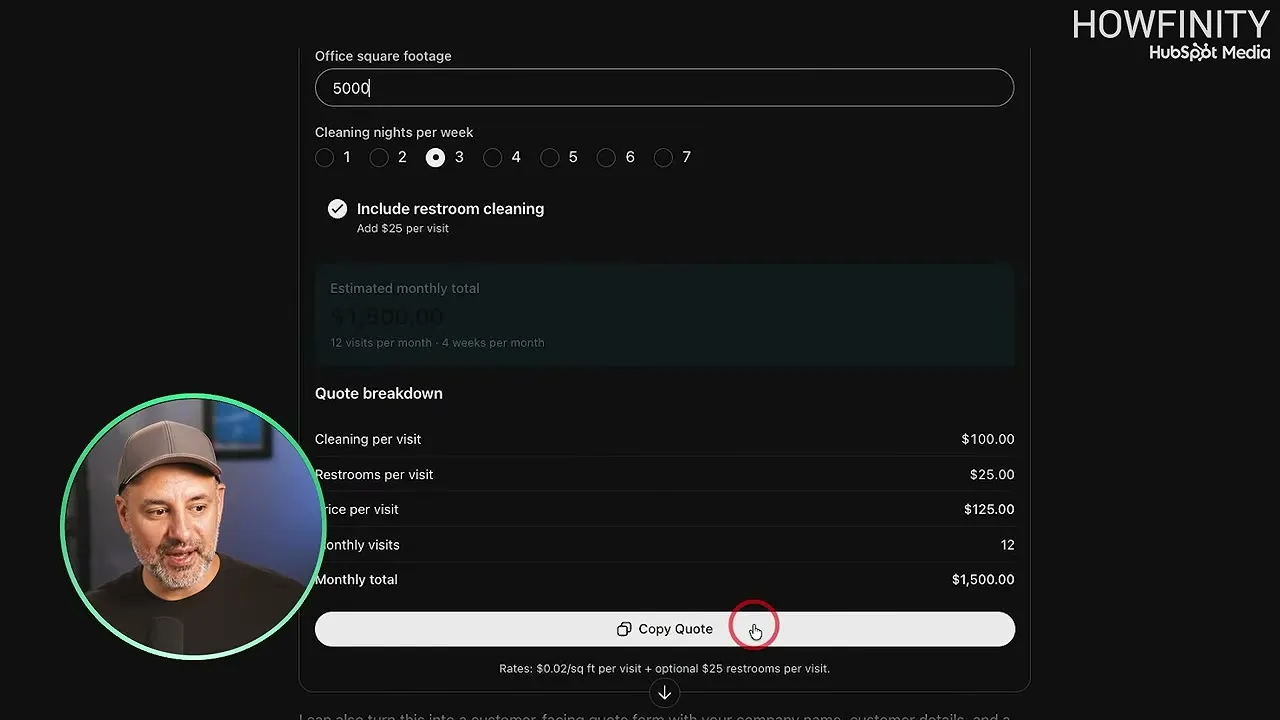
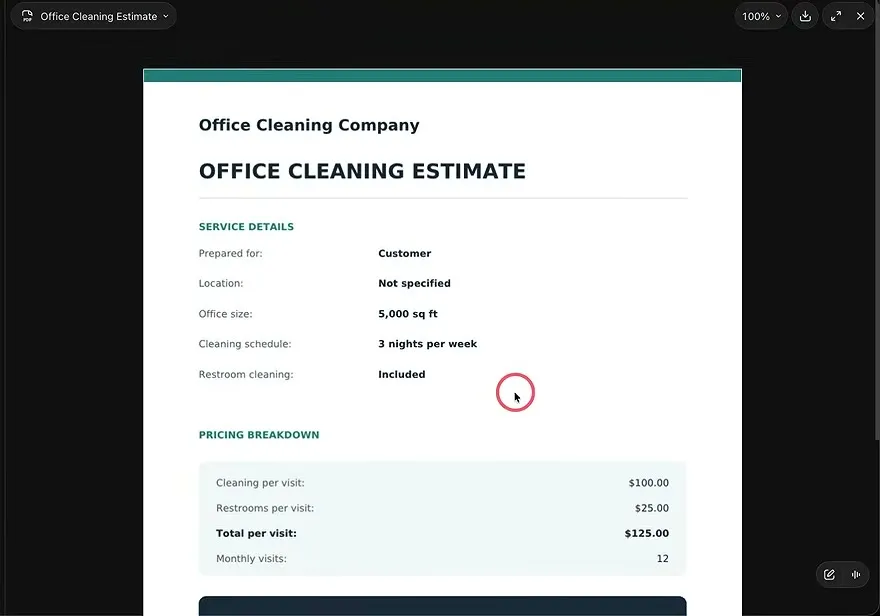
Under the calculator, ChatGPT offers to turn it into a customer-facing quote form with your company name, customer details and a printable estimate. In the video the reply was just “ok”. ChatGPT built a new version, and from it you can get a cleanly formatted PDF estimate to download and send to a customer.
Pick the right model and thinking effort
The model menu has changed. ChatGPT uses ChatGPT 6 by default, but the menu in the prompt box doesn’t say the number 6 anywhere. It shows a Thinking effort slider.
- Click the menu on the right side of the prompt box.
- Move the slider to Instant, Medium, High or Extra High.
- To see the models, click the level name above the slider. GPT-6 is selected by default, and older models are still listed.
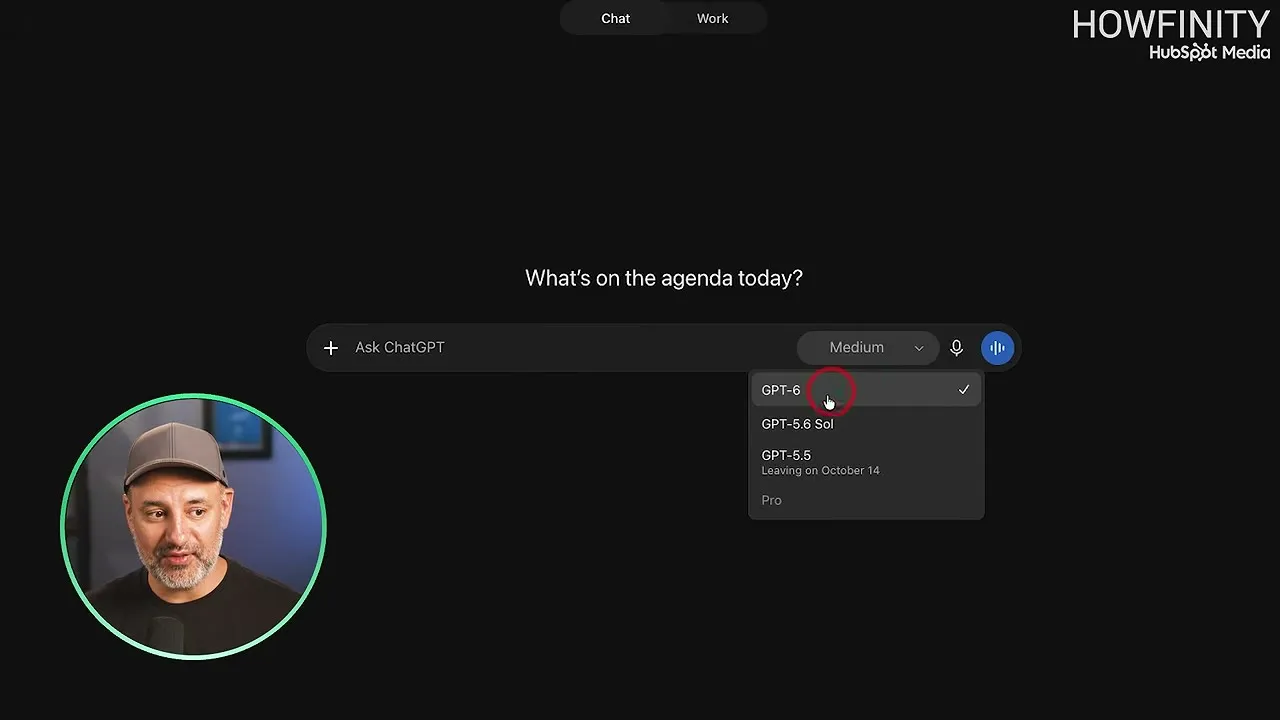
ChatGPT 6 powers every answer. The slider decides how much it reasons before it answers. Instant gives you instant answers. As you go higher, it thinks longer and gives better answers.
- Medium is a good setting for just about anything.
- High is for tasks that get more complicated, such as anything with math in it.
- Extra High gives the very best answer. Depending on the prompt it may take a couple of minutes, and sometimes much longer.
What you see depends on your plan. The video was recorded on a Business account. A free account has fewer of these options, and higher plans have more. The Pro plan, at $200 a month, also has a max effort level.
This prompt needs a little math, so the slider is set to High:
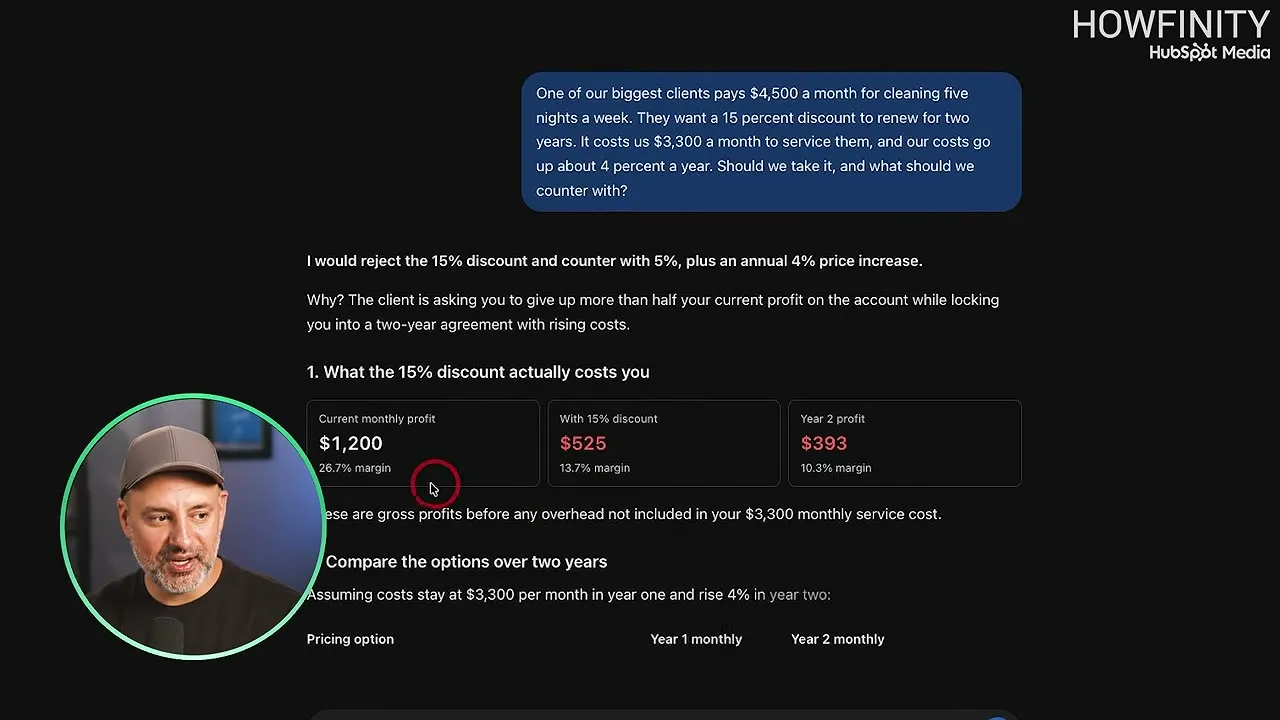
One of our biggest clients pays $4,500 a month for cleaning five nights a week. They want a 15 percent discount to renew for two years. It costs us $3,300 a month to service them, and our costs go up about 4 percent a year. Should we take it, and what should we counter with?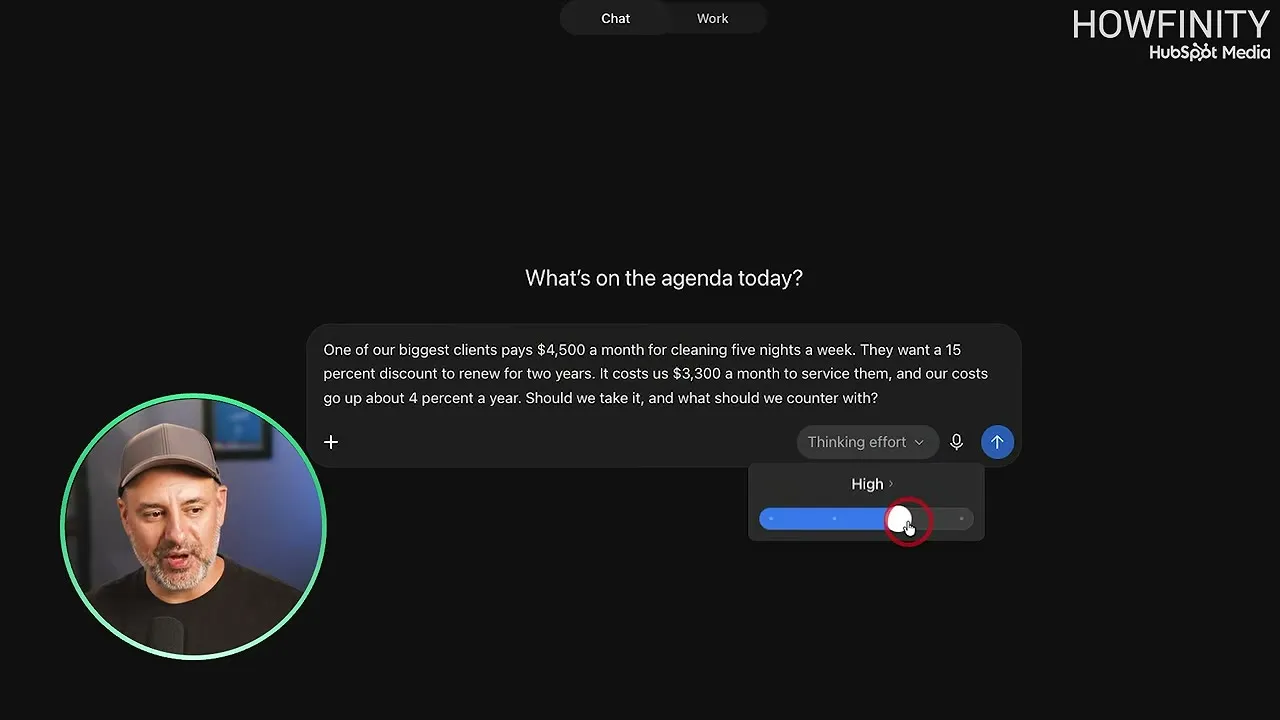
ChatGPT recommends rejecting the 15% discount and countering with 5%, plus a 4% price increase each year. It uses the Intelligent UI here too, so the numbers come back in a clean layout: $1,200 of monthly profit today, $525 with the discount, and $393 in year two.
Turn on memory, and use a temporary chat when you need one
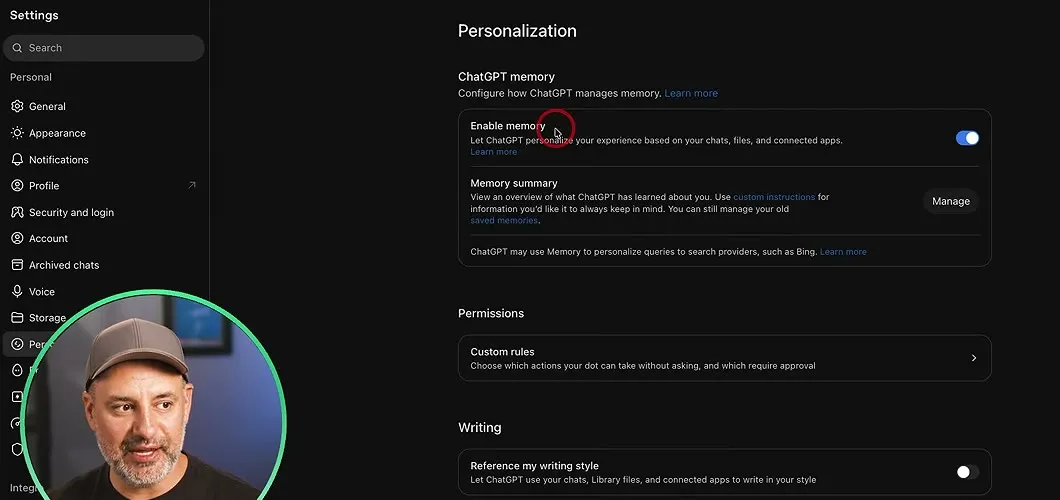
Memory lets ChatGPT personalize its answers based on your previous chats and the apps you have connected. It gets to know you better every time you use it.
- Click your profile icon in the bottom-left corner and choose Personalization.
- Under ChatGPT memory, make sure Enable memory is switched on.
- Press Manage to manage the memories it has saved.
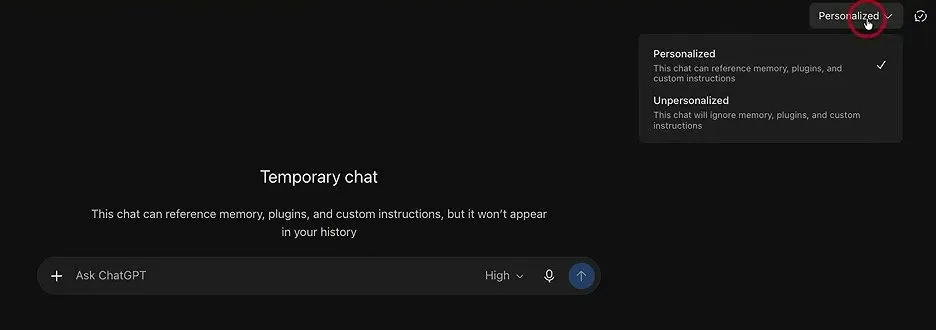
If you want to use ChatGPT without adding to that memory, turn on a temporary chat with the icon in the top-right corner. A temporary chat is not saved to your history or your memory.
A temporary chat can still be personalized. The menu next to the icon has two options. Personalized lets the chat pull in relevant context from your account. Unpersonalized ignores memory, plugins and custom instructions.
Write prompts with the context, task, details formula
Prompting can be pretty simple these days, especially with thinking effort turned on. A three-part formula still gets you a good answer on the first try:
- Context. The background information ChatGPT needs to give you a good response.
- Task. The one thing you want it to do in this prompt.
- Details. Usually the output. The length, the tone, and what has to be included in the finished work.
I run Brightside, a 14-person commercial cleaning company. We just did a walkthrough of a new office building. Write a proposal email to the office manager. Keep it under 150 words, friendly, and include our bi-weekly price.The first two sentences are the context. “Write a proposal email to the office manager” is the task. The last sentence is the details.
If memory is turned on, the context matters less, because ChatGPT already knows things like what your business is.
Written this way, the first response is usually pretty good. From there you can ask a follow-up in the same chat and tweak it as much as you need to:
Make it a little warmerThere are two more options under the answer:
- The try again button runs the prompt again.
- Branch in new chat creates a new chat, so you can take one conversation in one direction and the other in a different direction.
Connect your apps with plugins
A plugin gives ChatGPT the information you have sitting inside other apps.
- In the left sidebar, open Plugins.
- Open the Popular list to see the ones most people use.
- Connect the apps you use.
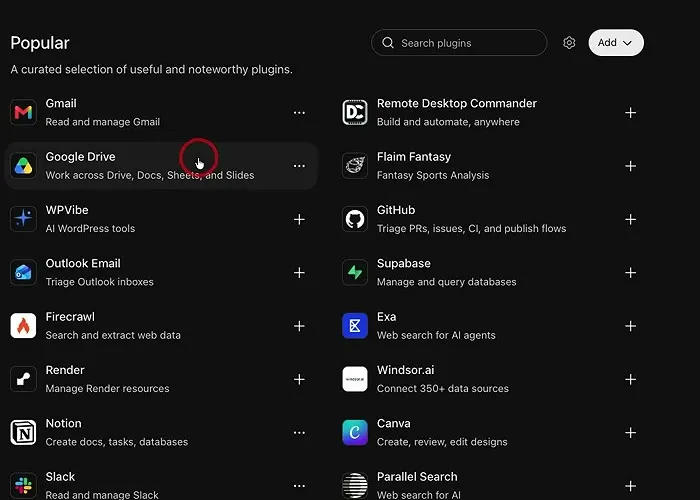
If you connect Gmail, ChatGPT can read and manage your Gmail account, if you let it. Google Drive is handy if you keep documents and Google Sheets there, because ChatGPT can pull them into a chat when it needs them. There is a long list, and pretty much any popular app you can think of is probably on it.
Which ones you connect is up to you. ChatGPT is a lot more useful with at least a few plugins connected.
Set up a project so you stop repeating yourself
A project saves you from typing the same context every time. You set one up for anything you are working on, give it the context once, and every new chat inside the project already has it.
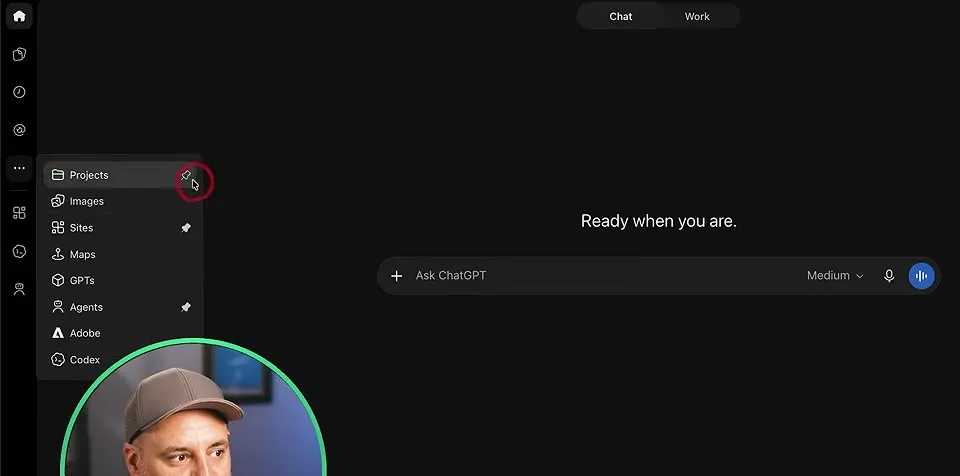
- In the left sidebar, open the three dots menu and choose Projects. The pin icon keeps an item from this menu in the sidebar.
- Press Create, type a project name, such as “Northgate Cleaning”, and press Create project.
- Open the Sources tab and press Add sources. Sources can be files such as PDFs, pasted text, or files from apps you have connected, such as Google Drive or Slack.
- Press the three dots at the top of the project and choose Project settings.
- Type your instructions into Instructions and press Save.
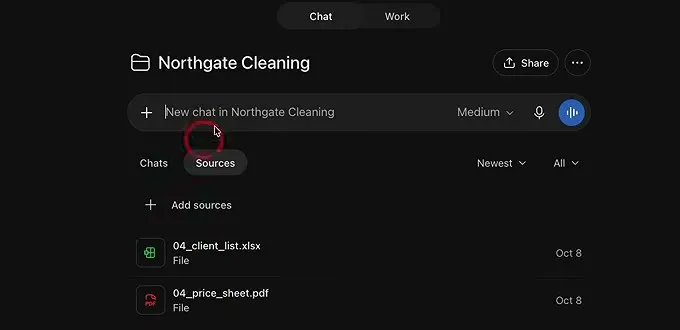
A project has its own instructions, so it can behave differently from your regular ChatGPT account. In the video the sources are two documents, a price sheet and a client list, and these are the instructions:
You're helping me run Northgate Commercial Cleaning. Use our price sheet for every quote, always show the math on any price, and keep emails friendly and under 150 words.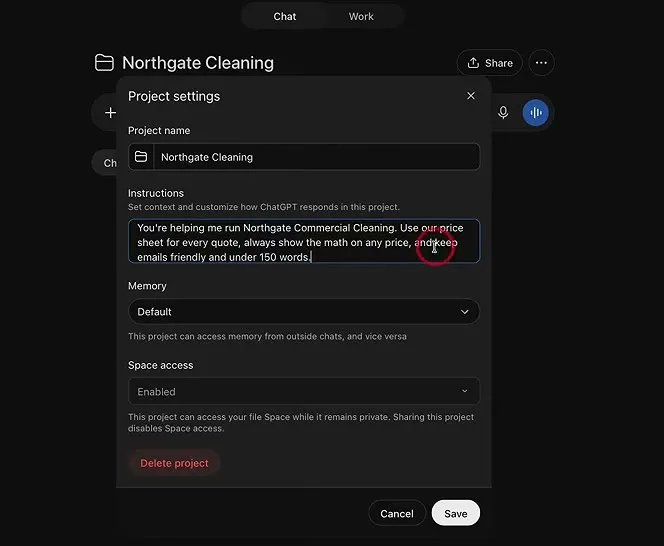
Space is also listed as a source. That option needs one of the paid accounts.
Now start a chat inside the project:
Compare what each client pays to what our price sheet says they should pay. Which clients are we underpricing, and by how much each month?ChatGPT reads the project’s instructions and the documents in the Sources tab, then pulls it all together in its answer. In the video it found that 3 of the 12 clients were underpriced, by $1,000 a month in total: Ridgeway Insurance by $450, Lakeview Dental by $300 and Parkside Pediatrics by $250.
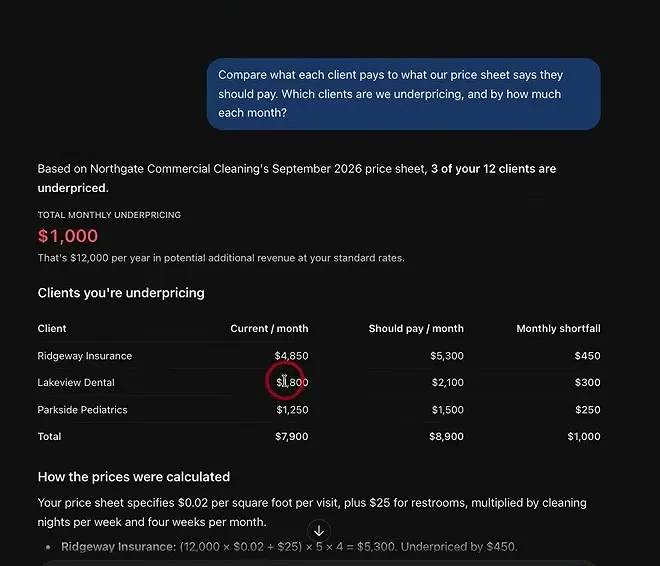
Go back to the project and the chat is listed there. You can start a new chat at any time, and the project keeps all of its chats together.
Keep your files and pages in ChatGPT Space
ChatGPT Space is available on the Business, Pro and Enterprise plans. It is not on every plan yet.
Space is cloud storage for your ChatGPT account. Every time you upload something to ChatGPT, it is kept here, and you can share it with your team. If you have used Google Drive or Notion, it looks a lot like that.
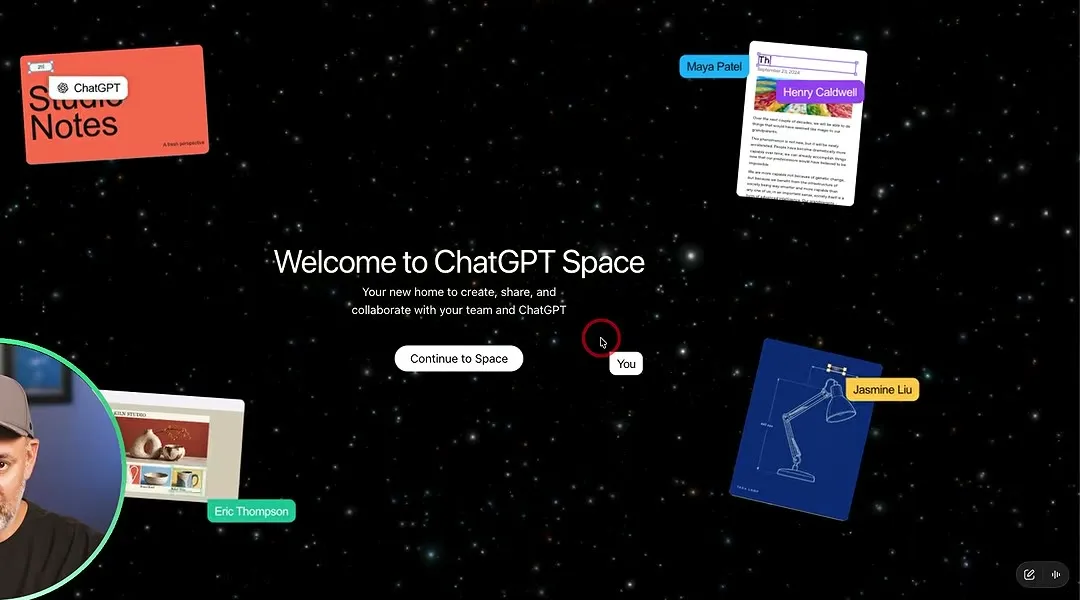
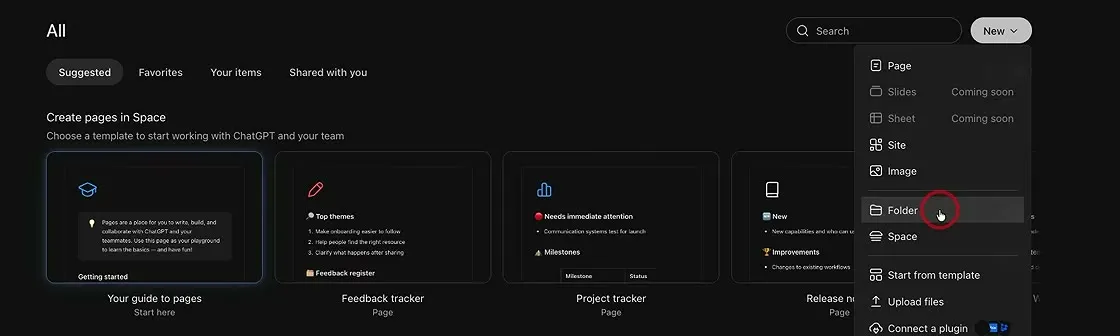
From the New menu you can create:
- A Folder, to keep things organized the way you would on your computer.
- A Space. Spaces are similar to projects, but they are really for storing files.
Space also holds pages. You can tell ChatGPT to turn any chat into a page and save it to a space. The page has the details from that chat, and it stays saved to your ChatGPT account.
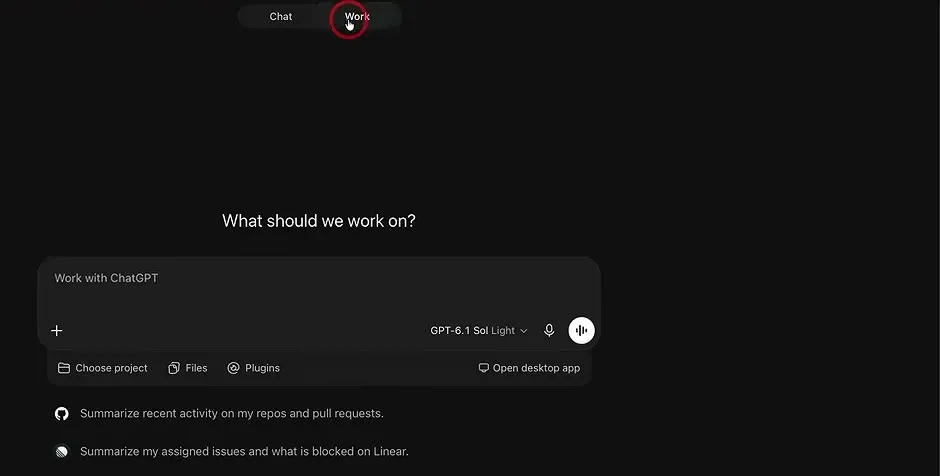
The Work tab
At the top of ChatGPT, next to Chat, there is a tab called Work. It is for getting finished work back from ChatGPT, and it has a full video of its own.
Common questions
Is ChatGPT 6 free?
Yes. ChatGPT 6 now runs on every account, including the free account. On a free account some of the options in the model menu are limited, and higher paid plans get more of them.
How do I switch to ChatGPT 6?
You don't have to. ChatGPT 6 is used by default, even though the menu in the prompt box doesn't show the number 6. Click the level name above the thinking effort slider to see the model list, where GPT-6 is already selected and older models are still listed.
What is the thinking effort slider in ChatGPT?
It sets how much ChatGPT reasons before it answers. The levels are Instant, Medium, High and Extra High. The higher you go, the longer it thinks and the better the answer. The Pro plan, at $200 a month, also has a max effort level.
What is Intelligent UI in ChatGPT?
It is a new way ChatGPT answers. Instead of a wall of text, it can build something you can use right in the chat, such as a working pricing calculator, and it formats other answers more cleanly. It works with ChatGPT 6.
What is a project in ChatGPT?
A project holds the context for one thing you are working on, so you don't type it every time. It has its own instructions and its own sources, such as PDFs, pasted text or files from connected apps, and every chat you start inside it uses them.
What is ChatGPT Space and which plans have it?
Space is cloud storage for your ChatGPT account. Everything you upload to ChatGPT is kept there, you can organize it in folders and spaces, save a chat as a page, and share it with your team. It is available on the Business, Pro and Enterprise plans.
ChatGPT at Work Bundle
A free bundle of guides and prompts for using ChatGPT in your daily work.
ChatGPT at Work Bundle
A free bundle of guides and prompts for using ChatGPT in your daily work.
Get the free bundle