How to create an ebook with ChatGPT and Canva
To create an ebook for free, ask ChatGPT for an outline, then have it write the table of contents and each section one at a time, and read everything it writes. In Canva, search the templates for "ebook multipages", pick one, paste in your content page by page, then click Share, Download and save it as a PDF.
Quick steps
- Ask ChatGPT to write an outline for your ebook, then change the sections until the outline fits what you want to share.
- Ask ChatGPT for the table of contents, then for the content of each section, one section at a time.
- Read everything ChatGPT wrote and correct anything that is inaccurate or does not fit your business.
- In Canva, click Templates, search for "ebook multipages", pick a template and click Customize this template.
- Copy the title, subtitle and each section from ChatGPT into the template, resizing text and duplicating pages as needed.
- Click Share, then Download, choose PDF as the file type and click Download.
Free Ebook Templates
A free set of 18 ebook templates for PowerPoint, Google Slides and InDesign, plus 30 customizable icons. The design is already done, so you just drop in your content.
An ebook is a useful thing to have, whether you want to share what you know, earn some passive income, generate more leads for your business or grow your audience. This guide builds one from start to finish: ChatGPT writes a short ebook on getting started with digital marketing, a free Canva template gives it a design, and it ends up as a PDF you can share.
You can also write the ebook yourself if you have the time. ChatGPT just makes it easier.
Write the outline with ChatGPT
Start with the outline. Open ChatGPT and use a prompt like this one, with your own topic in place of digital marketing:
Think like a marketing expert who specializes in digital marketing. Write an outline for a short punchy ebook to teach people how to get started with digital marketing for their business.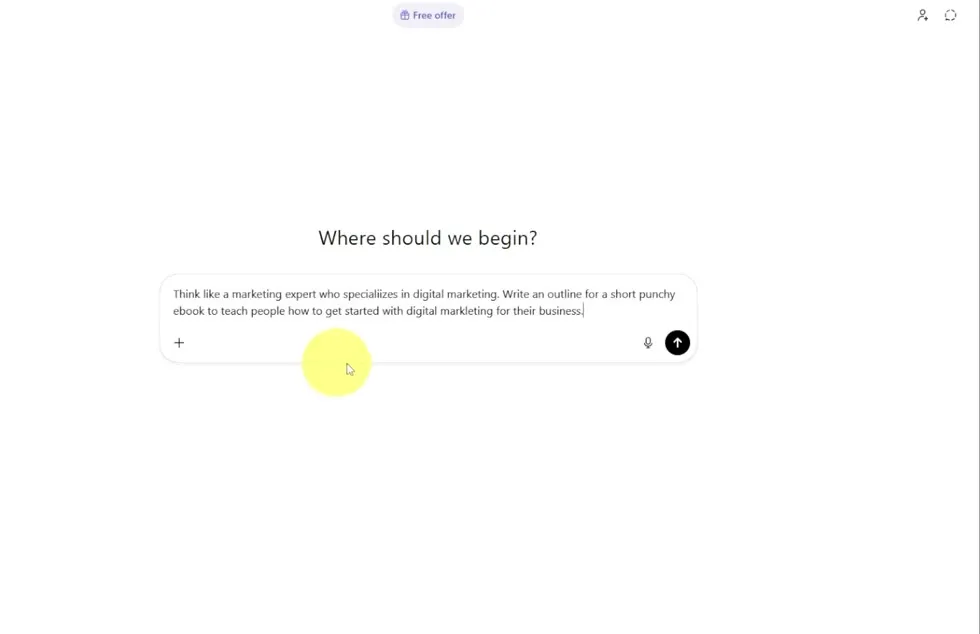
ChatGPT comes back with a title, a subtitle and the sections of the book, each broken down by topic.
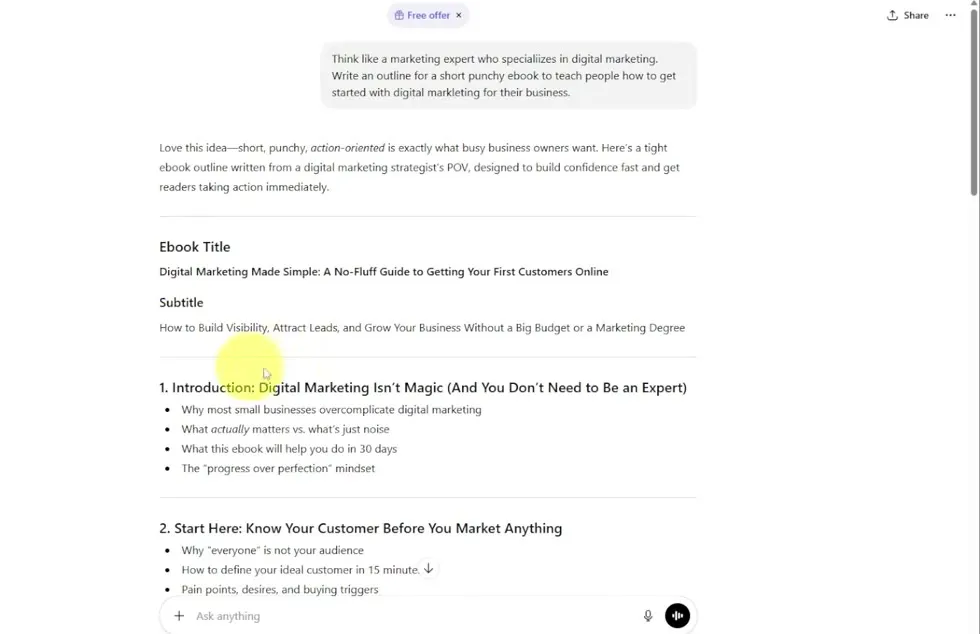
Now adjust it. You can tell ChatGPT that you don’t want section seven, that section eight should move to the top, or that you want something different for section three. Shape the outline around what you know best and what you want to share with your potential customers.
Write the content one section at a time
Don’t ask ChatGPT to write the whole ebook in one go. It works best when you give it one task at a time.
- Ask for the table of contents first, based on the outline:
Write a table of contents for this ebook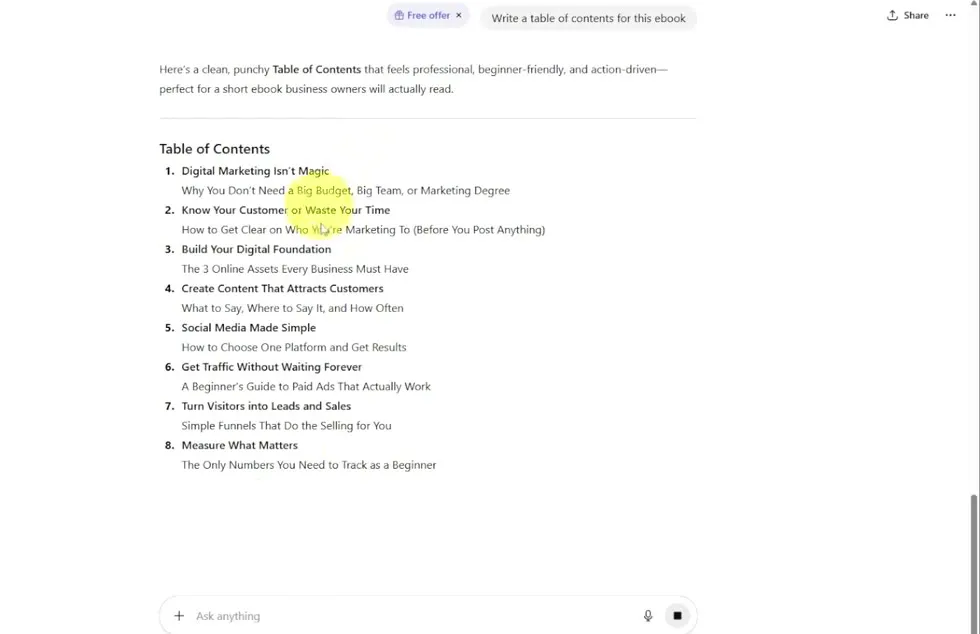
- Then ask for the first section:
Write the content for section 1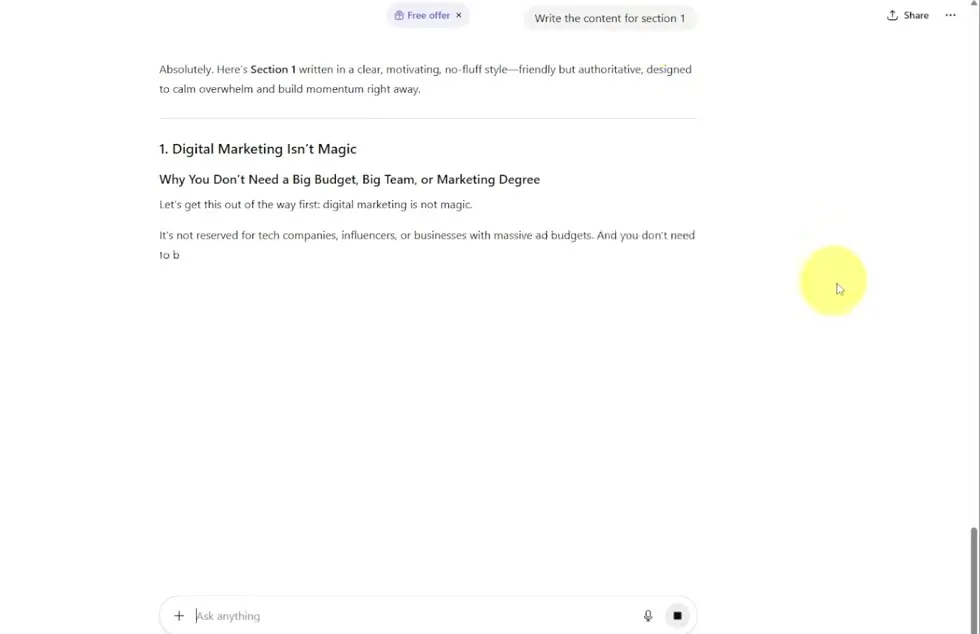
- Review the section. Ask ChatGPT to make changes, expand on a detail, or add more context, and bring in your own knowledge and experience.
- Repeat for each of the other sections.
Read through everything ChatGPT generates. It has a tendency to make up information, or to pull in information that is not accurate or does not fit your business or brand.
Pick an ebook template in Canva
With the writing done, put the ebook together in Canva. You can sign up for a free account, or get more options on the Pro account. This guide stays on the free one.
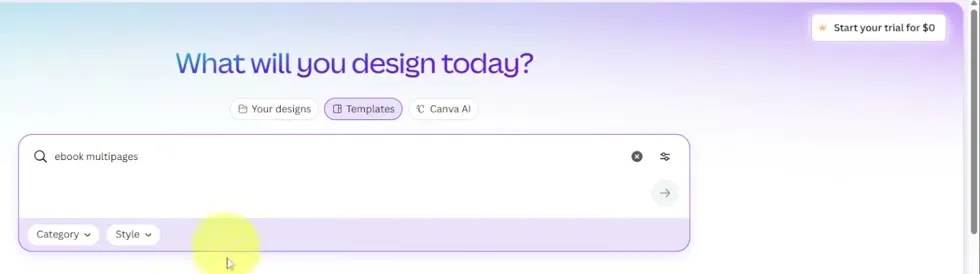
- On the Canva home page, make sure Templates is selected.
- Search for
ebook multipages.
- Look through the templates. On the free account, watch for the small crown icon on a template. It means that template is only available on the Pro account.
- Pick one that matches your design preference and your brand, and that will need the least editing. It is easy to get lost in all the choices.
- Click the template to preview its pages. The video uses one called Beige and Blush Simple Minimalist eBook PDF.
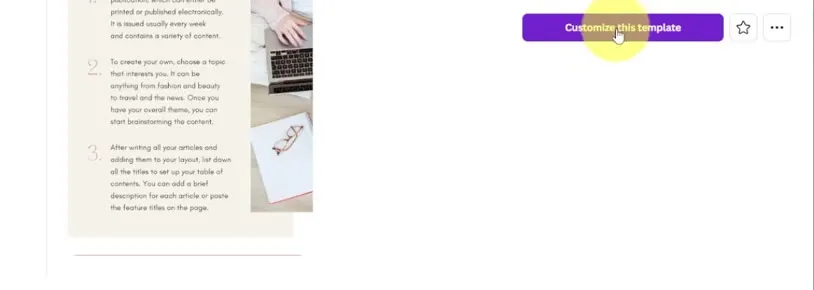
- Click Customize this template.
Free ebook templates from HubSpot
If you want an ebook that looks professional and generates more leads for your website, HubSpot has a free set of 18 ebook templates for PowerPoint, Google Slides and InDesign, plus 30 customizable icons. The design is already done, so you just drop in your content.
Add your content to the template
From here it is copy and paste. You fill the template with what ChatGPT wrote, or what you wrote yourself.
- Go to ChatGPT and copy the ebook title. Paste it over the title on the cover page in Canva and resize the text until it fits.
- Do the same with the subtitle.
- Delete the author name on the cover, or replace it with your own if you wrote the ebook yourself.
- Move to the next page, which is the introduction. Copy the introduction from ChatGPT and paste it in.
- Work through the rest of the pages the same way, one section at a time. If a block needs to move, drag it down to make room for your text.
- If you need more of the same page, use the duplicate icon above the page to make another one.
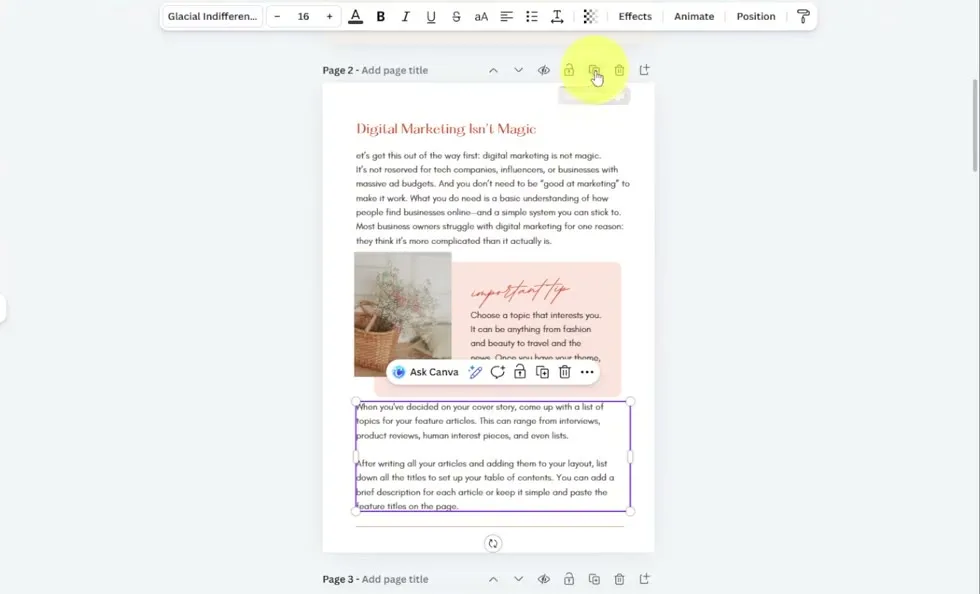
- If you want a page with only text, delete the other block on the page and keep the text.
Adjust each page to match the content you have.
Export the ebook as a PDF and share it
- Click Share at the top right.
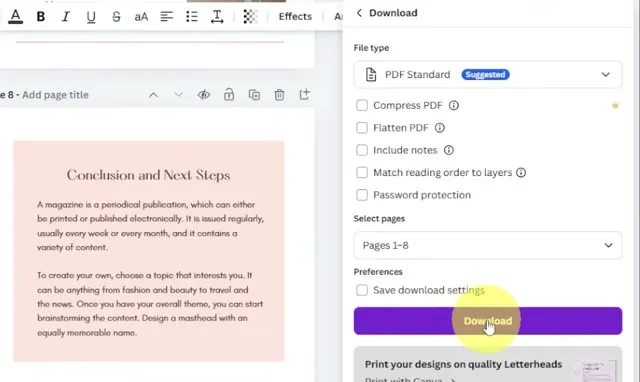
- Click Download.
- Choose PDF as the file type.
- Click Download. Canva saves the PDF to your computer.
Once you have the PDF, upload it to the cloud so people can download it, or attach it to emails, depending on how you are getting the ebook to your potential customers.
Common questions
Can you create an ebook for free?
Yes. The video builds the whole ebook with ChatGPT and a free Canva account. In Canva, templates marked with a small crown icon are only available on the Pro account, so skip those if you want to stay on the free one.
Should you ask ChatGPT to write the whole ebook at once?
No. The video recommends giving ChatGPT one task at a time. Ask for the outline first, then the table of contents, then each section on its own.
How do you find ebook templates in Canva?
On the Canva home page, make sure Templates is selected and search for "ebook multipages". Pick one that matches your brand and needs the least editing, then click Customize this template.
How do you save a Canva ebook as a PDF?
Click Share at the top right, then Download. Choose PDF as the file type and click Download. The PDF is saved to your computer.
Do you need to check what ChatGPT writes?
Yes. Read through everything it generates. ChatGPT can make up information or include details that are not accurate or do not fit your business or brand.
How do you share the finished ebook?
Once the PDF is downloaded, you can upload it to the cloud so people can download it, or attach it to emails.
Free Ebook Templates
A free set of 18 ebook templates for PowerPoint, Google Slides and InDesign, plus 30 customizable icons. The design is already done, so you just drop in your content.
Free Ebook Templates
A free set of 18 ebook templates for PowerPoint, Google Slides and InDesign, plus 30 customizable icons. The design is already done, so you just drop in your content.
Get the free templates