
Thumbnails for Shorts can make a big difference in whether people tap your clip or keep scrolling. Unlike regular uploads, you can’t just upload an external image as the thumbnail for a Short. The easiest and most reliable method is to use a frame that already exists inside the Short itself. Below you’ll find a clear, step-by-step approach to creating and selecting a custom thumbnail using the YouTube mobile app, plus practical tips to make that thumbnail work harder for your content.
Why you need a thumbnail frame inside the Short
At the moment, the YouTube mobile app only lets you choose a thumbnail from frames inside your Short. The desktop uploader will automatically pick a frame for you, but it doesn’t let you change that selection. That means if you want full control over the thumbnail appearance, you should place the exact image you want into the Short itself — commonly as the first frame — and then select it on mobile.
What to prepare before you open the app
- Create your thumbnail art: Design a vertical image that matches the Short’s aspect ratio (9:16). A common resolution for vertical content is 1080 x 1920 pixels. Keep key text and faces near the center so nothing important gets cut off in different player crops.
- Make it the first frame: When editing your Short in your editor (desktop or mobile), add the graphic as a static frame at the start of the clip for 1–2 seconds so it’s included as a selectable frame.
- Keep text legible: Use big, high-contrast text and strong color contrast. Avoid cluttered backgrounds and fine details that get lost on small screens.
Step-by-step: Choose a custom frame as your Shorts thumbnail
Follow these steps in the YouTube mobile app to pick the exact frame you want:
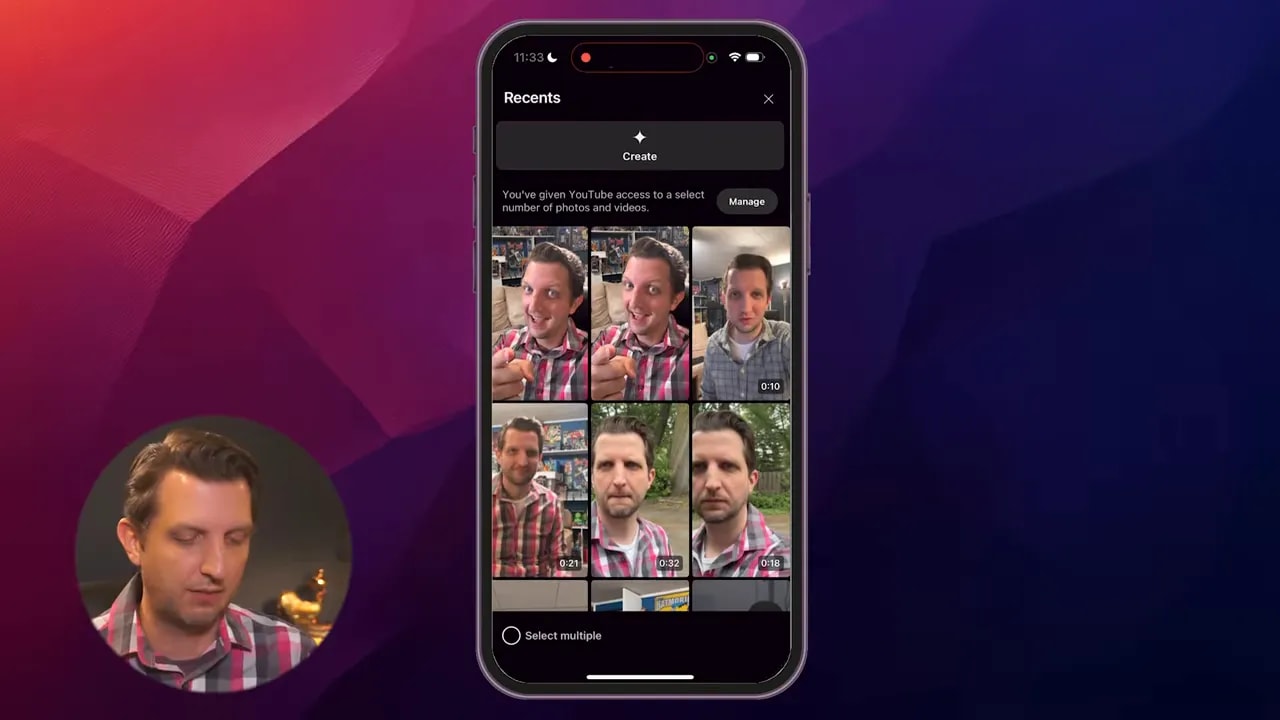
- Open the YouTube app and tap the plus sign at the bottom center. This opens the camera/upload interface where you select Short mode.

- Select or record your Short. You can record directly or choose a pre-edited video from your library. If you already added your custom image as the first frame, pick that video.
- Tap the check mark to confirm your selection and proceed to the upload details screen.
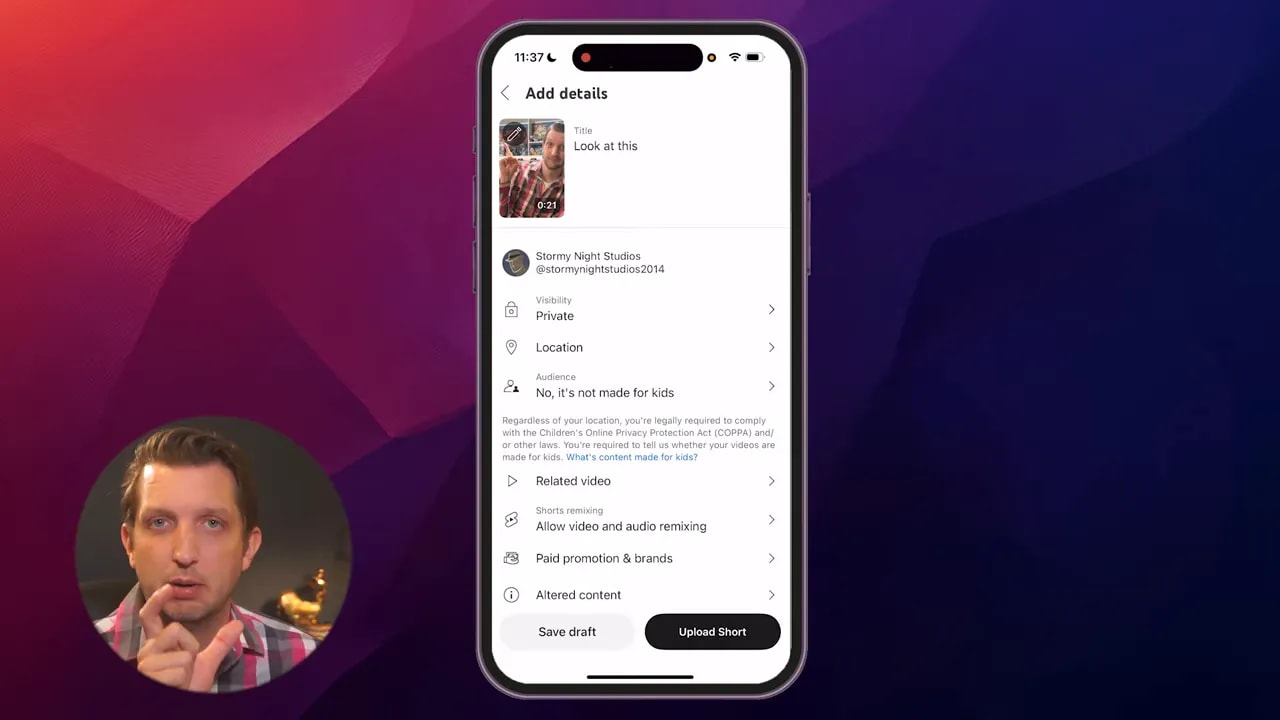
- On the details screen, look at the preview. The preview shows the default frame that will be used unless you change it.
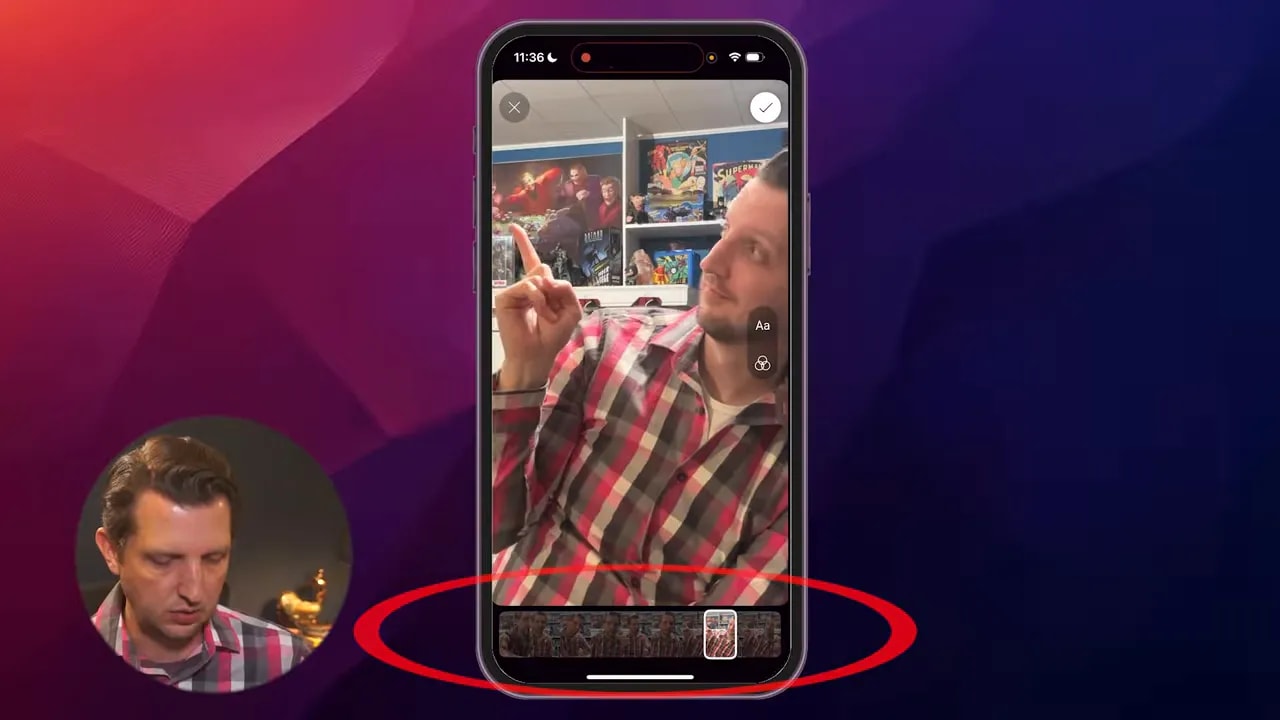
- Tap the pencil icon in the top-left of the preview. This opens a frame scrubber so you can scroll through the video and choose the exact frame you want.
- Scroll to the frame that contains your thumbnail image (for example, the first frame if you added it there) and tap the check mark to confirm.
- Finish the upload by adding title, privacy settings, and other options, then tap “Upload Short.” The selected frame will then be used as the thumbnail that shows on feeds and watch pages.
Quick troubleshooting
- Pencil icon missing: Update the YouTube app. The frame-select feature lives in the mobile interface and can change with app updates.
- Thumbnail not showing as expected: Make sure the image was actually added into the video timeline and not excluded by export settings. Add a second or two so the frame is clearly present.
- Desktop uploader shows a different frame: That’s normal. Desktop doesn’t let you choose a frame for Shorts; use the mobile app to lock in the frame you want.
Design tips that work specifically for Shorts
Thumbnails for short-form vertical video behave differently than traditional YouTube thumbnails. Use these practical design rules to improve click-through:
- Make faces bold and expressive. Thumbnails with close-up, expressive faces tend to perform better across platforms.
- Use large, readable text. Short viewers are scrolling quickly — make the message obvious at a glance.
- High contrast wins. Strong color contrast helps thumbnails pop on a busy feed.
- Keep composition centered. Because mobile players sometimes crop or overlay UI, place important elements near the center of the frame.
- Test different styles. Try several thumbnail approaches and compare which one gets more taps. Small changes to color, text, or expression can move the needle.
How to add a thumbnail image if you edit on desktop
If you edit on desktop, add the custom thumbnail image into the video timeline as a short hold or still frame at the beginning of the Short. Export the video, transfer it to your phone, then use the mobile steps above to select that first frame as the thumbnail. This gives you the design flexibility of desktop tools with the selection control of the mobile app.
Why bother with a custom Short thumbnail?
Even for bite-sized clips, a strong thumbnail can improve visibility and clicks. Thumbnails set expectations, communicate value in a single glance, and help your content stand out in crowded feeds. Because Shorts autoplay silently as users scroll, a thumbnail that quickly communicates the hook can tip someone into stopping and playing with sound.
Final checklist before you upload
- Custom image is added as a frame inside the video (recommended first frame).
- Image matches the Short’s vertical aspect ratio and keeps key elements centered.
- Text is large and high contrast for legibility on mobile.
- Use the YouTube mobile app to open the Short, tap the pencil icon on the preview, select the exact frame, and confirm.
Adding a custom thumbnail to a Short is a simple workflow once you get used to making the image part of the video itself and using the mobile picker. Small design and placement choices can boost click-through, so treat the first frame like your poster for the clip.
Try creating a few variations and compare performance — you’ll quickly learn which thumbnail style resonates with your audience.
Useful keywords for search
- YouTube Shorts thumbnail
- custom thumbnail for Shorts
- select thumbnail mobile app
- first frame thumbnail
Extra tips & troubleshooting
If you didn’t find everything you needed above, use these extra checks before uploading Shorts:
- Export settings: Confirm your editor exports a 9:16 file (1080 × 1920 recommended) and that the thumbnail frame isn’t trimmed by export settings.
- Frame duration: Keep the thumbnail frame for 1–2 seconds so the mobile picker can find it reliably.
- Transfer methods: When moving a desktop-exported file to your phone, use a direct transfer (cable, AirDrop, Google Drive) to avoid recompression that could remove single-frame holds.
- A/B testing: Create several thumbnail variations and upload them across similar Shorts to compare performance. Track click-through rate and average view duration for each style.
- Analytics to watch: Monitor impressions, CTR, and average percentage viewed to judge whether your thumbnail is attracting the right viewers.
- Common mistakes: Avoid small text, off-center composition, and low-contrast colors that get lost in fast-scrolling feeds.
Keeping this checklist handy will help you avoid the typical pitfalls and get the most out of custom thumbnails for your Shorts.