How to create a landing page with ChatGPT
Ask ChatGPT to write the landing page copy by telling it who you are, what the page is about, who the audience is and the goal. Then open HubSpot's free landing page builder, create a page from a template, paste in the copy, add a form that collects a name and email, preview the page and click Publish.
Quick steps
- Sign in to HubSpot's free landing page builder and go to Content, then Landing pages.
- Ask ChatGPT to write the landing page copy, then ask for changes until you like it.
- In HubSpot, click Create, choose Create from scratch and pick a template.
- Paste the ChatGPT copy into each section and delete the sections you don't need.
- Add a form that collects a first name, last name and email, and rename its button.
- Preview the page on desktop, mobile and tablet.
- Give the page a title and click Publish.
HubSpot Free Landing Page Builder
HubSpot's free landing page builder, the one used in the video to build the page, add a form and publish it.
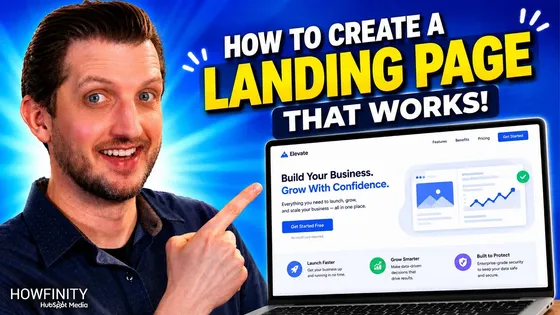
You can go from a blank page to a published landing page with two tools: ChatGPT for the copy and HubSpot’s free landing page builder for the page itself. The video’s example is a landscaping company offering a free guide called 10 Easy Ways to Improve Your Backyard, with a form that collects a name and email in exchange for the guide.
Open the landing page builder
- Open HubSpot’s free landing page builder and click the orange Get started button.
- Sign in with your preferred method. You can add an email or sign in with a Google account.
- In the menu on the side, go to Content, then Landing pages.
Write the copy with ChatGPT
Open ChatGPT and give it a prompt that covers four things: who you are, what you want the landing page to be about, who the target audience is and the goal of the page.
Create a landing page for a landscaping company offering a free guide called '10 Easy Ways to Improve Your Backyard.' The audience is homeowners who want to improve their outdoor space. The goal is to get visitors to download the free guide.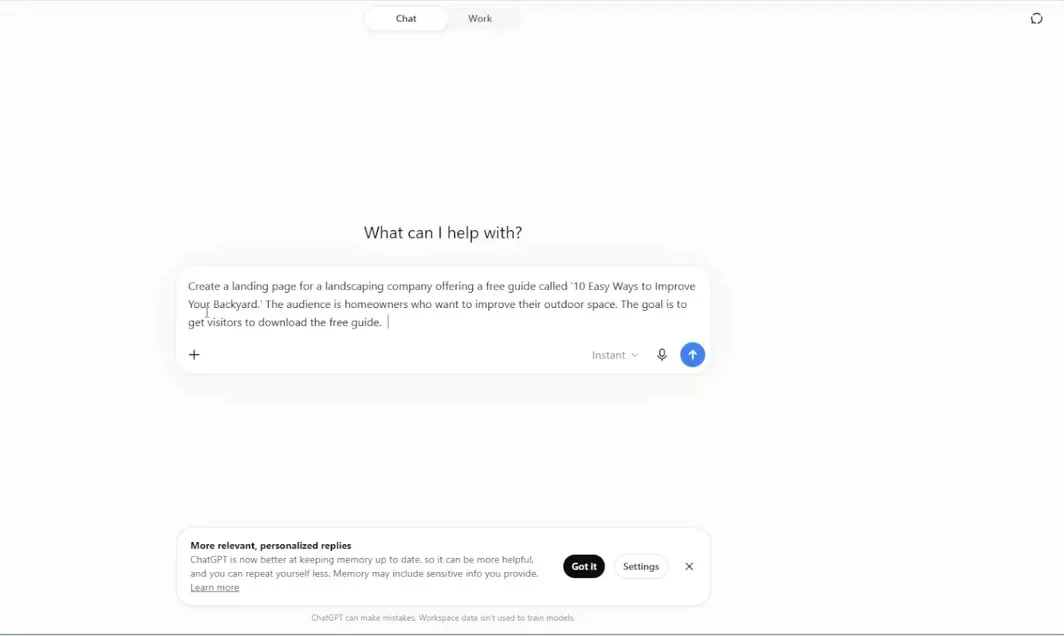
ChatGPT returns a starting draft: a headline, the body copy and the text for the “get your free guide” section.
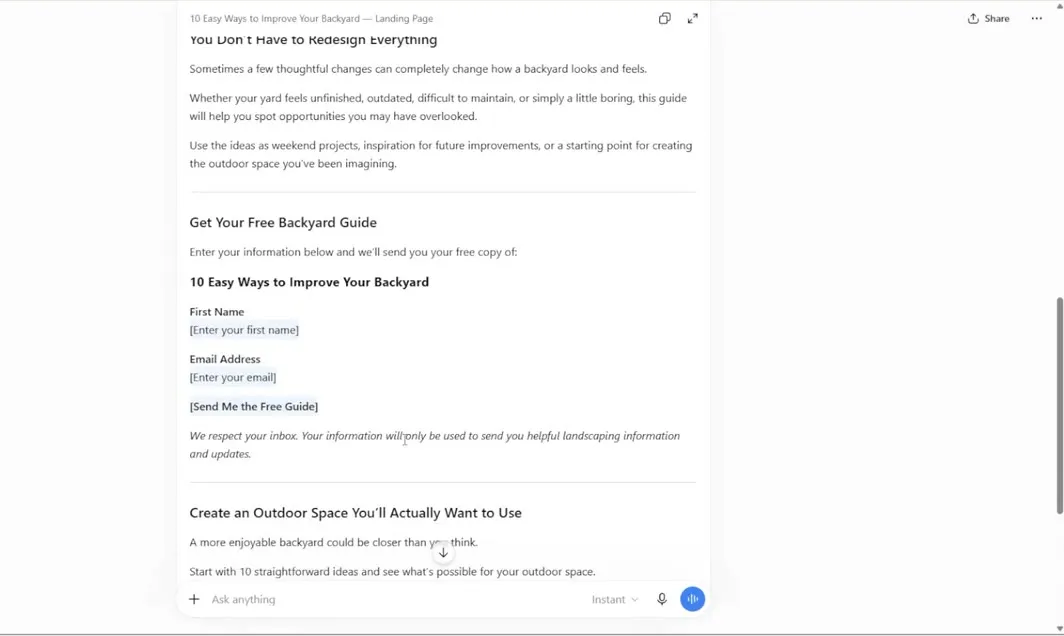
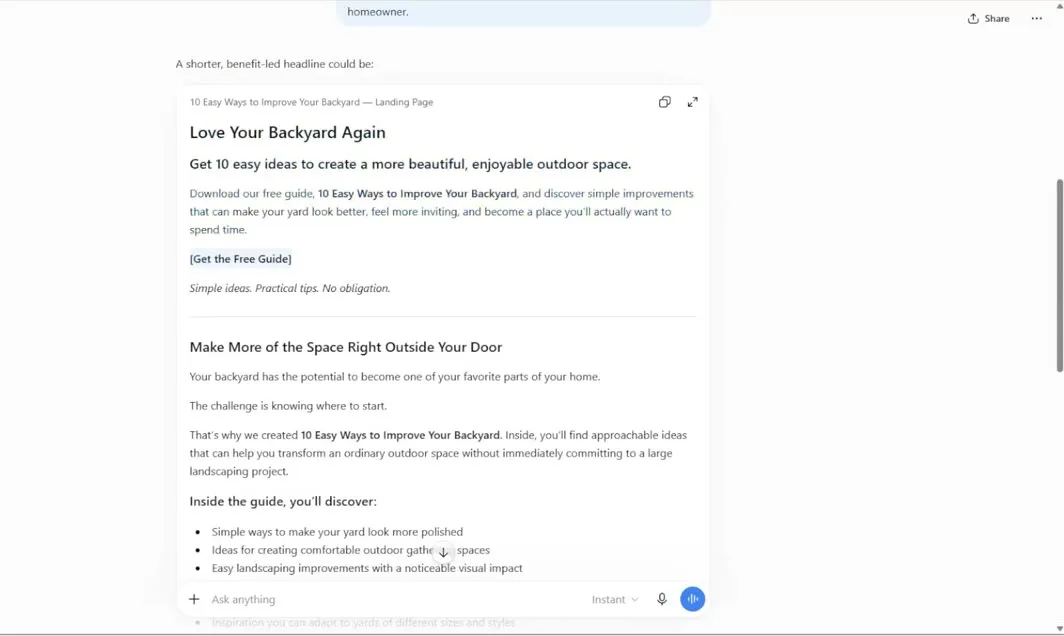
Read it over and make sure it has everything you want. You can go back and forth with ChatGPT and ask for a more specific headline or something different in a section. In the video, the follow-up asks for a shorter headline:
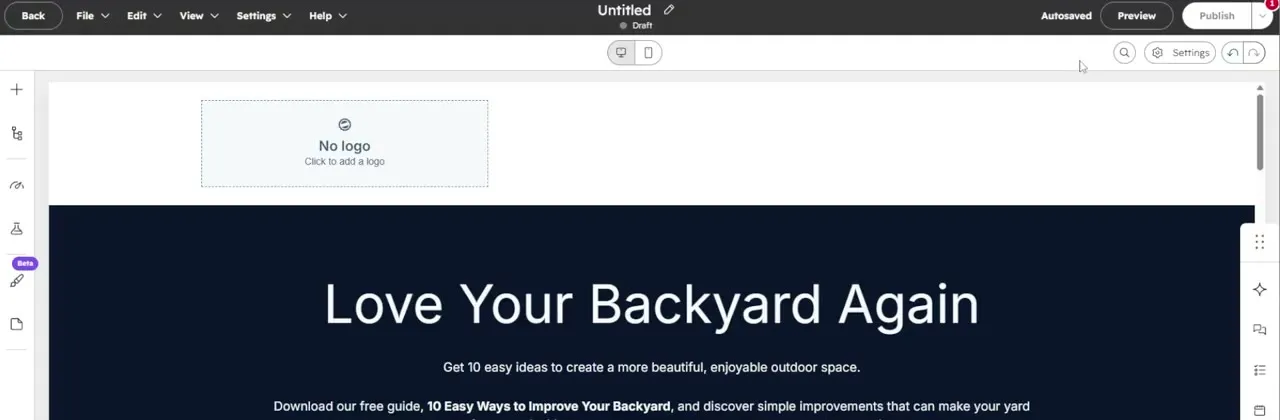
Make the headline shorter and focus more on the benefit to the homeowner.The new headline is “Love Your Backyard Again.”
Pick a template
- Go back to HubSpot.
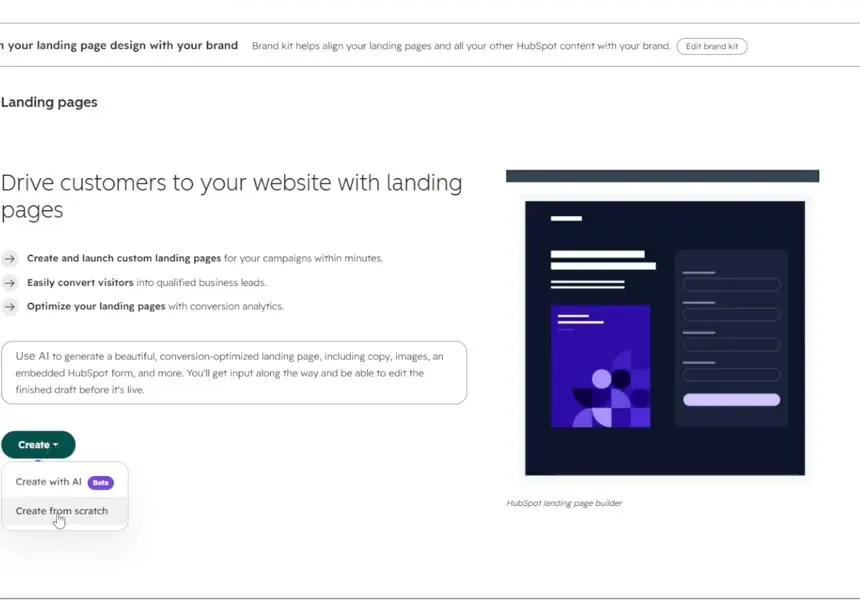
- Click Create, then Create from scratch.
- Look over the templates and find one that fits what you’re trying to do. There is a blank template too.
- Select the template. You can preview everything that’s in it.
Add your copy to the page
Now move the copy from ChatGPT into the page builder.
- Copy the headline from ChatGPT.
- In HubSpot, select the headline on the page and add the text in the box on the left.
- Go back to ChatGPT, copy the subheadline, select the subheadline on the page and paste it in.
- Repeat for the rest of the template until all your copy is in.
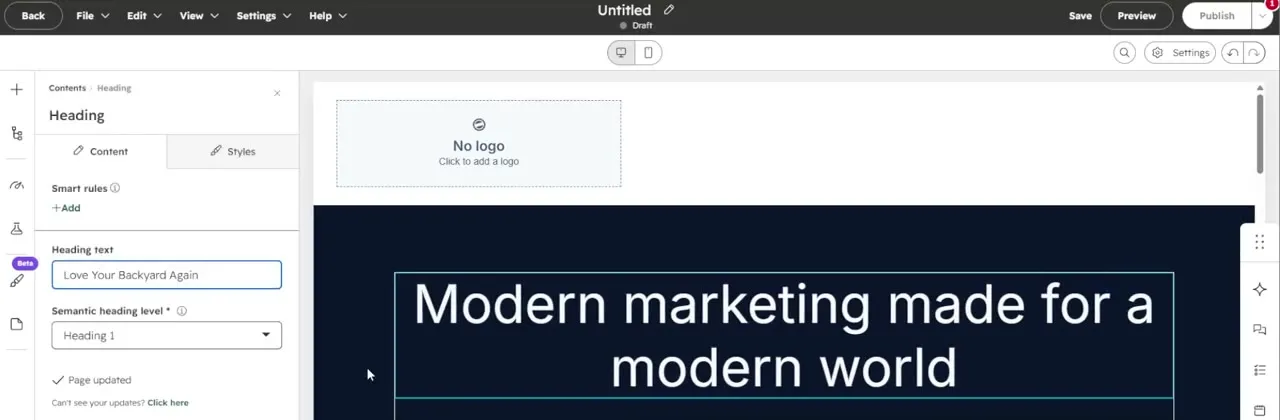
You can resize the text and adjust the fonts with the controls in the editor. Add your own logo and any other graphics you want. ChatGPT can help create those as well.
Each section of the template is built for a different kind of content. If there’s a section you don’t want, highlight it and click the trash can to remove it.
Add a form as the call to action
The call to action is the important element of any landing page. The template in the video comes with a button for a free demo. For a free guide, you want a form that collects the visitor’s information instead.
- Scroll down to the template’s call to action.
- Click the Add button on the side and scroll down to Forms and Buttons.
- Drag Form onto the page.
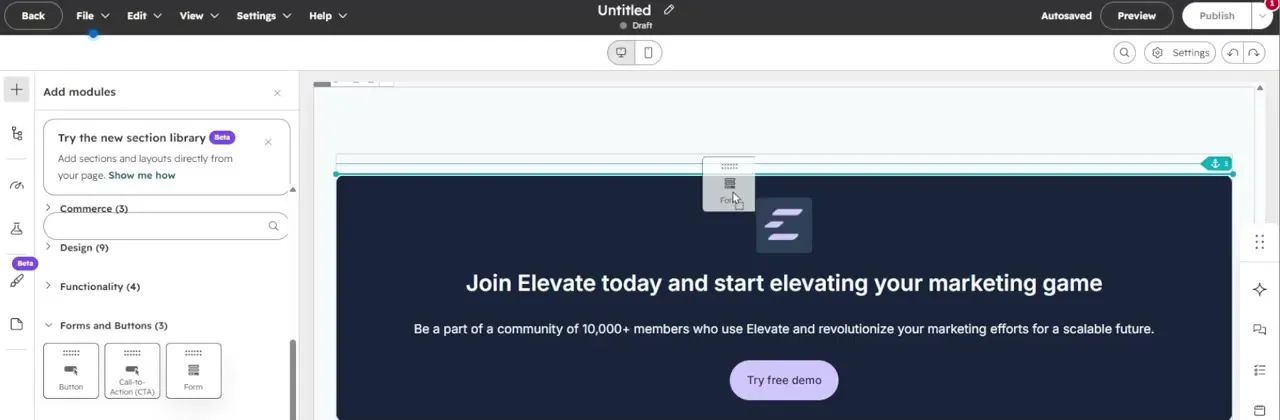
The new module says there is no form attached, so create one:
- Click Select form, then Create new form.
- Choose the form editor and click Next.
- Pick a simple template. The one in the video asks for a first name, last name and email.
- Copy the form text from your ChatGPT copy (“Enter your information below and we’ll send you your free copy of”) and paste it in above the fields.
- Change the Submit button text to Get the Free Guide, so it’s clear what happens when someone clicks it.
- Click Preview to make sure everything looks right.
- Change the form’s title. The video uses “Backyard Tips.”
After someone submits the form, they see a message that says “Form submitted. Thank you, we’ll be in touch soon.” You can then send them the free guide.
Go back to your landing page. You might need to refresh it. Click Select form, choose the form you just made and click Apply changes.
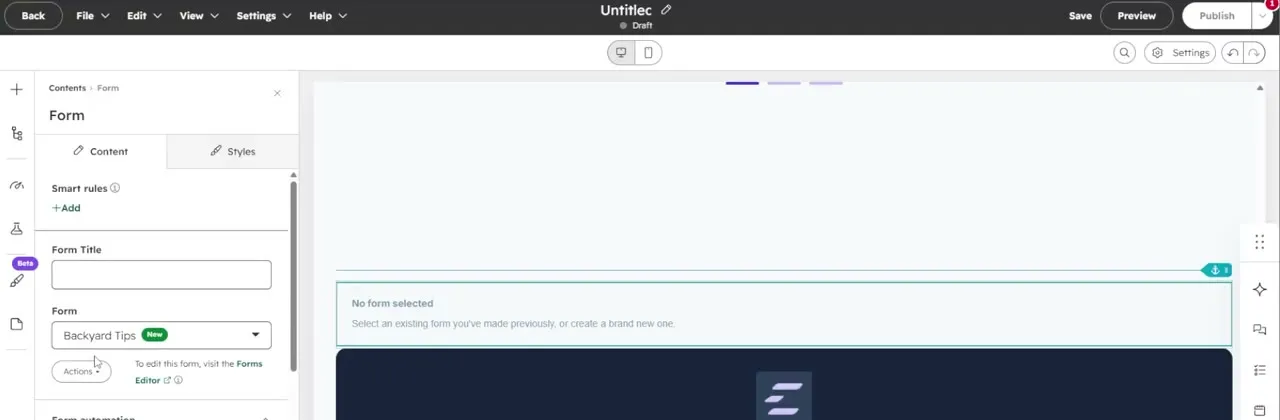
The form now sits on the page with your text, the three fields and the new button.
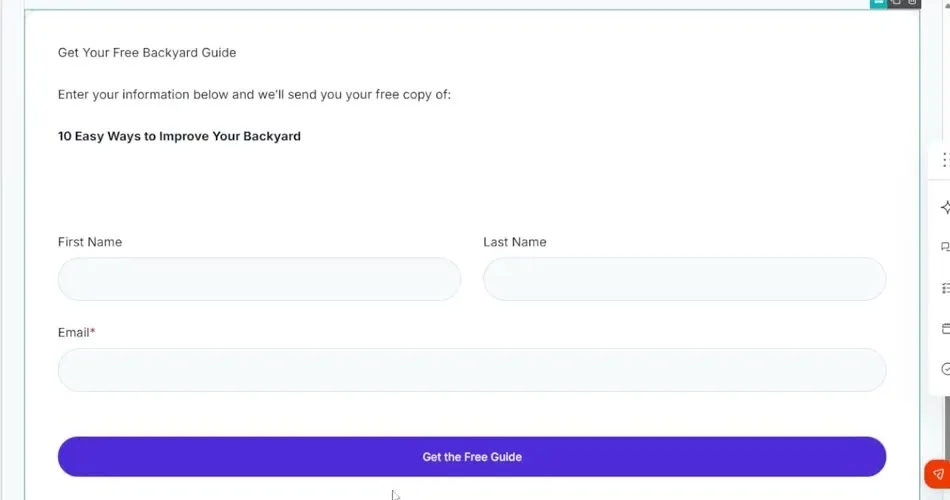
Preview the page
Click Preview and check that everything looks the way you want, including your brand elements. Take out anything that doesn’t need to be there. With landing pages, less is more: you want to get visitors to the guide you’re offering and the form.
You can also preview the page on a mobile device or a tablet to make sure it looks good there too.
Publish
- Click Publish.
- If HubSpot tells you the title is missing, add one. The video uses “Backyard Tips Landing Page.”
- Click Publish again. HubSpot shows you the page’s URL, and the page is live.
Common questions
Can ChatGPT create a landing page?
ChatGPT writes the copy for the page. In the video, one prompt returns a headline, the body copy and the text for the sign-up form. You then build and publish the page in a landing page builder, which here is HubSpot's free one.
What should I put in the ChatGPT prompt for a landing page?
Four things. Who you are, what you want the landing page to be about, who the target audience is and the goal of the page.
How do I create a landing page for free?
The video uses HubSpot's free landing page builder. You sign in, go to Content and Landing pages, start from a template, add your copy and a form, and publish.
What should the call to action on a landing page be?
Make it clear what happens when someone clicks. In the video, the form asks for a first name, last name and email, and the button text is changed from Submit to Get the Free Guide.
How much should I put on a landing page?
Less is more. The video removes any section that doesn't need to be there, so visitors get straight to the guide being offered and the form.
HubSpot Free Landing Page Builder
HubSpot's free landing page builder, the one used in the video to build the page, add a form and publish it.
HubSpot Free Landing Page Builder
HubSpot's free landing page builder, the one used in the video to build the page, add a form and publish it.
Get started free