
Sora is an iPhone app from the creators of ChatGPT that transforms plain text and simple images into short, AI-generated videos. This guide walks through how Sora works, how to set up your AI cameo, and practical tips for creating, sharing, and remixing content—all without needing a camera or special editing skills.
What Sora does and why it matters
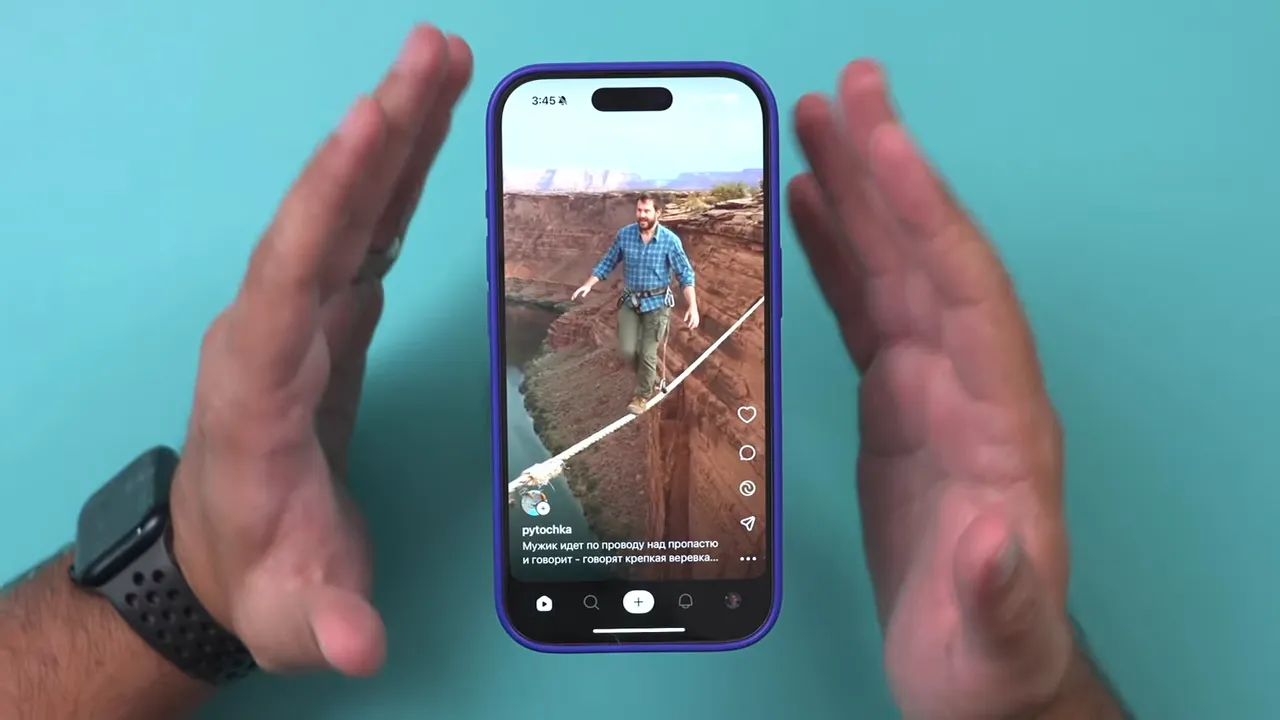
At its core, Sora is a social app built around an AI video generation model. Instead of recording real footage, Sora generates every clip with AI based on text prompts, uploaded images (with restrictions), and AI “cameos”—digital avatars that act like you on screen. The result feels like scrolling through a familiar short-form feed, except every video is synthetic.
Getting started: download and sign up
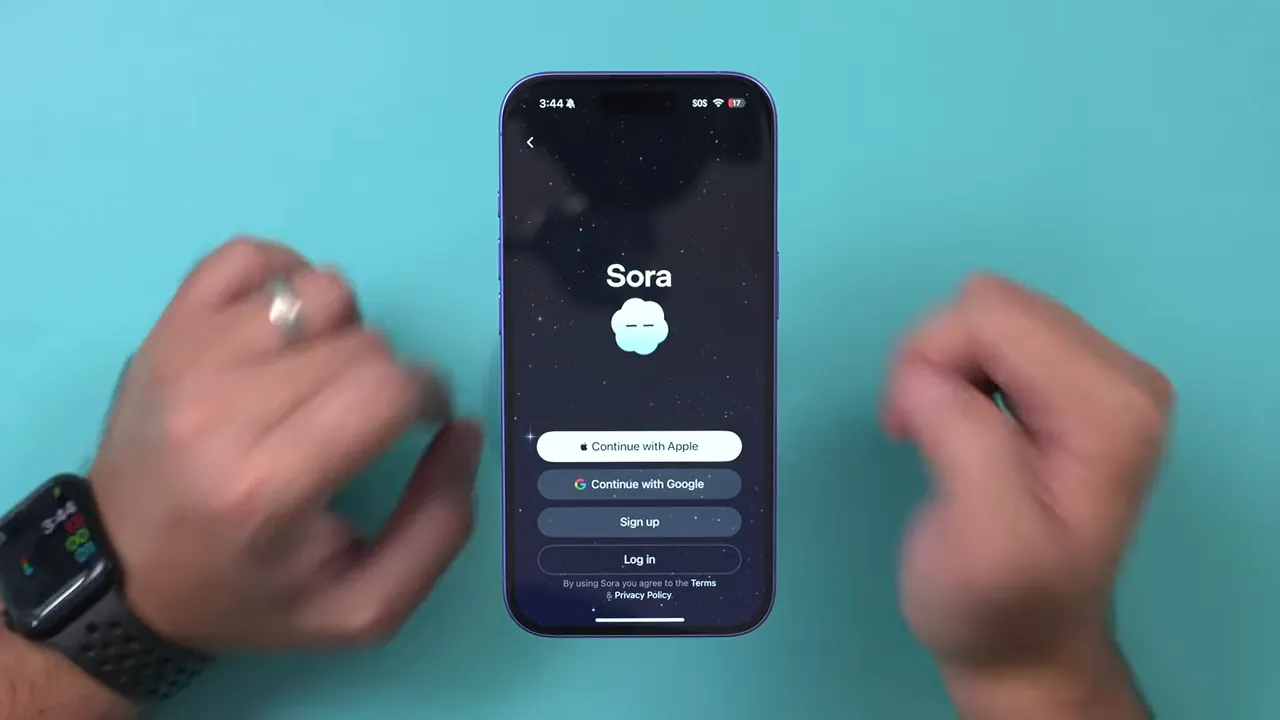
Sora is currently available on iPhone. Search for Sora by OpenAI in the App Store, then sign in with your ChatGPT account, Apple, Google, or email. During early rollout you might be asked for an invite code. If so, that code is only required to continue; otherwise the app will let you jump in immediately.
Quick checklist before you create
- iPhone and App Store access
- Sign-in method (ChatGPT, Apple, Google, or email)
- Optional invite code during initial sign-up
Exploring the Sora interface
The home feed resembles TikTok or Instagram Reels, but every clip is AI-made. You can sort the feed by recommendations, latest posts, or only show videos generated from text that matches a phrase you enter. Profiles are straightforward: username, follower count, profile picture, and bio.
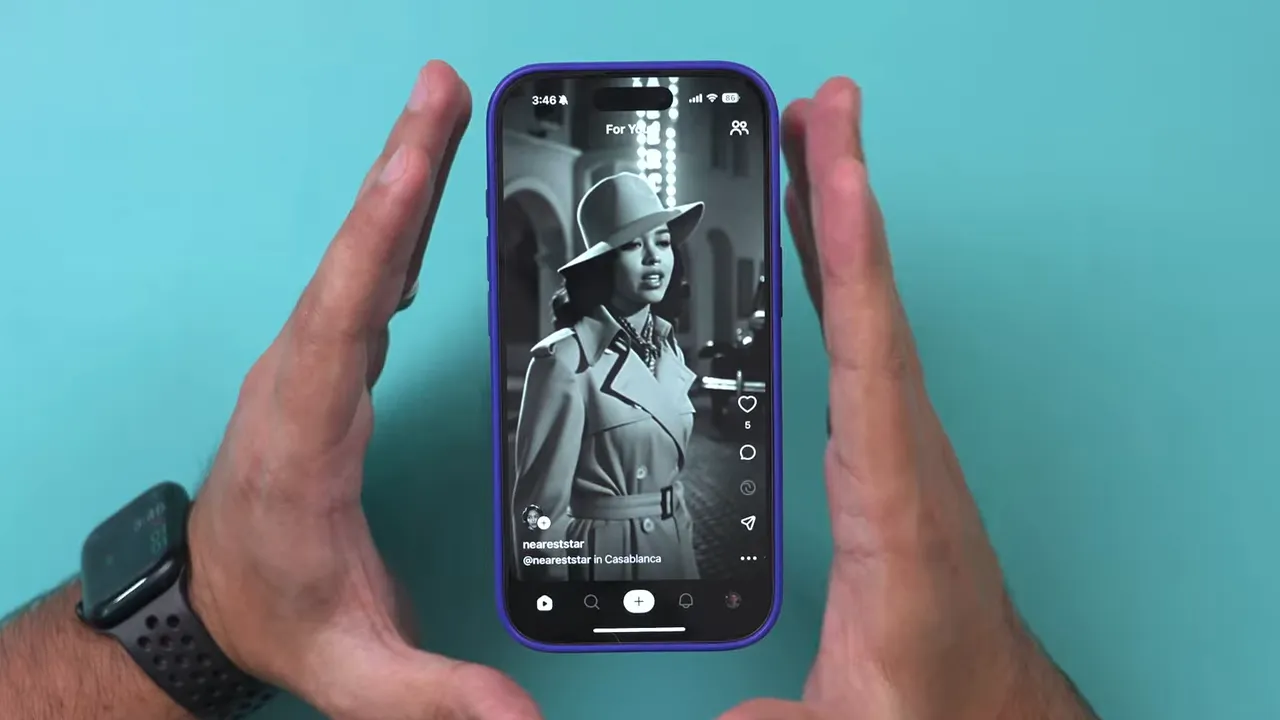
Interaction options include liking, commenting, remixing, sharing, and downloading. Keep in mind downloaded videos will include a Sora watermark.
How to create a video with Sora
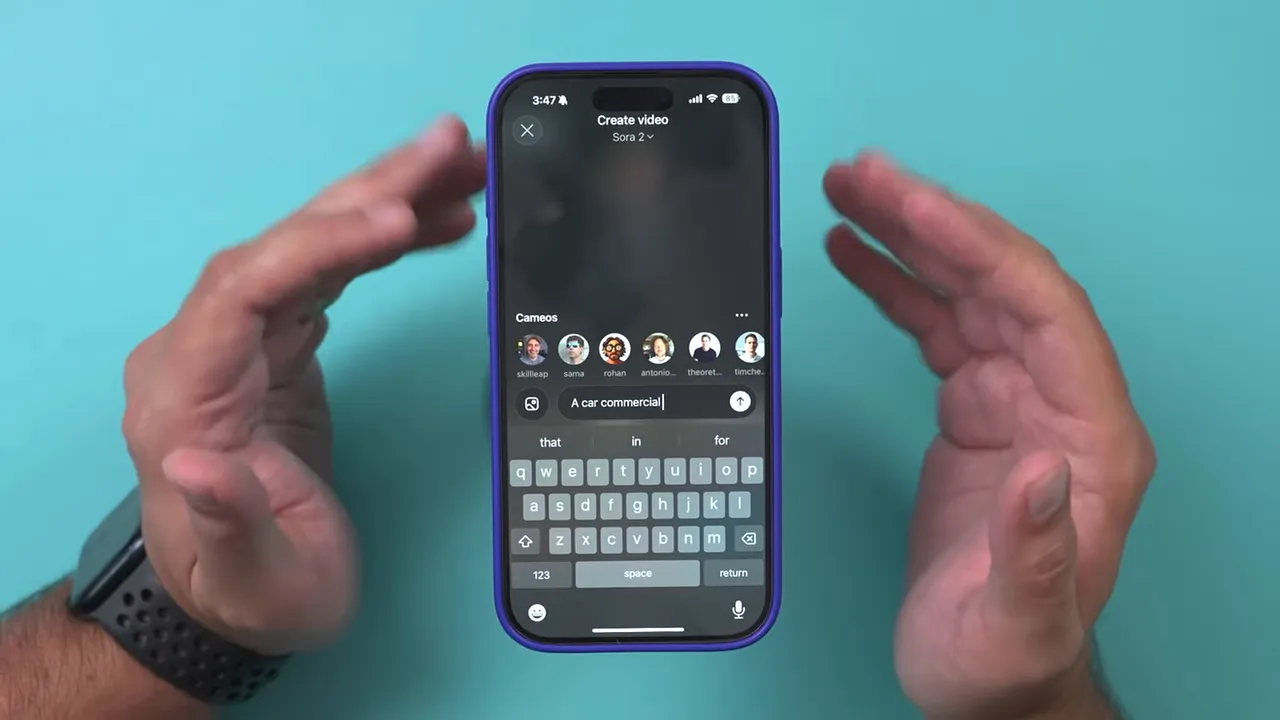
Tap the plus sign to start. The simplest workflow is:
- Type a short prompt (for example, “car commercial”).
- Choose whether the clip includes a cameo of you, other public cameos, or no people at all.
- Send and wait a short time—Sora generates a 10-second video by default.
“It’s not just a drive, it’s a climb through mountains, through city streets, through every boundary you’ve ever met.”
That example copy above shows how cinematic voiceover-style text can pair with the visuals Sora generates. You can also create landscape videos for external platforms, although portrait fills the mobile feed best.
Cameos: put yourself (or friends) in AI videos
Cameos are Sora’s AI avatars. Create a cameo by granting camera access and following the short capture steps—reading numbers, moving your head, and letting Sora build a model of your face and expressions. The process takes only a minute.
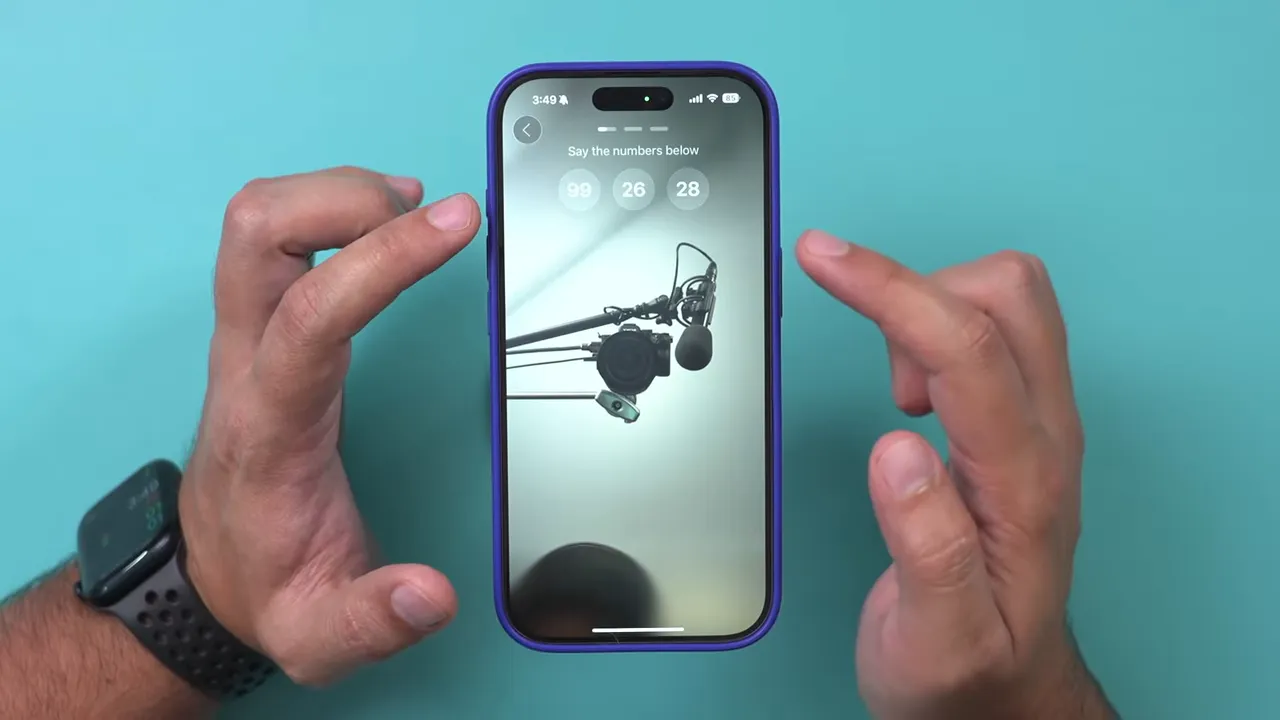
Privacy controls for cameos are robust. You can set your cameo to:
- Only me (completely private)
- Approve followers (followers request to use your cameo)
- Mutual follow (both accounts must follow each other)
- Everyone (anyone can use your cameo), with optional exclusions
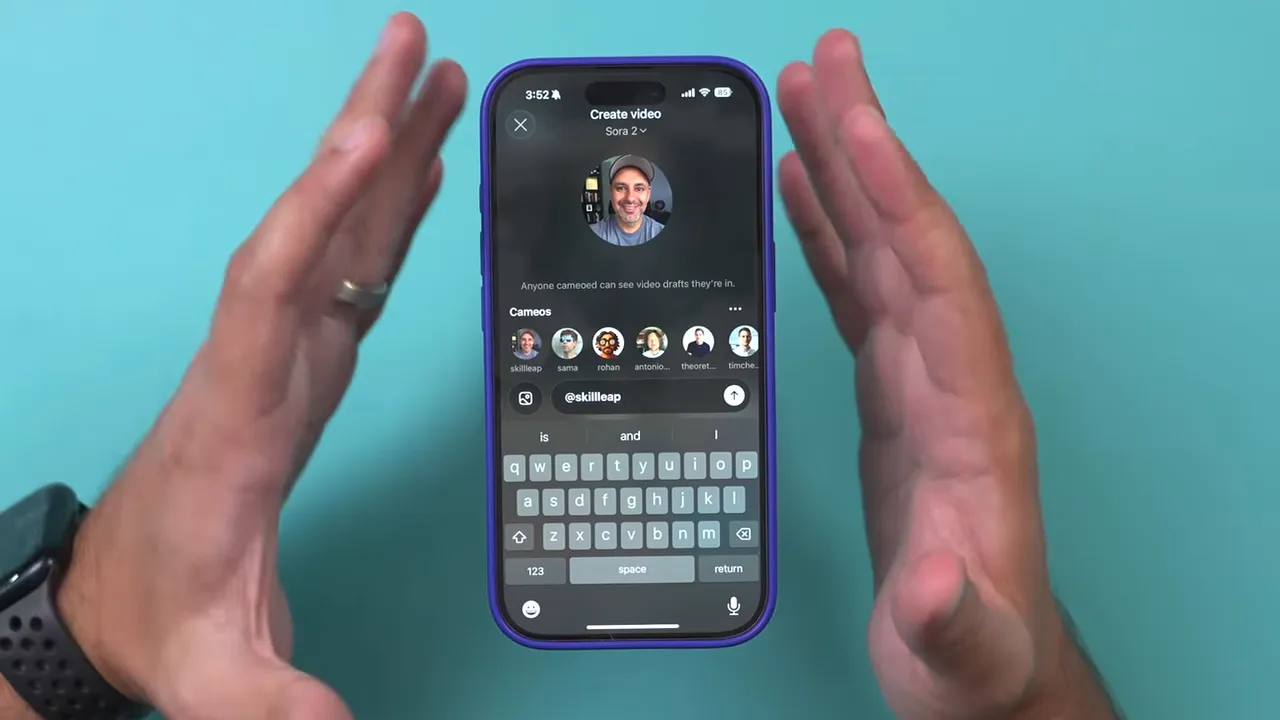
Cameo preferences allow you to restrict what your AI avatar can do. Use that field to write explicit limits (for example, “Do not generate political content with my cameo”). These controls help manage misuse and set expectations for how your likeness is used.
Collaborative clips and multi-person cameos
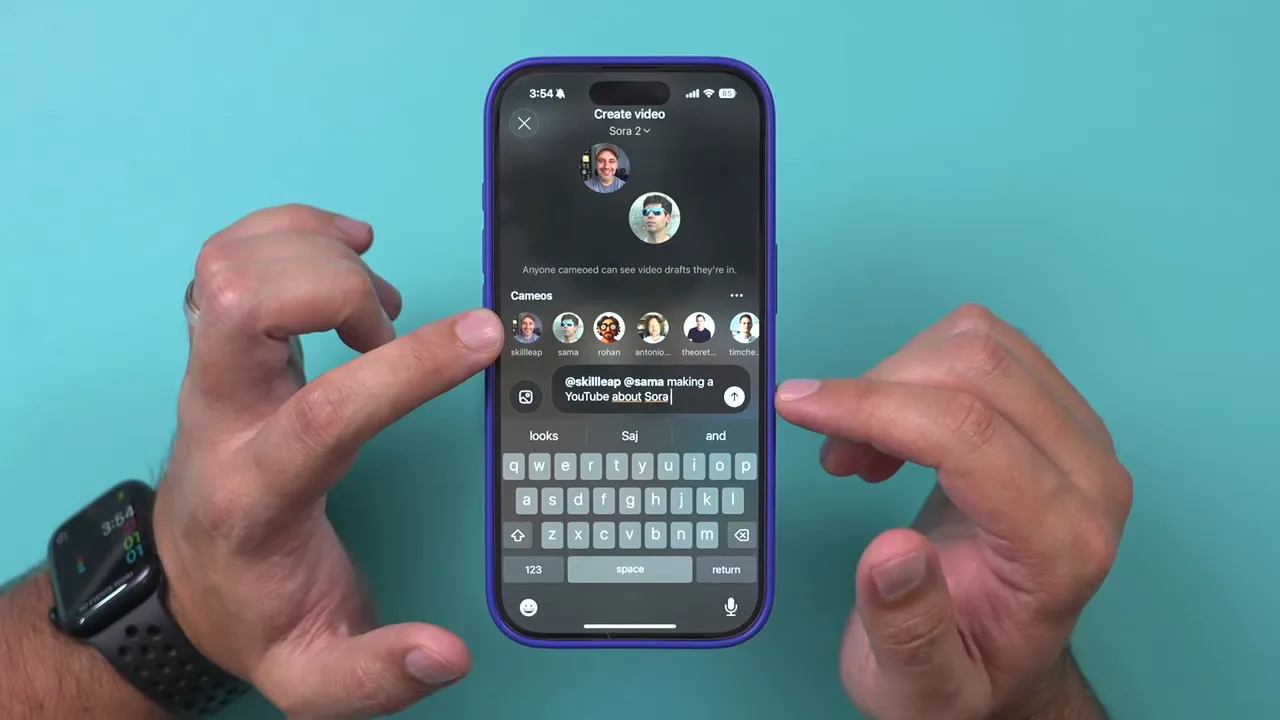
Sora supports multi-person videos. If other people have set their cameos to be available to everyone (or to mutual/follower rules you satisfy), you can tag them in prompts and generate clips that include multiple AI avatars. This enables short sketches, interviews, or collaborative skits without coordinating schedules or cameras.
Using images to generate scenes (pets, backgrounds, and more)
You can also upload images to Sora and animate or expand them based on text prompts. Important restriction: uploaded images cannot contain people. That privacy rule lets you animate pets, landscapes, objects, and other non-human content.
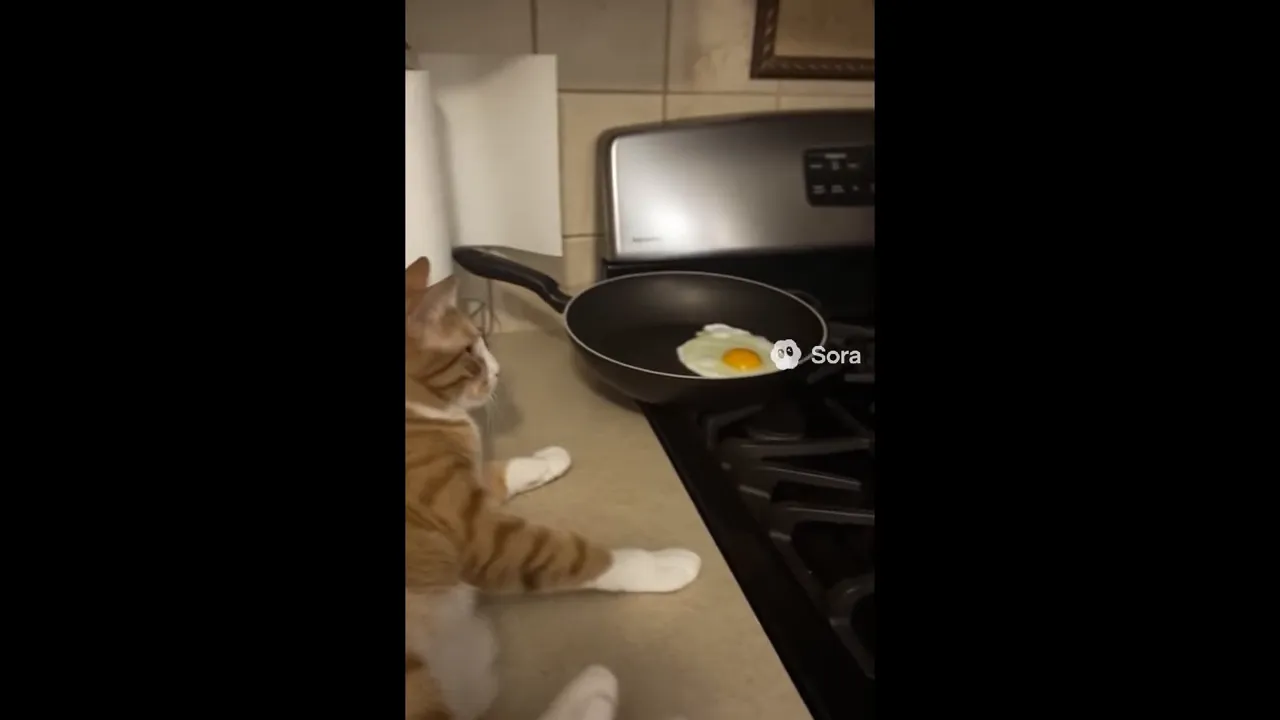
Example: upload a photo of a cat and prompt “cat cooking breakfast.” Sora will build a short animated scene and combine it with AI-generated dialogue or sound. Results are saved to drafts first so you can preview and refine before posting.
Drafts, posting, remixing, and sharing
Every generated clip lands in Drafts. This is where you preview, edit, and decide whether to post. Once published, content appears on your profile with AI-generated captions and description text.
Other users can remix your clips—describe what they want changed and Sora will generate a new version using the original as a base. Sharing options include copying links, direct shares, and downloading (again, downloads include a watermark).
Messaging, searching, and discoverability
Sora includes search to find creators by handle and a direct message feature for conversations. Creators can toggle whether they accept DMs. Use search to follow creators, discover cameos, and explore prompts people are using for inspiration.
Practical tips for better Sora results
- Be specific with prompts: Short prompts work, but adding texture (mood, location, shot type) yields more cinematic clips.
- Use cameo preferences to protect your likeness and limit contexts you don’t want your cameo used in.
- Experiment with images: Pets and backgrounds animate well; avoid people in uploads for privacy reasons.
- Keep drafts organized: Use drafts to iterate—remix or tweak prompts until the timing and voice match your vision.
- Think about platform fit: Portrait is ideal for in-app reach; landscape works better if you plan to post elsewhere.
Ethics and safety reminders
Sora is fast and creative, but it also raises image and identity concerns. Use cameo controls generously, respect other creators’ settings, and avoid generating harmful or misleading content. The app’s no-person rule for uploads and cameo privacy options are helpful safety defaults—use them.
Final thoughts
Sora turns text and simple pictures into shareable short videos, putting powerful generative tools in anyone’s pocket. Whether you want to produce quick promotional clips, playful pet animations, or collaborative sketches with AI cameos, Sora makes the process accessible. Start small, protect your likeness, and iterate from drafts to refine your style.
Try creating one short prompt and one cameo today to see how Sora reshapes the way you tell visual stories.