How to make an infographic with AI in Piktochart
To make an infographic with AI, sign up for a free Piktochart account, open Infographics and click Generate AI Infographic. Pick a format, type your topic, add optional instructions and click Generate Infographics. Then choose a design, edit the text, colors and images, and download it as a PNG.
Quick steps
- Create a free Piktochart account with your email or Google account.
- Open Infographics in the left menu and click Generate AI Infographic.
- Choose Infographic and a format, such as List.
- Type your topic, add optional instructions and click Generate Infographics.
- Choose a design, then click Save & Edit Infographic.
- Edit the text, colors and images.
- Preview it, then click Download.
AI Content Agent
A free AI agent that turns one video or podcast transcript into LinkedIn posts, newsletters, video scripts and outreach.
Infographics deliver complex information in a visual way, but they take time to create. Piktochart can build one from a text prompt. This guide follows one example the whole way through, an infographic called “Top 5 Digital Marketing Tips”, made on the free plan.
Sign up for a free Piktochart account
Piktochart has several payment tiers, including a free option. The free plan is all you need to try this.
- On the pricing page, click Get Started under the free plan.
- Sign up with your email or your Google account.
- Answer what you will use Piktochart for. The video picks work.
- Choose your role, such as Marketing/PR/Advertising, and click Continue.
Piktochart takes a moment to personalize your account, then shows templates it recommends based on your answers.
Open the AI Infographic Generator
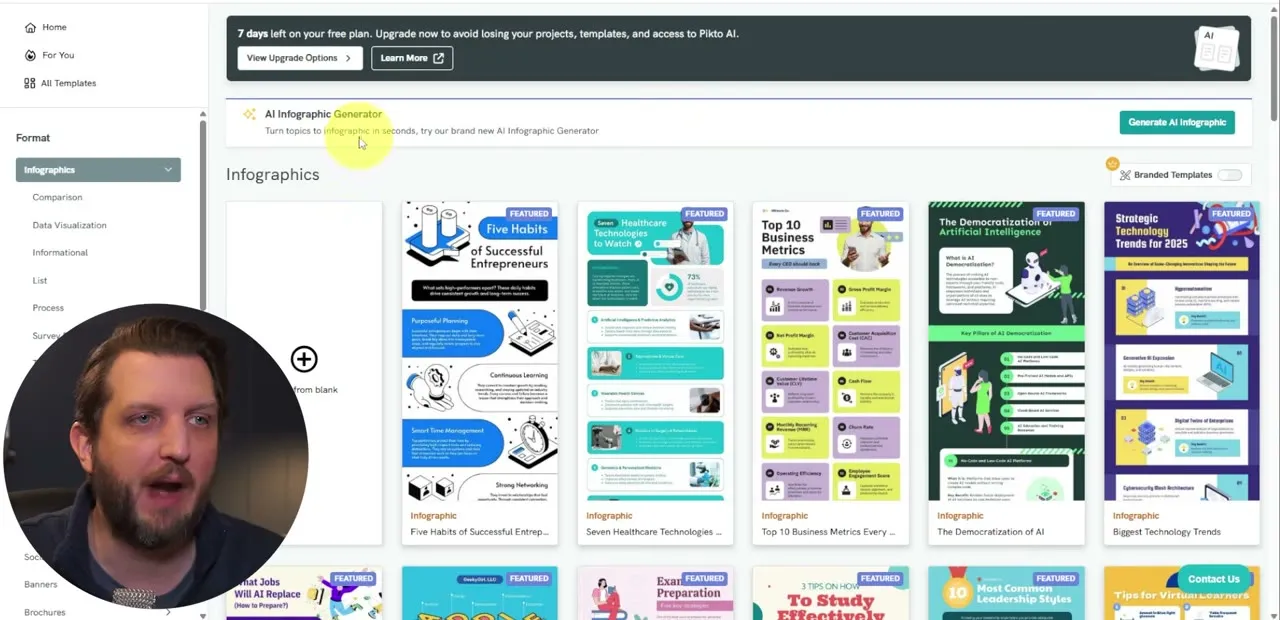
- In the left menu, click Infographics. You will see templates you could pick and customize by hand.
- At the top, find AI Infographic Generator and click Generate AI Infographic.
Type your topic and instructions
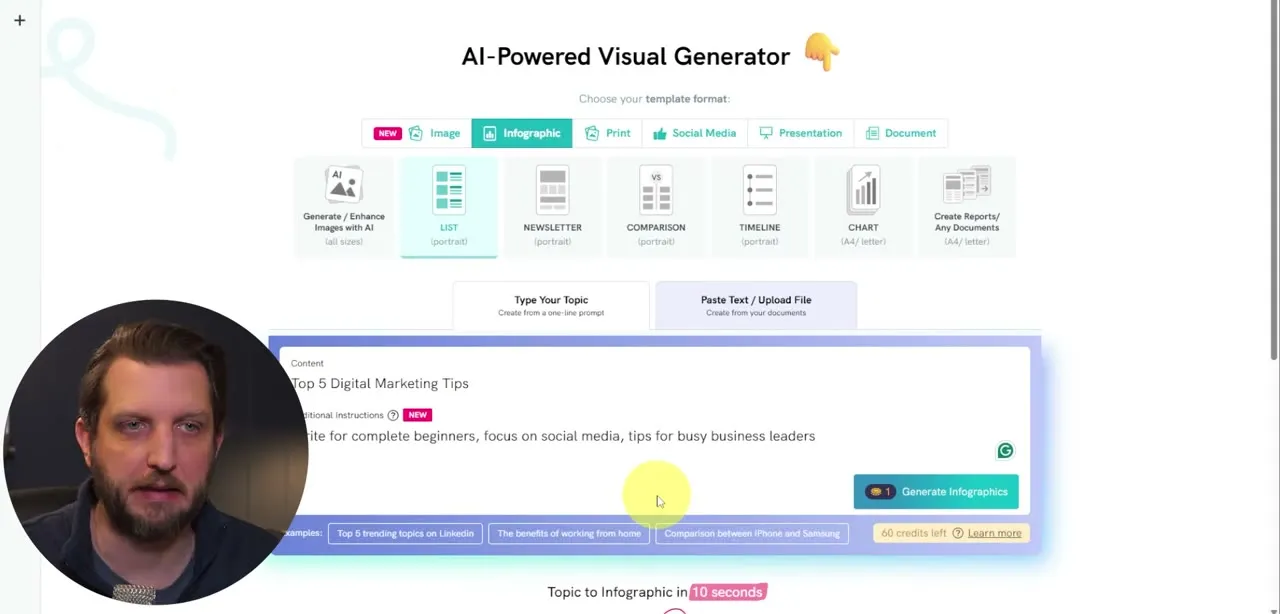
The generator page lists the different things you can create with AI.
- Click Infographic.
- Pick a format below it. The video uses List (portrait).
- In the Content box, type what you want the infographic to be about:
Top 5 Digital Marketing Tips- Additional Instructions is optional. Use it to add a tone, a type of language or more context, so the result is more detailed and closer to what you want:
Write for complete beginners, focus on social media, tips for busy business leaders- Click Generate Infographics.
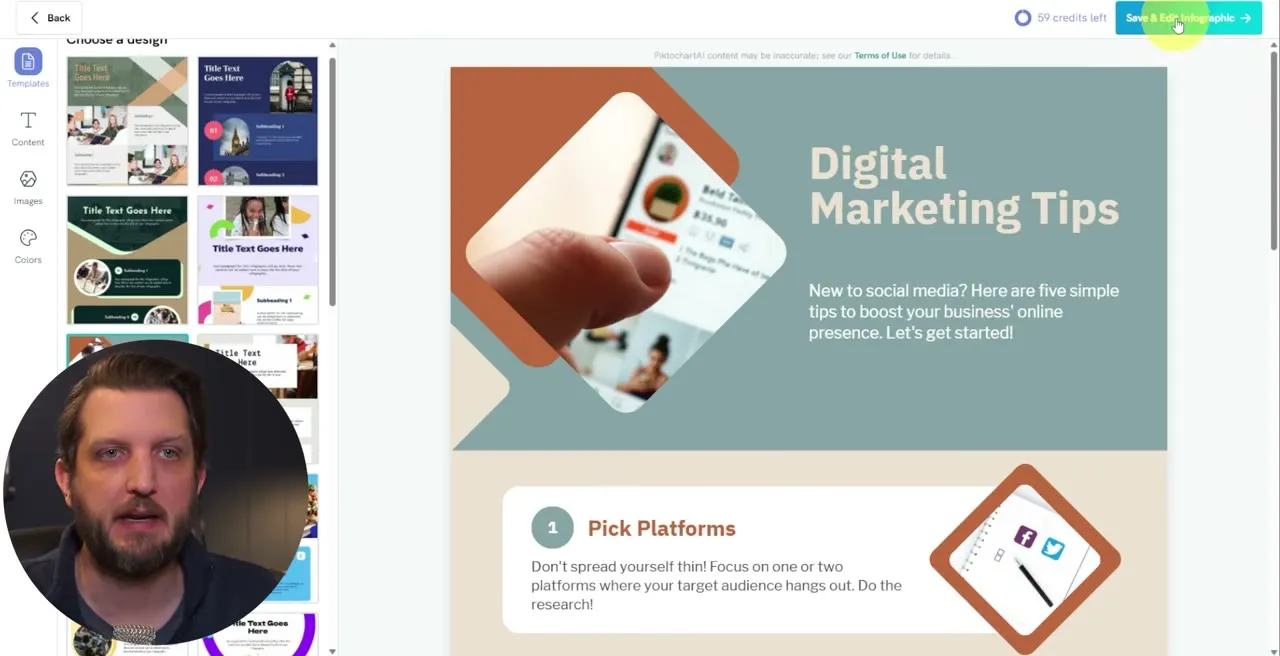
A few seconds later the infographic appears, with a headline at the top and the tips below it: pick platforms, post consistently and so on. Read down the list to review it.
Choose a design
Piktochart picks a design for you, but you can change it.
- Under Choose a design on the left, scroll through the options.
- Click one. The design changes right away and the information stays the same.
- Click through until you find the one you like best.
- Click Save & Edit Infographic at the top.
Edit the text
Look through the infographic in the editor. If you are happy with it as it is, click Download and you are done. To change something, click the box you want to change and type.
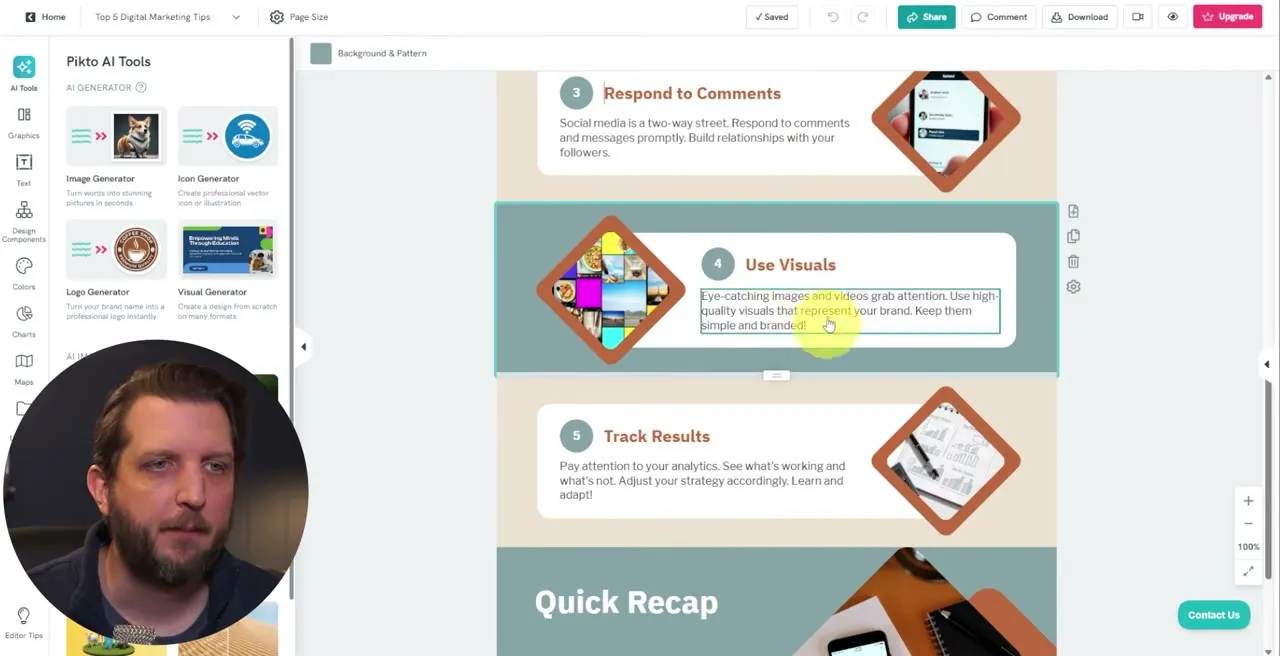
In the video, the headline becomes “5 Digital Marketing Tips” and the third tip, “Engage Back”, is renamed “Respond to Comments” to make it clearer.
Change colors and images
To change a color:
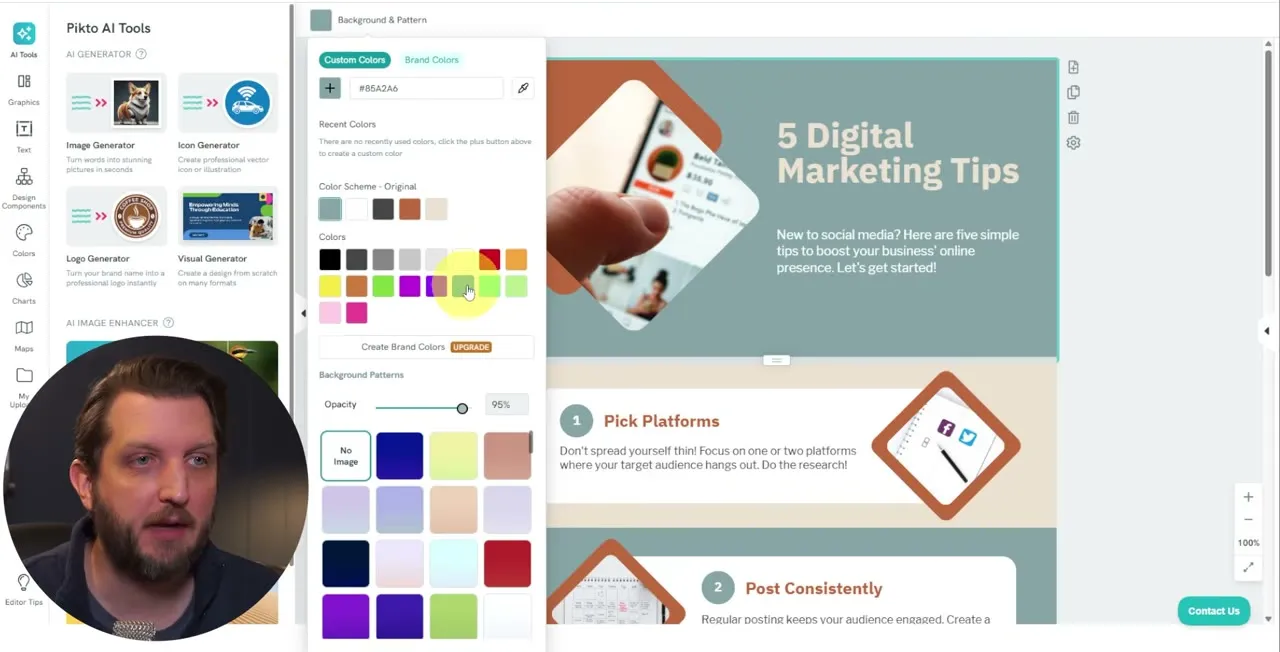
- Click the part you want to change, such as the background.
- At the top, click Background & Pattern.
- Pick a different color.
To change a picture:
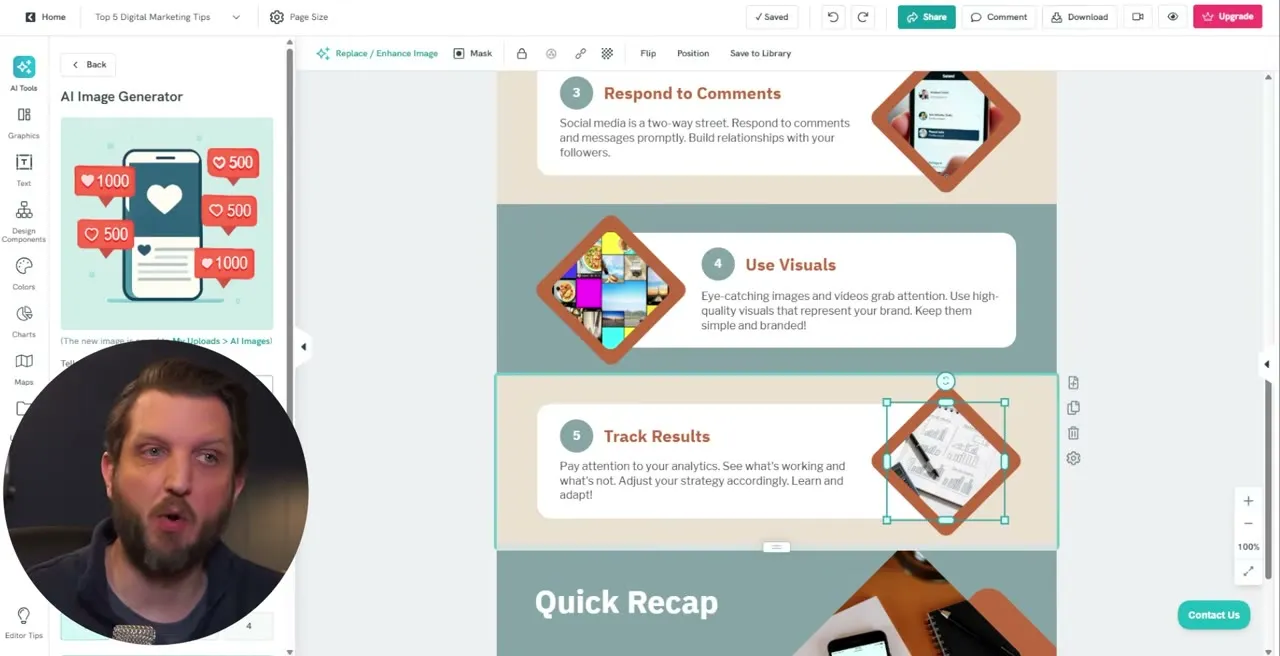
- Click the picture.
- Open My Uploads to upload your own photo, or go back to the AI tools to generate a new image.
- For an AI image, describe what you want and click Generate Image. The video uses:
more likes and views on social media- Make sure the picture you want to replace is selected in the infographic.
- Hover over the new image and click Insert to the page.
Preview and download
- Click the eye icon at the top to preview the infographic without the editing guidelines.
- Click Exit Preview.
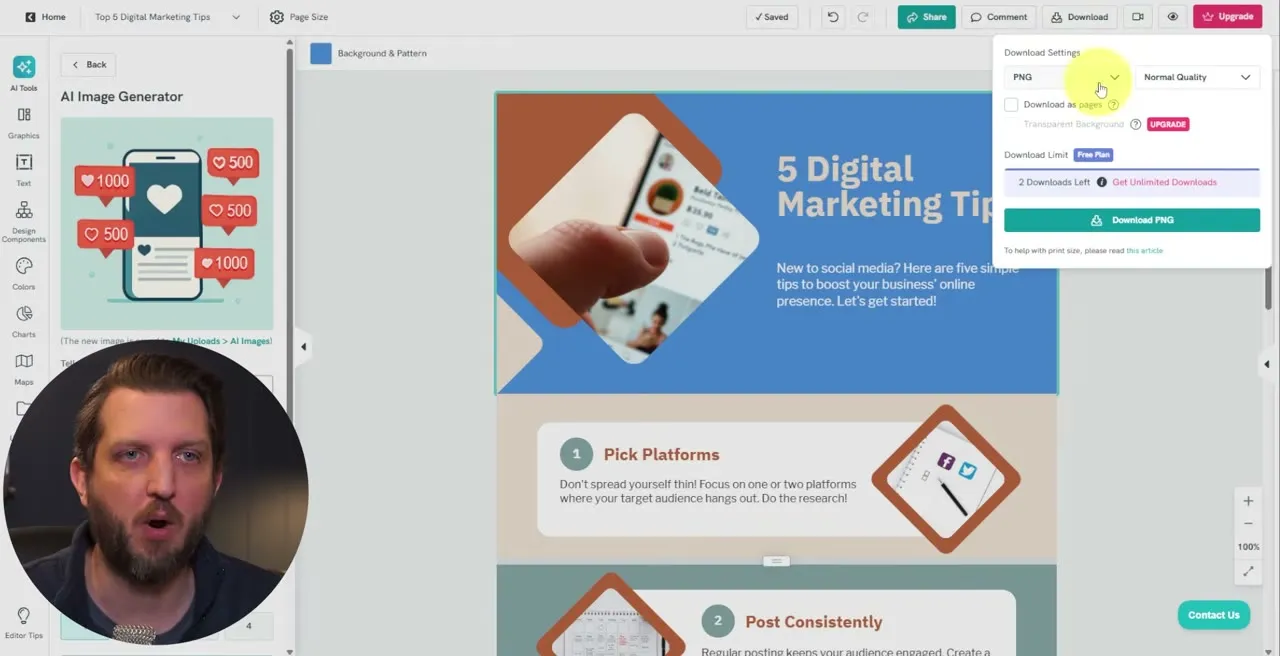
- Click Download. You can save it as a PNG or a different file type, choose the quality and choose whether to download as pages. The video leaves these as they are.
- Click the download button. It can take a few minutes, then the file is in your downloads folder.
You can add the infographic to your website, send it in an email or use it for lead generation.
Common questions
Can you make an infographic with AI for free?
Yes. The video uses Piktochart's free plan from start to finish. Paid plans are there if you want to build more or have more options.
How long does it take AI to make an infographic?
In the video, Piktochart generates the infographic a few seconds after you click Generate Infographics. Editing the text, colors and images afterward is up to you.
What should I write in the additional instructions?
The box is optional. Use it for a tone, a type of language or more context on your topic. The video adds "write for complete beginners, focus on social media, tips for busy business leaders."
Can I edit the infographic after AI creates it?
Yes. Click any text box to rewrite it, click the background to change its color, and click a picture to swap in your own upload or a new AI image.
What file type does Piktochart download?
The download menu lets you save as a PNG or a different file type, pick a quality and choose whether to download as pages. The video leaves the settings as they are and downloads a PNG.
AI Content Agent
A free AI agent that turns one video or podcast transcript into LinkedIn posts, newsletters, video scripts and outreach.
AI Content Agent
A free AI agent that turns one video or podcast transcript into LinkedIn posts, newsletters, video scripts and outreach.
Get the free agent