How to use Google Gemini for work
To use Gemini for work, sign in at gemini.google.com and write prompts with three parts, the task, the details and the format you want back. Put your business files and instructions in a notebook so you never repeat yourself, then use Deep Research, Canvas, skills and Task mode for the bigger jobs.
Quick steps
- Sign in at gemini.google.com with a free Google account.
- Write each prompt in three parts, the task, the details and the format.
- Create a notebook, add your files as sources and give it instructions.
- Turn on Deep Research from the plus menu when you need a full report.
- Use Canvas to build a small tool, such as a quote calculator.
- Create a skill for work you repeat, then connect Google Workspace and hand a job to Task mode.
Google Gemini at Work
A free guide to using Gemini at work.
Gemini does a lot more than answer questions. This guide follows one example the whole way through, a 12-person roofing company called Harbor Point Roofing, and uses Gemini to write follow-up emails, answer questions from its own price sheet, research software, build a quote calculator and draft replies in Gmail.
Sign in, and what needs a paid plan
Go to gemini.google.com. There are also apps for iOS and Android. Sign in or create a free account, so Gemini keeps your chat history and its memory gets better the more you use it.
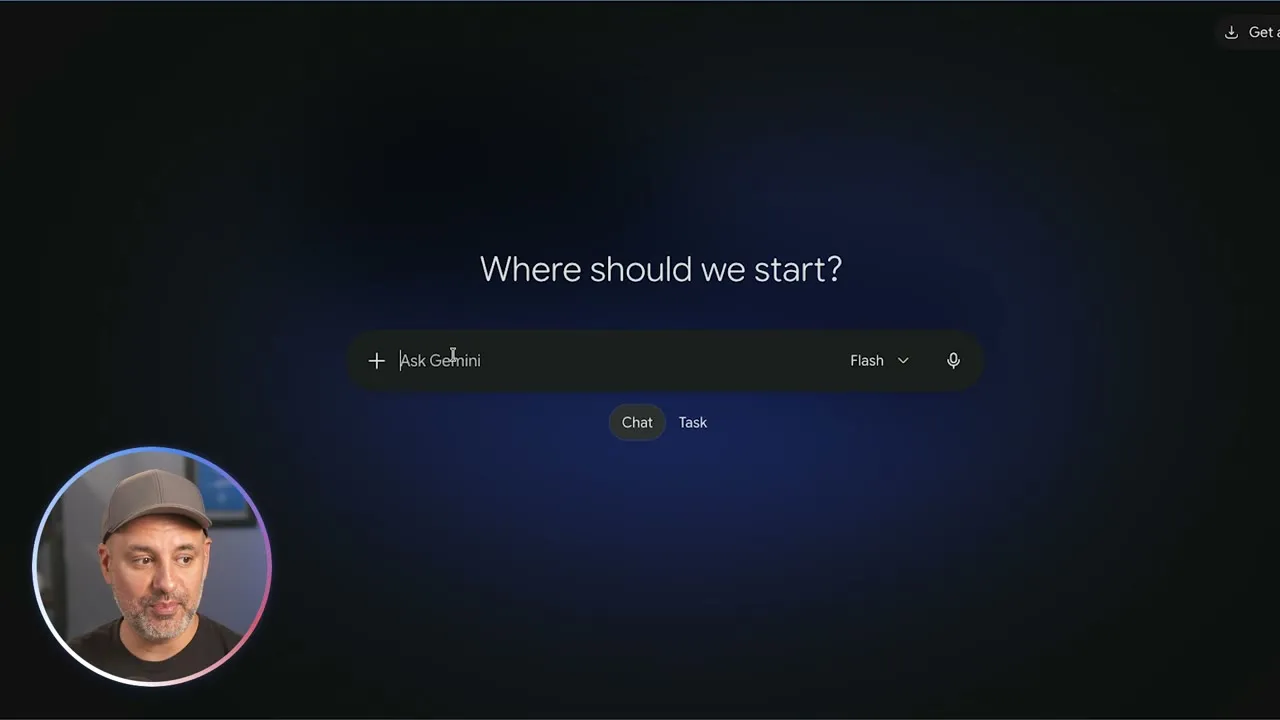
Everything here works on the free plan except two things: one of the Gemini 4 models, and Task mode. Those need a paid plan of about $20 a month or higher.
Write prompts with the task, details, format formula
The same formula works in Gemini, ChatGPT and Claude:
- Task. Tell it what you need.
- Details. Give it what a person would need to know to do that job.
- Format. Say how you want the answer to come back.
Here is the prompt for a follow-up email on a roofing estimate. “Write a short, friendly follow up email” is the task. The estimate and the customer are the details. The last sentences are the format.
Write a short, friendly follow up email to Karen Delgado. We sent her a $14,200 estimate for a full roof replacement last Tuesday and haven't heard back. Ask if she has any questions, mention we have an opening next week, and offer to walk the roof with her. Keep it under 120 words.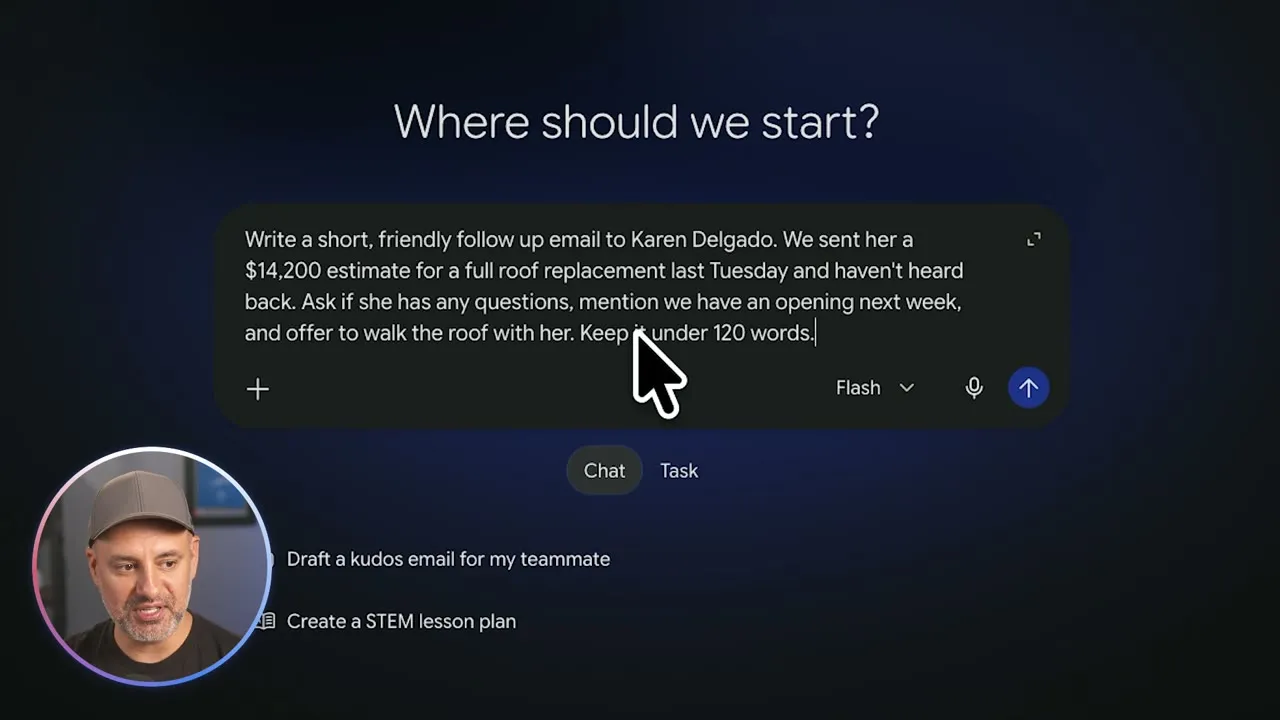
If the answer isn’t quite right, ask for a change in the same chat:
Make it a little more casual.Put your business in a Gemini notebook
In a regular chat you have to explain your business every time. You can press the plus sign and upload files, but Gemini only knows them in that one chat. A notebook fixes that.
- In the sidebar, choose New notebook, then Get started.
- Give the notebook a name, such as “Harbor Point Roofing”.
- Click Add sources. You can upload files, add from Google Drive, add websites, or paste copied text.
- Open Notebook settings at the top and fill in Instructions: who you are, what is in the sources, and the kind of answer you want.
You're helping me run Harbor Point Roofing, a 12 person residential roofing company. Use our price sheet for every price, always show the math, and keep emails friendly and under 120 words.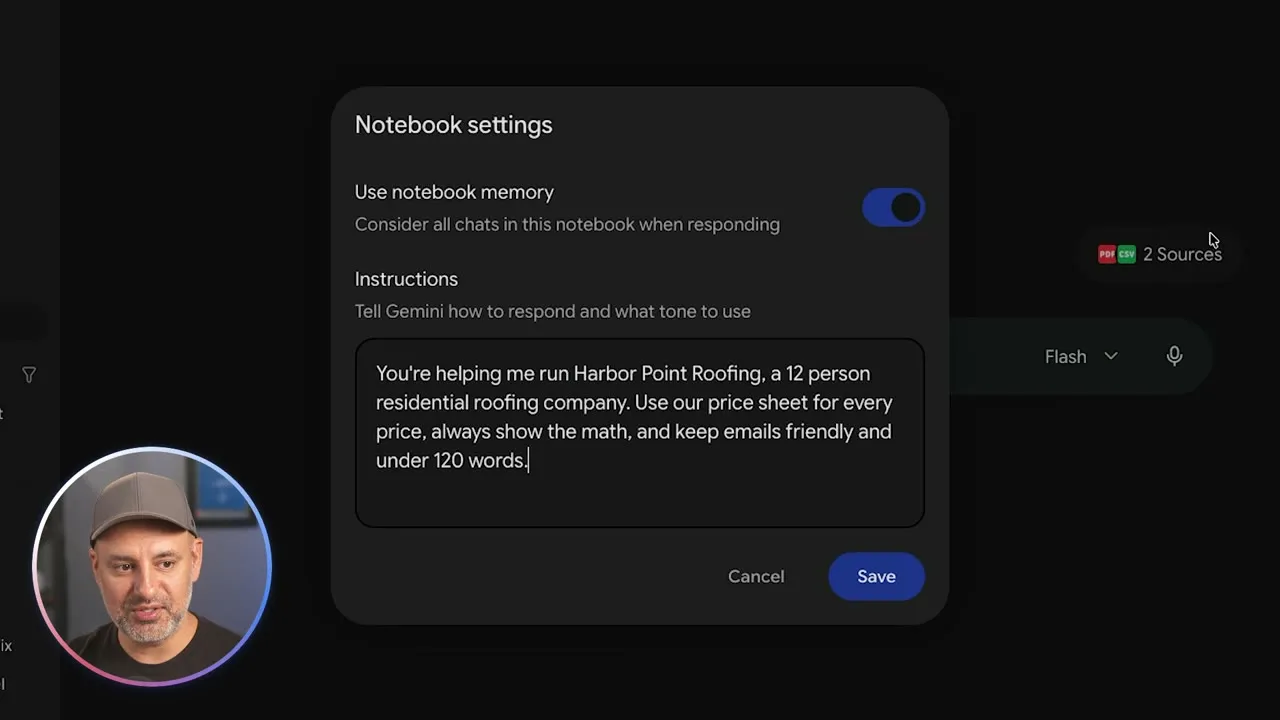
Now every chat inside this notebook can pull from those sources and follows those instructions. A question no longer needs the formula:
Which open estimates have gone more than 14 days since we last talked to the customer, and what are they worth in total?Get a full report with Deep Research
Ask Gemini any question and it will usually search the web. Deep Research is a different mode: it goes through hundreds of sources and gives you a full report instead of a chat reply.
- Press the plus sign, open More tools and choose Deep research.
- Type what you want researched, with some context about your business.
- Gemini shows a research plan first. Press Start research when you are happy with it.
- Wait. It typically takes five to ten minutes.
Compare the three most popular estimating and customer management software tools for a residential roofing company with 12 employees. For each one, give me the monthly price, what's included, and one drawback. Put it in a table.The report comes back with a side-by-side comparison table and, at the bottom, the websites it used.
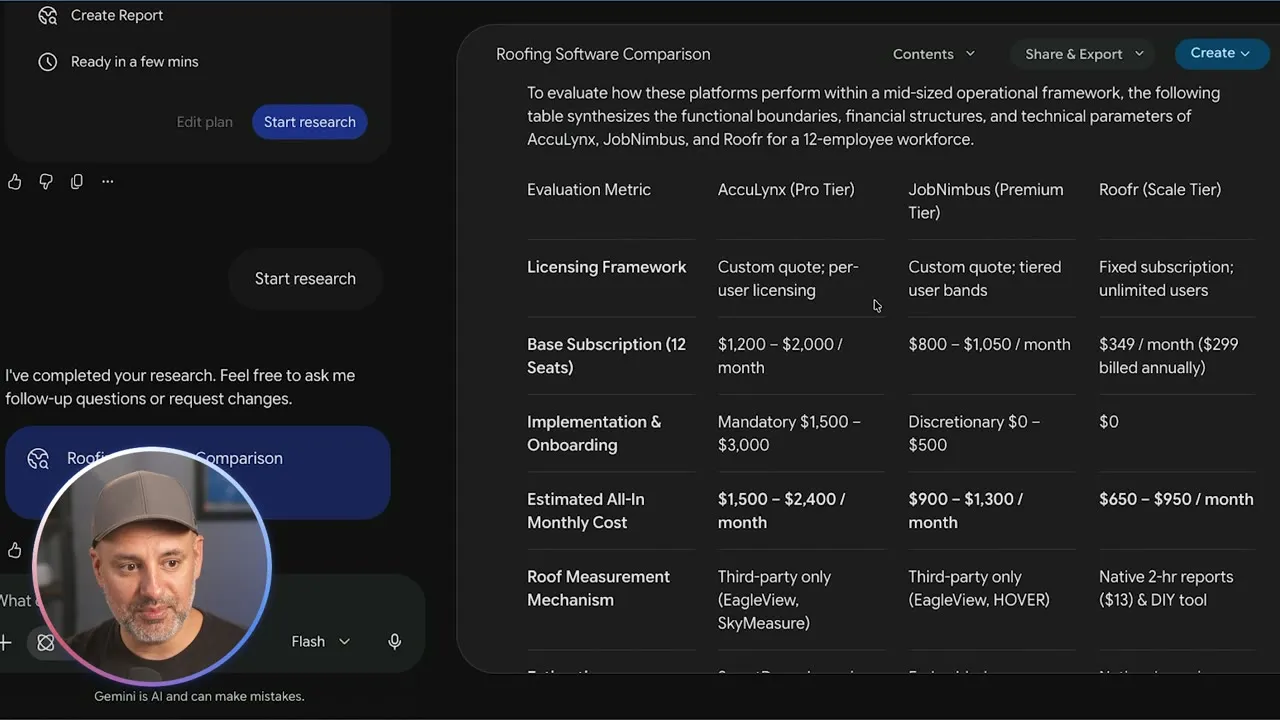
The Create button at the top of the report can turn it into an infographic, a web page, or an Audio Overview, which is an AI-generated podcast that walks you through the report. You can also share and export it.
Build a tool with Canvas
Canvas lets you create things inside Gemini: slides, and also small apps and tools.
- Press the plus sign and choose Canvas.
- Describe the tool you want and what it should include.
Build a roof replacement quote calculator for Harbor Point Roofing. Let me enter the number of squares, with an option to add tear off. Charge $450 per square, add $75 per square for tear off, add a $350 permit fee to every job, and show the total.Gemini builds a working calculator in the chat. You can open it full screen and use it: enter the squares, tick tear-off, and the total updates. This one also has buttons to copy the estimate summary and to print or save it as a PDF.
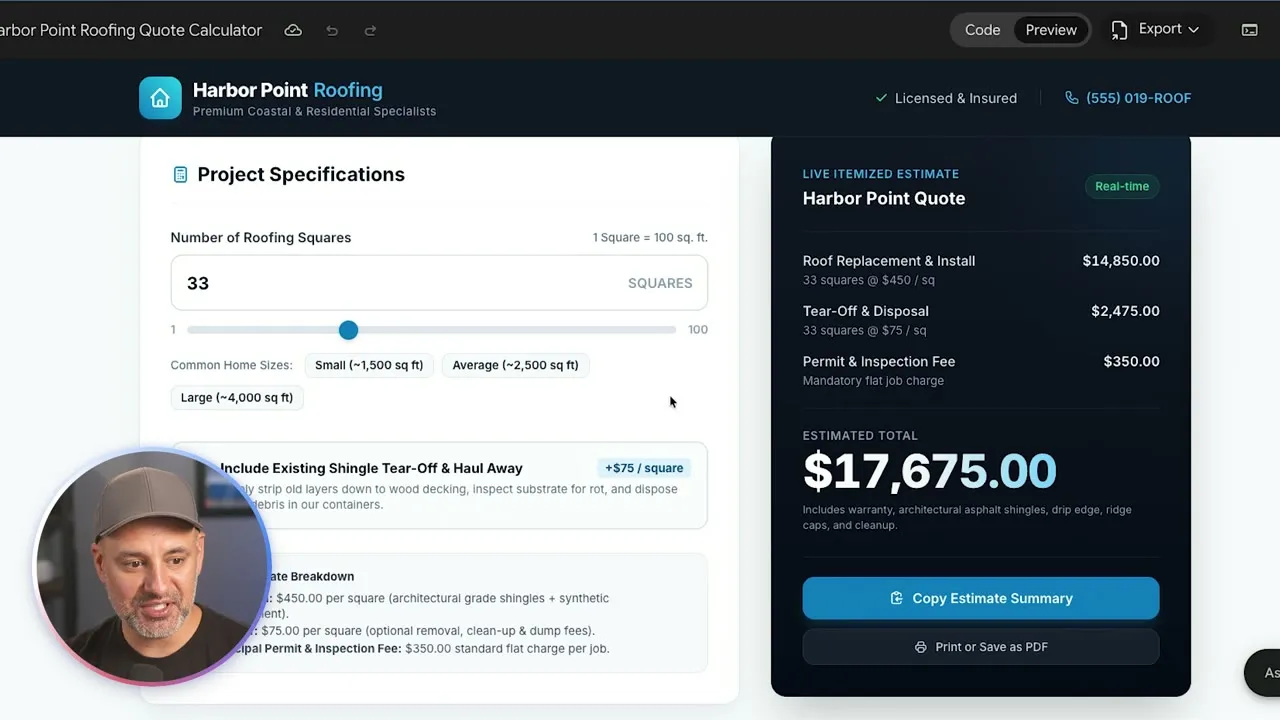
Press Share & export at the top to create a link, so anyone on your team can use the tool you built.
Create a skill so Gemini remembers how you work
A skill is a set of instructions that Gemini saves once and then uses on its own, in any chat where it is relevant. Gemini used to have Gems; skills are replacing them.
- Click the settings icon and open the Skills tab.
- Press Create. There are three ways: Create with Gemini, Create manually, or Upload a skill file someone gave you.
- Choose Create with Gemini and describe the skill. Gemini asks a few questions to shape it.
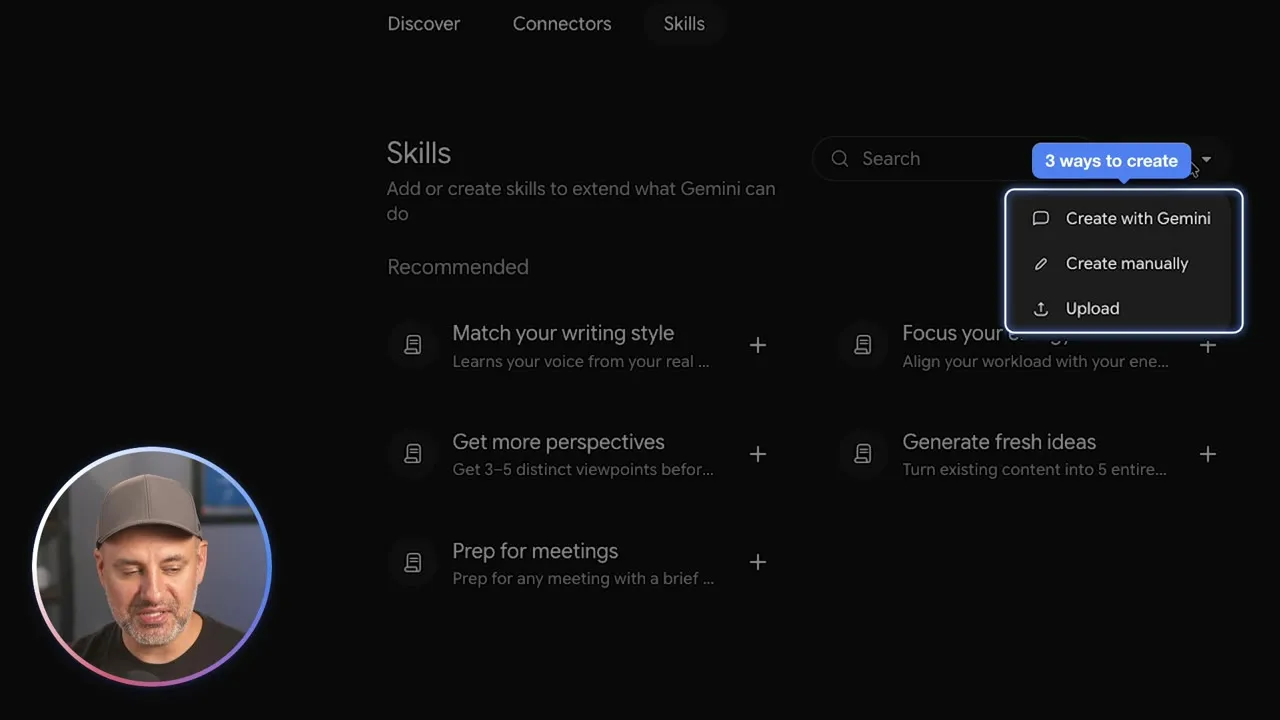
Create a skill that writes estimate follow up emails for Harbor Point Roofing. Keep them under 100 words, mention the customer's estimate amount, offer to walk the roof with them, and sign off as Mike, Harbor Point Roofing.The skill now shows under Installed. From its three-dot menu you can use it right away, edit it with Gemini, or download it to share with someone else.
You don’t have to call a skill by name. In a new chat, a prompt that fits the skill is enough:
Write a follow up for Tom Brennan. His estimate is $9,400 for a roof replacement, and we last talked 18 days ago.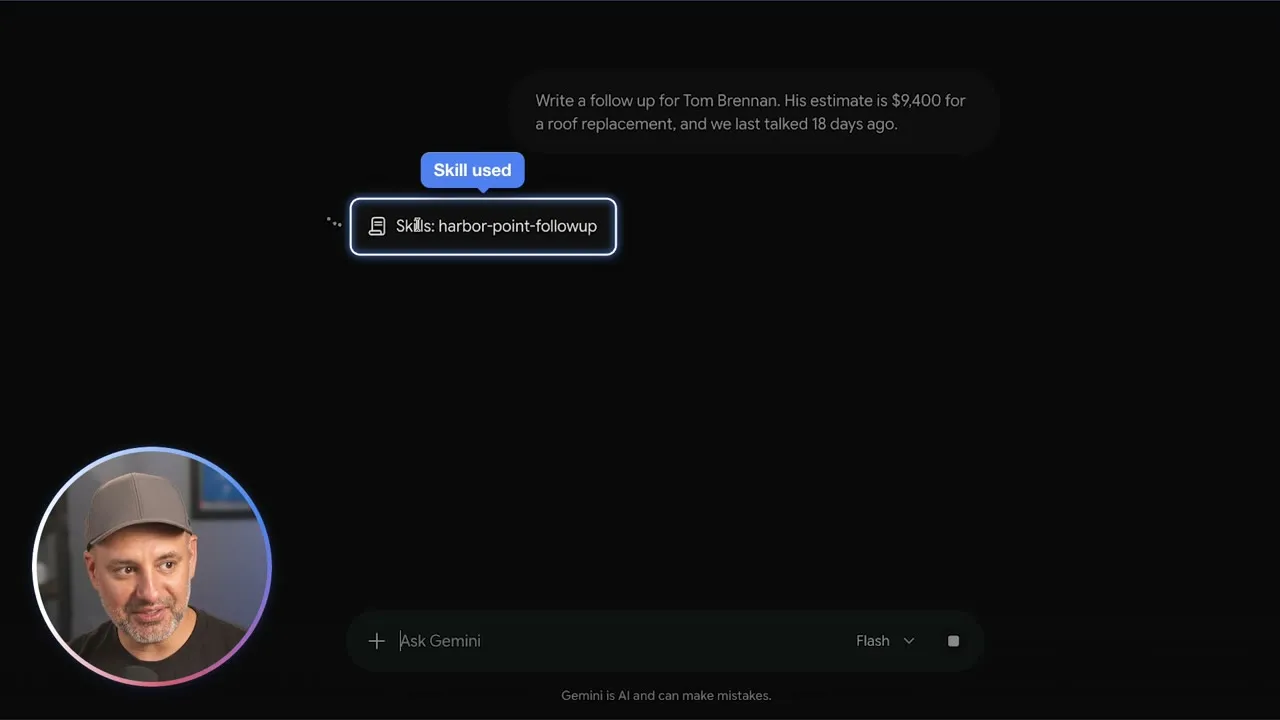
You can have dozens of skills, one for each kind of work you repeat, and Gemini picks the right one for the prompt.
Connect Gmail and Calendar
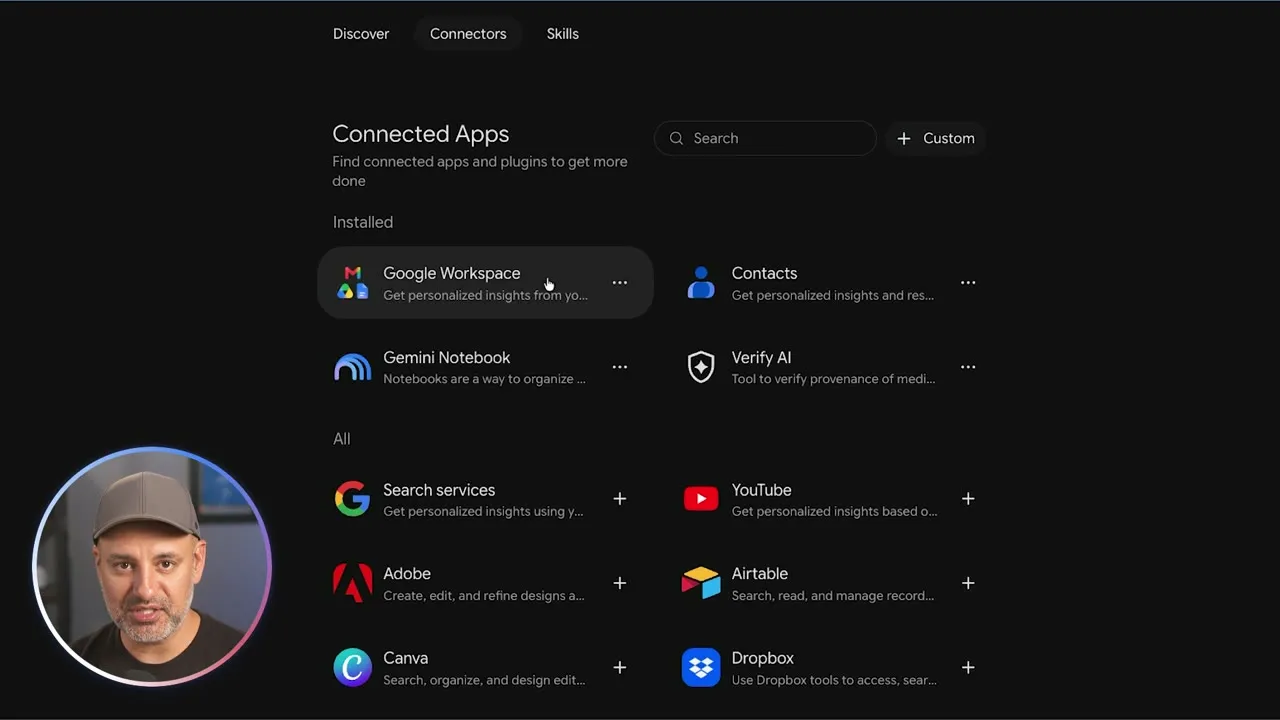
Next to Skills in settings there is a Connectors tab. A connector lets Gemini reach the apps you use outside Gemini. Connect Google Workspace and Gemini can pull information from your Gmail and your calendar without you copying anything over.
Hand off a job with Task mode
Under the prompt box, next to Chat, there is Task. Task mode works differently from a regular chat: you hand Gemini a job and it does the work across your connected apps.
Task mode needs a paid plan, and for now it only works on a personal Google account, not a work account.
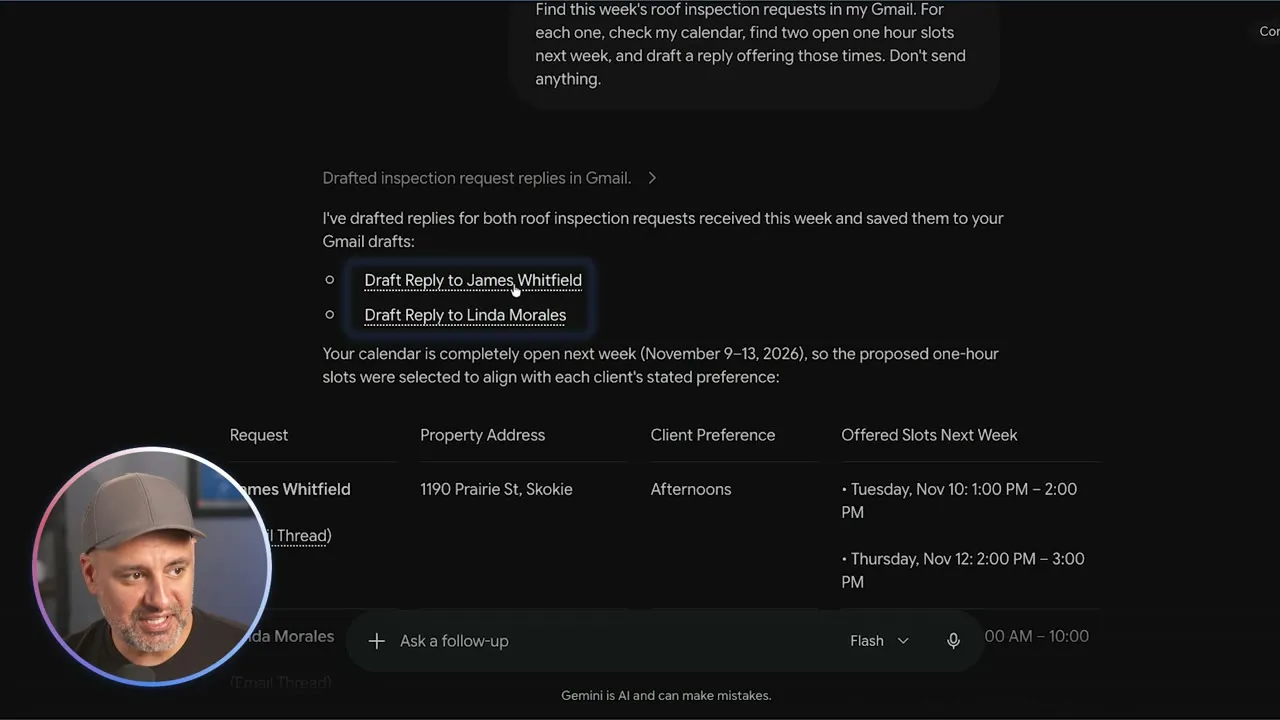
Find this week's roof inspection requests in my Gmail. For each one, check my calendar, find two open one hour slots next week, and draft a reply offering those times. Don't send anything.Gemini reads the requests, checks the calendar and writes the replies. They are not just shown in the chat. Each one is saved in your Gmail drafts, ready to send, with the open times filled in.
Create an image
Press the plus sign and choose Create image. Gemini shows some example styles, but you can just type a prompt. Use the plus sign to upload a reference photo, such as a picture of yourself, and change the aspect ratio to get the size you need. With a paid plan Gemini can also create videos.
Create a YouTube thumbnail for a video on how to use Gemini.Pick the right model
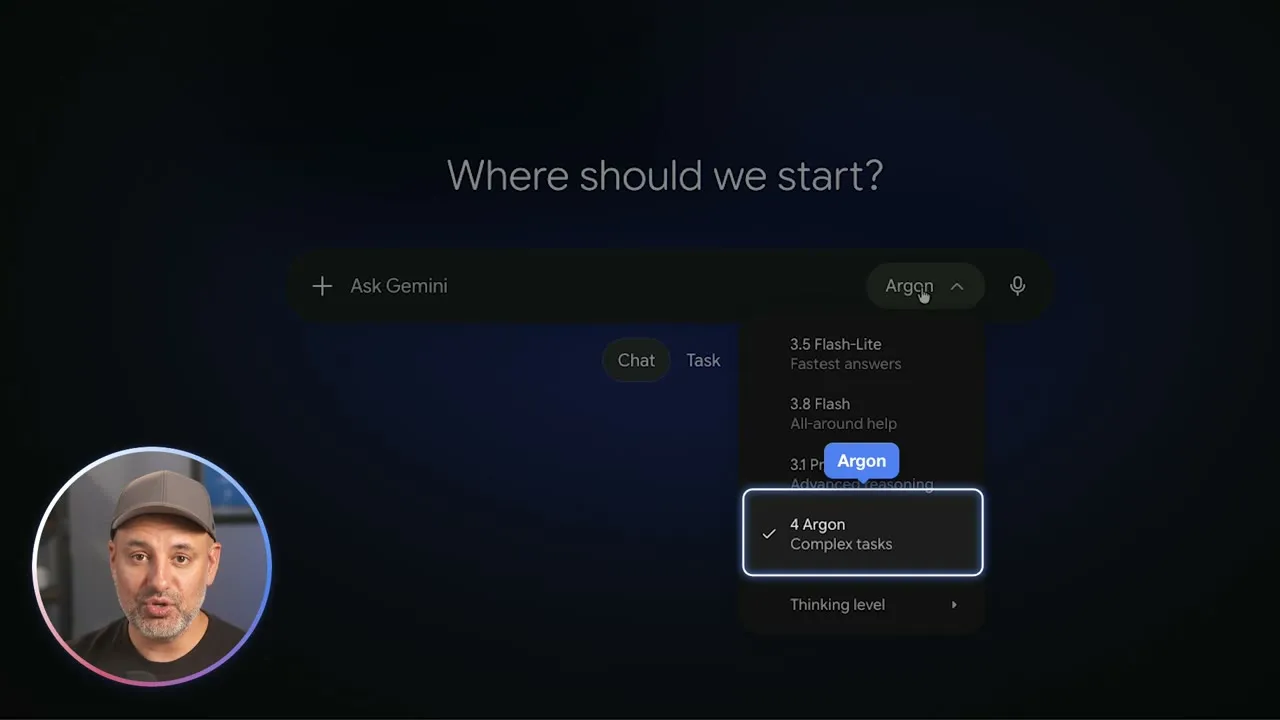
The drop-down in the prompt box chooses the model that runs Gemini. What you see there depends on your account; on some accounts you may only see an automatic mode.
- Flash gives quick answers and is fine for most of what is in this guide.
- Argon, the Gemini 4 model, is for complex jobs, such as building the quote calculator or analyzing a CSV file full of numbers. Without a paid plan you won’t see some of these models.
- Thinking level can be set to High. It takes far longer to answer, and you almost always get a better result.
Common questions
Is Google Gemini free to use?
Almost everything in this guide works on the free plan. Two things need a paid plan of about $20 a month or higher, one of the Gemini 4 models and Task mode.
What is a Gemini notebook?
A notebook is a place to keep one project's files and instructions. Every chat you start inside it can read those sources, so you don't have to explain your business again. It is similar to projects in other AI chat apps.
What is the difference between Gems and skills in Gemini?
Gemini used to have Gems, and skills are replacing them. A skill is a set of instructions Gemini saves once and then uses on its own in any chat where it applies, without you switching anything.
How long does Gemini Deep Research take?
Typically five to ten minutes. Gemini shows you its research plan first and only starts when you press Start research.
Does Gemini Task mode work with a work Google account?
Not yet. In the video, Task mode needs a paid plan and only works on a personal Google account.
Which Gemini model should I use?
Flash gives quick answers and is fine for most things. For complex jobs, such as building a calculator or analyzing a file full of numbers, switch to the Argon model if your plan shows it, and set the thinking level to High. It takes longer and usually gives a better answer.
Google Gemini at Work
A free guide to using Gemini at work.
Google Gemini at Work
A free guide to using Gemini at work.
Get the free guide